
Knowledge Base
Multitenancy
Last Modified: Jul 29, 2026
Multitenancy enables organizations to securely connect and manage multiple companies within a single structure. This setup is ideal for organizations with subsidiaries or partners that require shared access while maintaining separate data and permissions. With multitenancy, a parent company can invite child companies, assign tenant managers, and manage access across organizations.
This article applies to TeamViewer Tensor, Tensor Access, TeamViewer ONE Standard, Advanced, and Enterprise license holders.
Note: Multitenancy is available only in the TeamViewer web client. It is not available in the TeamViewer client.
The multitenancy setup is not shared between Management Console (Tensor Classic) and TeamViewer Tensor. To use multitenancy across both products simultaneously, you must configure it separately in each instance.
A Parent Company can grant its users access to connected Child Companies as Tenant Managers. The Child Company remains in control of the permissions assigned to these users. Once access is granted, Tenant Managers can use features within the Child Company according to their assigned roles and permissions, similarly to internal company users.
Requirements - Supported license combinations
For Parent Companies:
Multitenancy is included with:
- Any TeamViewer Tensor license
- TeamViewer ONE Standard, Advanced or Enterprise (no add-on required)
For Child Companies:
- Any TeamViewer license that supports company creation can be used, except TeamViewer Business license.
Note: This information applies specifically to the licenses required for multitenancy. It does not take Conditional Access, license split or other features into account that may be also used in a multitenancy scenario.
For Tenant Managers:
- Any user from the parent company who is assigned a TeamViewer Tensor or TeamViewer ONE license, can be selected as a Tenant Manager for a child company.
Currently, Tenant Managers consume a license in both the parent and child companies. Therefore, although a multitenancy relation can be established with a company using a TeamViewer Business license, a Tenant Manager cannot be added because the Business license provides only one user slot.
How to set up your multitenancy organization
Parent companies should create the invitation and share it with the child companies.
Once the information is added by the child company, the parent company can review the request and establish the relation.
Step 1: Create an invitation (parent company)
- Click on Create invitation (via Admin settings as shown below).
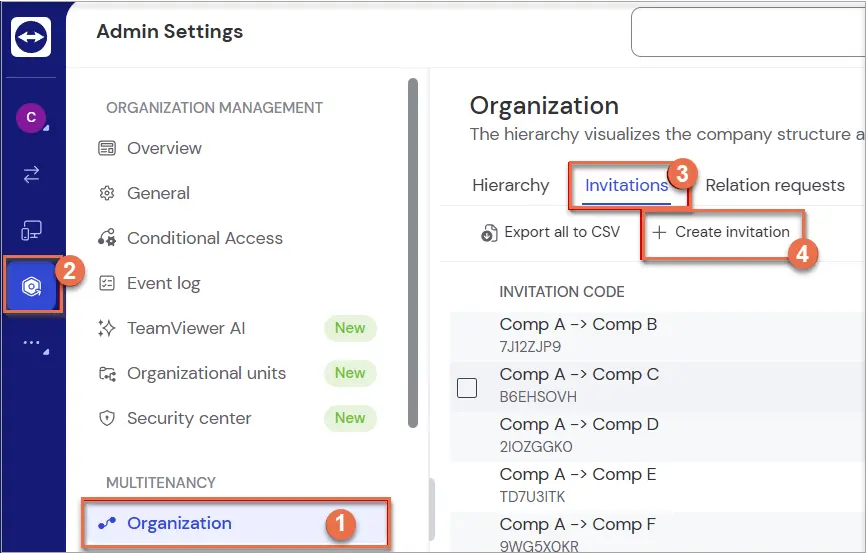
2. Choose the code type; one-time use or reusable.
3. Set the Expiration time.
4. Optional: You can select up to 10 users to associate as tenant managers. You can also add them after the relation is established.
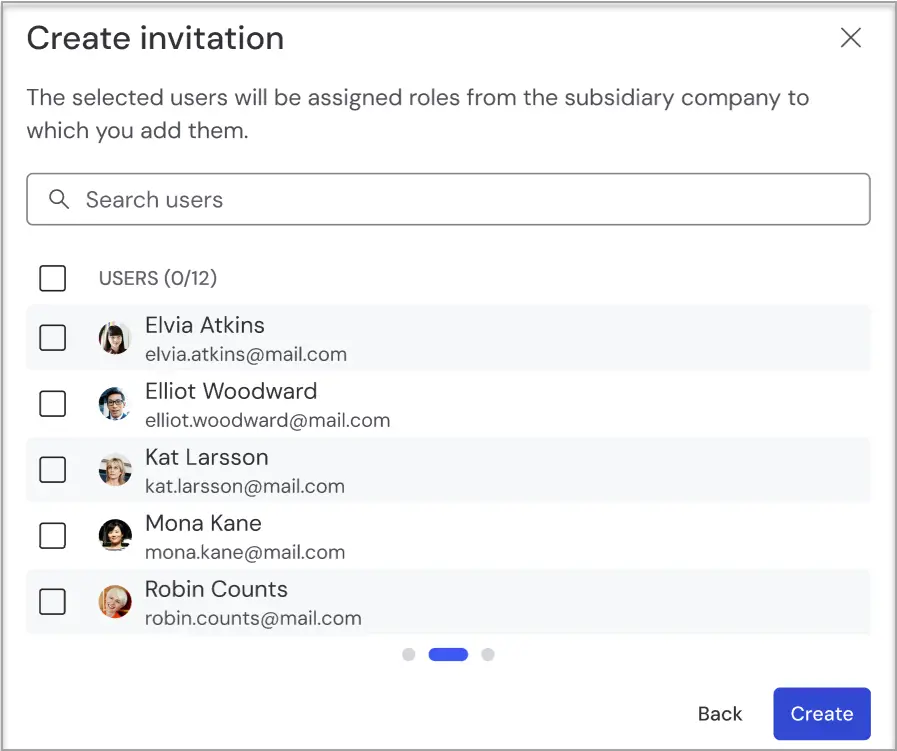
5. Share the invitation code and any of your company administrator email with the child company via their preferred method.
Step 2: Join the organization (child company) by creating a relation request
1. Go to the Relation requests tab (via Admin settings as shown below).
2. Click on Join.
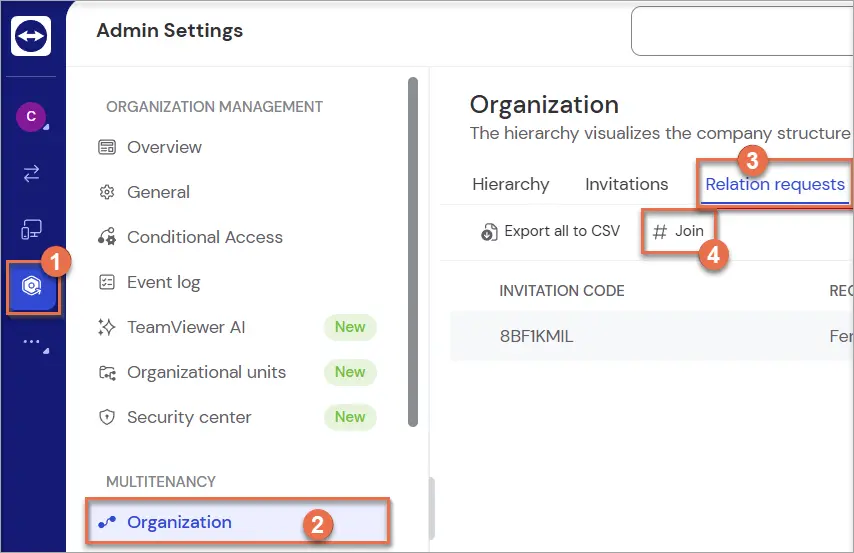
3. Enter the Invitation Code provided and any parent company administrator's address:
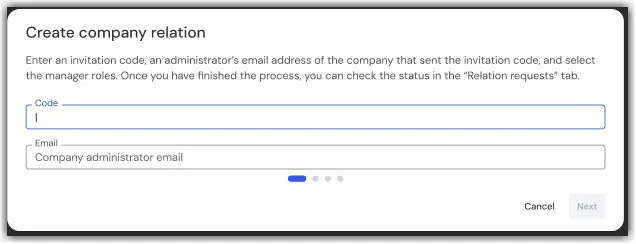
4. Check the acknowledgment box.

5. (If tenant managers were assigned) Set their roles.
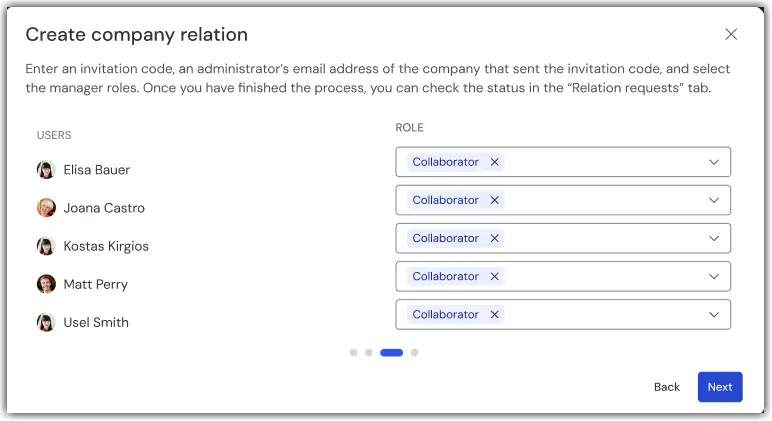
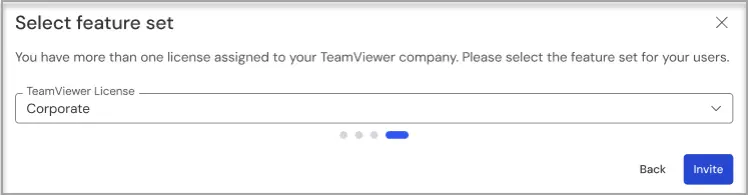
6. Optional: If you have more than one license feature, you need to choose which one you would like to assign to these users:
Step 3: Review and approve the request (parent company)
- Go to the Invitations tab.
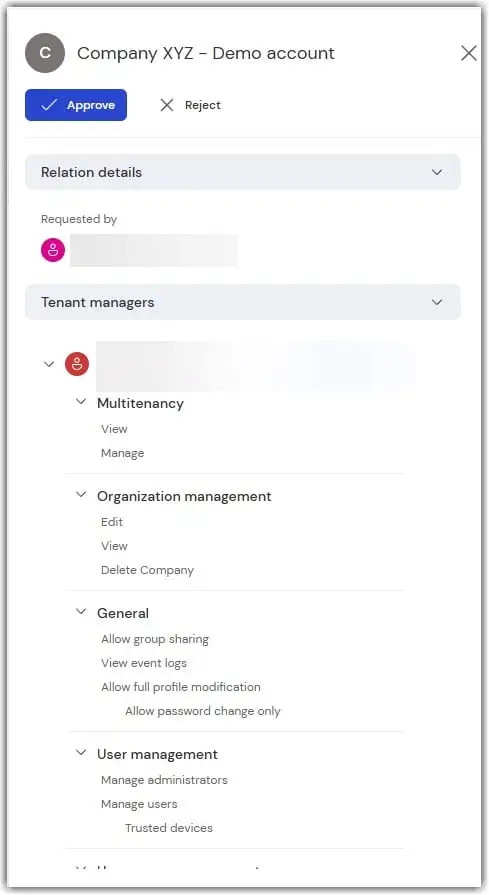
- Select the request and click Review request.
- Review assigned permissions.
- Click Approve or Reject.
How to manage your multitenancy organization
Revoke a pending invitation (parent)
This is only possible if the invitation code is still active. Once revoked, the invitation code becomes invalid and cannot be used again.
Revoke a pending relation request (child)
If the child company decides not to proceed, it can revoke the request. A pending request can be revoked, canceling the request to join the parent organization. Once the relationship is established, the company can terminate it in the Hierarchy tab.
Terminate a relation (parent or child)
Either the parent or child company can terminate an existing multitenancy relation at any time. Once the relation is terminated, the companies are no longer connected, and all tenant manager access granted through the relation is removed from the child company. If the companies want to reconnect in the future, they must create a new invitation and complete the multitenancy setup process again.
To terminate a multitenancy relation, follow these steps:
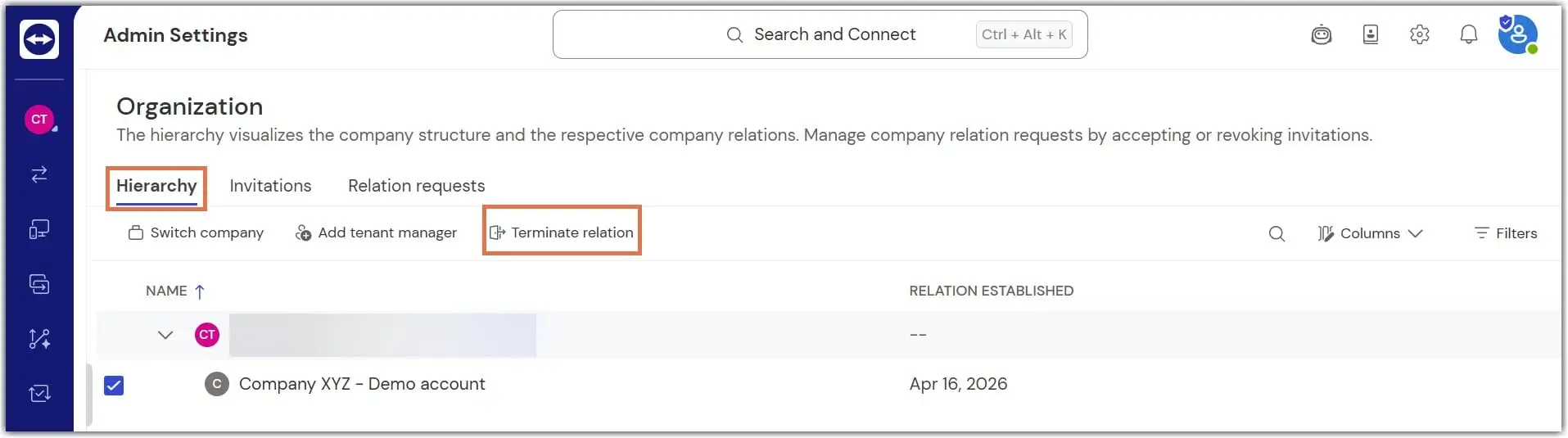
- Go to the Hierarchy tab.
- Select the company.
- Click Terminate relation.
- Confirm by clicking Terminate.
Note: To re-establish a terminated relation, repeat the full setup process.
Request to add tenant managers (parent)
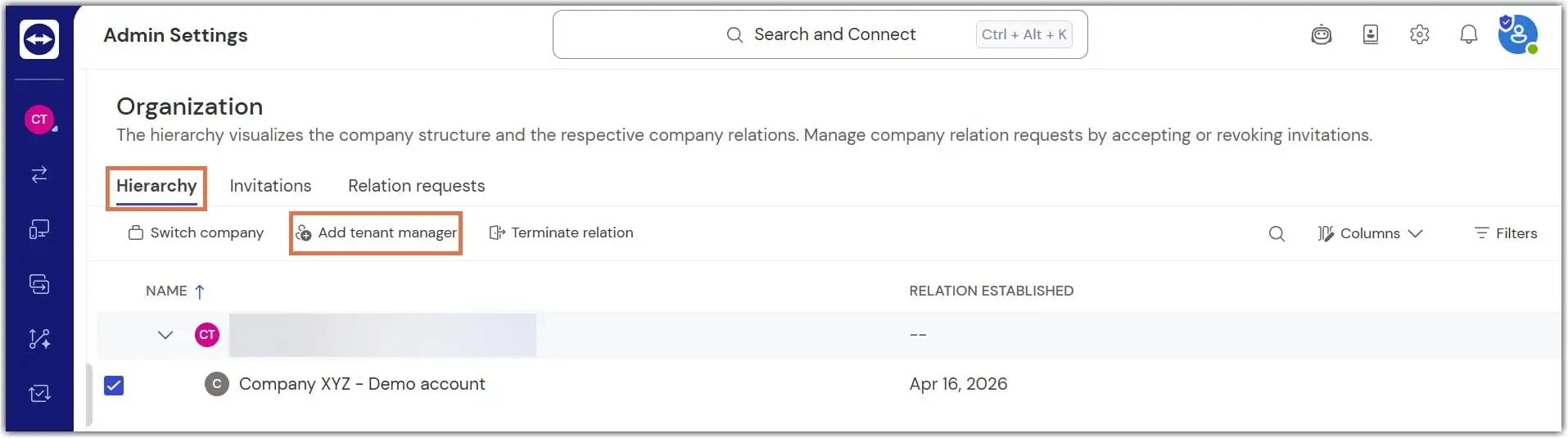
- Go to the Hierarchy tab.
- Select the child company.
- Click Add tenant managers.
- Choose users (only those not already added or pending) and click Add tenant manager.
- The child company will review the request in Pending requests.
Approve or decline tenant manager requests (child)
- Go to Pending requests under User management.
- Click Accept or Decline for each request.
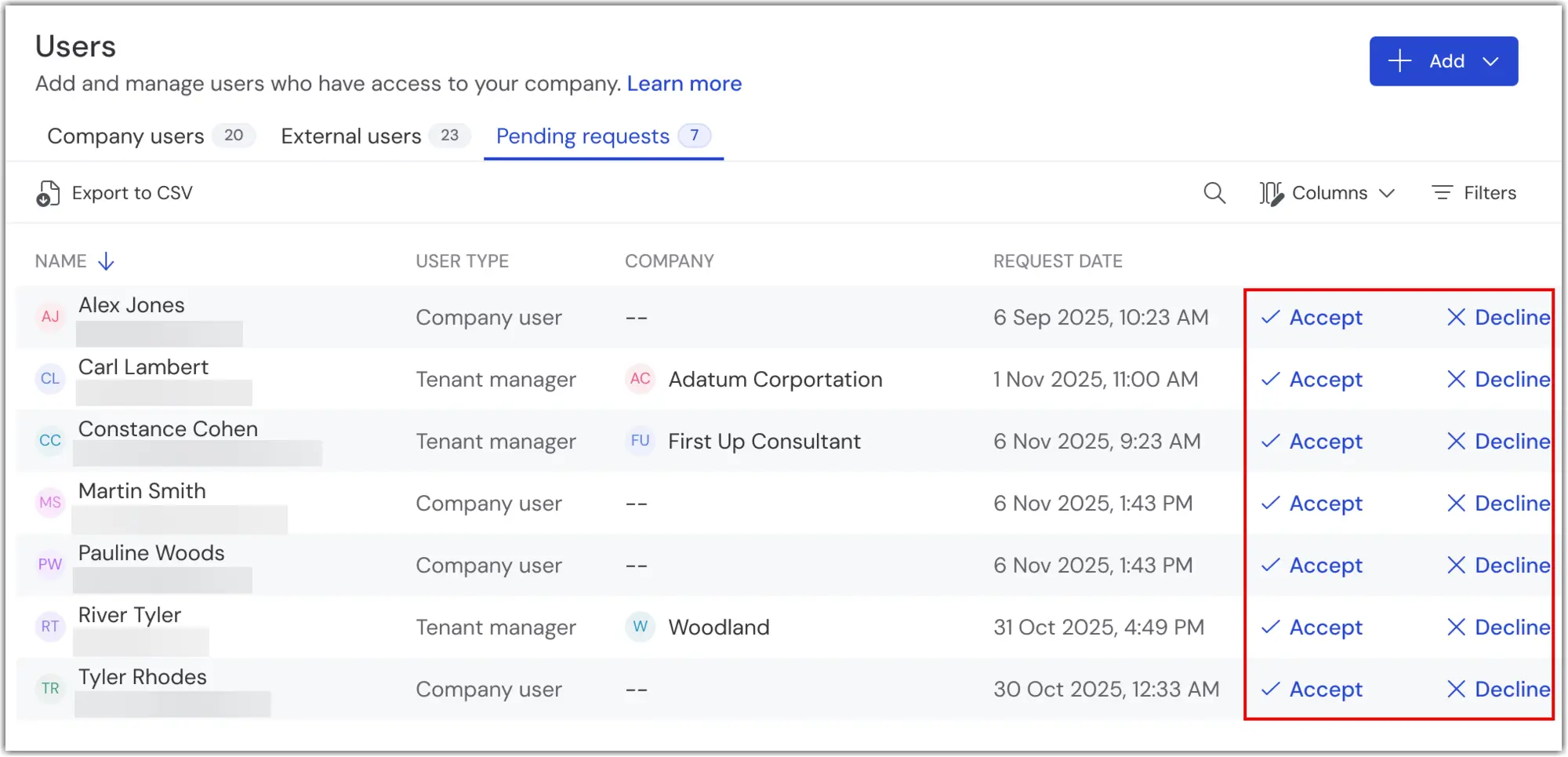
Note: Bulk actions are not supported.
Remove tenant manager access
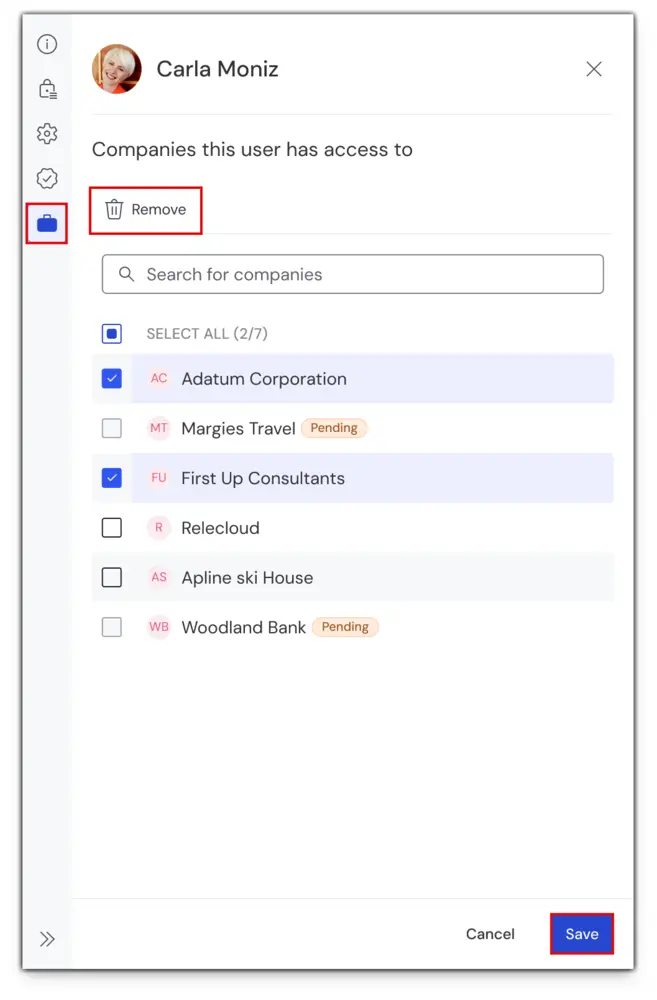
For Parent Company:
- Go to Company users.
- See user details.
- Remove access under Multitenancy.
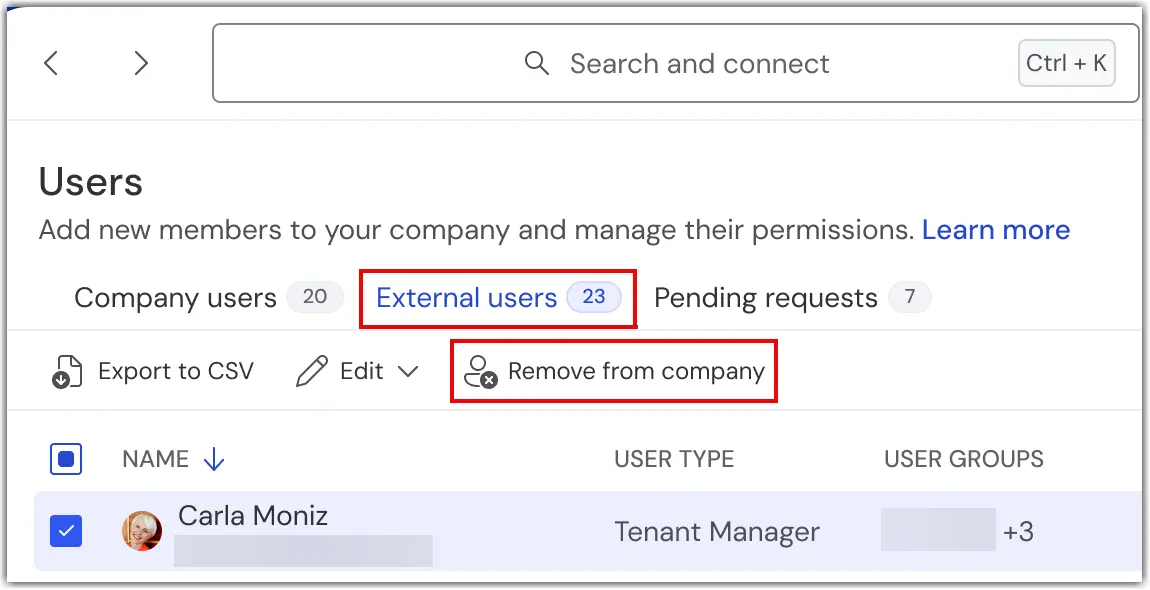
For Child Company:
- Go to External users.
- Select one or more Tenant Managers.
- Click on Remove from company.
- Confirm by selecting the checkbox and clicking on Remove.
Note: You can remove access for multiple Tenant Managers at the same time.
Use the tenant switcher
Tenant managers can switch between companies they have access to using the Tenant switcher. This includes their own company and any connected ones.

Auditability and event logs for multitenancy
Multitenancy management actions are logged for audit and compliance purposes.
Event logs are available for both parent and child tenants and help administrators track configuration and management changes.
- All multitenancy-related actions are recorded in the Event Log
- Multitenancy events use Event type = Multitenancy
To review these events, open the Event Log and apply the appropriate filters.
Multitenancy interactive demo
Explore multitenancy in action with an interactive, step‑by‑step demo.
The Multitenancy Demo shows how multitenancy is structured and managed, helping you understand the relations between parent and child tenants.