Your business network is the central nervous system of your operations, and your router is its gatekeeper. Yet, this critical piece of hardware is often overlooked in routine security audits, leaving it vulnerable to threats that could compromise your entire infrastructure. An outdated router is an open invitation for cyberattacks, creating a weak link that can undermine even the most robust security protocols.
Every connection, every file transfer, and every remote session depends on the integrity of your network's foundation. Neglecting a simple firmware update can have cascading consequences, from data breaches to significant operational downtime.
This is why knowing precisely how to update your router's firmware is a fundamental skill that directly impacts your organization's security posture and resilience. Fortunately, the process is straightforward and is one of the most effective security actions you can take. We show you how it's done.
In this article:

Why router firmware updates are critical for enterprise security
The firmware on your wireless router is essentially its operating system. It’s the software embedded in the hardware that controls how the device functions, from routing traffic to managing security settings. Manufacturers regularly release updates to this firmware not just to add new features, but more importantly, to patch security vulnerabilities that have been discovered since the device was released. Cybercriminals actively scan networks for routers with known, unpatched exploits.
The security risks of outdated firmware
For any business, the consequences of a compromised router are severe. An attacker who gains control of your router can intercept sensitive data, redirect your team to malicious websites, launch denial-of-service attacks, or use your network as a launchpad for further attacks. This puts company data, customer information, and intellectual property at risk. Regular firmware updates are your first and most effective line of defense against these specific threats, closing the security holes before they can be exploited.
Performance benefits beyond security
Beyond patching critical vulnerabilities, firmware updates often include significant performance improvements. These can enhance Wi-Fi speed, increase connection stability, and improve the router's ability to handle a high volume of network traffic—a common scenario in a busy office or with a large remote workforce. By keeping your firmware updated, you ensure your network infrastructure runs at peak efficiency, preventing bottlenecks and supporting the productivity tools your team relies on.
Compliance and industry best practices
Maintaining up-to-date firmware is also a matter of compliance and best practice. Many industry regulations and cybersecurity frameworks require organizations to have a process for regularly patching and updating all network hardware. Demonstrating that you are diligent about firmware updates shows a commitment to security and can be a crucial factor in security audits. It reinforces the integrity of your entire IT ecosystem, from the network edge to the endpoint devices managed with secure remote access and support.
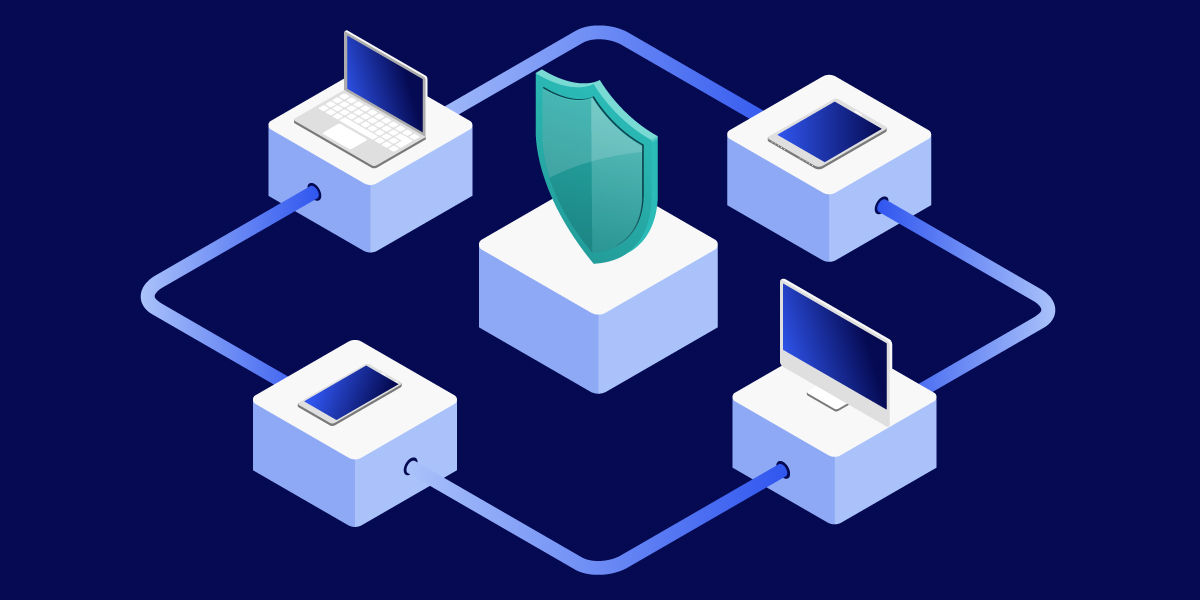
A general step-by-step guide on how to update your router's firmware
Updating your router’s firmware may sound technical, but the process is straightforward if you follow a clear sequence of steps.
Step 1: Back up your router settings
Before beginning any firmware update, it's essential to prepare. First, back up your router’s current configuration settings. This file contains your custom settings, including your network name (SSID), password, port forwarding rules, and access controls. If the update process fails or resets the router to factory defaults, you can quickly restore your settings from this backup file, saving significant time and preventing network disruption.
Step 2: Access the router’s admin interface
The most common way to update a router is through its web-based administration interface. To access this, connect a computer to the router's network, preferably using an Ethernet cable for a stable connection. Open a web browser and enter the router’s IP address (commonly 192.168.1.1 or 192.168.0.1) into the address bar. You will be prompted for a username and password, which can be found on a sticker on the router itself or in its manual if you haven't changed them.
Step 3: Locate the firmware update option
Once logged in, navigate to the administration, advanced, or maintenance section of the interface. Look for an option labeled "Firmware Update," "Router Update," or something similar.
Step 4: Use automatic update if available
Many modern routers have an automatic update feature that can check for, download, and install the latest firmware version with a single click. If available, this is the simplest and recommended method. The router will handle the entire process, rebooting itself once the update is complete.
Step 5: Download and install firmware manually if needed
If your router doesn't support automatic updates or if you need to perform a manual installation, you'll need to find the correct firmware file yourself. Visit the support section of the manufacturer's website and locate the product page for your specific router model. Here you will find the latest router firmware download file. Ensure you download the correct file for your exact model number and hardware version to avoid bricking the device. Then, return to the firmware update page in the router's admin interface, select the downloaded file from your computer, and begin the update. Do not unplug or turn off the router during this process.

How to update firmware for specific brands and ISP-provided routers
While the general process is similar, the exact steps can vary between manufacturers.
Updating NETGEAR router firmware
For those asking how to update NETGEAR router firmware, you would typically log in to the router's admin panel via routerlogin.net, navigate to "Advanced," then "Administration," and click "Firmware Update." NETGEAR's interface will automatically check for a new version, and you can proceed with one click.
Updating TP-Link router firmware
Similarly, to update TP-link router firmware, you access the admin panel via tplinkwifi.net, go to "Advanced," then "System Tools," and find the "Firmware Upgrade" section to either check online or upload a downloaded file.
Updating ISP-provided routers (Xfinity, AT&T, and others)
Routers provided by internet service providers (ISPs) often have a different update process. For instance, if you need to know how to update router firmware from Xfinity or how to update AT&T router firmware, the process is typically automated. ISPs manage the firmware on their leased equipment remotely to ensure network stability and security. These updates are pushed out automatically during off-peak hours without requiring any user intervention. You generally cannot manually update the firmware on these devices.
Understanding modem vs. router firmware updates
A common question is how to update modem firmware versus router firmware. If you have a separate modem and router, remember they are two distinct devices. The modem's firmware is almost always managed by your ISP. The router, if you purchased it yourself, is your responsibility to update. For combination modem-router gateways provided by your ISP, the firmware management falls under their control, just like a standalone modem. Always check with your provider if you are unsure.
Updating router firmware without internet access
In rare situations, you might need to know how to update router firmware without internet access, such as when setting up a new network or recovering a device. This requires a manual update. You would need to use another internet-connected device to visit the manufacturer's website, find your specific router model, and download the firmware file onto a storage device like a USB drive. You can then connect a computer directly to the router, access its admin panel, and upload the firmware file from the USB drive to complete the update.
A secure network is the foundation of your digital workplace
We've walked through the essential steps and reasons for keeping your router’s firmware up to date. From understanding its role as your network's operating system to executing the update process for specific brands, it's clear that this is not a task to be overlooked. It's a fundamental practice that directly hardens your defenses against a wide array of cyber threats.
Regularly asking "how to update my router's firmware" and acting on it protects your organization from data breaches, enhances network performance, and ensures compliance with security standards. This proactive maintenance is the bedrock upon which a secure and efficient digital workplace is built. It ensures the reliability of every connection, safeguarding the tools your teams use for effortless collaboration and remote access.