• Contact sales
    • Open web app
    • Management Console
    • Ticket
    • Customer Portal
TeamViewer
  • Personal use and SMB TeamViewer Remote

    Fast and secure remote access and IT support.

    Learn more

    • Remote support Deliver instant, secure support
    • Remote management Monitor and manage devices
    View plans and pricing

    Enterprise TeamViewer Tensor

    Remote connectivity built for secure operations.

    Learn more

    • Remote IT support Secure, flexible, integrated
    • Operational technology Remote shop floor access

    Real-time troubleshooting TeamViewer DEX

    Resolve issues before they affect users.

    Learn more

    • Endpoint Troubleshooting Identify and resolve issues
    • Endpoint Automation Automate routine IT tasks

    Connected worker TeamViewer Frontline

    Drive efficiency with industrial augumented reality.

    Learn more

    • Logistics and warehousing Hands-free material handling
    • Training and onboarding Fast onboarding and upskilling
    AI capabilities as seen in the TeamViewer client

    TeamViewer ONE

    Get the full power of TeamViewer, unified in one platform.

    • Learn more

    Key integrations

    • Microsoft Intune

    • ServiceNow

    • Freshworks

    • Jira

    • Salesforce

    • Slack

    • Microsoft Teams

    View all integrations
  • TeamViewer ONE Platform

    Proactively manage and optimize your digital workplace combined in one platform.

    • For lean IT teams Proactive device management
    • Frictionless experience Smooth and uninterrupted digital experience
    • Seamless IT operations Proactive remediations and exceptional service
    • Talk to our team Ready to transform?
    Explore the platform

    Core capabilities

    • TeamViewer AI
    • Digital Employee Experience
    • Remote support and control
    • Asset and patch management
    View all capabilities

    Gartner Report 2026

    TeamViewer named a leader in DEX

    TeamViewer named a Leader in 2026 Gartner® Magic Quadrant™ DEX tools.

    Key integrations

    • Microsoft Intune

    • ServiceNow

    • Freshworks

    • Jira

    • Salesforce

    • Zendesk

    • Slack

    • Microsoft Teams

    View all integrations
  • Popular use cases Most popular TeamViewer use cases

    • Remote access and support Manage people, devices, and applications – from anywhere.
    • Digital employee experience (DEX) Proactively solve IT issues before they impact productivity.

    Other use cases Popular solutions for further use cases

    • Remote access Improve access with secure connection
    • Remote control Control device platform-independent
    • Remote desktop Enhance productivity from anywhere
    • Wake-on-LAN Enable remote device activation
    • Screen sharing Real-time visual communication
    • Smart Service Streamline after-sales operations

    By need Popular solutions for different requirements

    • Personal use Access devices from anywhere
    • Small businesses Simplify remote access and support
    • Large businesses Scale and secure enterprise IT
    • Freelancers and digital nomads Work securely from any location
    • Managed service providers Manage and maintain client IT
    • OEMs Streamline support and operations
    • Non-profit and education 30% discount on TeamViewer technology

    By industries Popular solutions sorted by industry

    • Automotive
    • Agriculture
    • Logistics
    • Manufacturing
    • Retail
    • Healthcare
    • Financial services
    • Federal

    Talk to our sales team

    Need help choosing the right solution, placing and order, or upgrading your license?

    • Talk to us
  • Enterprise
  • Find out more about TeamViewer

    • About TeamViewer Connecting people, places, and things securely.
    • Contact support Browse support articles or contact our team.
    • Become a partner Join our global partner TeamUP program
    • Success stories Explore results achieved by TeamViewer customers.
    INSIGHT

    How Tia helps IT teams turn fixes into reusable scripts

    Resources

    • Blog
    • Success stories
    • Events and webinars
    • Trust Center
    • Why TeamViewer

    Partner

    • Become a partner
    • Find a partner
    • Integration partners

    Support

    • Contact support
    • Guides and manuals
    • Knowledge Base
    • System status
    • Custom modules
    • For developers
    • Community

    Company

    • About TeamViewer
    • Careers
    • Investors
    • Newsroom
    • Leadership
    • Sports partnerships
    • Sustainability and CSR
    • Corporate Governance
  • Pricing
  • Free Download

Knowledge Base

  • TeamViewer ONE
  • TeamViewer Remote
  • TeamViewer (Classic)
  • TeamViewer Tensor
  • TeamViewer Tensor (Classic)
  • TeamViewer Frontline
  • Other products
Back to support overview
  • Get started with your TeamViewer ONE license
  • Understanding the Home Dashboard in TeamViewer ONE
  • Company Readiness in TeamViewer ONE
  • New navigation experience in TeamViewer ONE
  • Create and run remediation scripts from Session Insights with SCALE
  • Unified policies in TeamViewer ONE
  • The Resolution Center in TeamViewer ONE
  • Automations in TeamViewer ONE
  • Automations in TeamViewer ONE

    Last Modified: Jul 27, 2026

Automations in TeamViewer ONE help administrators proactively monitor managed devices and automatically respond to operational issues at scale. By defining conditions and associated remediation actions, administrators can create workflows that detect problems and take action without requiring manual intervention. This helps reduce repetitive tasks, improve operational efficiency, and ensure a more consistent approach to device management across the environment.

Whether addressing common endpoint issues or enforcing standard remediation processes, Automations in TeamViewer ONE enables teams to respond faster while maintaining greater control and consistency across managed devices. 

This article applies to customers with access to Automations in TeamViewer ONE.

How does TeamViewer ONE Automations work?

Each automation uses a series of components to detect specific conditions on managed devices and respond automatically. The process begins with a trigger that determines when the automation should run. Administrators can also configure optional preconditions to refine the automation's application. The automation then evaluates the device by running one or more checks against the configured criteria. When the device meets those requirements, TeamViewer ONE automatically carries out the defined remediation action, helping ensure consistent and timely responses to operational issues. When all required conditions are satisfied, TeamViewer ONE automatically checks for the issues and, if found, executes the configured remediation action, helping resolve issues quickly and consistently without requiring administrator intervention.

To simplify management at scale, TeamViewer ONE deploys automations through policies. This approach allows administrators to centrally configure and maintain automation workflows while controlling which devices receive them. When an automation is associated with a policy, any device assigned to that policy automatically inherits the configured automation settings.

This policy-based management model helps ensure consistent behavior across device groups, reduces administrative effort, and makes it easier to roll out, update, or modify automations across large environments from a single location.

Requirements

Before using Automations in TeamViewer ONE, ensure that you meet the following requirements:

  • Create at least one policy that you can assign to devices.
  • Enable the Manage Policies permission for your account. Automations use the same permission model as Policies.
  • Enroll the target devices in TeamViewer ONE and ensure they actively report data.
  • Verify that the assigned devices support the checks and remediation actions required by the automation.

Note: If a user wants to implement a specific fix that is not available among the pre-configured checks or remediation actions, both the detection logic and the fix can be created using AI-generated scripts. These scripts can then be saved to the Script Library and subsequently selected from the Automation dropdown when configuring the automation workflow.

How to create an automation

Note: Automations in TeamViewer ONE are currently only available in the web app.

1. Log in to the web app. 

2. Click on Automations in the left-hand sidebar.

3. In the upper right corner, click +Add and then Automation.

4. Under General, enter a name and description for the automation.

5. In the Triggers section, define when the automation should be evaluated.

6. In the Preconditions section, configure any requirements that must be satisfied before the automation can run.

7. In the Checks section, define the conditions that will be evaluated on the target devices.

8. In the Fix section, configure the remediation action that should be executed when the defined conditions are met.

9. In the Assign section, select one or more policies. Devices and groups associated with those policies will automatically inherit the automation.

10. The final section, Summary, allows you to review the automation settings.

Once the information is verified, click Save to confirm. Once saved, the automation becomes active and begins evaluating devices associated with the assigned policies. When the configured trigger, preconditions, and checks are satisfied, the defined remediation action is automatically executed.

Managing automations

The Automations management screen serves as the central location for creating, configuring, and managing automations. From this view, administrators can create new automations, update existing configurations, assign or modify policies, and enable or disable automation workflows as needed. Additional management actions include editing, duplicating, deleting, reviewing execution history, and updating policy assignments to ensure automations remain aligned with operational requirements.

The automation list also provides a consolidated view of important configuration and usage details. Administrators can quickly review information such as the automation name, assigned policy, supported operating systems, execution count, last modification date, and the user who most recently updated the automation. This information helps administrators monitor automation deployment, track changes, and manage automation workflows more effectively across their environment.
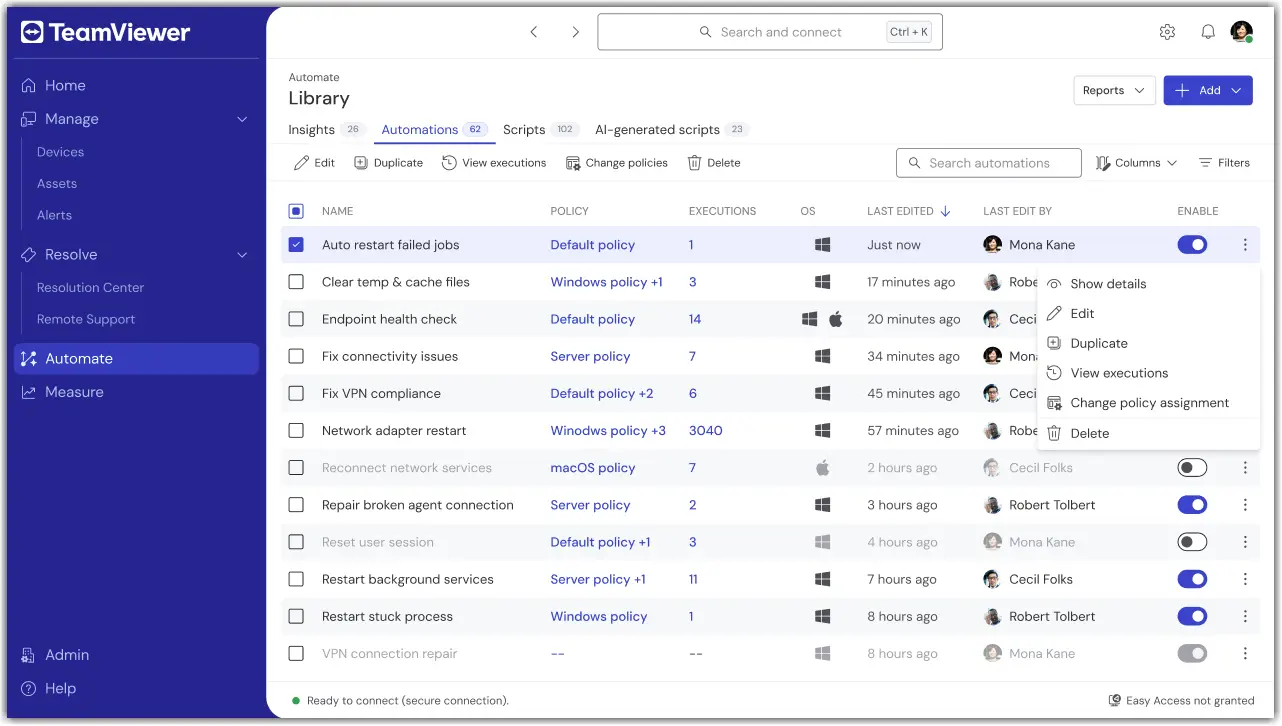
How to manage automations

After creating an automation, administrators can update its configuration as requirements evolve. To modify an existing automation, open the automation and select Edit. From there, administrators can:

  • Update the automation name and description.
  • Adjust triggers, preconditions, checks, and remediation actions.
  • Modify policy assignments to control which devices receive the automation.

Administrators can also turn automations on or off as needed, helping them control when workflows run within their environment. If an automation is no longer required, they can remove it entirely. Once administrators save their changes, TeamViewer ONE applies the updated configuration and uses it for future automation executions.
Troubleshooting

An automation did not run

  • Verify that the automation is activated.

  • Confirm that the trigger condition has been met.

  • Verify that all preconditions are satisfied.

  • Ensure the affected device is online and reporting data to TeamViewer ONE.

I don’t see Automations

  • Confirm that your license includes access to Automations.

  • Ask your administrator to verify that your role includes the Manage Policies permission. Automations and Policies utilize the same permissions.

An automation failed

  • Review the automation configuration.

  • Verify that the configured remediation action is valid.

  • Ensure the target device meets all requirements of the selected action.

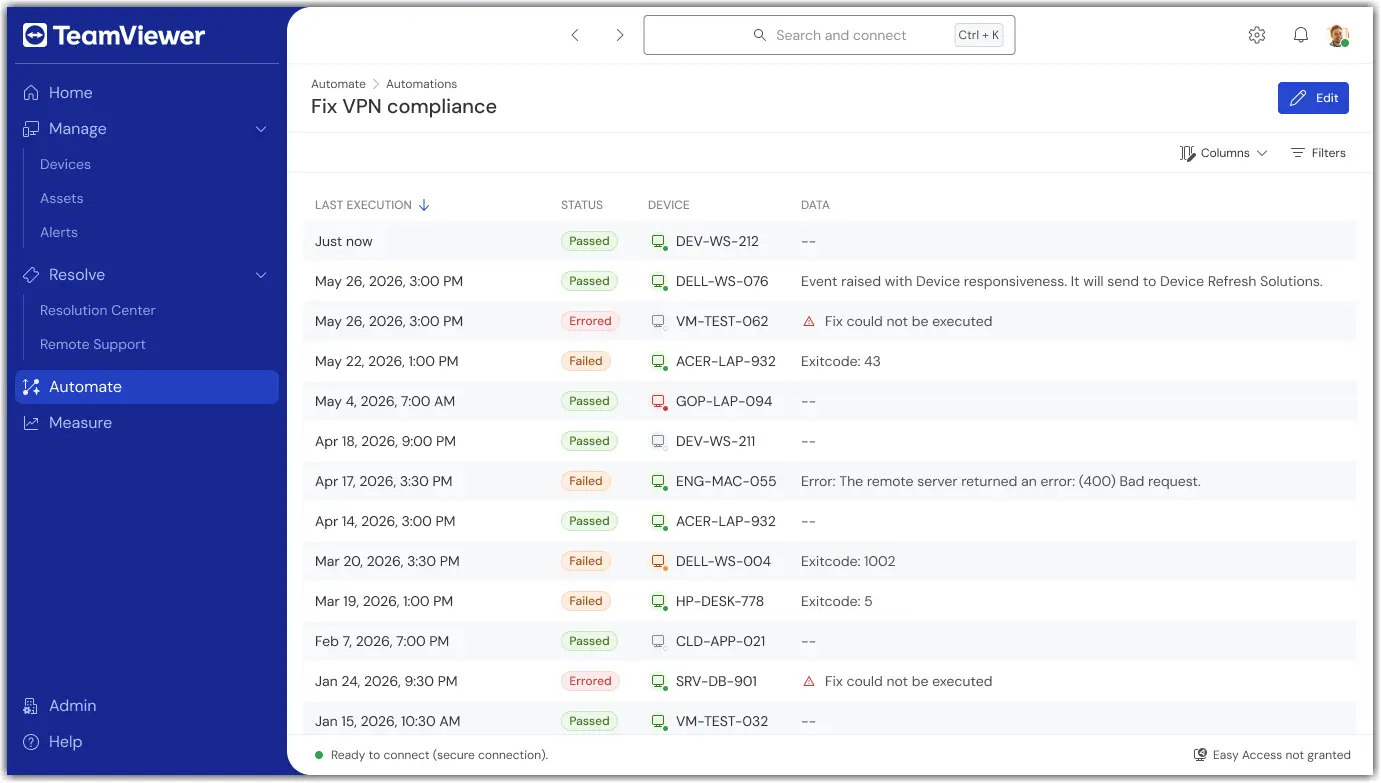
  • Failed automation executions can be reviewed in the History Log, where administrators can inspect execution details and identify the cause of the failure.

Please choose your region

Selecting a region changes the language and/or content on teamviewer.com


SUGGESTED REGION

  • Americas

    • Americas - English
    • América Latina - Español
    • Brasil - Português
    • Canada - English
    • Canada - Français
    • United States - English
  • Asia Pacific

    • Asia Pacific - English
    • Australia - English
    • 中国 - 中⽂(简体)
    • 香港 - 繁體中文
    • India - English
    • 日本 - ⽇本語
    • New Zealand - English
    • 대한민국 - 한국어
    • 台灣-繁體中文
    • ประเทศไทย - ภาษาไทย
  • Commonwealth of Independent States

    • CIS - English
    • СНГ - Русский
  • Europe

    • Europe - English
    • Belgique - Français
    • België - Nederlands
    • Bulgaria - English
    • Croatia - English
    • Cyprus - English
    • Czechia - Čeština
    • Denmark - English
    • Deutschland - Deutsch
    • España - Español
    • Estonia - English
    • Finland - English
    • France - Français
    • Greece - English
    • Ireland - English
    • Italia - Italiano
    • Latvia - English
    • Liechtenstein - Deutsch
    • Liechtenstein - Français
    • Liechtenstein - Italiano
    • Lithuania - English
    • Luxembourg - Français
    • Magyarország - Magyar
    • Malta - English
    • Nederland - Nederlands
    • Norway - English
    • Österreich - Deutsch
    • Polska - Polski
    • Portugal - Português
    • Romania - English
    • Schweiz - Deutsch
    • Suisse - Français
    • Svizzera - Italiano
    • Slovakia - English
    • Slovenia - English
    • Sweden - English
    • Türkiye - Türkçe
    • United Kingdom - English
  • Middle East Africa

    • Middle East Africa - English
    • Middle East Africa - Français
  • Products
    • TeamViewer Remote
    • TeamViewer Tensor
    • TeamViewer DEX
    • TeamViewer Frontline
    • Pricing
  • ONE Platform
    • TeamViewer ONE
    • Capabilities
    • Talk to our team
  • Solutions
    • By Industries
    • By Use Cases
    • By Roles
    • Enterprise
  • Partner
    • Become a partner
    • Find a partner
    • Integration partners
  • Resources
    • Blog
    • Success stories
    • Events and webinars
    • Trust Center
    • Why TeamViewer
  • Support
    • Contact support
    • Guides and manuals
    • Knowledge Base
    • System status
    • Custom modules
    • For developers
    • Community
  • Company
    • About TeamViewer
    • Careers
    • Investors
    • Newsroom
    • Leadership
    • Sports partnerships
    • Sustainability and CSR
    • Corporate Governance
  • Additional Links
    • Contact Sales
    • TeamViewer User Focus Program
    • Make work work better
    • Research Projects
    • Newsletter
  • Product Descriptions
  • Imprint
  • Contact
  • EULA / DPA
  • Privacy and Cookies
Cookie Settings