
Knowledge Base
iOS developer guide
Last Modified 11 мар. 2024 г.
This documented is intended as a technical guide for the iOS developers building and personalizing the WhiteLabel version of the AssistAR app.
It is expected that the reader has knowledge about core iOS concepts, like bundle ids, code signing and generation of mobile provisioning profiles.
Pre requisites
AssistAR License
The Application can only run with a valid AssistAR Professional license. Please check your current license is the right one or contact sales for upgrading or requesting a free trial.
SDK Token
Obtain a mobile SDK token from the TeamViewer Management console (login.teamviewer.com).
Application Bundle ID
You need to create a bundle ID in your Apple Developer Program. Required entitlements: Associated Domains.
Provisioning Profiles
You need to create a developer provisioning profile, and a distribution (AppStore) provisioning profile.
Configuration
The configuration file is in the path: BaseAppConfig.xcconfig
SDK Token
Change the key named: TV_SDK_TOKEN and replace it with your token.
Application Bundle ID
Change the key named: PRODUCT_BUNDLE_IDENTIFIER and replace it with your bundle id.
Application Name
Change the key named: PRODUCT_NAME and change it with your app name.
Provisioning Profiles
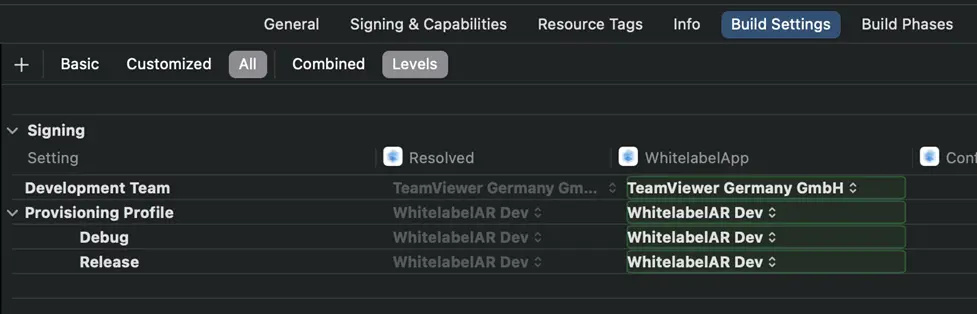
Change the setting in XCode regarding the code signing so that you choose the provisioning profiles that you created for development and for distribution.
Personalization
Application Icon
If you need to change the Application icon, you need to generate an iOS App Icon bundle using any tool. Once you have the Bundle, you can drag and drop it in the resource asset catalog.
Once the bundle is in the assets, change: ASSETCATALOG_COMPILER_APPICON_NAME to the name of the AppIcon bundle.
Onboarding images
You can replace the images and the text for the onboarding screens, by adding the images you need to the asset catalog, and modifying the following keys in the configuration file:
Images
TV_ONBOARDING_SLIDE_I to TV_ONBOARDING_SLIDE_IV
Texts
TV_ONBOARDING_TEXT_I to TV_ONBOARDING_TEXT_IV
Panorama Image
You can add a fisheye image to be used as the main Application background. You can also disable this option.
Add the high-resolution fisheye (360) image to the assets catalog, then specify that asset name in the configuration file under the following key: TV_PANORAMA_ASSET_NAME
Launch Screen Logo
Add an image into the assets and edit the setting named: TV_LAUNCH_SCREEN_ASSET_NAME
Colors
| Color Name | Usage | Default |
|---|---|---|
WLBackgound | Global background color for the App. | White |
WLConnectFieldBorder | Border color for the connect field. | Dark Grey |
WLConnectFieldText | Text color for the connect field. | Dark Blue |
WLHeaderBackground | Background color used in the navigation headers. | White |
WLHeaderText | Text color used in the navigation headers. | Black |
WLPrimaryButtonBackground | Background color used in the connect button. Enable state. | TeamViewer Blue |
WLPrimaryButtonDisabled | Background color used in the connect button. Disable state. | Grey |
WLPrimaryButtonText | Background color used in the connect button. | White |
WLSecondaryButtonBackground | Background color used in the abort button. All states. | White |
WLSecondaryButtonText | Text color used in the abort button. | Dark Blue |
WLText | Global text color for the App. | Black |
WLWaitingRoomBackground | Background color used in the Waiting room screen. | TeamViewer Blue |
WLWaitingRoomText | Text color used in the waiting room screen. | White |
Build Tools
We provide the WhiteLabel app with a couple of small python scripts to help changing the colors in the asset files and storyboards. It is not mandatory to use it. You can add this as part of your build script.
Example input JSON file:
{
“WLText”: “FFFFFF”,
“WLBackgound”: “000000”
}
colors.py
Takes a JSON colors definition file and replaces the colors in the Assets folder. Usage:
> python3 colors.py colorMap.json “ApplicationLayer/Assets.xcassets/Whitelabel/”
storyboards.py
Takes a JSON colors definition file and applies this to a given storyboard. Usage:
> python3 storybaords.py colorMap.json ApplicationLayer/Base.lproj/LaunchScreen.storyboard
All configuration settings
| Configuration Name | Description |
|---|---|
TV_SDK_TOKEN | SDK Token. |
PRODUCT_NAME | Name of the App. |
PRODUCT_BUNDLE_IDENTIFIER | Bundle of the App. |
ASSETCATALOG_COMPILER_APPICON_NAME | Name of the AppIcon resource inside the Assets folder. |
IOS_MICROPHONE_PERMISSION_TEXT | Text used when iOS ask the user for the Microphone Permissions. |
IOS_CAMERA_PERMISSION_TEXT | Text used when iOS asks the user for the Camera Permissions. |
IOS_PHOTOS_PERMISSION_TEXT | Text used when iOS asks the user for the Photo Library Permissions. |
DEEP_LINKING_DOMAIN | Domain used for deep-linking, the App will open automatically links for that domain. This configuration will be used in Appstore builds. |
DEEP_LINKING_DOMAIN_DBG | Domain used for deep-linking, the App will open automatically links for that domain. This configuration will be used in Local builds. |
TV_MAJOR_MINOR | Major and minor version. |
TV_PANORAMA_ASSET_NAME | Name of the asset used as panorama background. It can be empty. |
TV_LAUNCH_SCREEN_ASSET_NAME | Name of the asset used as launch screen background. |
TV_HEADER_ICON_NAME | Name of the asset used as header icon. It can be empty. |
TV_CORPORATE_INFO_FILENAME | Name of the asset used as document for the settings section "Corporate Info". It can be empty. |
TV_PRIVACY_INFO_FILENAME | Name of the asset used as document for the settings section "Privacy Info". It can be empty. |
TV_LEGAL_NOTICE_FILENAME | Name of the asset used as document for the settings section "Legal Notice". It can be empty. |
TV_DIVIDER_ASSET_NAME | Name of the asset used as the divider between the header and the app background. It can be empty. |
TV_ONBOARDING_SLIDE_I | Name of the asset used as image in the onboarding step 1. |
TV_ONBOARDING_SLIDE_II | Name of the asset used as image in the onboarding step 2. |
TV_ONBOARDING_SLIDE_III | Name of the asset used as image in the onboarding step 3. |
TV_ONBOARDING_SLIDE_IV | Name of the asset used as image in the onboarding step 4. |
TV_ONBOARDING_TEXT_I | Text used as footer in the onboarding step 1. |
TV_ONBOARDING_TEXT_II | Text used as footer in the onboarding step 2. |
TV_ONBOARDING_TEXT_III | Text used as footer in the onboarding step 3. |
TV_ONBOARDING_TEXT_IV | Text used as footer in the onboarding step 4. |