
Knowledge Base
Settings - Advanced User Management
Last Modified 15 окт. 2024 г.
Access Rights Management
This guide describes how to set up an access rights management system for recordings of conferences performed through the TeamViewer Engage Sales Suite following the model seen below.
Model
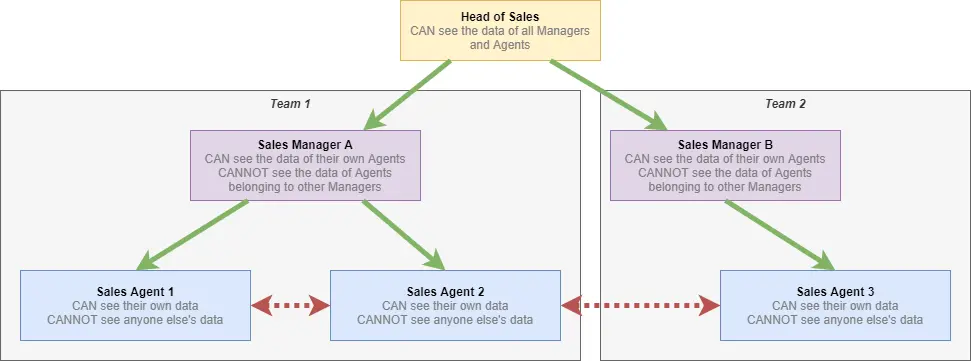
This model shows a simple structure for a sales department. One Head of Sales is responsible for two teams, each lead by its own Sales Manager. Each manager has their own set of Sales Agents.
💡Hint: Make sure to first familiarize yourself with the basics of how to set up users, roles and more: User Management
Roles
This model requires at least three Roles: Head, Managers and Agents.
📌Note: These examples have the Sales Suite offered by TeamViewer Engage enabled. The number and kind of permissions you can select may vary based on your chosen features.
Role 'Head'
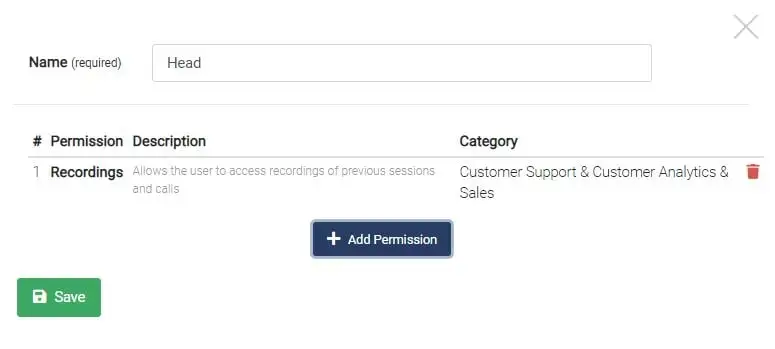
This role is supposed to be able to see all recordings, regardless of who created them.
The 'Recordings' permission allows the Head to do just that.
Role 'Manager'
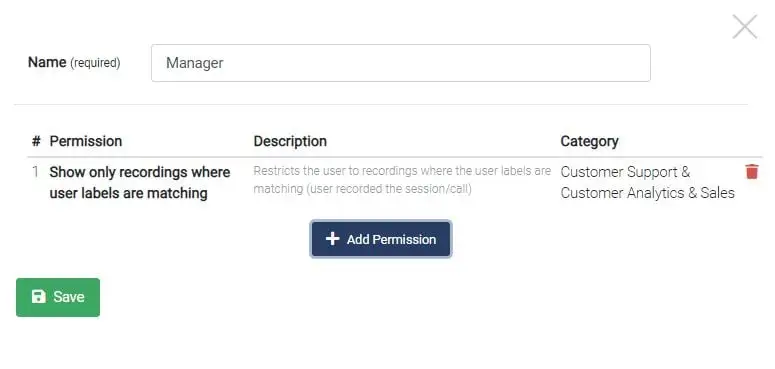
This role is only supposed to be able to see recordings with their tag.
The 'Show only recordings where user labels are matching' permission restricts users to only seeing recordings with which they share a tag, either by having a tag added to them specifically, or through their assigned team. Recordings automatically receive the tag of agents/teams involved in the event being recorded, e.g. the eMeeting.
Role 'Agent'
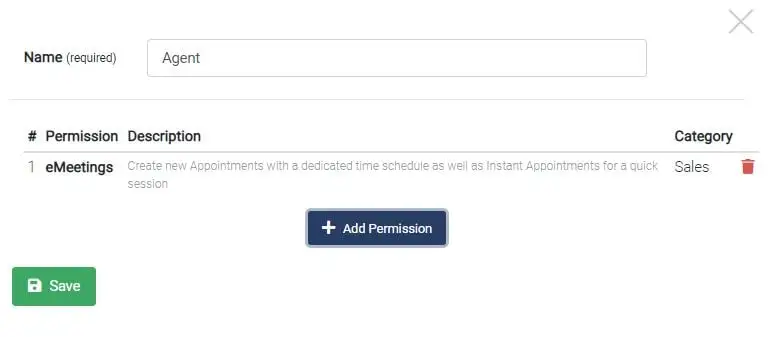
This role is only supposed to be able to perform whatever actions the agents are directly responsible for. In this example, agents interact only through eMeetings.
Agents only receive the feature permissions they are responsible for.
Users
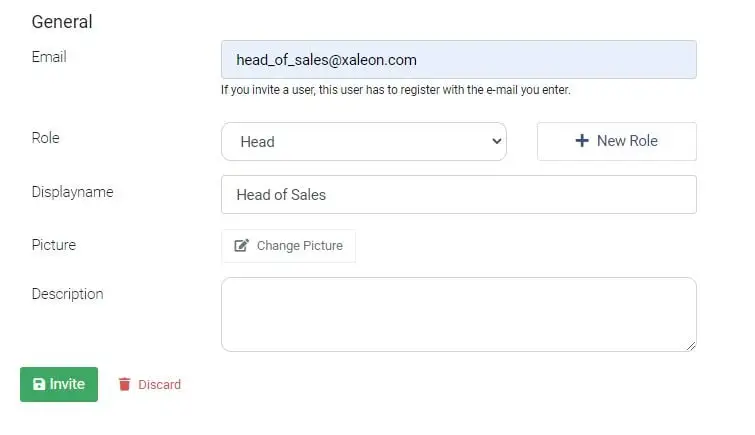
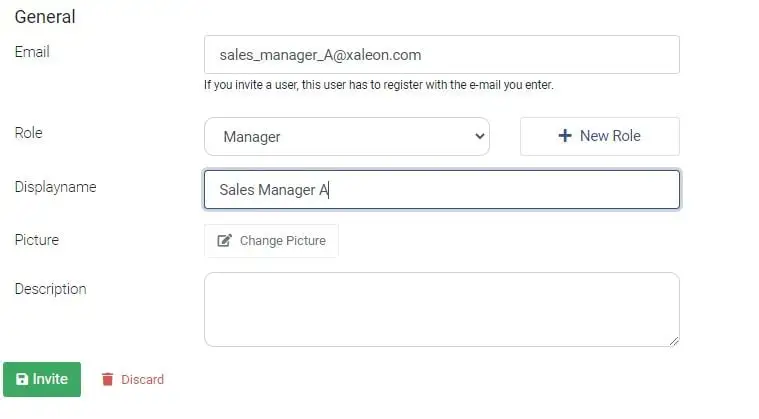
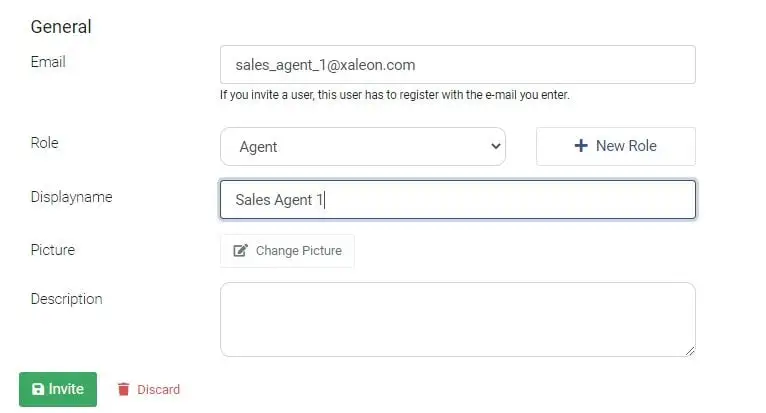
With Roles created, we create or invite all Users and give them the relevant Roles.
Examples:
Head of Sales
Sales Manager A
Sales Agent 1
Teams
Now that all Users are created, we need their Teams.
Teams are used to group users. In this case, we will use teams to separate Manager A and their agents from Manager B and their agents.
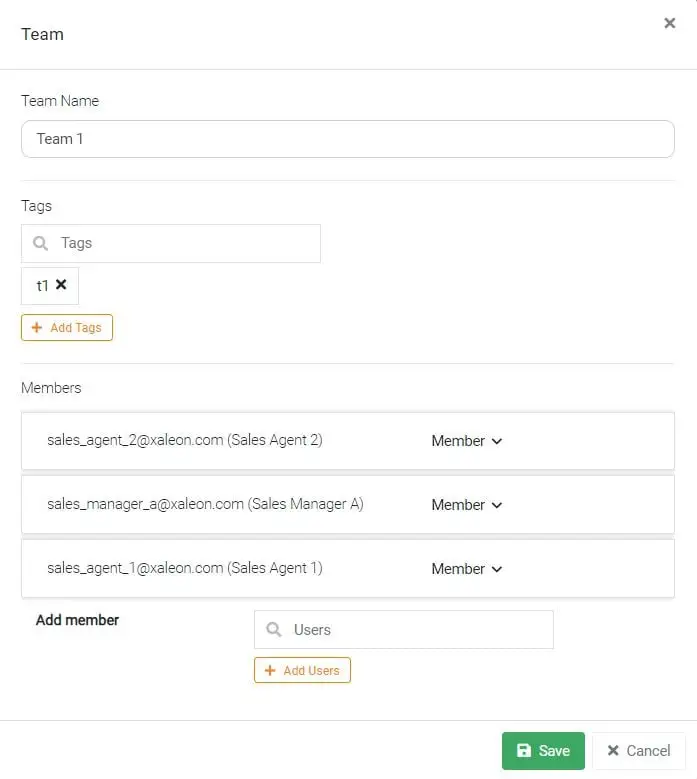
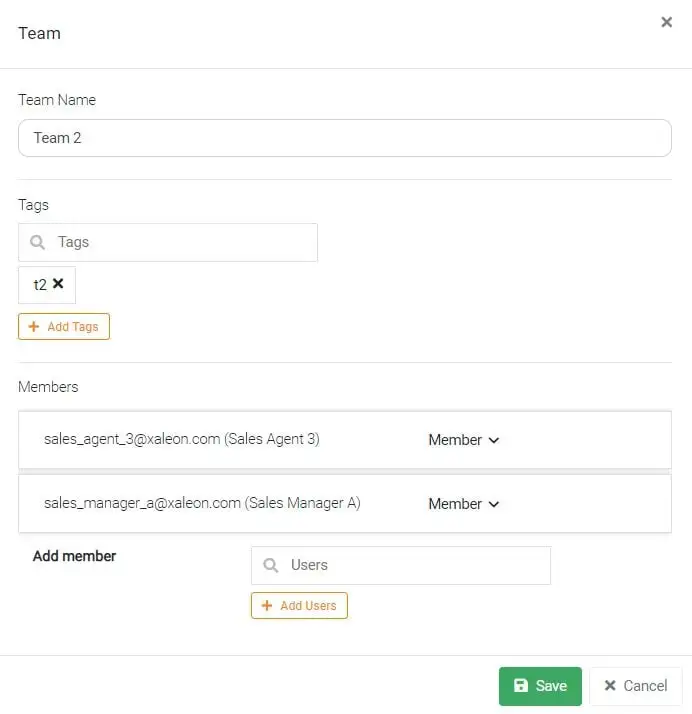
Two teams, Team 1 and Team 2 have to be created. Each receives its own tag, in this case, t1 and t2. These tags can be anything you want, but for this example, they need to be different from each other.
Team 1
Team 1 is assigned Sales Manager A, Sales Agent 1 and Sales Agent 2 and receives the tag t1.
Team 2
Team 2 is assigned Sales Manager B and Sales Agent 3 and receives the tag t2.
Result
With this setup, any conference recordings produced by Sales Agents will only be visible to their Sales Managers and the Head of Sales. This same principle can be applied to other TeamViewer Engage functionality as well.