
Knowledge Base
Conducting eMeetings
Last Modified 15 окт. 2024 г.
Enough preparing for eMeetings! Next, we have a look at the features and options within an eMeeting. The main functionalitites are:
- Video + In-Conference Chat
- Screen Sharing
- Document Collaboration
- Whiteboard
- Universal Co-Browsing
Video (main view)
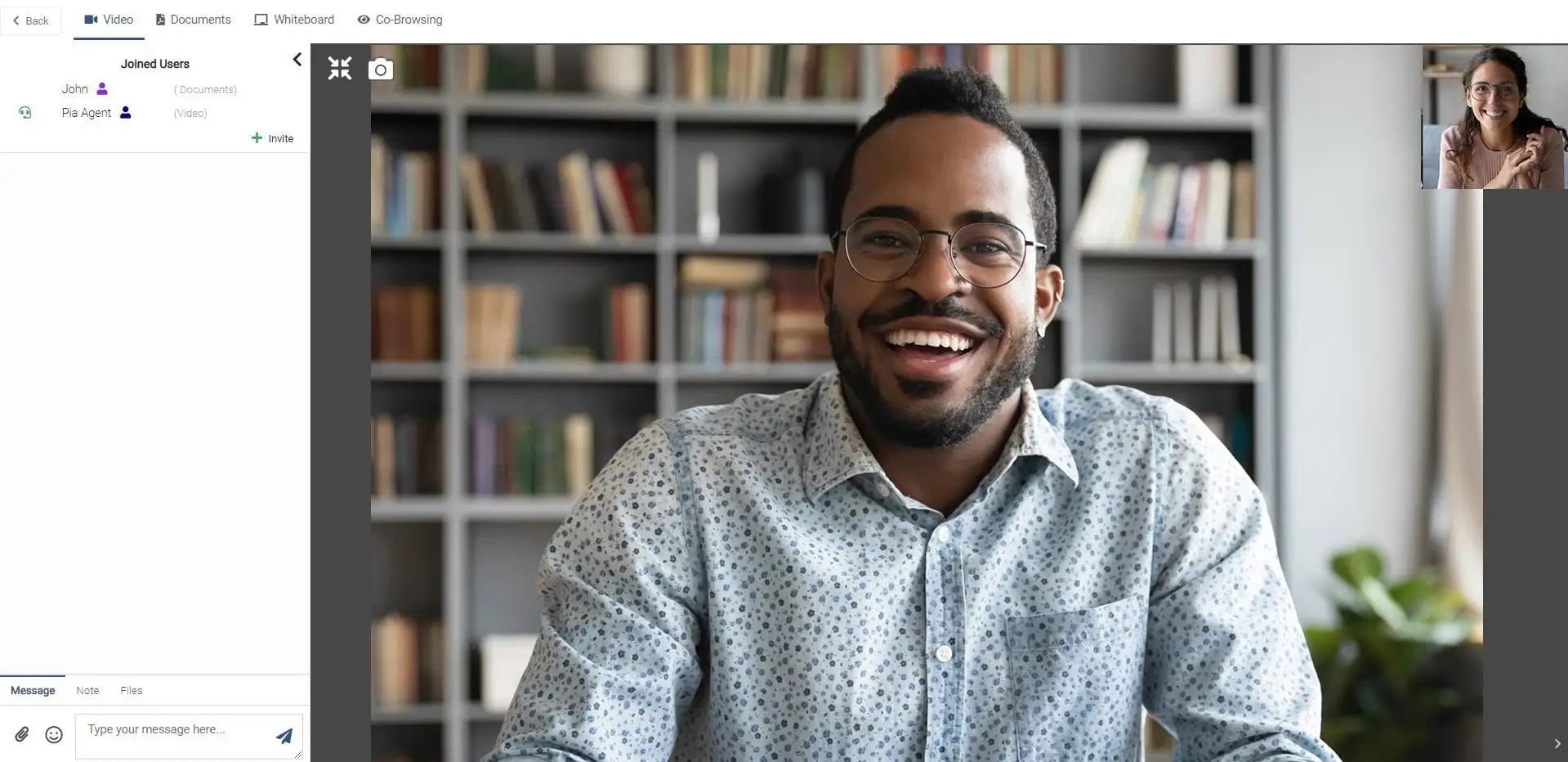
- Invite: Invite another employee to a meeting -> Email invitation is sent.
- The agent can chat, send emojis, send attachments
- The agent can make notes on the conversation in "Notes", which are not displayed to the customer.
Screen-Sharing
To enable better communication between all Conference members, you can share your screen with all other participants. Simply click on the Share Screen button to share your screen.
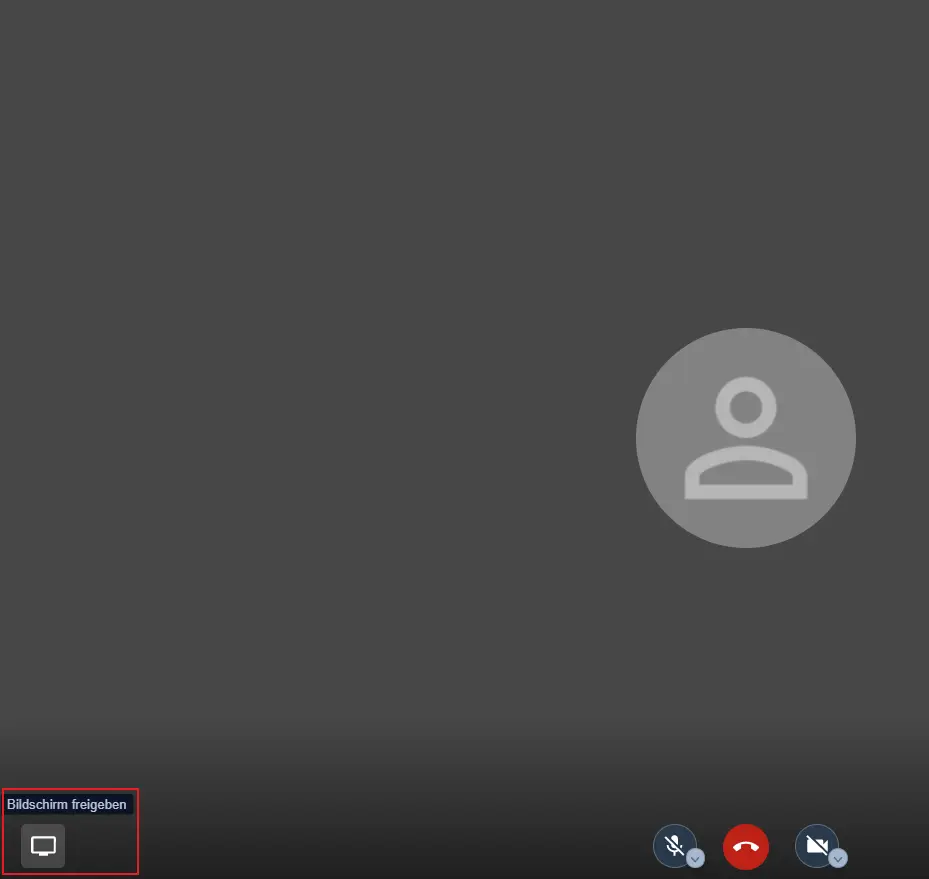
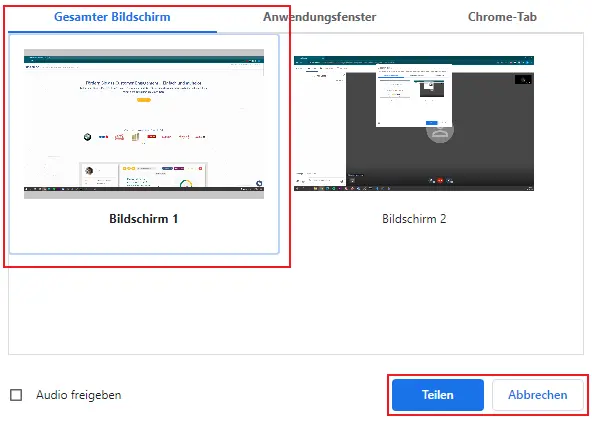
Afterwards select the Screen/Application you want to share.
Screenshots
You can always save the current screen via screenshot by simply clicking the following icon:
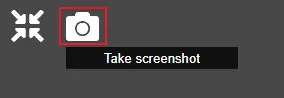
Admin Note: Function needs to be activated in the Conference Plugin.
Options
You can change different settings in a conference meeting:
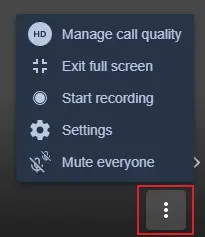
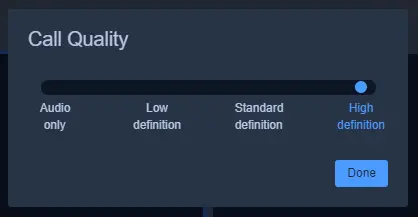
Manage call quality
This option lets you change the quality of the voice/video call.
View full screen
Sets the call to fullscreen. The shortcut for this option is Shift + S.
Start recording
This option starts the recording of the Conference call.
Admin Note: The function needs to be activated in the Conference Plugin.
Settings
Settings let you change different options for Camera/Microphone/Audio.
Mute everyone
This option mutes everyone in the call and is only available for the call leader.
Toggle tile view
This option lets you enable/disable the tile view.
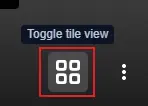
📌Note: This option is only visible when two or more attendees have joined the call.
Documents
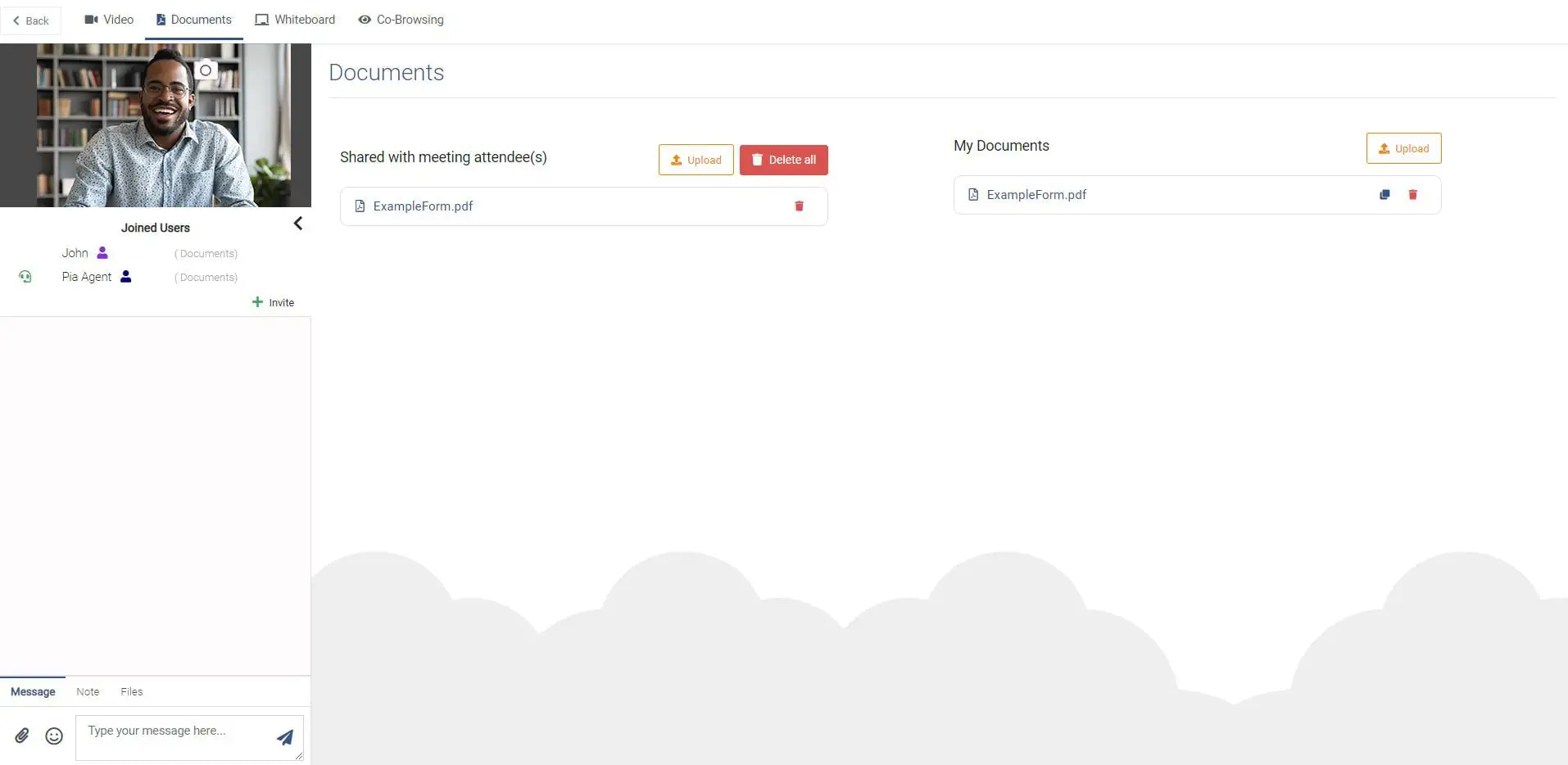
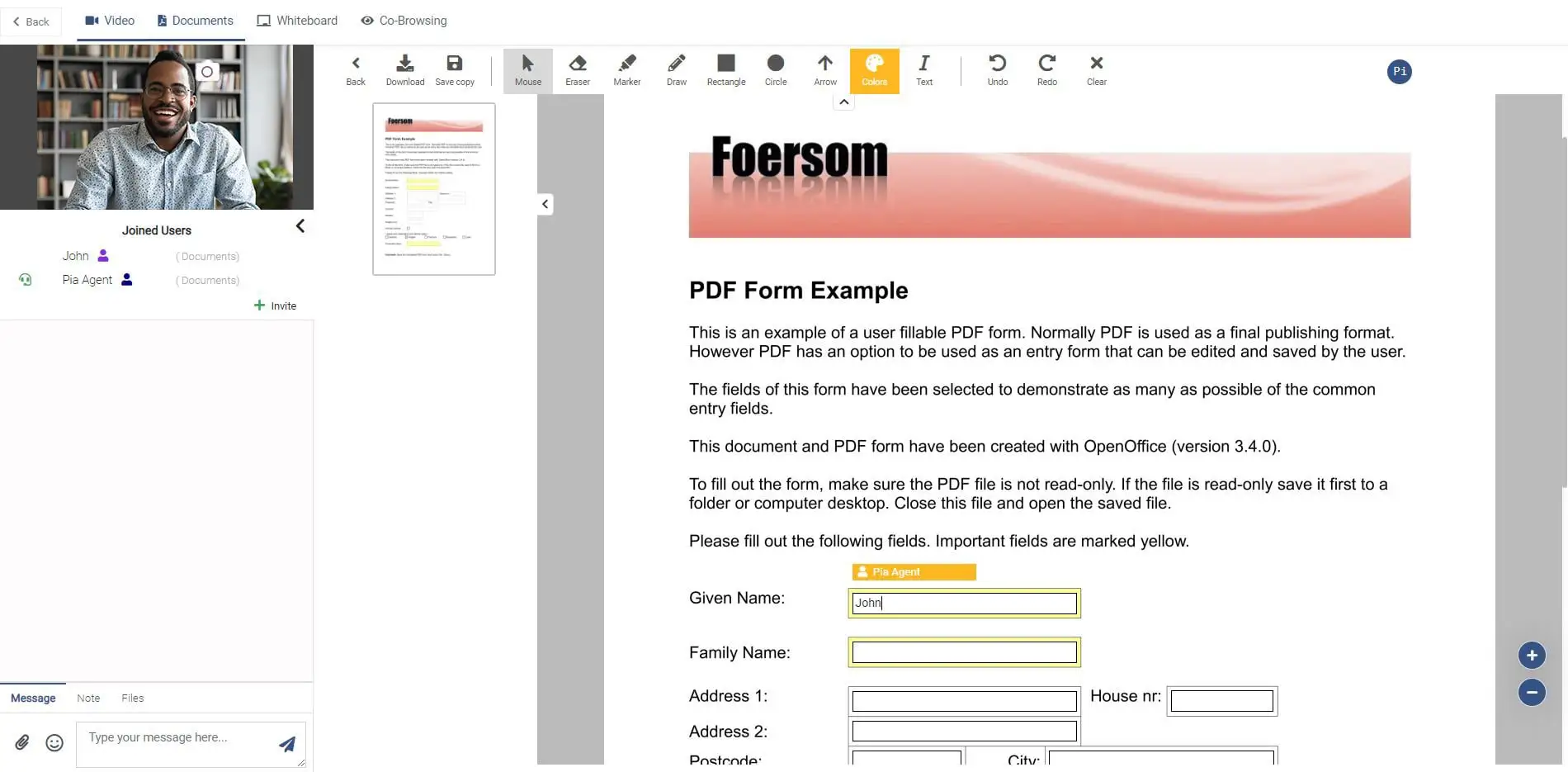
In Documents, documents/contracts (PDFs) can be uploaded by "Upload Document" or existing document templates can be used by using the clone function:
- Download, Save Copy and Highlight function
- Agents and customers can scroll freely through the document - a bar in the page overview (to the left of the document) shows where in the document the counterpart is currently located.
Click on the respective document to open, discuss and edit/fill it together:
My Documents
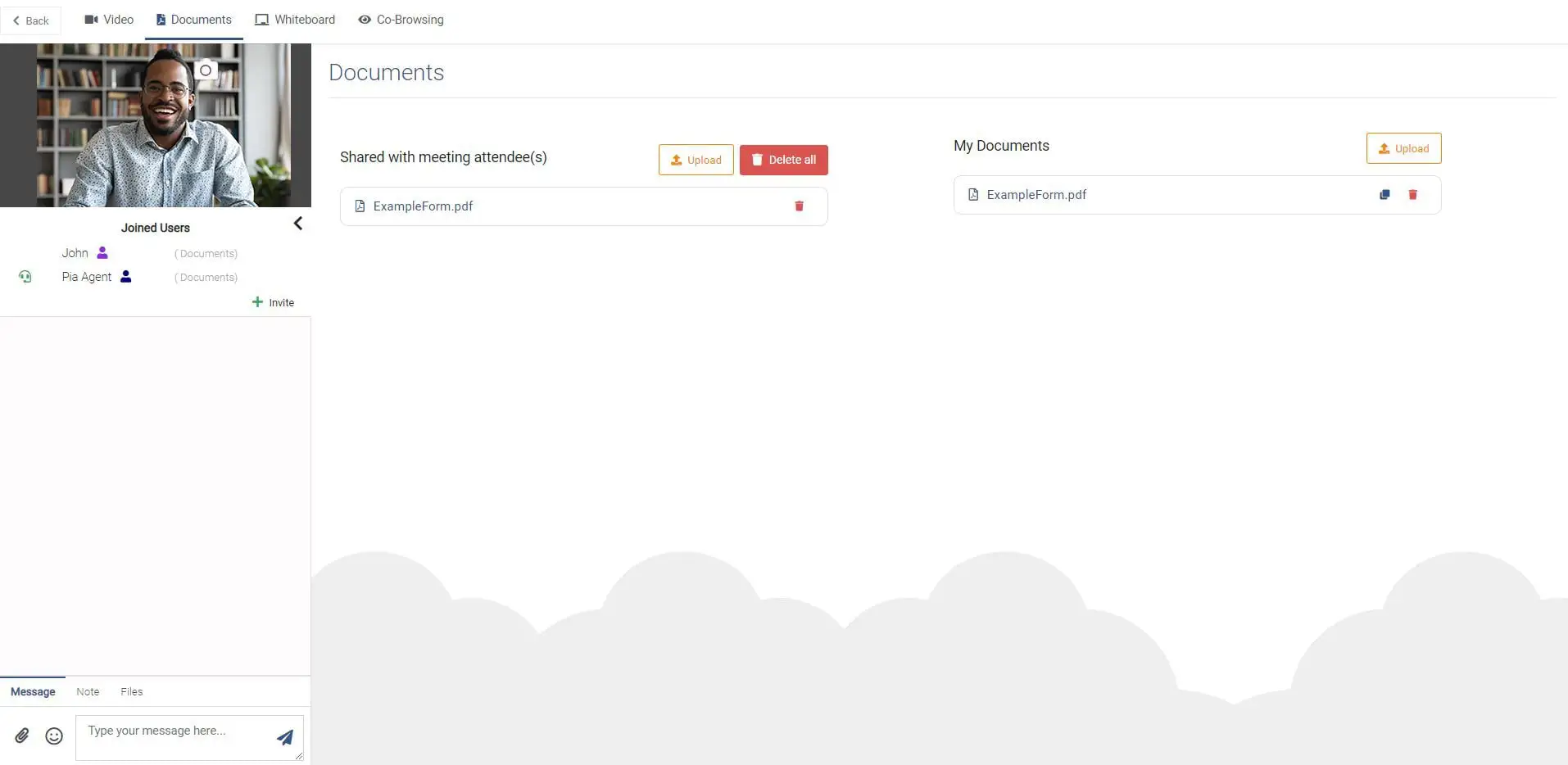
You can upload your personal documents under the Documents tab in a Conference call.
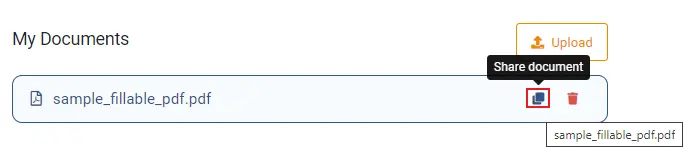
If you want to share the document with other participants you have to click on Share document.
Shared documents appear under the Shared with meeting attendee(s) section of the Documents page.

Whiteboard
The Whiteboard function can be used to help visualize arguments, facts and more:
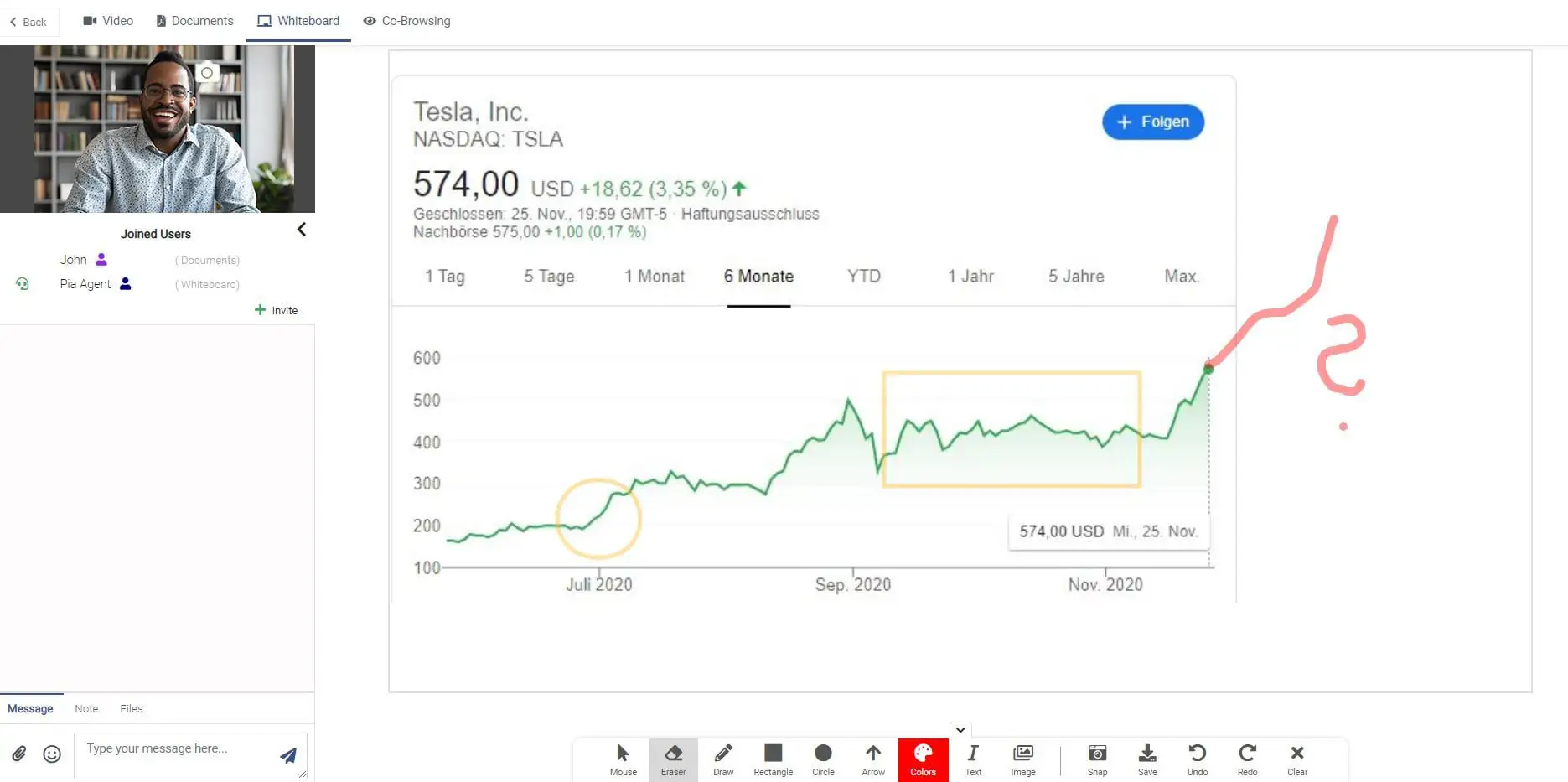
- Start drawing from scratch using the Draw, Rectangle, Circle and Arrow feature
- Upload an image yourself to fast-start the discussion
Co-Browsing
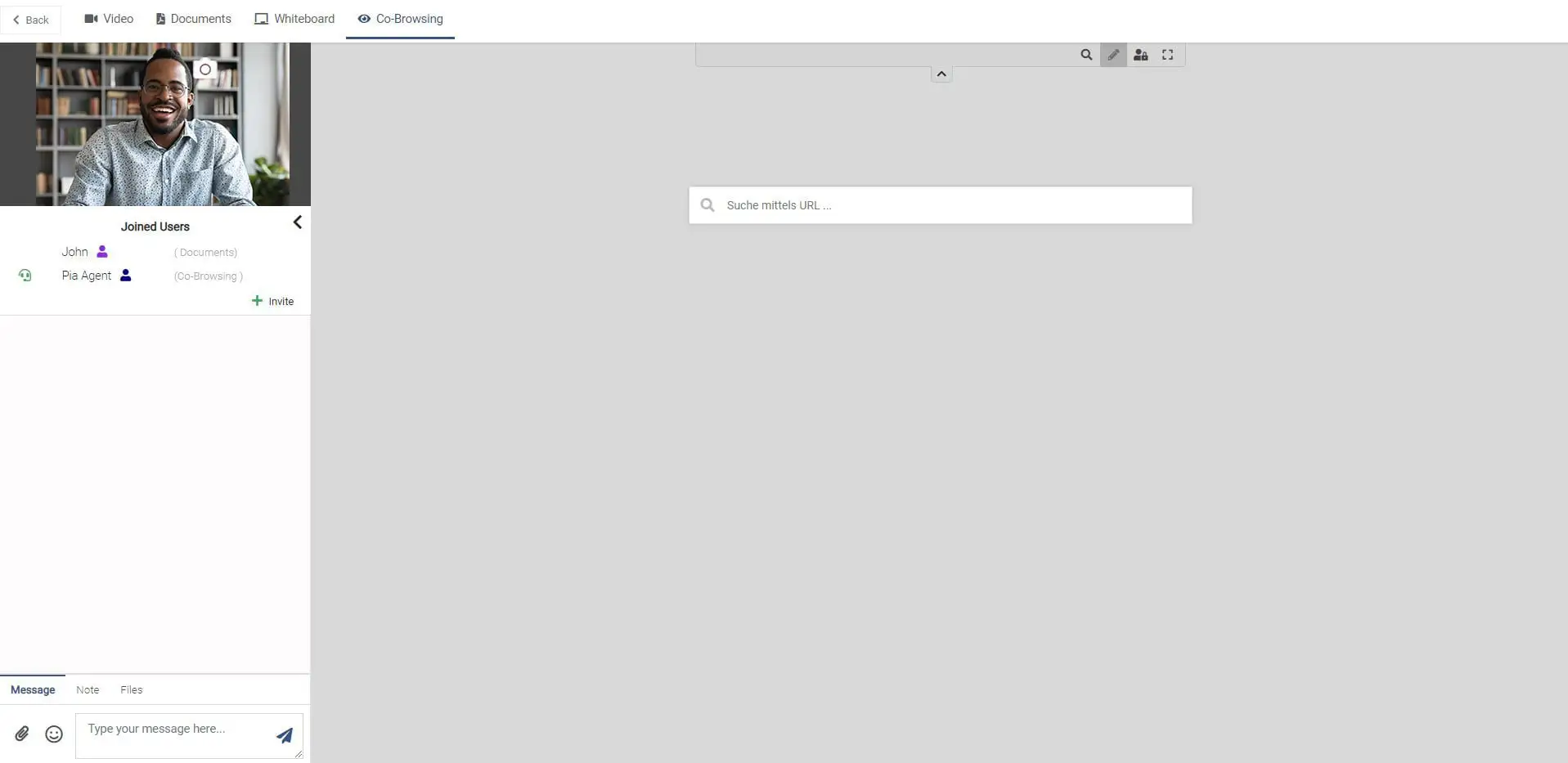
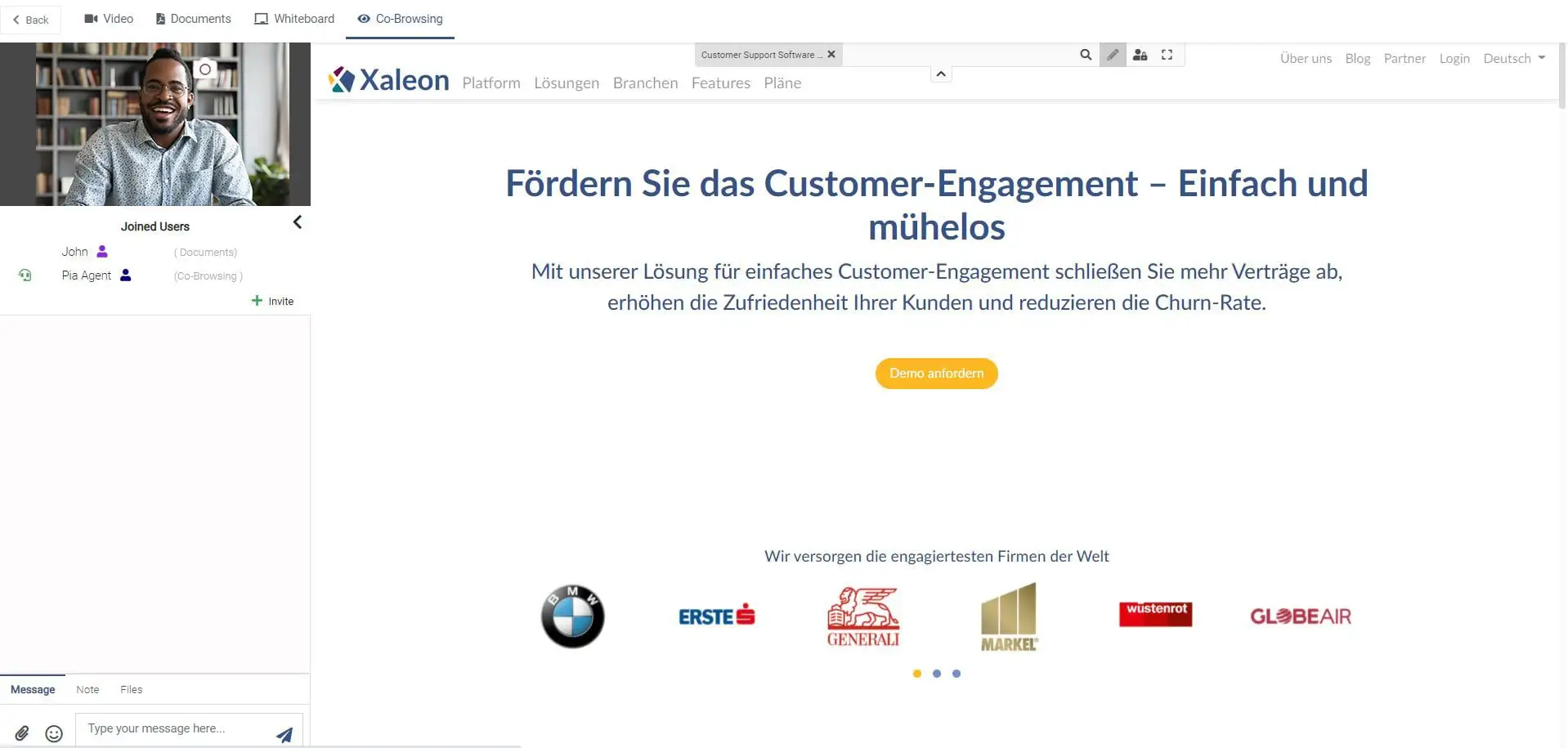
With Co-Browsing, TeamViewer Engage creates a browser that is shared with all eMeeting participants. You can use Co-Browsing to browse the whole World Wide Web together with all participants. Furthermore, it is possible to shift/give control over the browser to other participants.
📌Note: Unlimited Co-Browsing (also Universal Co-Browsing): Please note that Universal Co-Browsing might not yet work on all websites. We are constantly improving the range of supported pages, but due to the variety of web technologies, different development styles, and the diversity in the WWW, we can not guarantee that every website works out of the box. In case you find a website that is not working yet, please contact our Support.
Get started by entering a URL ...
... and browse websites together with all participants:
Give permission to the customer
To provide permission to another participant, doing the following:

Browse another website
To browse another website simply click the magnifying glass icon:

Fullscreen
To enter fullscreen mode just click the fullscreen icon:
