TeamViewer Tensor 允许管理员为不同的用户组定制导航体验。通过自定义显示、隐藏或重新排序的菜单项,管理员可以确保用户只看到他们需要的工具。这些设置在各个平台上一致适用,无论用户是在 Windows、macOS 上工作还是 通过浏览器登录。
本文适用于所有 TeamViewer Tensor 许可证持有者。
前提条件
在将自定义导航设置应用于用户组之前,请确保已完成以下操作:
- 您已为组织中的不同角色创建了用户组(例如,最终用户、服务台、管理员)。
- 您已将用户分配到相应的用户组。
- 您了解每个角色需要哪些导航项。
如何自定义用户组的导航
要在 TeamViewer Tensor 中自定义用户组的导航,请按照以下说明作:
1 . 在 TeamViewer 客户端中或通过 https://web.teamviewer.com/ 登录您的 TeamViewer 帐户。
2. 转到 “管理设置” ,然后在“公司管理”部分中,转到 “自定义” 并转到 “常规”。
3. 在 “自定义导航”中,单击 “编辑”。
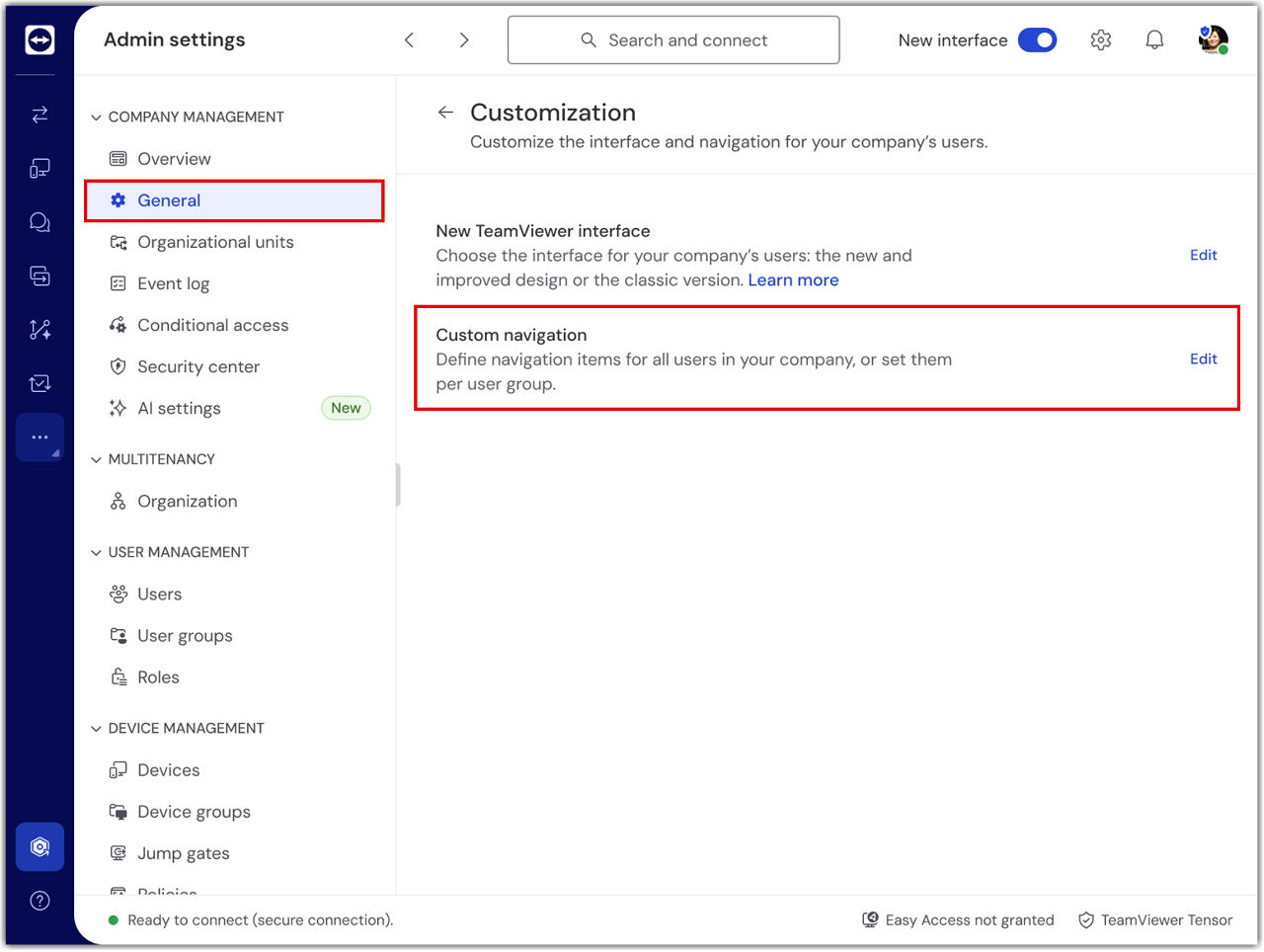
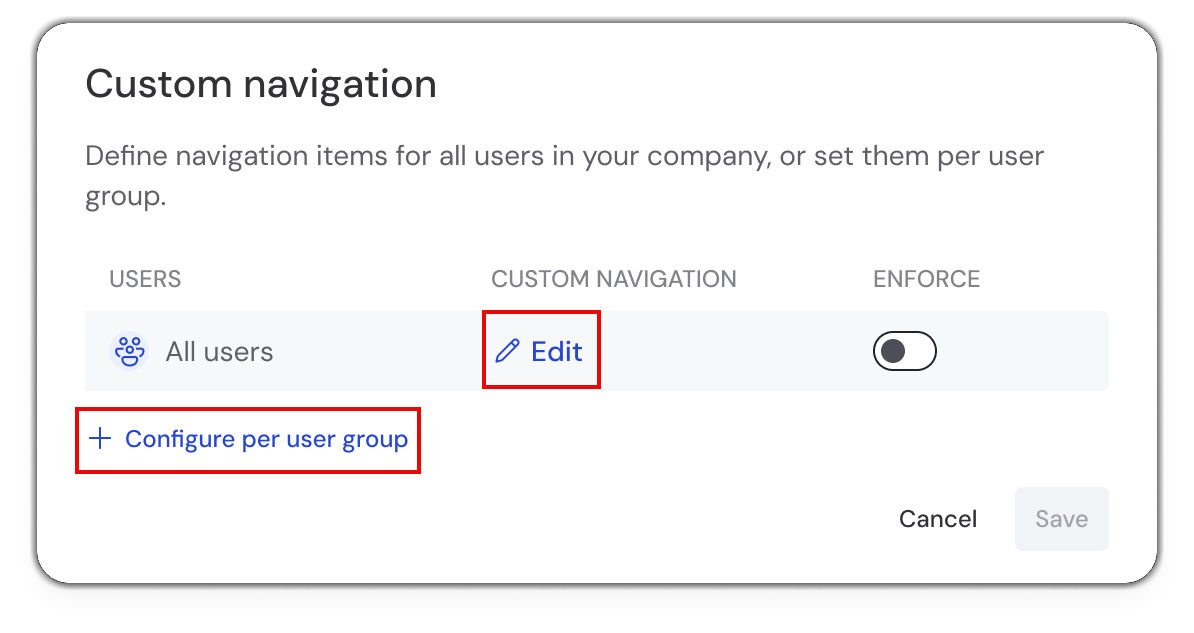
4. 您可以通过编辑组“所有用户”来编辑所有用户的导航,也可以通过单击 “按用户组配置”来对特定用户组执行此作。
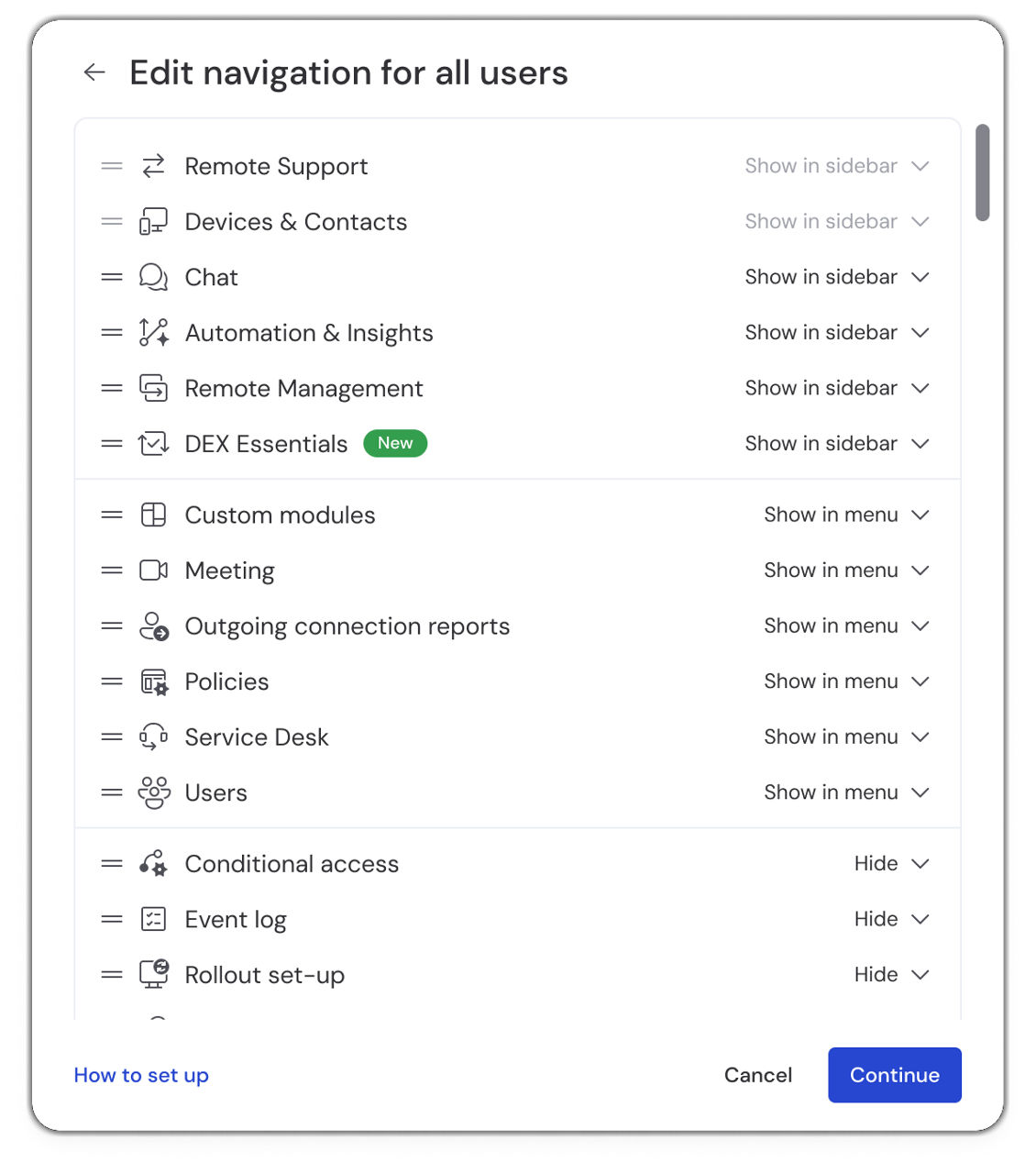
5. 根据需要配置导航,然后单击 继续。
6. (可选)您可以决定是否要强制执行设置,然后单击 保存。
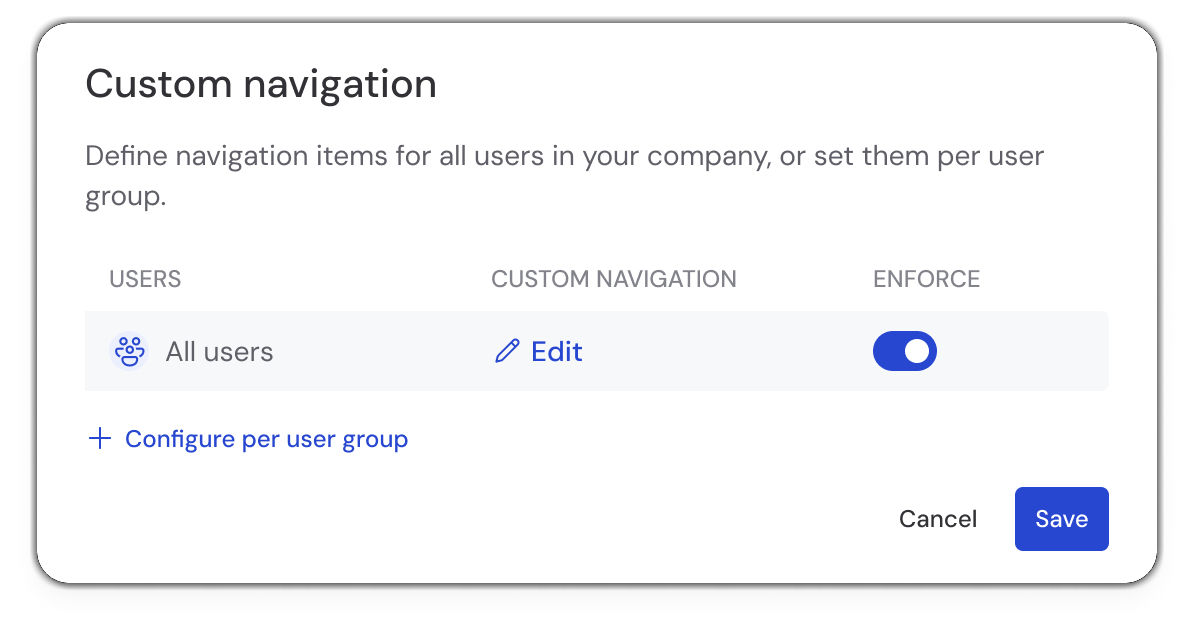
如果强制执行,相应的用户将无法自行更改其导航。
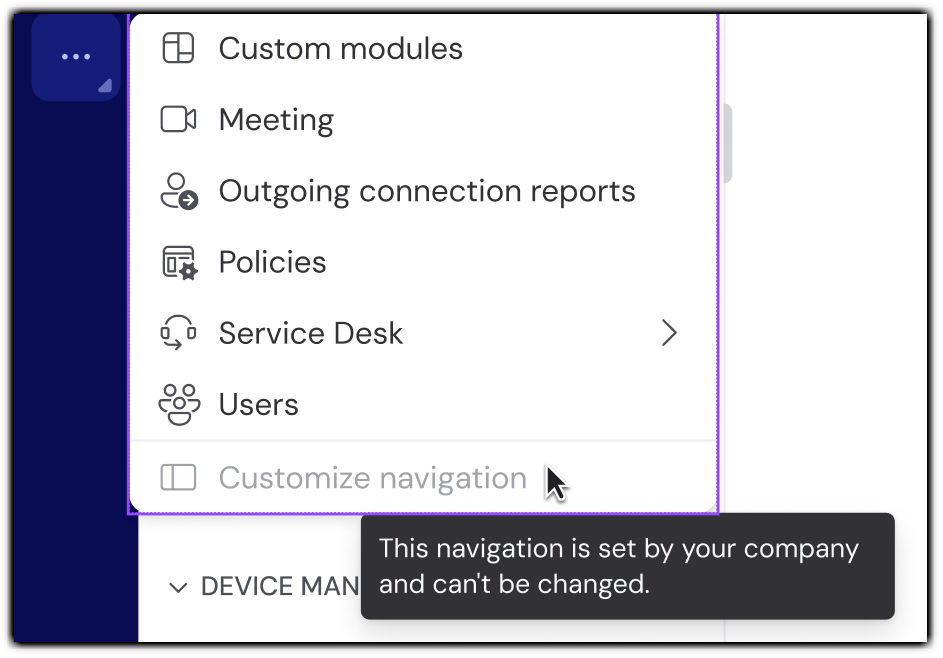
您已成功为用户自定义导航。
您已成功为用户自定义导航。
注意:如果管理员设置了自定义导航但未强制执行,则每个用户的个人自定义导航仍将保持有效。如果管理员强制执行了自定义导航,则会覆盖用户各自设置的任何导航设置。
Common customization scenarios
Below are recommended navigation configurations for common user roles in TeamViewer environments:
End-users (receiving support only)
Show in sidebar:
-
Remote Support
Hide:
-
All other navigation items
This configuration ensures end-users only see the Remote Support feature, allowing them, if needed, to share their ID and password to receive support without being distracted by other features.
Helpdesk supporters (providing support)
Show in sidebar:
-
Remote Support
-
Devices
-
Service Desk
Show in menu or Hide:
-
All other navigation items are based on your organization's needs.
This configuration gives helpdesk agents access to the tools they need to provide efficient support, manage devices, and track session activity.
Administrators (full access)
Show in sidebar:
-
All navigation items.
Administrators typically need access to all features, including admin settings, users, policies, and outgoing connections reports for complete system oversight.
常见自定义场景
以下是 TeamViewer 环境中常见用户角色的推荐导航配置:
最终用户(仅接收支持)
在侧边栏显示:
远程支持
隐藏:
所有其他导航项
此配置确保最终用户仅看到“远程支持”功能,以便他们在需要时可以分享其 ID 和密码来获得支持,而不会被其他功能分散注意力。
服务台支持人员(提供支持)
在侧边栏显示:
远程支持
设备
服务台
在菜单中显示或隐藏:
所有其他导航项均取决于贵组织的需求。
此配置使服务台人员能够访问他们所需的工具,以便提供高效的支持、管理设备和跟踪会话活动。
管理员(完全访问权限)
在侧边栏显示: 所有导航项。 管理员通常需要访问所有功能,包括管理设置、用户、策略和出站连接报告,以便全面监控系统。