Knowledge Base
Export settings for Host deployment
Last Modified 6. 2. 2026
You can deploy your preferred settings to your devices via the *.tvopt file.
The *.tvopt file will store all your settings and provide the option to input a personal password for unattended access.
If you plan to create a TeamViewer Host module and install it using a deployment method, you first need to install your Host on a test machine and then export the *.tvopt file to your deployment application.
For more information about how to deploy TeamViewer, please find our guide here: Mass deployment on Windows
Notes:
- As of version 13.2, the MSI will no longer automatically apply the TeamViewer_Settings.tvopt. The IDC is now also added as a parameter.
- You must use a parameter to apply the settings.
How to export the *.tvopt file for your deployment
To export the *.tvopt file, please follow the instructions in the video below:
- Create a custom Host from the Management Console and download it on a test system
- Rename to TeamViewer_Host-idcxxxxx.msi
- Make your desired changes to the Host on the test system.
- Export the change to a *.tvopt file by going to the gear icon (⚙) to open the Options → Advanced → Export settings to a *.tvopt
- Name the file TeamViewer_Settings.tvopt
- In the next pop-up window, select which sections of the settings to export. You can also export user-specific settings and a personal password as default for all users.
- Add TeamViewer_Settings.tvopt to the MSI package folder.
You should end with two files in the directory used with your deployment.
- TeamViewer_Host-idcxxxxx.msi
- TeamViewer_Settings.tvopt
Important information for admins about importing proxy settings
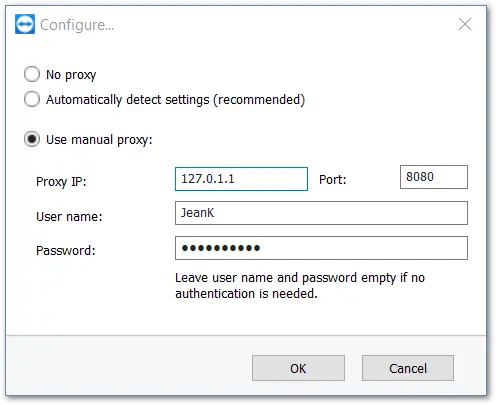
Note: Once exported, the value of the proxy settings is in plain text. It is the user’s responsibility to store that file mindfully. Once imported, the value will then be protected using a Windows API.