Knowledge Base
Security key redirection
Last Modified 2 apr 2026
Security key redirection enables the use of security keys through a TeamViewer session.
A security key plugged into the local computer can be recognized by the remote computer and used as if it were plugged directly into that computer, e.g., for web authentication, Windows logon, or running a task with elevated privileges.
To ensure that the security key redirection works well, please note:
- The LAN mode should be deactivated on the remote side.
- There isn't an active RDP session on the remote side. If an active RDP session was established at any time during a remote connection, the connection must be restarted.
- As support for Windows 8.1 and 32 Bit system was dropped, the update process, both for mass deployment via MSI or installed via our website, will automatically remove the existing driver without user input if the minimum requirements are not met.
This article applies to customers with a TeamViewer Tensor license using Windows 10 64 Bit or higher.
Benefits
While the most familiar form of Two-Factor Authentication is a one-time password texted to your phone or shown in an Authenticator app, the most secure version is a physical security key that serves this purpose instead.
When an account is protected with a security key, no one can gain access without having both your password and physical access to the security key.
With security key redirection, you can utilize the same security features within TeamViewer sessions to securely authenticate remotely.
Prerequisites
To use security key redirection:
A TeamViewer Tensor license is required.
TeamViewer Host or the full version must be installed on the remote side.
The TeamViewer Virtual Security Key Reader driver must be installed on the remote computer.
A FIDO-based security key or a smartcard.
Note: Some security keys might require the installation of a mini driver on the remote machine. In many cases, it is best to plug the security key directly into the remote machine once and set up all drivers. Please check the documentation of the key you intend to use.
Install the TeamViewer Virtual Security Key Driver
There are two ways to install the TeamViewer Virtual Security Key Driver:
- via the MSI installer.
- via the application settings.
Via the MSI installer
When using the TeamViewer deployment and its MSI installer, the installation of the TeamViewer Virtual Security Key Reader driver can be activated by using its installation parameter during deployment:
INSTALLSECURITYKEYREDIRECTION=1
Via TeamViewer application settings
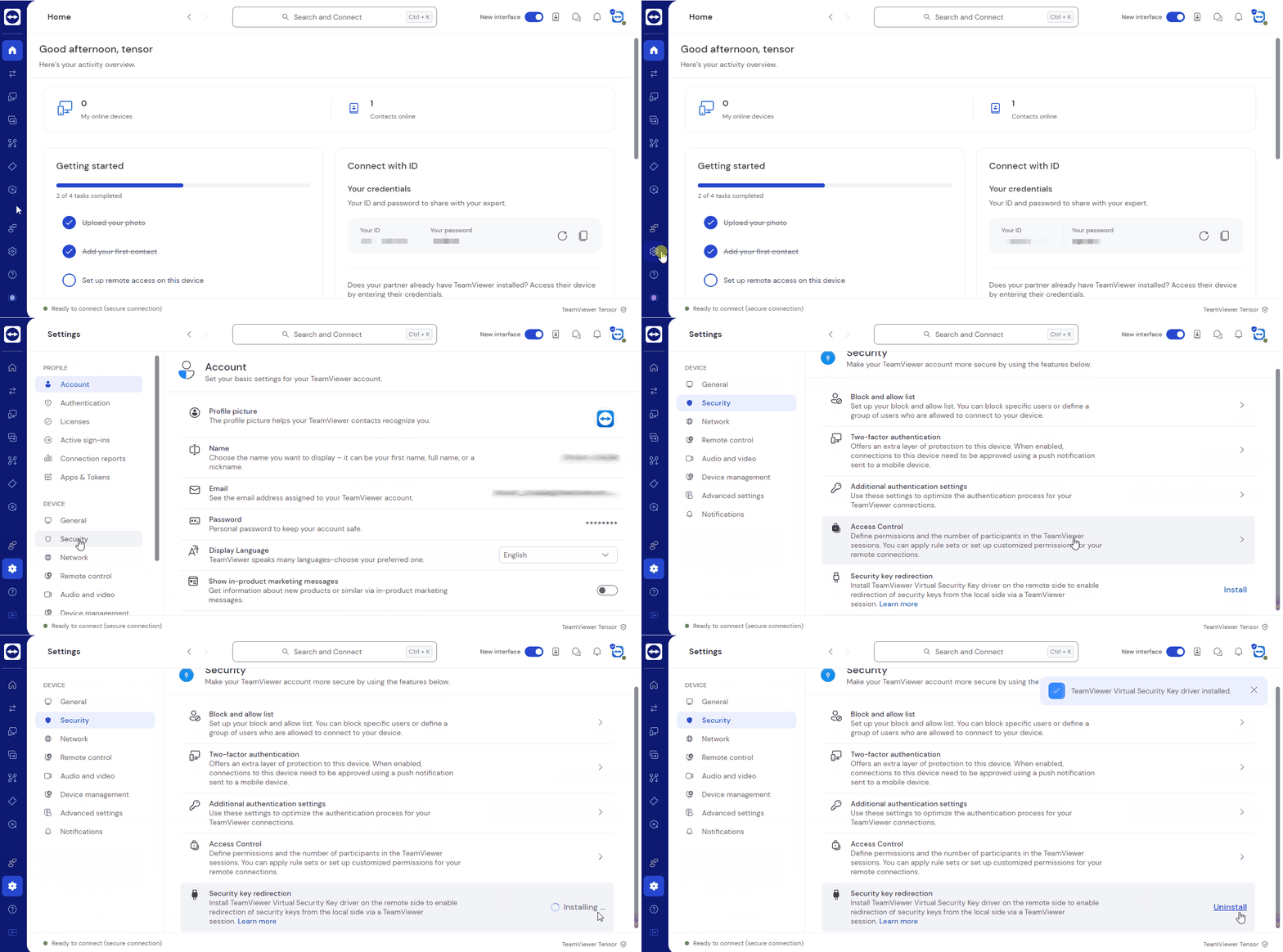
- In the TeamViewer application, open the options by clicking the gear icon (⚙) right.
- Click on the Security tab in the device section on the left.
- You will find the Security key redirection section at the bottom.
- Click on Install... to install the driver.
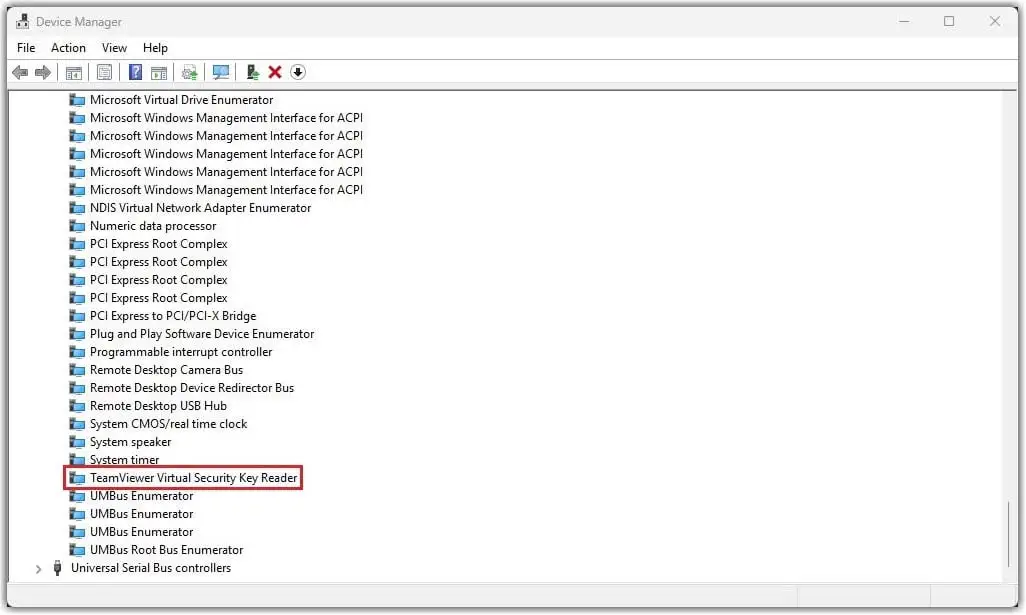
If the driver is correctly installed, it will appear in the Device Manager in the System devices category:
Use security key redirection
Since security keys are detected dynamically, they can be plugged in or removed at any point before or during a TeamViewer session. Security keys plugged in after redirection has started will also be redirected, once detected by TeamViewer.
During a session, go to Files & Extras and click on Redirect security key. This will list all compatible security keys currently detected by TeamViewer.
Clicking on Start redirection will redirect all security keys to the remote computer.

Stop the redirection of a security key
To stop the redirection, go to Files & Extras and click on Stop security key redirection. This will stop the direction and make the security keys available to the local computer exclusively.

Configuration
By default, TeamViewer will redirect all FIDO keys and smartcards plugged into the local computer. The forwarding can also be limited to either FIDO keys or smartcards exclusively.
This can be achieved by adding a registry key to the TeamViewer registry path on the local computer.
- Right-click, then click New > DWORD (32-bit) Value and name it SecurityKeyForwardingMode
- Double-click on the new entry and change the value to one of the following to configure which types of devices will be forwarded:
| Value | Forwarded device types |
|---|---|
0 | FIDO keys & smartcards |
1 | Smartcards only |
2 | FIDO keys only |
- Deleting the registry key is equivalent to value 0 and will forward both FIDO keys and smartcards, restoring the default behaviour of the redirection.
- Please restart the TeamViewer service or the computer for the value to take effect.
Security key redirection enables the use of security keys through a TeamViewer session.
A security key plugged into the local computer can be recognized by the remote computer and used as if it were plugged directly into that computer, e.g., for web authentication, Windows logon, or running a task with elevated privileges.
To ensure that the security key redirection works well, please note:
- The LAN mode should be deactivated on the remote side.
- There isn't an active RDP session on the remote side. If an active RDP session was established at any time during a remote connection, the connection must be restarted.
- As support for Windows 8.1 and 32 Bit system was dropped, the update process, both for mass deployment via MSI or installed via our website, will automatically remove the existing driver without user input if the minimum requirements are not met.
This article applies to customers with a TeamViewer Tensor license using Windows 10 64 Bit or higher.
Benefits
While the most familiar form of Two-Factor Authentication is a one-time password texted to your phone or shown in an Authenticator app, the most secure version is a physical security key that serves this purpose instead.
When an account is protected with a security key, no one can gain access without having both your password and physical access to the security key.
With security key redirection, you can utilize the same security features within TeamViewer sessions to securely authenticate remotely.
Prerequisites
To use security key redirection:
A TeamViewer Tensor license is required.
TeamViewer Host or the full version must be installed on the remote side.
The TeamViewer Virtual Security Key Reader driver must be installed on the remote computer.
A FIDO-based security key or a smartcard.
Note: Some security keys might require the installation of a mini driver on the remote machine. In many cases, it is best to plug the security key directly into the remote machine once and set up all drivers. Please check the documentation of the key you intend to use.
Install the TeamViewer Virtual Security Key Driver
There are two ways to install the TeamViewer Virtual Security Key Driver:
- via the MSI installer.
- via the application settings.
Via the MSI installer
When using the TeamViewer deployment and its MSI installer, the installation of the TeamViewer Virtual Security Key Reader driver can be activated by using its installation parameter during deployment:
INSTALLSECURITYKEYREDIRECTION=1
Via TeamViewer application settings
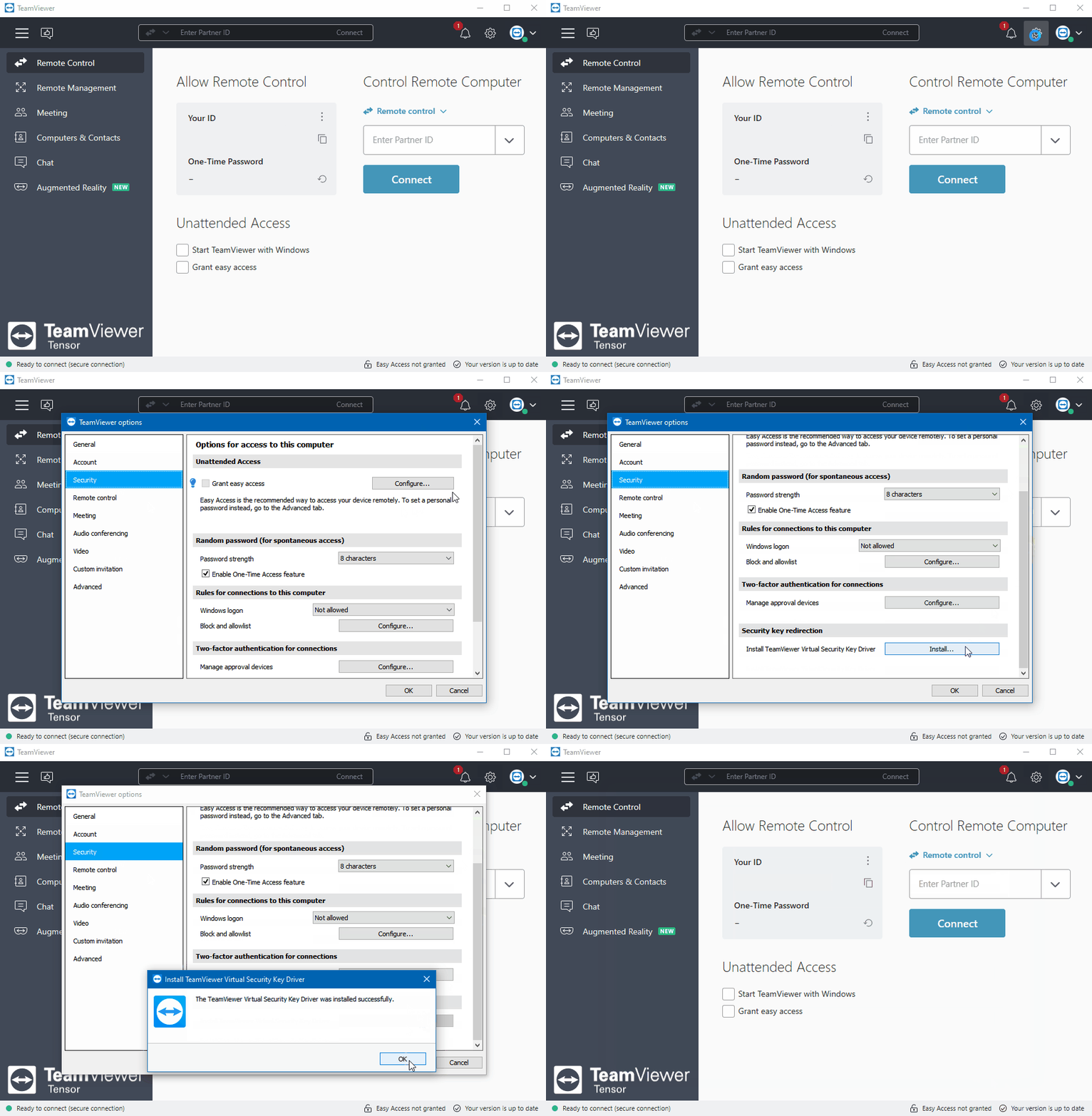
- In the TeamViewer application, open the options by clicking the gear icon (⚙) right.
- Click on the Security tab in the device section on the left.
- You will find the Security key redirection section at the bottom.
- Click on Install... to install the driver.
If the driver is correctly installed, it will appear in the Device Manager in the System devices category:
Use security key redirection
Since security keys are detected dynamically, they can be plugged in or removed at any point before or during a TeamViewer session. Security keys plugged in after redirection has started will also be redirected, once detected by TeamViewer.
During a session, go to Files & Extras and click on Redirect security key. This will list all compatible security keys currently detected by TeamViewer.
Clicking on Start redirection will redirect all security keys to the remote computer.

Stop the redirection of a security key
To stop the redirection, go to Files & Extras and click on Stop security key redirection. This will stop the direction and make the security keys available to the local computer exclusively.

Configuration
By default, TeamViewer will redirect all FIDO keys and smartcards plugged into the local computer. The forwarding can also be limited to either FIDO keys or smartcards exclusively.
This can be achieved by adding a registry key to the TeamViewer registry path on the local computer.
- Right-click, then click New > DWORD (32-bit) Value and name it SecurityKeyForwardingMode
- Double-click on the new entry and change the value to one of the following to configure which types of devices will be forwarded:
| Value | Forwarded device types |
|---|---|
0 | FIDO keys & smartcards |
1 | Smartcards only |
2 | FIDO keys only |
- Deleting the registry key is equivalent to value 0 and will forward both FIDO keys and smartcards, restoring the default behaviour of the redirection.
- Please restart the TeamViewer service or the computer for the value to take effect.