
Knowledge Base
Use TeamViewer Remote in LAN
Last Modified 27 mrt 2025
You can establish and receive remote control sessions directly within your local area network (LAN) by using IP addresses or, if the network uses DNS resolution, then the computer's name.
By default, the feature for incoming LAN connections is deactivated because some software firewalls may not allow it.
If you want to receive a connection from another computer over your LAN, you must enable this feature on your computer first.
Note: No TeamViewer servers are involved in LAN connections. Therefore, regular symmetric encryption without public/private key exchange is used.
This article applies to all TeamViewer Remote users.
How to allow incoming LAN connections on your device
On TeamViewer Remote Full Client
To allow incoming LAN connections on TeamViewer Remote Full Client, please follow the instructions below:
- Go to the Settings icon in the top-right corner.
- Choose Advanced Settings from the menu on the left.
- Click on Open Advanced Settings.
- Go to the General tab.
- Under the Network settings, find Incoming LAN connections.
- Select accept or accept exclusively from the dropdown.
- Click on OK for confirmation.
You have successfully enabled LAN mode on your device.
On TeamViewer Host
To allow incoming LAN connections on TeamViewer Host, please follow the instructions below:
- Click on the Gear icon on the top right (Show options).
- Continue with the General tab on the left.
- Under Network settings, see Incoming LAN connections.
- Change it to accept/accept exclusively.
- To allow control of your device by sharing your ID and password, click on Share TeamViewer ID.
Accept vs. Accept exclusively
If you choose Accept exclusively, TeamViewer Remote will disconnect from the internet – that means it will no longer be possible to sign in with your account and to use TeamViewer Remote's cloud-based functionalities.
Furthermore, TeamViewer Remote will display your computer's internal IP address on the main window of your TeamViewer Remote application. The person who wishes to connect to you over the LAN can enter this IP address into their Participant's ID/Participant's IP field (the latter only appears if the person who wishes to connect is also on "Accept exclusively") on their own TeamViewer client to connect to you.
If you choose Accept, TeamViewer will remain connected to the internet, and regular connections using the TeamViewer ID or session links will still be possible. In this case, to receive a LAN connection from another computer, you need to share your internal IP address with the other person.
When signed out, you can find your internal IP address in the start interface within the Share your ID or IP section.
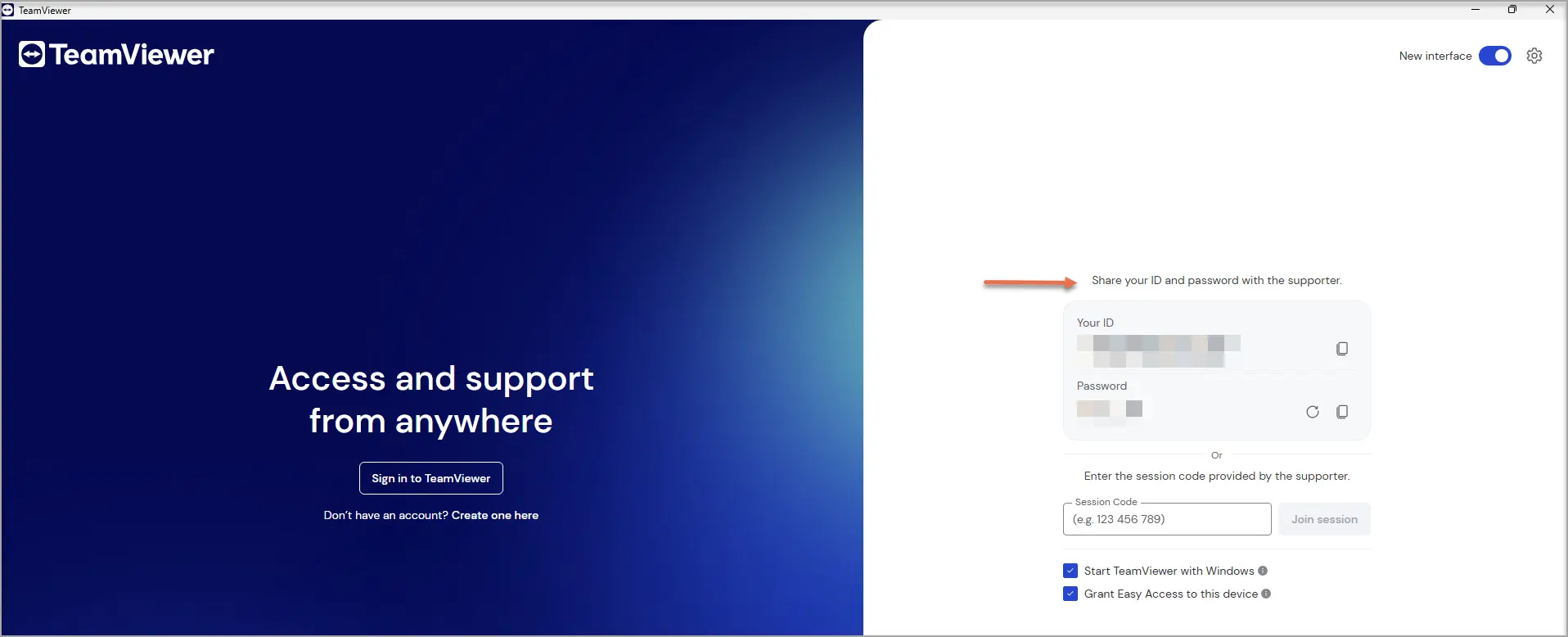
When signed in, you can find your internal IP address by opening the Command Prompt and typing: ipconfig
Your internal IP address will be displayed there as "IPv4 Address".
Notes:
- To start the TeamViewer LAN connection, please ensure that both computers are on the same network.
- LAN connections are not included in connection reports.
- To start a connection in LAN mode:
Make sure both computers are connected to the same network. - Open TeamViewer full client.
- Enter the IP address of the remote device into the Partner ID field.
- Click on Connect.
- Enter the remote device’s TeamViewer password.
- Click on Log on.
You have successfully connected to the remote computer directly in LAN mode without using the internet.
Note for macOS 15 Sequoia users: If outgoing direct connections to local network devices aren't working, check if the TeamViewer has Local Network access is enabled. You can verify this in System Settings > Privacy & Security > Local Network.