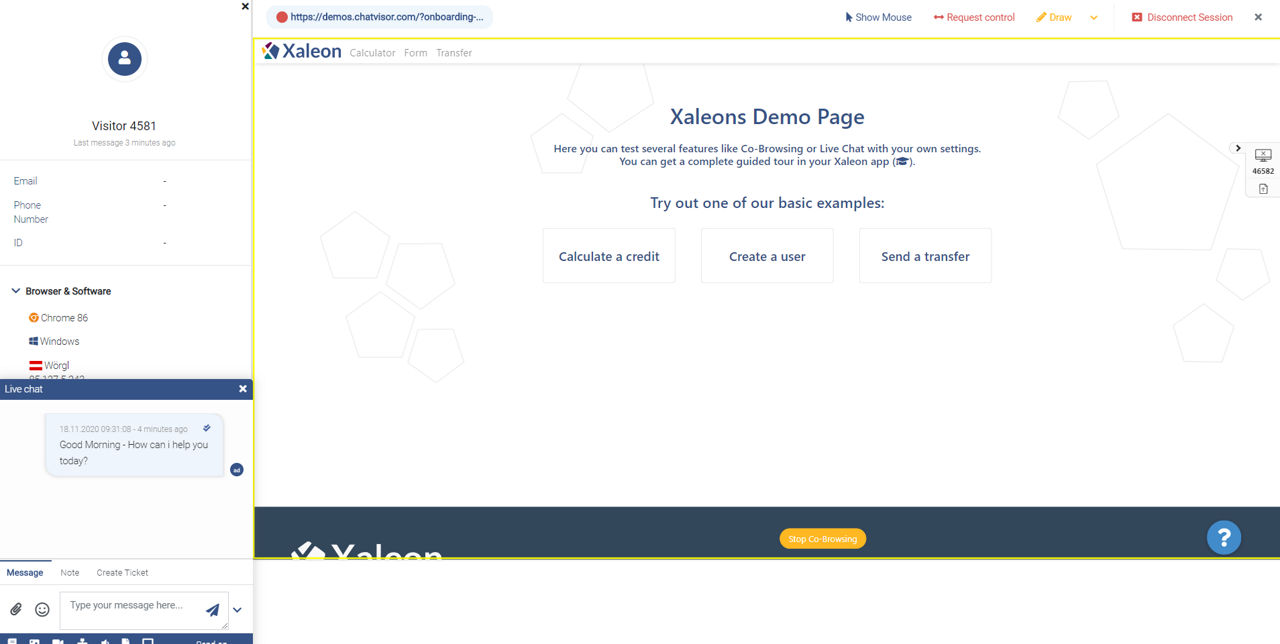
Navigation path: Live View > Tab: Co-Browsing
Purpose
Co-Browsing allows you to see what your customer sees, therefore provides you with visual context. Co-Browsing can be started with just a click (no downloads or installations) and is available for websites, web apps, and mobile apps.
Feature description
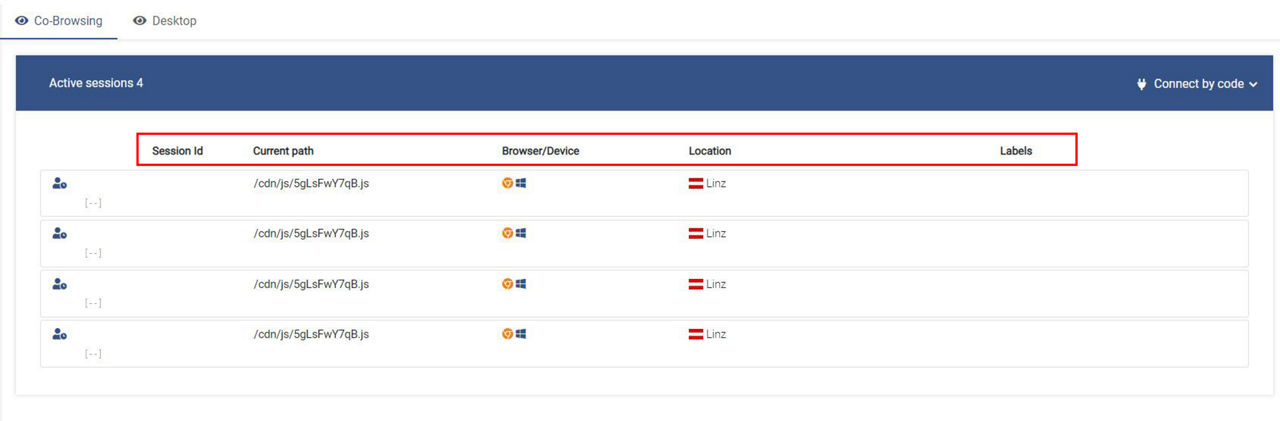
Overview of live sessions
In Live View you find yourself an overview of all currently active sessions on your website. With every session, some additional information is displayed:
- Status
- The status (the most left column) is orange, when the visitor is currently active on your website and blue, when the visitor has your website opened as a tab or in another browser window, but is currently doing something else than actively browsing your site.
- Session Id
- The
Session Idis the unique number to identify a user among all your current website visitors. - Current Path
- Shows where the user is currently on your page.
- Browser/Device
- Shows the browser the user is using.
- OS
- Shows the operating system the user is using.
- Location
- Shows the location of the user.
- Labels
- Through Labels, additional information is displayed. For example, the user's user name within your web application.
Start Co-Browsing with a customer
To start Co-Browsing with a customer, the customer first needs to option to the interaction. This can be initiated with two ways:
- Button on website
- Co-Browsing request via Live Chat
The option process can vary depending on how your organization decided to model it. The most common though is that the customer clicks a button on your website to initiate Co-Browsing.
Customer shares Session Id, you connect through Connect by code
- Through for example clicking a button, customers receive their unique
Session Idand acknowledge that an agent can connect - Customer shares
Session Idwith agent - Agents connect through entering
Session IdintoConnect by code - Co-Browsing starts

Within a Co-Browsing session
After connecting to a customer, you enter the Co-Browsing session: