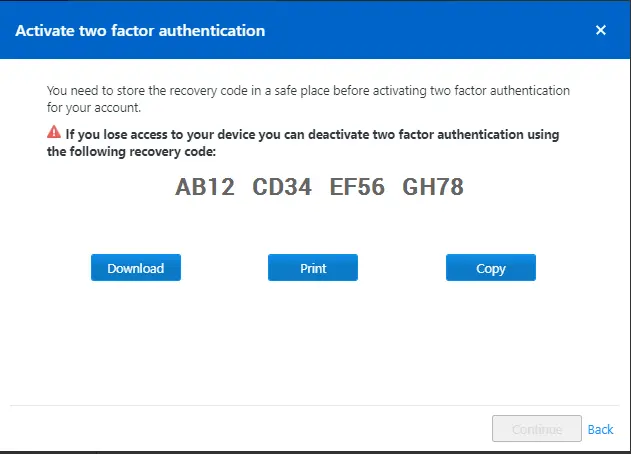
With two-factor authentication, you can protect your account from unauthorized access with an additional security code.
This article applies to all TeamViewer Remote users.
How to activate two-factor authentication
To activate two-factor authentication, please follow the instructions below:
- In the Remote interface
- In the (Classic) interface
- Open TeamViewer Remote or go to https://web.teamviewer.com/
- Sign in to your account. Please find the instructions on how to sign in here.
- Click on Settings.
- Click on Go to your profile's settings.
- Select the Authentication tab and click the circle next to Two-factor authentication for sign-in.
- Scan the QR code with your two-factor authentication app and click Continue.
- Save the recovery code by downloading, printing, or copying/pasting it on your personal files and click Continue.
- Enter the security code displayed on your two-factor authentication app and click on Activate.
You have now been signed out. To sign in to your account, please follow the instructions here.
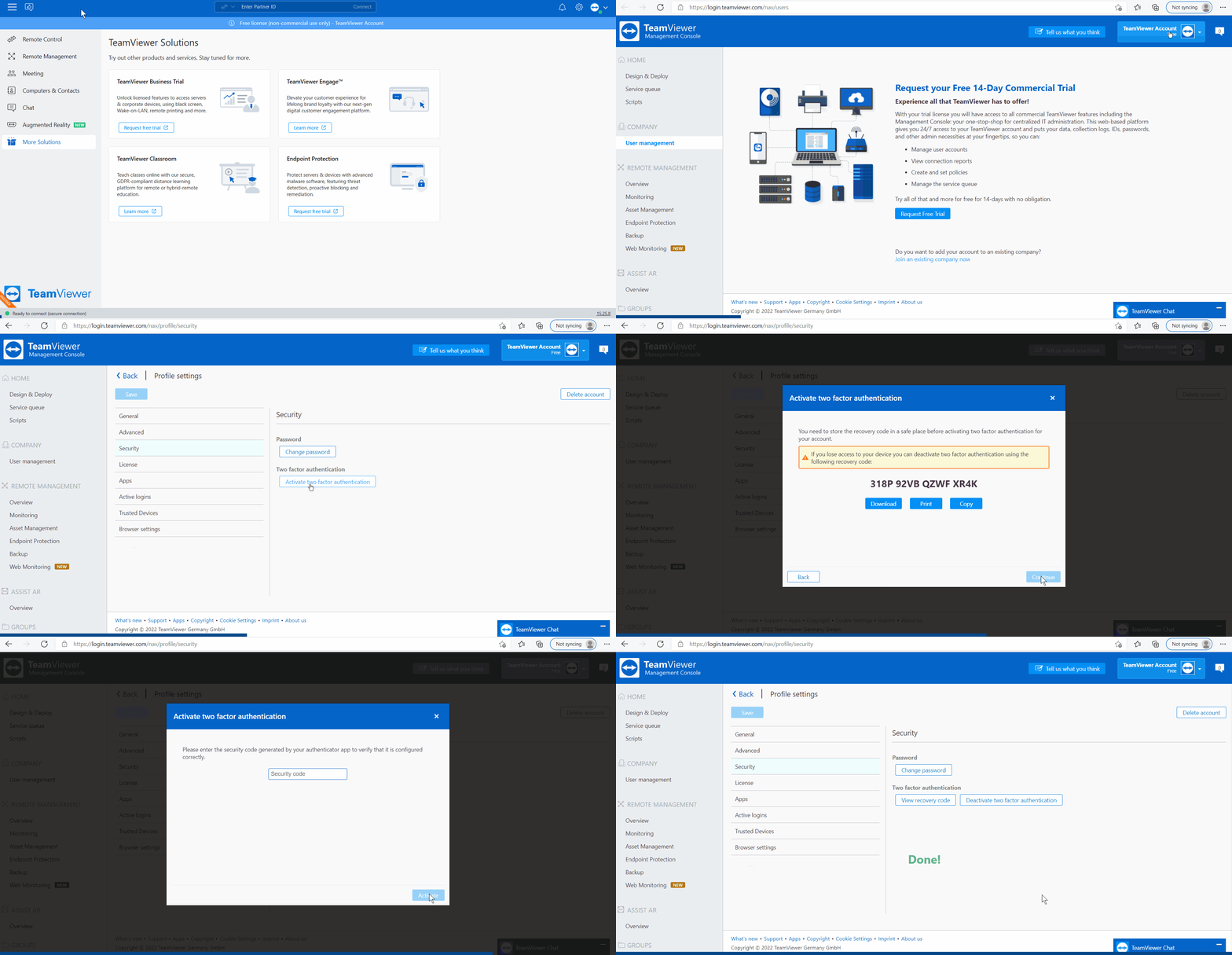
- Sign in to the Management Console with your TeamViewer account.
- Go to the top right, select your profile, and click Edit profile.
- Now select Security and click Activate two-factor authentication.
- Click Continue.
- Open your authentication app on your device and follow the steps shown in the Management Console:
- Scan the QR code.
- Download, print, or copy the recovery code and store it in a safe place before activating two-factor authentication.
- Enter the security code shown in the authentication app on your device.
- Click Activate.
- Click Finish.
How to deactivate two-factor authentication
To deactivate two-factor authentication, please follow the instructions below:
- In the Remote interface
- In the (Classic) interface
- Open TeamViewer Remote or go to https://web.teamviewer.com/
- Sign in to your account. Please find the instructions on how to sign in here.
- Click on Settings.
- Click on Go to your profile's settings.
- Select the Authentication tab and click the circle next to Authentication via trusted devices.
- Click Got it.
- Enter the security code displayed on your two-factor authentication app and click on Deactivate.
You have successfully deactivated two-factor authentication on your account.
- Sign in with your TeamViewer account at login.teamviewer.com.
- Click on your profile name and click Edit profile.
- Go to Security in the left menu.
- Click the Deactivate two-factor authentication link under Two-factor authentication.
- Enter the security code displayed by your authenticator app.
- Click the Deactivate button.
How to deactivate two-factor authentication via recovery code
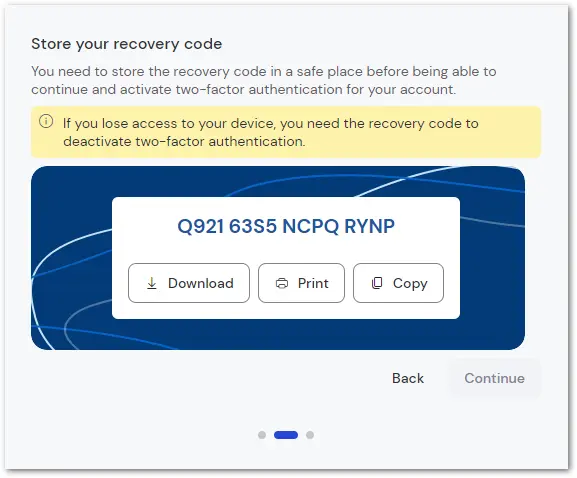
When activating two-factor authentication for your TeamViewer account, you get an individual recovery code, which you have to save in a secure place. (You have to download, print, or copy it before you can continue with the setup process.)
- In the Remote interface
- In the (Classic) interface
Important notes
- If you lose access to your mobile device or the authenticator app, the recovery code is your last resort to deactivate two-factor authentication.
- The recovery code allows you to log in again with your email and password via this site: https://login.teamviewer.com/LogOn#deactivate-tfa
- The recovery code is very powerful as it allows you to deactivate two-factor authentication.
- If you are unsure whether you saved it properly, you can access the code in TeamViewer Remote via Settings ➜ Profile ➜ Authentication ➜ View recovery code. Please keep in mind that you need your security code to view the recovery code!
- When setting up your two-factor authentication, consider printing more than one copy of your recovery code in case one copy gets lost or destroyed!
- Do not send the recovery code unencrypted via email, as this could give an unauthorized user access to it. After deactivating two-factor authentication with the recovery code, you can always reactivate it for your user. Otherwise, trusted devices apply automatically.
- TeamViewer cannot deactivate the two-factor authentication. If you lose your recovery key, you will also lose access to all TeamViewer features where your account is needed. Therefore, it must be kept secure.