Policies play a vital role in ensuring the smooth and secure operation of TeamViewer Remote Management. By providing a structured framework, policies set the foundation for consistency and clarity, guiding behavior, decisions, and actions for your services. This framework establishes and enforces specific rules, configurations, and security measures within the environment. The following article discusses these policies and how to utilize them.
This article applies to all TeamViewer Remote Management customers
Remote Management Policies
Remote Management policies are settings that are customized and sent to the endpoints upon installation. They allow you to define and control various aspects of the respective service's functionality and behavior, ensuring consistent and efficient remote management practices. They contain all the necessary information on how the service will:
• Remotely manage the device
• Alert the user if something is not working properly
• Setup thresholds and parameters
• Send e-mail notifications
How to create a Remote Management policy
Step 1
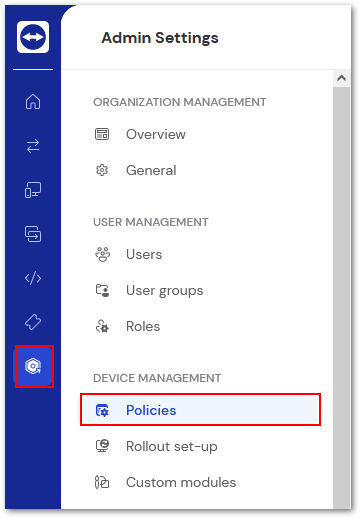
Open TeamViewer Remote or log in to the web app and click Admin Settings on the left. Select Policies underneath Device Management.
Step 2
Click + Create new policy in the upper right corner.

Step 3
Name the policy in the space provided at the top. Select which TeamViewer service you wish to create a policy for.
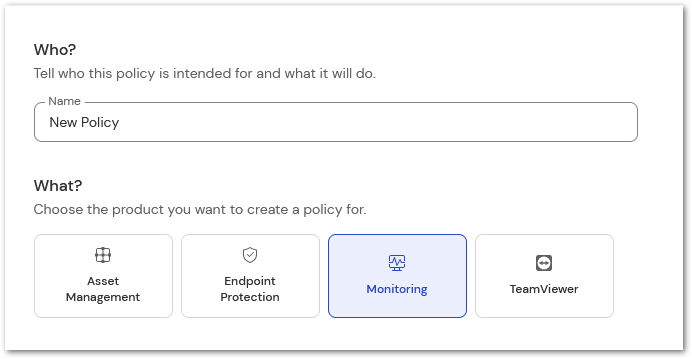
Once done, click Save in the upper right corner.
How to assign a policy via the Policies tab
To assign a policy via the Policies tab, please follow the instructions below:
- Click the Company button on the left-hand side of TeamViewer Remote's interface.
- Click on Policies.
- Select the policy you want to assign to your devices.
- Click on Assign.
- Select the individual devices or the device groups you want to assign.
- Click on Assign.
You have successfully assigned a policy to your devices.
How to assign a policy via a device group
To assign a policy via a device group, please follow the instructions below:
- Click the Devices button on the left-hand side of TeamViewer Remote's interface.
- Select the device group you want to assign the policy to.
- Click on Edit group and Edit group information.
- Within the Overview, under TeamViewer policy, select the policy you want to assign to the device group and click Save.
You have successfully assigned a policy to your device group.
How policy inheritance works
In TeamViewer, devices can inherit policies from their assigned groups. However, simply assigning a policy to a group is not sufficient. Each device must be explicitly set to inherit a policy from one of the groups it belongs to.
Note: A single device can belong to multiple groups simultaneously. In such cases, it is necessary to define from which group the device should inherit the policy.
This gives both device managers and group managers the flexibility to determine whether a device should use:
- A directly assigned policy, or
- A policy inherited from a specific group.
Example
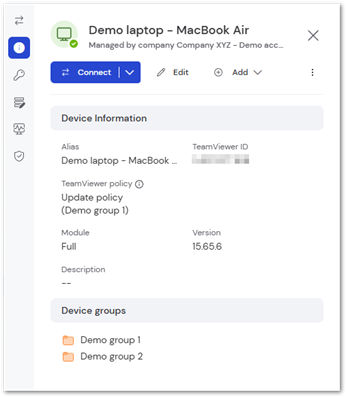
Let's say the device "Demo laptop - MacBook Air" is part of two groups: Demo group 1 and Demo group 2. Each group has its own policy. You want the MacBook Air to use the policy from Demo group 1, which is named Update policy.
To assign the inherited policy, please follow the instructions below:
- Go to Devices.
- Go to All managed devices and locate the desired device.
- Click on the device and then click Edit to access the device's properties.
- Under TeamViewer policies, open the drop-down menu.
- Select the desired group policy from the Inherit policy from group section - in this case, Demo group 1 (Update policy).
- Click Save.
You have successfully assigned the policy of Demo group 1 to the device. The selected policy will now be displayed in the device’s properties under:
Device information ➜ TeamViewer policy
Remote Management Policies
To learn more about Remote Management policies, please select your relative service below:
Note: Mobile Device Management policy settings can be found here.
- TeamViewer Monitoring
- Asset Management
- Endpoint Protection
- Endpoint Detection and Response
- TeamViewer Backup
Monitoring Policies
Setting up policies in TeamViewer Monitoring determines the criteria for your devices that will trigger reporting when something is not operating within the designed thresholds. TeamViewer Monitoring provides alerts for devices running Windows, macOS, and Linux.
The following alerts are available from TeamViewer Monitoring.
All Operating Systems
- CPU Usage - Generates an alert when the average for any processor exceeds the set threshold for a determined period of time.
- Memory Usage - Generates an alert when the average available memory falls below the set threshold for a determined period of time.
- Online State - Generates an alert after a device is reported as offline for a determined period of time.
Windows
- Security Solution - Generates an alert when there is no antivirus installed, or the installed antivirus is out-of-date. Alerts can be instantaneous or set to occur after a determined period of time.
Note: Security Solution check is not available for Server OS, as Windows Security Center is not present on Windows server systems.
- Firewall - Generates an alert when the firewall is disabled. Alerts can be instantaneous or set to occur after a determined period of time.
- Disk Health - Generates an alert when any disk reports physical errors .
- Disk Space - Generates an alert when disk space falls below the defined percentage of available space. Alert can be set for any disk drive (c:/, d:/, etc).
- Event log - Generates an alert when specified information is discovered in an event log.
Learn More about Event Log Check
- Service - Generates an alert if a specified Windows Service has stopped. Alert can be instant or after a defined period of time. Services are checked every 5 minutes.
- Network Adapter Traffic - Generates an alert when the average network adapter traffic is lower or higher than a specified value. The values can be combined, and the alert can be instantaneous or set to occur after a determined period of time.
- Process - Generates an alert if a specified process is running or is stopped. Alerts can be instantaneous or set to occur after a determined period of time.
- System Update - Generates an alert when System Update is disabled, updates are available, or both. Alerts can be instantaneous or set to occur after a determined period of time.
macOS
- Disk Space - Generates an alert when disk space falls below the defined percentage of available space. Alert can be set for any named drive.
- Process - Generates an alert if a specified process is running or is stopped. Alerts can be instantaneous or set to occur after a determined period of time.
- System Update - Generates an alert when System Update is disabled or system updates are available. Alerts can be instantaneous or set to occur after a determined period of time.
Linux
- Disk Space - Generates an alert when disk space falls below the defined percentage of available space. Alert can be set for any named drive.
- Process - Generates an alert if a specified process is running or is stopped. Alerts can be instantaneous or set to occur after a determined period of time.
Asset Management Policies
Setting up policies for TeamViewer Asset Management determines how the Patch Management service will deploy available patches. Patch Management deploys both third-party and system updates automatically and is available for both Windows and macOS.
All Operating Systems
- Patch exclusions - Specify which applications you do not want to be updated. Can exclude entire applications or specific versions.
Learn More about supported Third-Party apps
- Reboot setting - Determine if devices will reboot after patch deployment, when necessary.
- Notifications - Set email notifications for when deployments are successful or failed.
- Condition to organize scheduled patching - determine what patches will be deployed and when. Scheduling can be When available, Daily, Weekly, or Monthly. Criteria are based on:
- Vendor severity: Critical, Important, Low, or Not rated
- Patch classification: Operating system or Third Party
- Patch type: Security or Non-security
Note: It is possible to create multiple rules based on varied conditions.
Windows
- Bandwidth throttling - Sets the threshold for the amount of available bandwidth provided to Patch Management. Thresholds set in a specified time-frame.
Endpoint Protection Policies
Setting up policies for TeamViewer Endpoint Protection determines how your devices are scanned and protected against malware. TeamViewer Endpoint Protection provides protection for devices running Windows, macOS, and Linux.
General settings
- Show Malwarebytes icon in notifications area
- Allow users to run a threat scan
Hint: All threats will be quarantined automatically
- Display real-time protection notifications
- Automatic updates (Windows only)
Hint: Automatic software updates are always enabled for macOS.
- Pause software updates (Windows only)
Note: Software updates can be paused for up to 31 days. Updates will automatically resume after 31 days.
Windows settings
SCAN OPTIONS
- Scan for rootkits: Rootkits are files stored on your computer's local disk drives that are invisible to the operating system and may influence system behavior
- Scan within archives: Scans of archive file types, such as zip, 7z, rar, cab, and msi, are scanned up to two levels deep. Password-protected archives cannot be tested.
- Use signature-less anomaly detection: Utilizes a signature-less malware detection component that relies on intelligent algorithms and machine learning to detect new, unknown/never-before-seen threats.
- Use expert system algorithms: Supplement existing detection methods by using expert system algorithms to identify malicious files.
- Potentially unwanted programs (PUPs): Treat detections as malware or ignore
- Potentially unwanted modifications (PUMs): Treat detections as malware or ignore
Note: PUP and PUM settings apply to threat scans, hyper scans, and real-time protection events.
REAL-TIME PROTECTION SETTINGS
- Prevent connections to malicious/compromised websites
- Prevent vulnerability exploits/zero-day attacks
- Prevent malware infections
- Detect and block malware based on behavior analysis
MISCELLANEOUS PROTECTION OPTIONS
- Protect Malwarebytes from targeted threats
macOS settings
- Potentially unwanted programs (PUPs) - Treat detections as malware or ignore
Note: PUP settings apply to threat scans, hyper scans, and real-time protection events.
- Prevent malware infections
- Prevent execution of apps originating from known bad developers
Linux settings
- Prevent malware infections
Endpoint Detection and Response Policies
Endpoint Detection and Response (EDR) is a form of endpoint protection that uses data collected from devices to understand how cyber threats behave and how organizations respond to them. The following settings determine how EDR works and interacts with your endpoints.
WINDOWS
- Suspicious activity monitoring: Protects your devices by observing the behaviors of various processes and files to look for deviations from normal activity.
- Aggressive mode: Protects your devices by using a tighter threshold for flagging suspicious processes.
- Network events: Collects history of network events for suspicious activity monitoring.
- Server operating system monitoring
- Lock endpoint when isolated
- Ransomware rollback: Remediates damage done to your Windows endpoints by ransomware. Ransomware Rollback uses a unique restore process to reverse the damage done by threats.
macOS
- Suspicious activity monitoring: Protects your devices by observing the behaviors of various processes and files to look for deviations from normal activity.
- Network events: Collects history of network events for suspicious activity monitoring.
- Lock endpoint when isolated
Backup Policies
Setting up policies for TeamViewer Backup will determine what files and folders are backed up on your endpoints and how often the backups occur. TeamViewer Backup is available for Windows and macOS devices.
File Selection
Determine the level of backup required:
Hint: To see exclusions or included file types, click the blue "i" icon to the right of each option inside the policy.
- Full Selection - All Windows drives/macOS users folders will be backed up. Some exclusions apply
- Quick Selection - Specific filetypes are included, broken into four categories:
- Office files
- PDFs/ebooks
- Emails
- Pictures
- Advanced Selection - Specified disks, files, or folders are backed up
Manage exclusions
Specify which disks, files, or folders that should be excluded from backups.
Backup schedule
Specify when/how often the backup should occur. Backup can be run in intervals (every 30 minutes - 8 hours), or on a schedule (Every day/specific days and what time).
Bandwidth throttling
Sets the threshold for the amount of available bandwidth provided to TeamViewer Backup. Thresholds are set in a specified time frame and max bandwidth.
Notifications
Enable/disable email notifications for when backups fail, or restores are successful.