
Knowledge Base
Activate your Business license (for v11 and v12)
Last Modified 8 мая 2026 г.
Note: If you want to activate your license (purchased/subscribed to after October 30th, 2017), please have a look at this article: How to activate your license
This article applies to all users with a Business license in version 11 or 12 or purchased/subscribed prior to October 30th, 2017.
Activate Business license and add the first device
In order to use the three possible installations of your Business license, you need to link the respective TeamViewer IDs to your license in the TeamViewer (Classic) Management Console. The devices with their TeamViewer IDs can then be used for commercial purposes.
Note: You can find downloads for all previous versions of TeamViewer (Classic) here.
1. Click on the Activate now link within the purchase confirmation email.
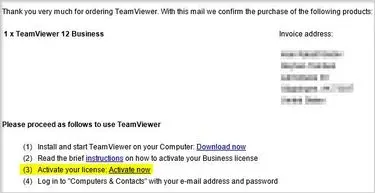
2. Log in with the credentials of your TeamViewer account. If you do not have a TeamViewer account, please select the Create new account radio button and enter your personal information.

You will then be referred to a dialog window. It describes how to activate your license on your devices.
3. To activate your license on your devices, simply log in to TeamViewer (Classic) Management Console ➜ click Edit profile in the top right hand corner.
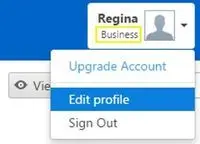
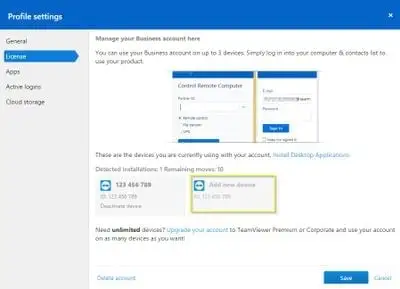
4. Under the Licence tab, click the Add new device button to the right under Detected installations
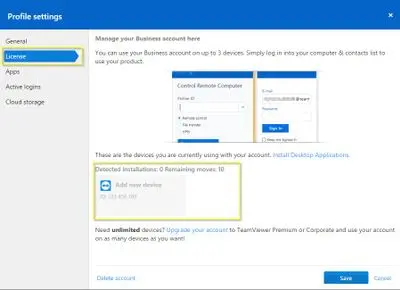
5. The Add Device to Account dialog will open, please enter under point 3 the TeamViewer ID of the first device you want to use for commercial TeamViewer connections.
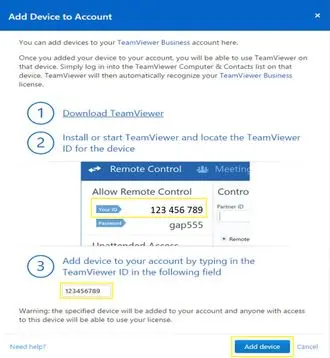
(ID 123 456 789 is just a placeholder and should be replaced with your own TeamViewer ID)
- Click the Add device button. You have successfully licensed the first installation.
- The Business license can be activated up to three devices, even possible on mobile devices.
Add device to your Business license
- Log in with the credentials of your TeamViewer account, which is linked to your Business license.
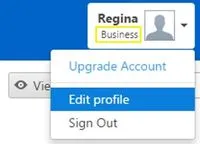
- (The correct TeamViewer account shall bear the title Business under display name)
- Open your profile settings in the top right hand corner.
- Click the Edit profile button
- Under the License tab, click the Add new device button to the right under Detected installations
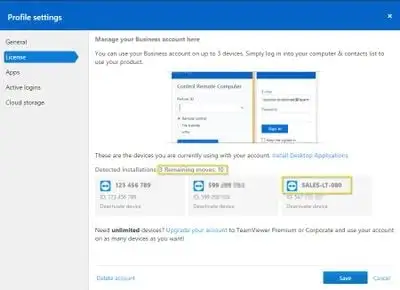
- Please repeat steps the third to fifth step to activate your Business license for a second or third installation.
- If a device is assigned to your TeamViewer account, the device/computer name is shown. Otherwise you will only see the TeamViewer ID
- To deactivate/remove device from Business license, just click the button Deactivate device
- The Business license can be activated up to three devices, even possible on mobile devices.
- If a device is assigned to your TeamViewer account, the device/computer name is shown. Otherwise you will only see the TeamViewer ID.
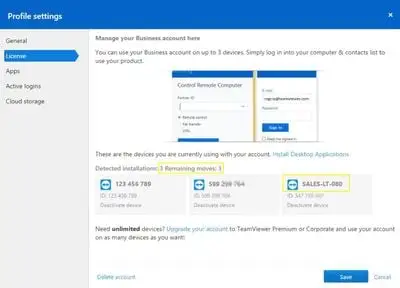
- To deactivate/remove device from Business license, just click the button Deactivate device
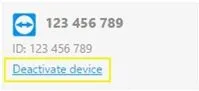
- You have successfully deactivate device after confirmation this dialog.
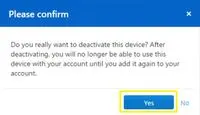
- Now you could repeat the third to fifth steps to add a new device.
