
Knowledge Base
Wake up a device remotely (Classic)
Last Modified 8 мая 2026 г.
Wake-on-LAN allows you to turn on a sleeping or powered-off computer. This means you can remotely control an offline computer by waking it up first before establishing a connection to it.
You can initiate the wake-up request from another Windows or Mac computer or even an Android or iOS device running the TeamViewer Remote Control app.
Note: It’s not possible to wake up a Mac computer that is fully powered down, as Apple doesn’t allow this. Macs can only be woken up from sleep mode. However, Windows and Linux PCs can be woken up from sleep and hibernation mode, as well as fully powered down, so long as the hardware supports this.
This article applies to Remote Access, Business, Premium, Corporate and Tensor customers.
How to use Wake on LAN
Wake-on-LAN can be used through two different methods:
- Wake up a computer (hereafter called the target computer) via another computer within the same network.
- Wake up the target computer via its public address.
Choose one of the methods depending on the circumstances.
How to wake up the target computer via another computer within the same network
Choose this method if there is a second computer (e.g. a server) within the target computer's network that is turned on permanently.
In this case, you can use the second computer to wake up the target computer. The second computer acts as a “middleman” to forward the wake-up request to the target computer. This method requires considerably less configuration effort than the second method.
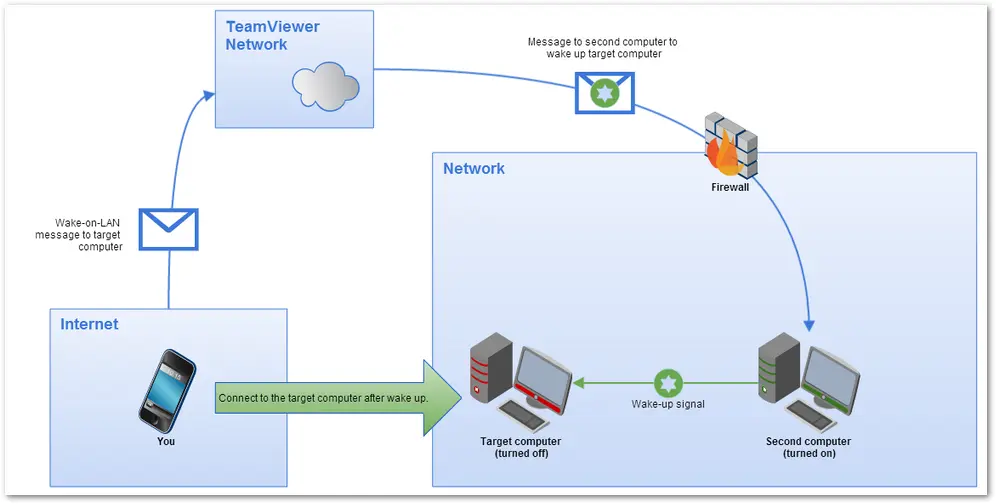
If you can answer the following questions with "Yes", this is the appropriate method:
- Is the target computer located in a network?
- Is the target computer connected to the internet using a network cable?
- Is a second computer (PC, Mac, Linux) located on the same network?
- Does TeamViewer (Classic) start automatically with the operating system on both computers?
- Is the second computer turned on 24/7 (the operating system and TeamViewer (Classic) are running)?
If you can match all the above, you can wake up the target computer in three easy steps:
- Configure the hardware of the target computer
- Configure TeamViewer (Classic) on the target computer
- Wake up the target computer
Please refer to the Manual for Wake-on-Lan v11 (PDF) (follow the link and scroll down to the bottom of the page) for a detailed description of how to set up Wake-on-LAN with TeamViewer (Classic).
How to wake up the target computer via its public address
Choose this method if the target computer can be reached via a public address. This is the case if you have either a fixed, static IP through your Internet provider or if your router has a public domain address with the help of a dynamic DNS provider.
In these cases, you can configure TeamViewer (Classic) so that the target computer is woken through this address. The configuration effort of this method is higher and more complex than in method A because you have to set up your router accordingly.
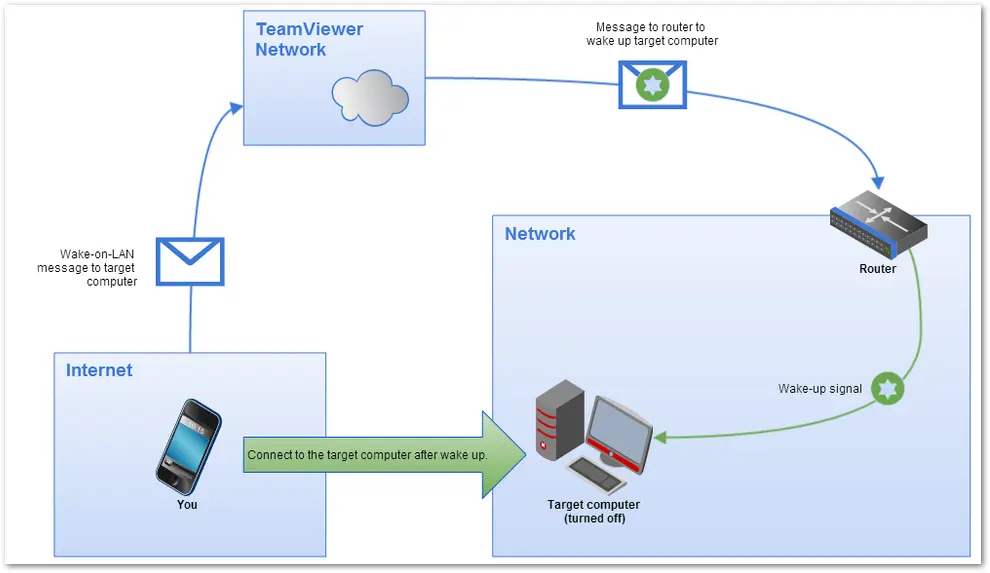
If you can answer the following questions with "Yes", this is the appropriate method:
- Is the target computer located in a network?
- Is the target computer connected to the network using a network cable?
- Is the target computer connected to the internet via a router?
- Does the router support port forwarding?
- Does the router have a public address (either a fixed IP address or a public domain address)?
- Does TeamViewer (Classic) start automatically with the operating system on the target computer?
If yes to all of the above, the following steps are necessary to use Wake-on-LAN via a public address:
- Configure the hardware of the target computer
- Configure the router for port forwarding
- Configure TeamViewer (Classic) on the target computer
- Wake up the target computer
Please refer to the Manual for Wake-on-Lan v11 (PDF) for a detailed description of how to set up Wake-on-LAN with TeamViewer (Classic) (please follow the link and scroll down to the bottom of the page).
How to wake up my computer with my tablet or smartphone
You can use your tablet or smartphone to wake up a computer/laptop via Wake-on-LAN.
To do so, you must configure TeamViewer (Classic) Wake-on-LAN via your router (DynDNS) or TeamViewer IDs as described above. This allows you to wake up your laptop, computer, workstation, or other devices that are running Windows or Mac OS X.
To wake up a computer, use the TeamViewer Remote Control app for your smartphone or tablet that is running one of the following operating systems:
- iOS (iPhone, iPad, iPod touch)
- Android
- Windows Phone
Alternatively, use TeamViewer (Classic) for Windows, Mac OS X, or the TeamViewer (Classic) Management Console.