Knowledge Base
Enforce two-factor authentication on company members
Last Modified 19 мая 2025 г.
As a company administrator, you can enforce and disable two-factor authentication (2FA) on all users within your company profile.
After enabling this feature, all users of your company profile will have to use two-factor authentication to access their accounts.
This article applies to all TeamViewer (Classic) company administrators.
Enforce two-factor authentication
To enforce two-factor authentication your users' TeamViewer accounts, please follow the instructions in the video below:
1. Sign in to the Management Console: https://login.teamviewer.com/
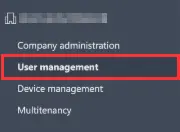
2. Select User management in the left navigation panel.
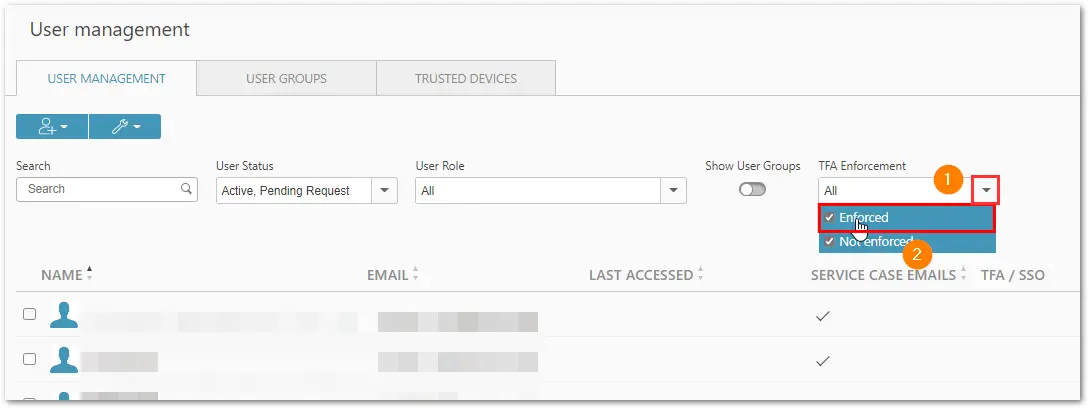
3. Click the dropdown of the 2FA enforcement feature on the screen's right-hand side and remove the check mark from Enforced.
4. Select the users on which you want to enforce 2FA.
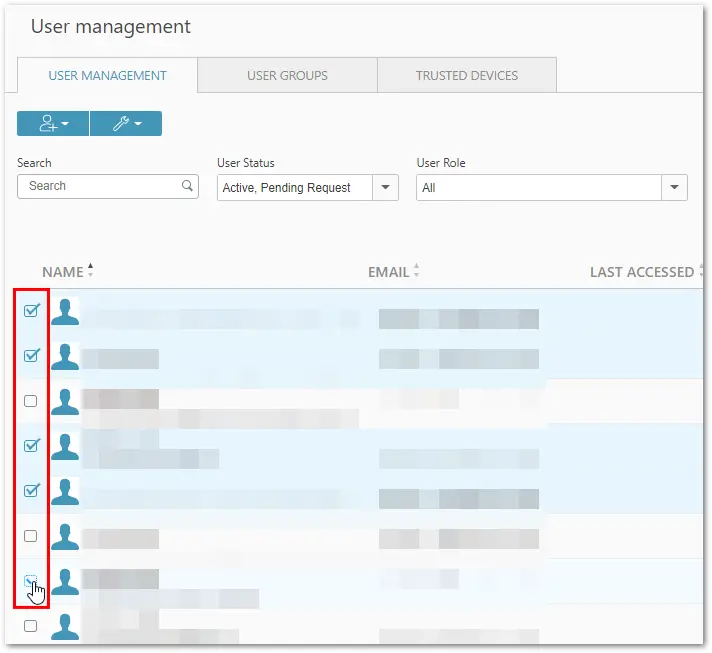
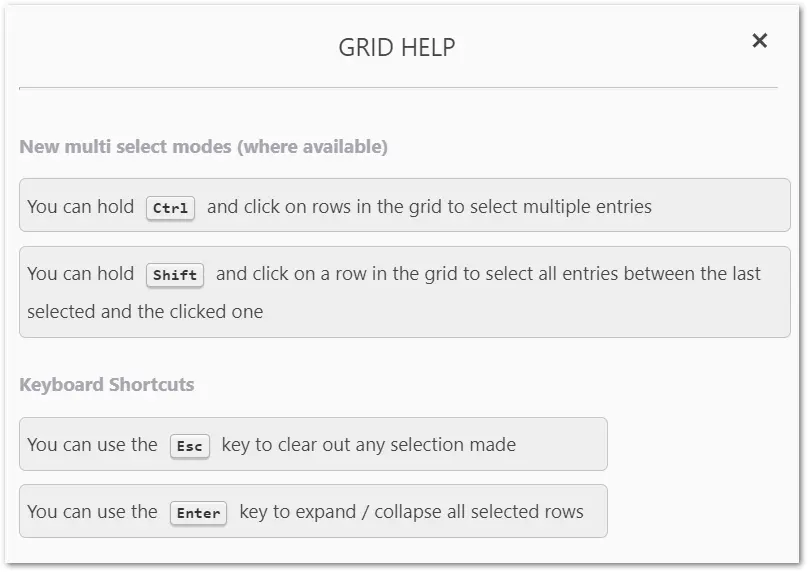
📌Note: If you want to select multiple users, you can use one of the following multi-select modes:
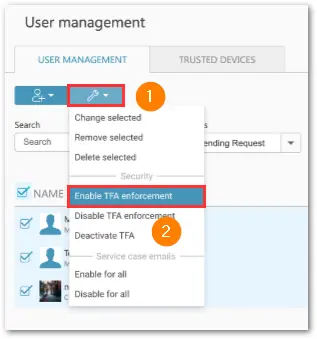
5. Now, click the 🔧 bulk-change button (wrench icon) and select Enable 2FA enforcement in the Security section.
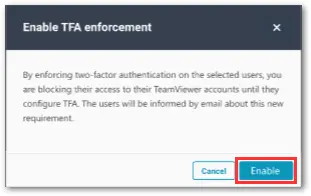
6. A confirmation window will appear. To confirm, click Enable.
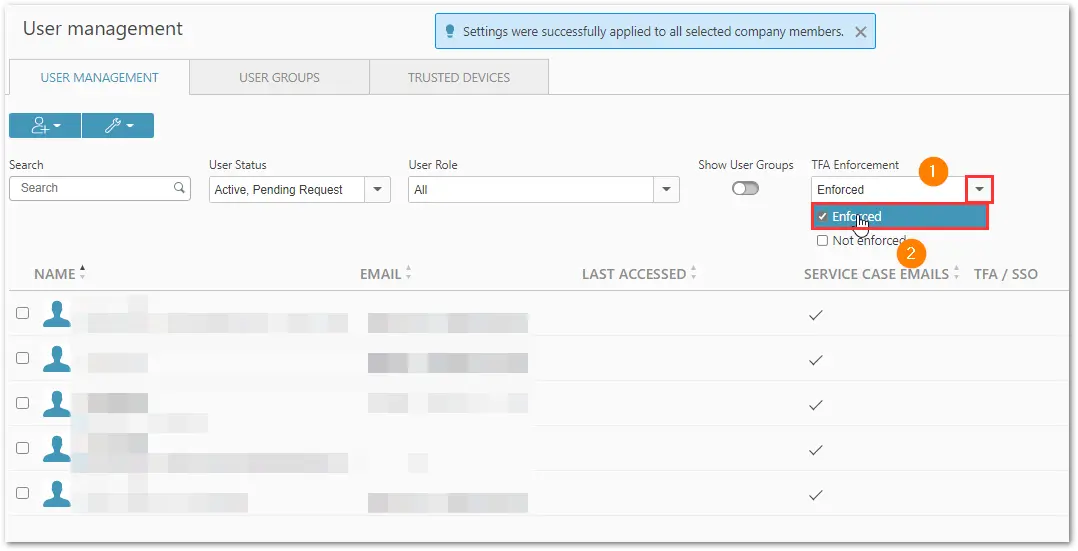
7. To check if the two-factor authentication enforcement worked successfully, select Enforced in the 2FA enforcement section. All enforced users will be shown.
8. The affected users will receive a notification email after the successful activation.