
Knowledge Base
Connections From Mobile to Mobile Devices
Last Modified 16 апр. 2026 г.
With TeamViewer (Classic), it is possible to connect and remotely support mobile devices from another mobile device. Users controlling the supporting device will have to install the TeamViewer for Remote Control app. Users on the remote side (supported device) will have to install either the TeamViewer QuickSupport app or the TeamViewer Host app, depending on the use case.
This article applies to Android, iOS, and Chromebook and users in Free or licensed users who have MDS (Mobile device support).
Difference between QuickSupport and Host app
Both the TeamViewer QuickSupport app and the TeamViewer Host app allow remote access to Android devices. Additionally, both can be installed at the same time. Depending on your use case, you can decide which app you prefer.
The main difference is how you connect:
- the QuickSupport app requires confirmation of access from the remote user
- the Host app won't require confirmation of access from the remote user and therefore allows unattended access.
- The Host app only allows connections coming from the TeamViewer account the device is assigned to. A connection via TeamViewer ID or servicecase is not possible - for this use case please choose the QuickSupport app.
Requirements
General
- You are using TeamViewer 12 or a newer version of TeamViewer (Classic)
- You are a private user or you own a TeamViewer license with MDS (Mobile Device Support)
On the supporting device
- You have installed the latest version of the TeamViewer for Remote Control app on your iOS or Android device.
On the supported device
- You have installed the latest version of TeamViewer QuickSupport on your iOS, Android, or Chromebook device.
- You have installed the latest version of TeamViewer Host on your Android device or Chromebook.
- For connections to iOS devices, it is possible to connect to apps that have the TeamViewer Screen sharing SDK for iOS/Android integrated or use the Screen Sharing functionality of the regular TeamViewer QuickSupport App for iOS.
Note: Please note, that connections are limited to five minutes each for private users.
Specifications
Compared to connections to mobile devices from a laptop or computer, mobile-to-mobile connections are meant to be pure remote access sessions. Besides remotely controlling the mobile device it is therefore not possible to transfer files, push and pull settings, have a dashboard, etc.
Remotely access an Android device
You can connect to any Android-based device with TeamViewer for Remote Control App for Android and iOS.
On the supporting device
- Download and install the TeamViewer for Remote Control on your Android or iOS device. If you already have installed the App on your device, make sure to update to the latest version.
- Open the app
- Go to the menu Computers and sign in with your TeamViewer Account
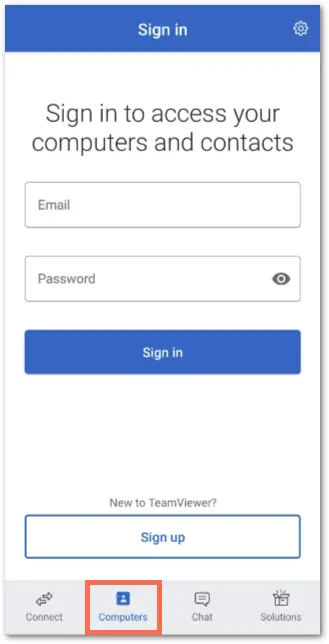
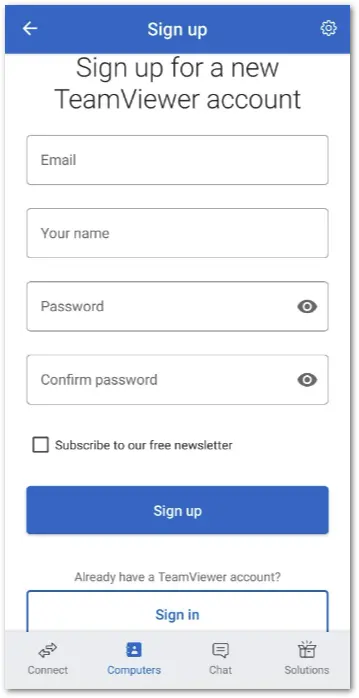
- If you don't have an account, please Sign up for an account first.
From here on you can either make a connection via the Connect menu or the Computer & Contact list:
Via the Connect menu
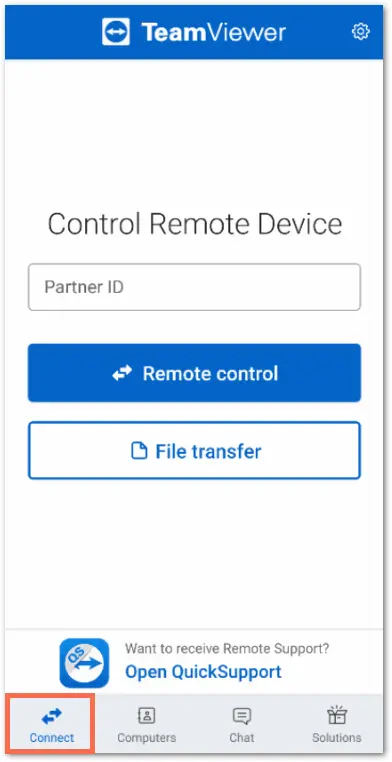
Go into the menu Connect. Enter the TeamViewer ID of the supported device in the Partner ID field and press Remote Control.
Via the Computer & Contact list
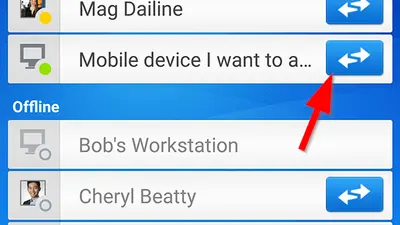
Tab the entry at the bottom of the app and click on the arrows to the supported device.
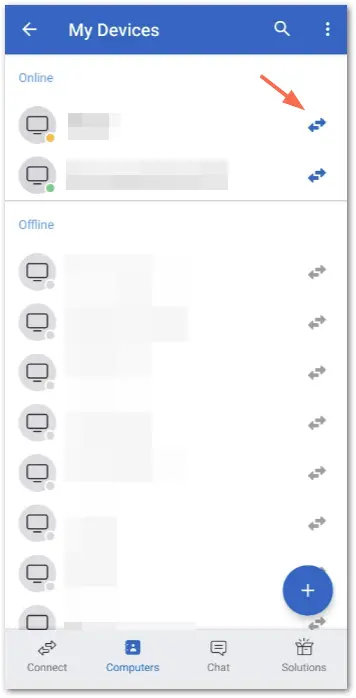
After the connection was accepted on the supported device, you are connected to the mobile device and can remotely control the entire device as if would have it holding in your hands.
On the supported Android device
Via TeamViewer Host
- Download the TeamViewer Host on the device.
- You may be prompted to install an AddOn according to your device manufacturer. Please follow the on-screen instructions and install the necessary AddOn for Remote Control capabilities.
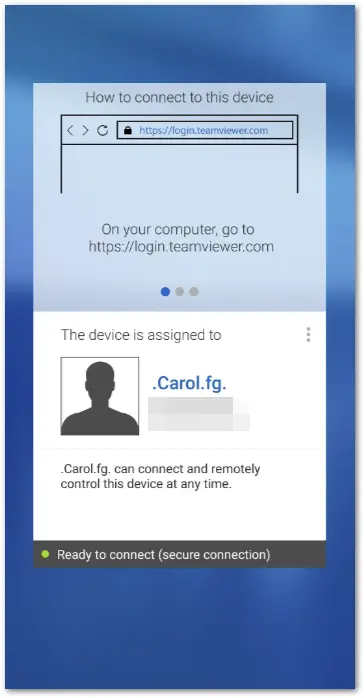
- After downloading and installing the Host app, you need to assign the device to a TeamViewer account. After entering your account credentials, the device is automatically added to your Computers & Contacts list and can be accessed there. The device is added to the oldest group in your list by default.
After that, the app shows the assigned account and a quick guide at the top, on how to connect to the app:
Via TeamViewer QuickSupport
- Download the TeamViewer QuickSupport on the device.
- You may be prompted to install an AddOn according to your device manufacturer. Please follow the on-screen instructions and install the necessary AddOn for Remote Control capabilities. For more information have a look here: Universal add-on for Android
As for every TeamViewer connection, you will need the target device’s TeamViewer ID to connect. You can find the TeamViewer ID in the QuickSupport App of the device on the start screen of the app.
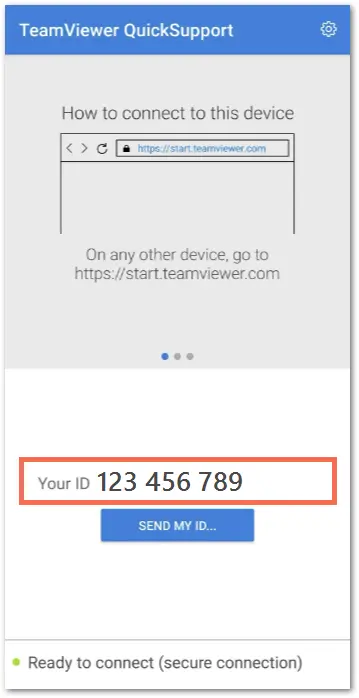
Hint: Add the ID to your Computers & Contacts list. This way you can access it easily on every device you log in with your TeamViewer account and connect to it instantly.
Everything is now set up for a connection from the supporting device.
Note: Please make sure not to close the QuickSupport app unless you no longer want to access the Android device. If you use the Host app, you can access the device at any time after the app starts.
Remotely access an iOS device
For further information, please see the following Knowledge Base article: Share the screen on your iPad/iPhone
Note: The TeamViewer Host is not available for iOS devices!
Remotely access a Chromebook
You can connect to Chromebooks with TeamViewer for Remote Control for Android, iOS and Chromebook.
On the supported Chromebook
- Download and install TeamViewer QuickSupport or TeamViewer Host on the Chromebook
- As for every TeamViewer connection, you will need the target device’s TeamViewer ID to connect.
- For QuickSupport: You can find the TeamViewer ID of the device on the start screen of the app.
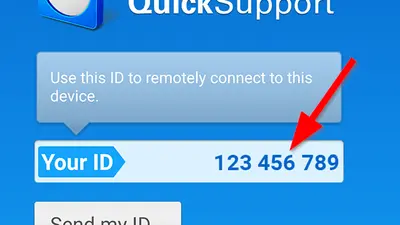
Hint: Add the ID to your Computers & Contacts list. This way, you can access it easily on every device you log in with your TeamViewer account and connect to it instantly.
- For Host: After entering your account credentials, the device is automatically added to your Computers & Contacts list and can be accessed there. The device is added to the oldest group in your list by default.

- Everything is set up for a connection from the supporting device.
Notes:
- Please make sure not to close the QuickSupport app unless you do not want to access the Android device anymore. If you use the Host app, accessing the device is possible after the initial start of the app at any time.
- Through the TeamViewer QuickSupport and Host apps for Android, it is possible to see the remote Chromebook screen and use pointers to help the user in front of the Chromebook. Full remote control of Chromebooks is not possible.
On the supporting device
- Download and install TeamViewer for Remote Control on your Android, iOS, or Chromebook device. If you already have installed the App on your device, make sure to update to the latest version.
- Open the App on the respective device.
- Connect to the supported device using the ID mentioned above or via the Computers & Contacts list.
- Enter the TeamViewer ID of the supported device in the TeamViewer ID field under Connect. To access, click Remote Control.
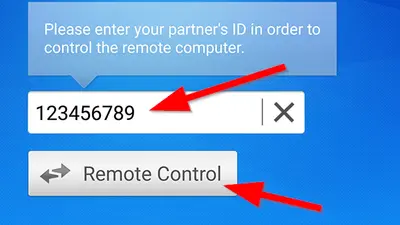
- Tab the Computers entry at the bottom of the app and tab on the blue arrow next to the supported device.
- After the connections was accepted on the supported device, you are connected to the mobile device and can use the screen-sharing features "View and show".