
Knowledge Base
Remote control an Android device via unattended access
Last Modified: Sep 27, 2024
With TeamViewer, it is possible to connect and remotely support Android devices from another mobile device. Below, we'll explain how to connect and remotely control an Android device without confirmation (unattended access).
This article applies to Android and Chromebook users and free or licensed users with MDS (Mobile device support).
How to setup your devices
On the local device
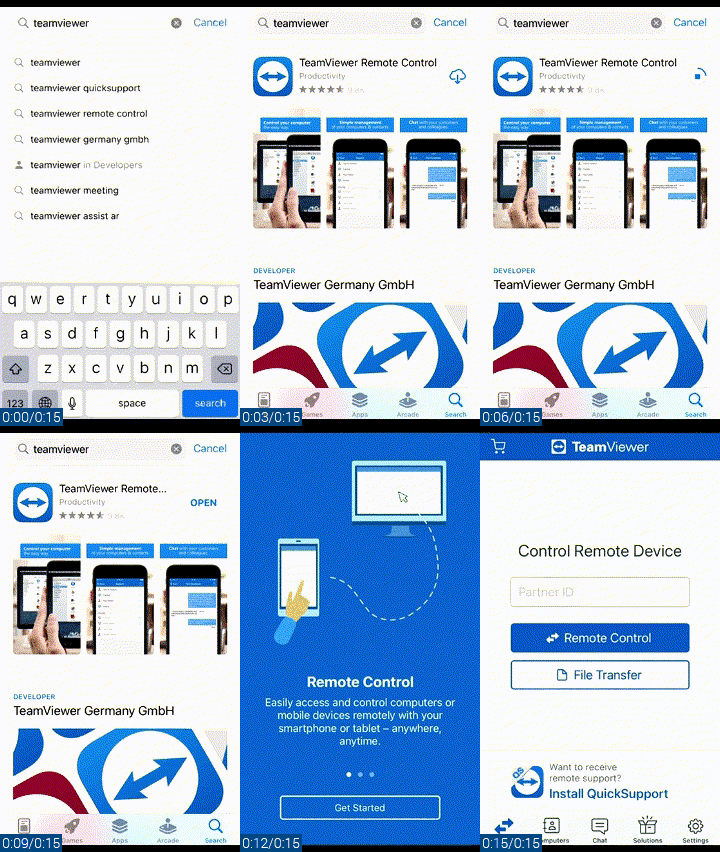
On the local device (the device connecting to the Android device), you must download and install the TeamViewer Remote Control app.
Note: You can download it from the Play Store.
On the remote Android device
Step 1: Download and install the TeamViewer Host app
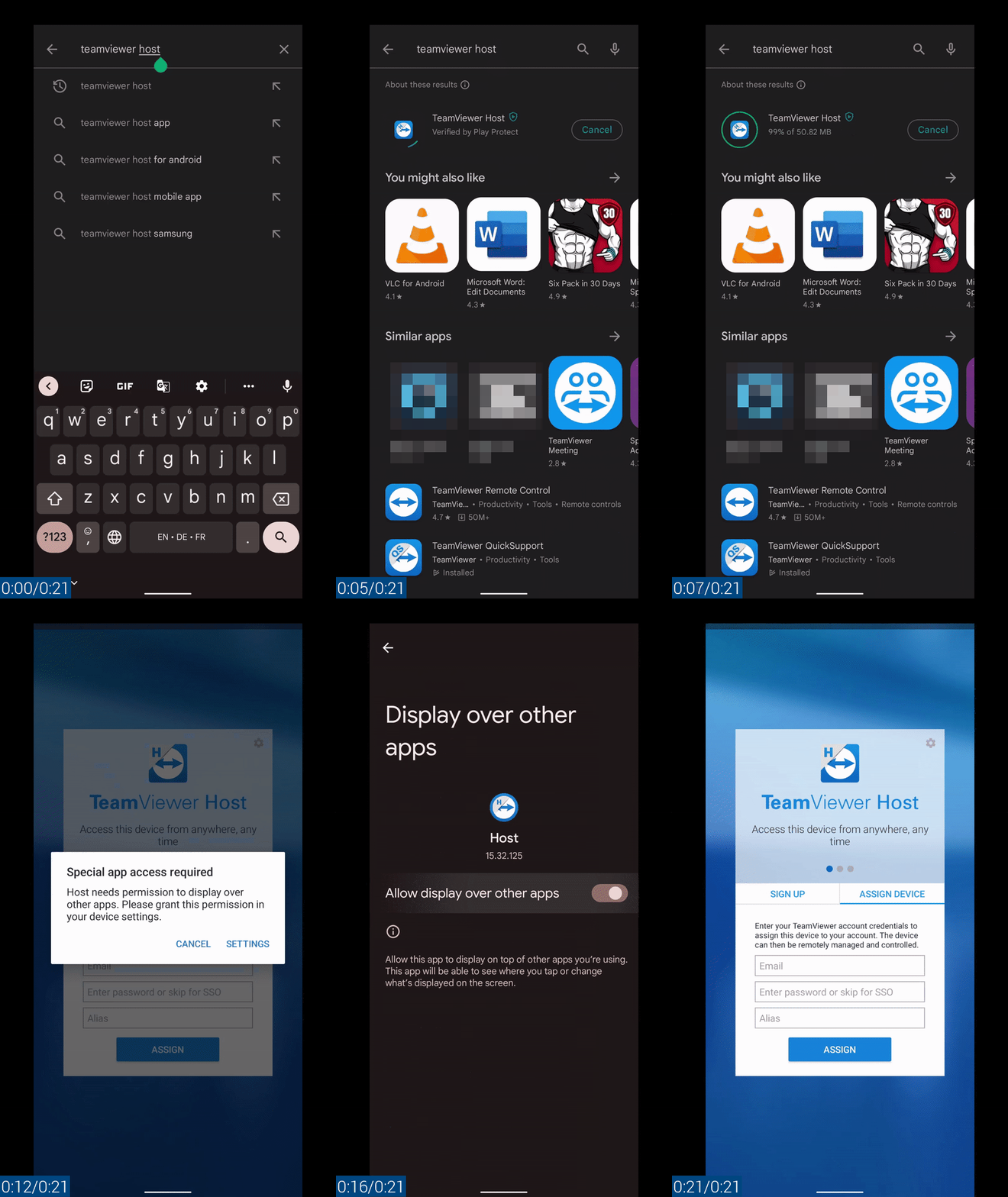
On the remote Android device (the device receiving the connection), you must download and install the TeamViewer Host app and allow the app to display over other apps.
Note: You can download it from the Play Store or the App Store.
Step 2: Assign the device to your TeamViewer account
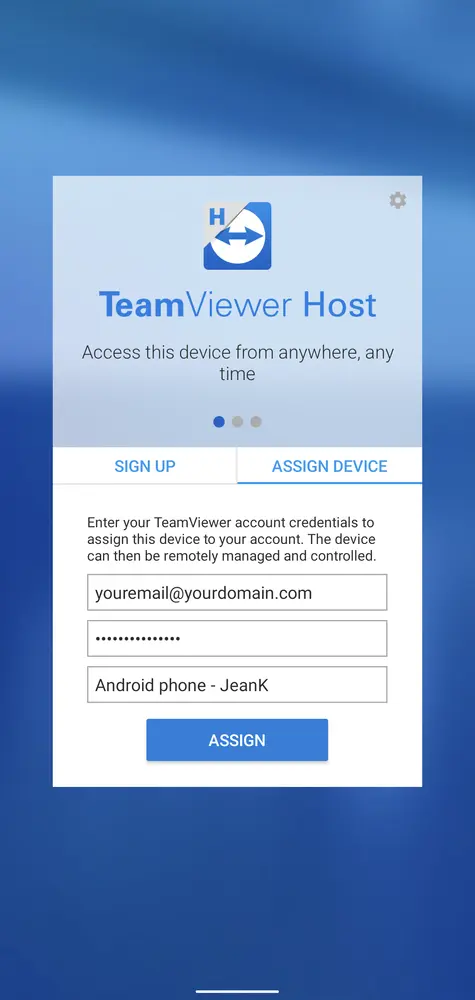
Once the TeamViewer Host is installed, you must assign the device to your TeamViewer account and give the device an alias (display name).
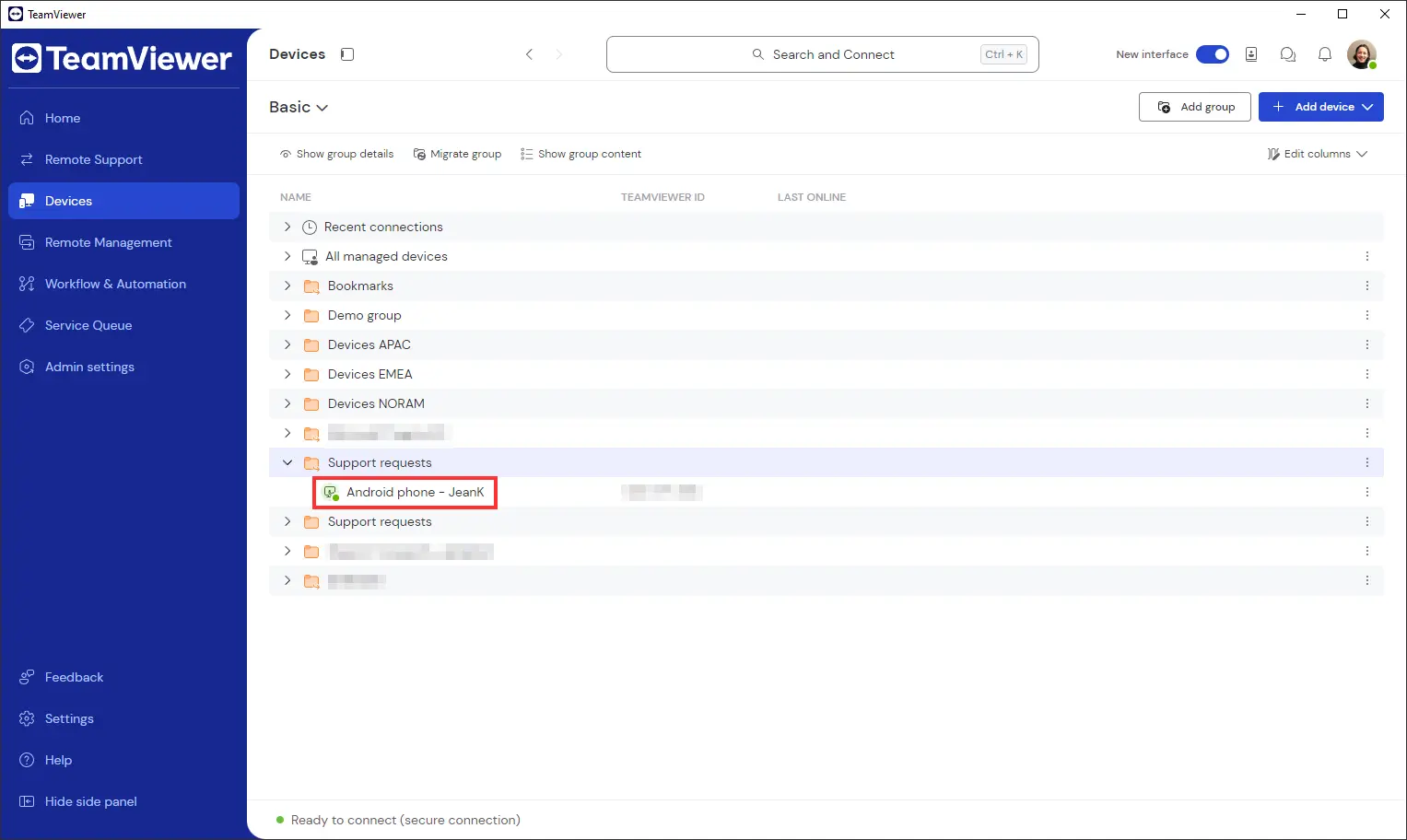
Hint: Once successfully assigned, the device will appear in your Computers and Contacts list.
To do so, please enter your TeamViewer credentials in the respective fields, choose an alias and select Assign.
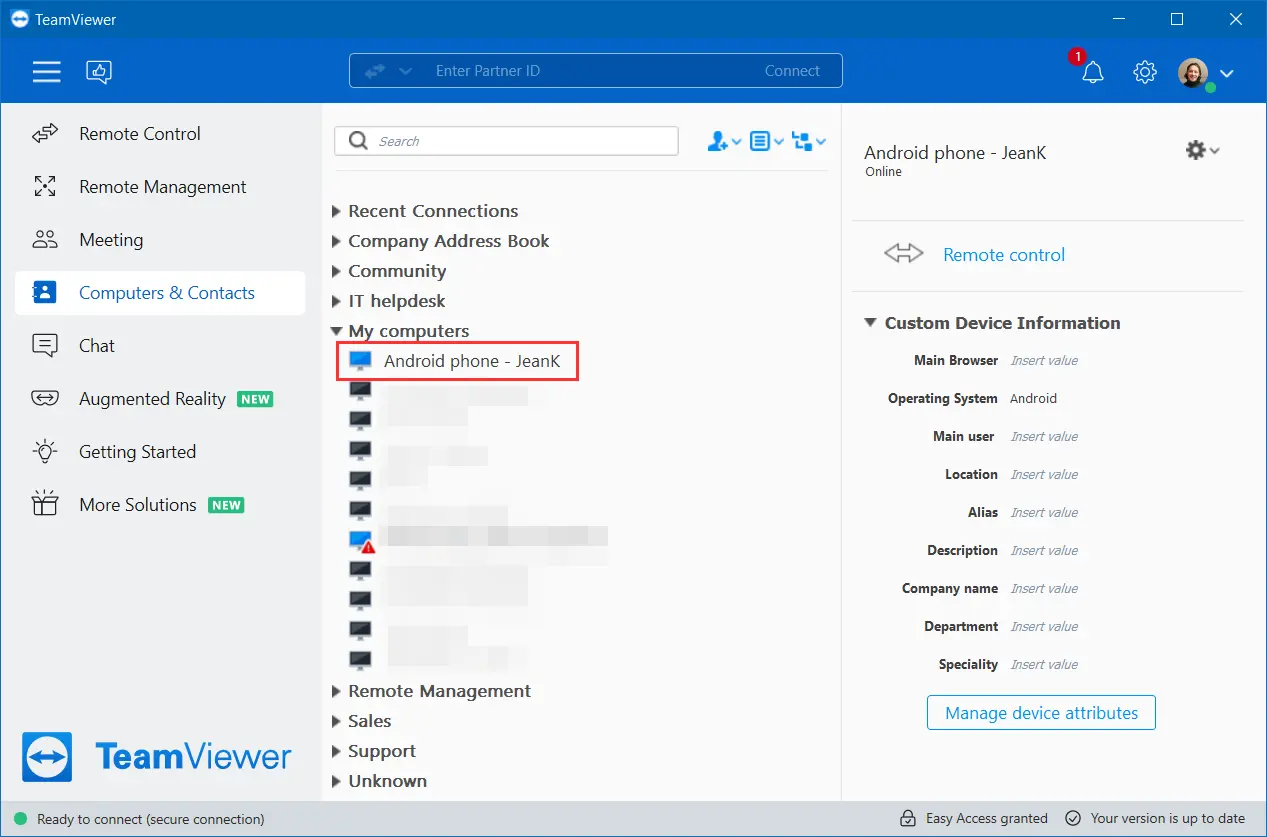
Once done, the device will appear in your device list as below:
How to connect
Once the setup is done, you can remote control the Android device by following the instructions below:
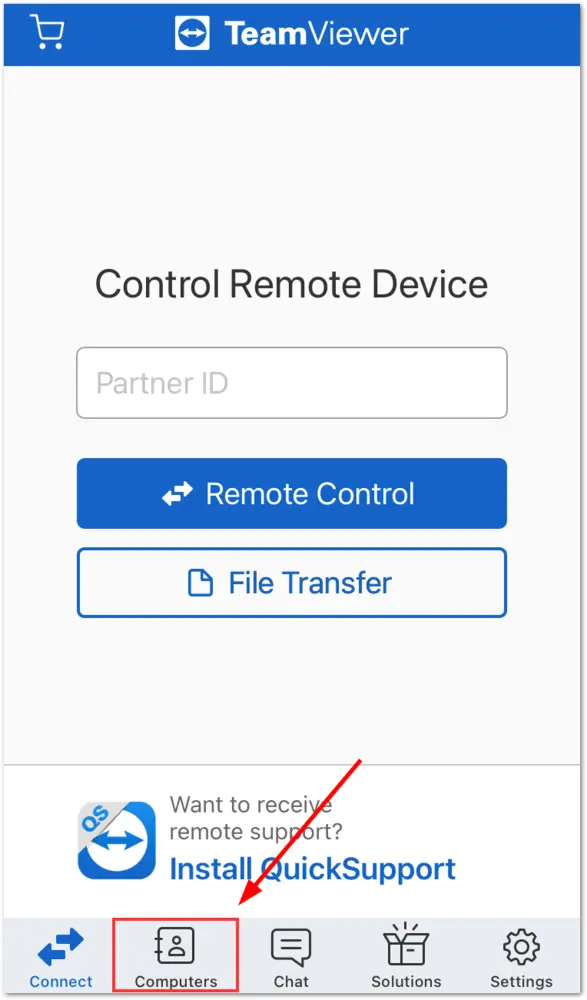
1. Open the TeamViewer Remote Control app on your local device and access the Computers menu
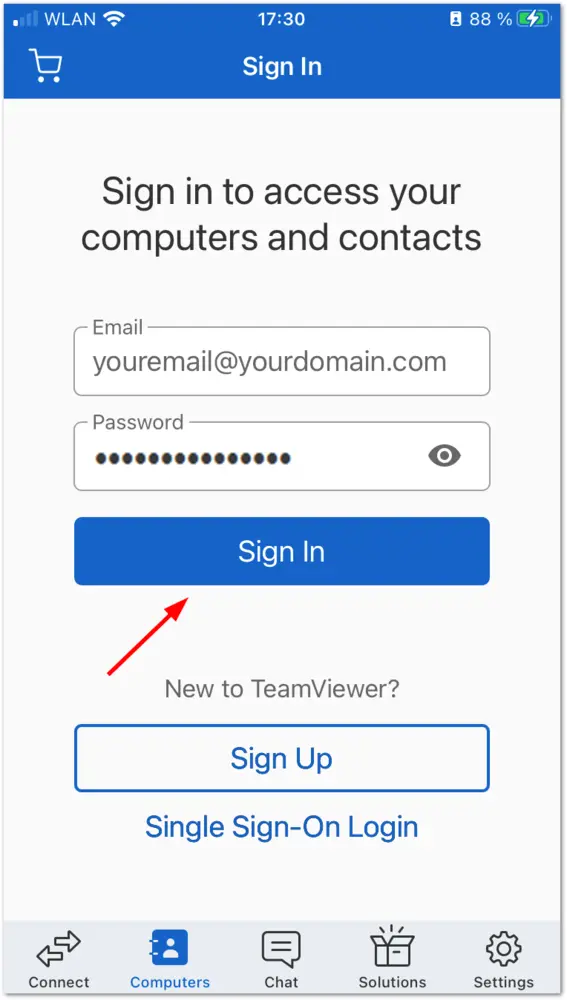
2. Log in to your TeamViewer account by entering your credentials and selecting Sign In
3. Access the device group where the Android device is located and press the Connect icon (blue arrows)
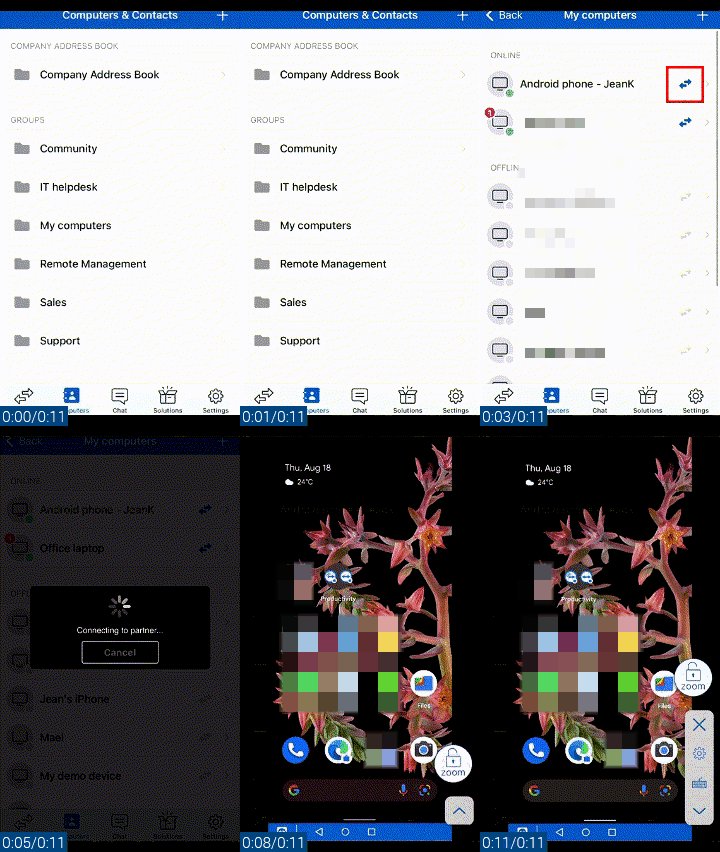
4. You are now connected to the remote Android device and can remotely control it
If, when connecting, a pop-up appears on the Android device asking to confirm the connection, it means that your Android device is not compatible with unattended access. In this case, we recommend using the QuickSupport app instead, as described here.
Compatibility
If only screen-sharing is available when connecting to the Android device, the Android device might not be compatible with this technology.
To check which manufacturers are compatible with remote control, please check our article here: Supported manufacturers for remotely controlling Android devices