
Knowledge Base
Assign a device to your account
Last Modified: May 13, 2026
By assigning a device to a TeamViewer account, the device can be remotely managed and monitored by the account at any time.
Remotely monitoring a device gives you the ability to check for common issues like
- outdated antivirus protection
- a disabled firewall
- missing Windows updates
- a full disk drive
It also allows you to activate one of your Remote Management end-points for more advanced monitoring and anti-malware protection.
This article applies to all TeamViewer (Classic) licenses.
How to assign a device to an account
To assign a device to your account:
1. Go to Settings.
2. Stay in the General section.
3. Scroll to Account assignment.
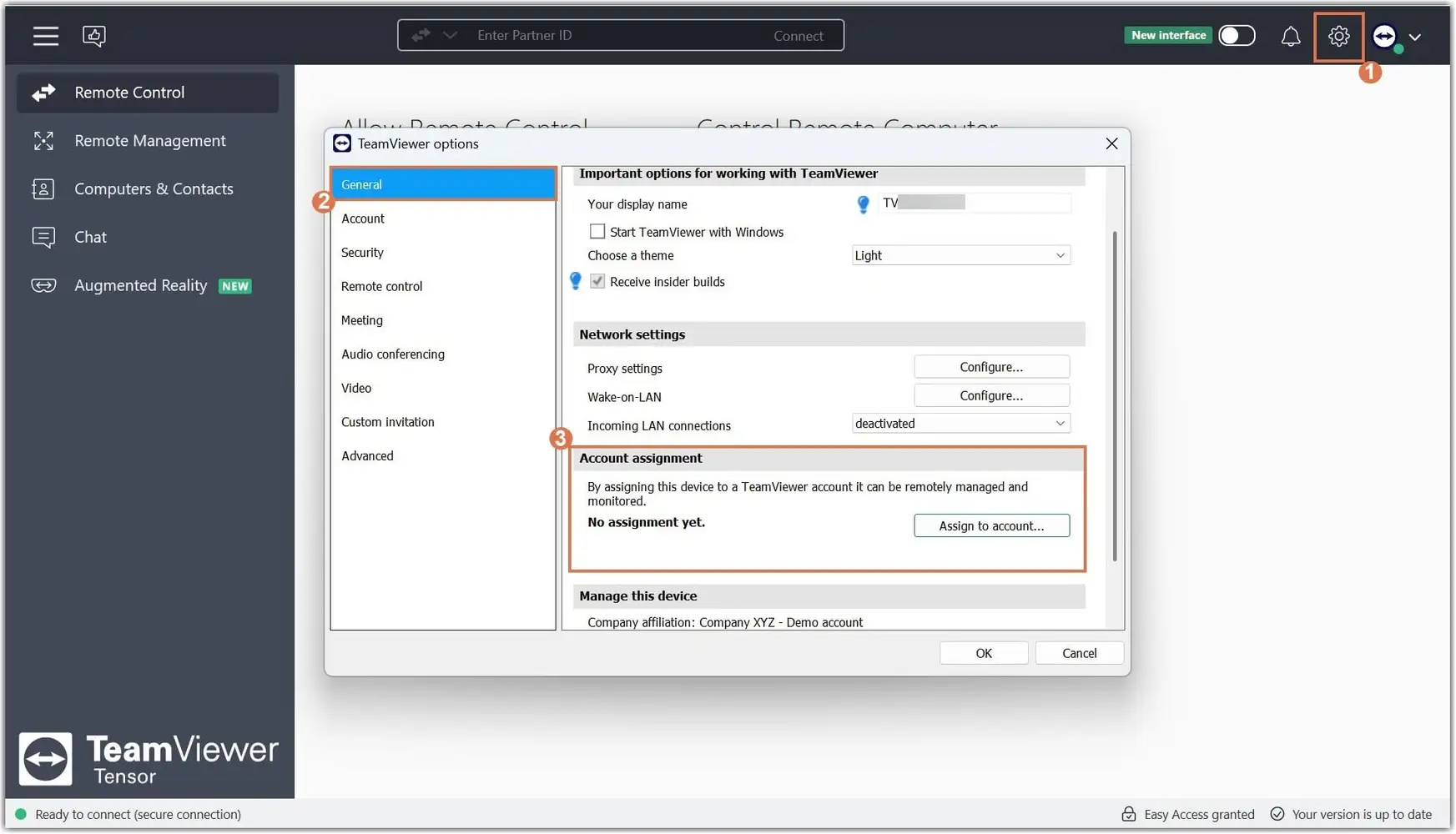
4. After clicking on the Assign to account button, enter the email of the TeamViewer account that you wish to manage this device from:
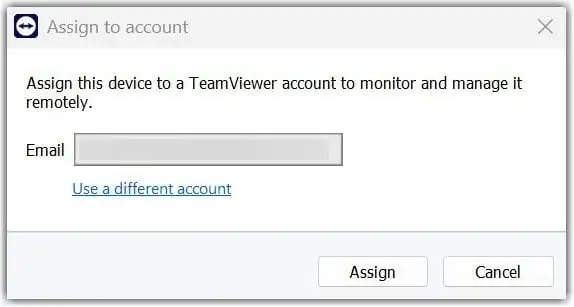
By default, the email address that is used to sign into the account you are organizing this will appear.
If you wish to use a different account:
1. Click on the blue link below the email bar.
2. Enter your credentials.
3. Click on Assign.
If you use a Custom Host module to roll out the software to your multiple endpoints, the devices will automatically be assigned and added to your contacts list. For more information please visit our Mass Deployment on Windows - Overview (Legacy)