Knowledge Base
Activate two-factor authentication
Last Modified: Aug 14, 2024
With two-factor authentication, you can protect your TeamViewer account and thus your Computers & Contacts list from unauthorized access with an additional security code.
Activate two-factor authentication as described below 👇
This article applies to all TeamViewer users.
Activate two-factor authentication
Video Tutorial
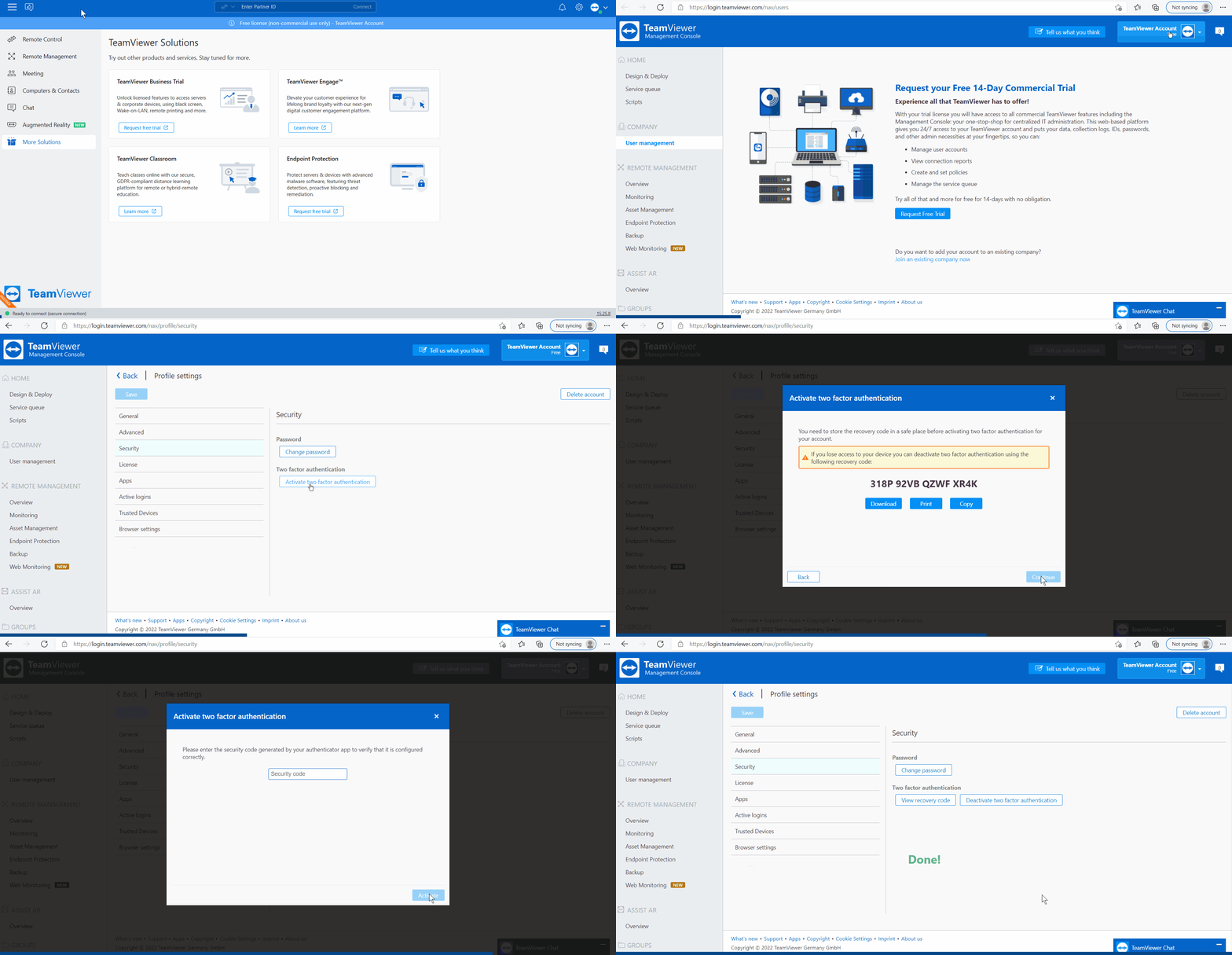
- Sign in to the Management Console with your TeamViewer account.
- Go to the top right, select your profile, and click Edit profile.
- Now select Security and click Activate two-factor authentication.
- Click Continue.
- Open your authentication app on your device and follow the steps shown in the Management Console:
- Scan the QR code.
- Download, print, or copy the recovery code and store it in a safe place before activating two-factor authentication.
- Enter the security code shown in the authentication app on your device.
- Click Activate.
- Click Finish.