All the powerful features of the Management Console are now built directly into TeamViewer. Instead of switching to a separate web portal, administrators can now manage users, devices, policies, and more, right from the Admin settings in the TeamViewer Remote desktop app or via the browser.
This article applies to all administrators of Premium, Corporate, or Tensor licenses.
Access the admin settings in TeamViewer
You can now access all admin tools directly in the TeamViewer Remote desktop app or via the browser.
To access the admin settings, please follow the instructions below:
- Sign in with your TeamViewer admin account into the TeamViewer client or via https://web.teamviewer.com/.
- On the bottom-left, you’ll find the Admin settings.
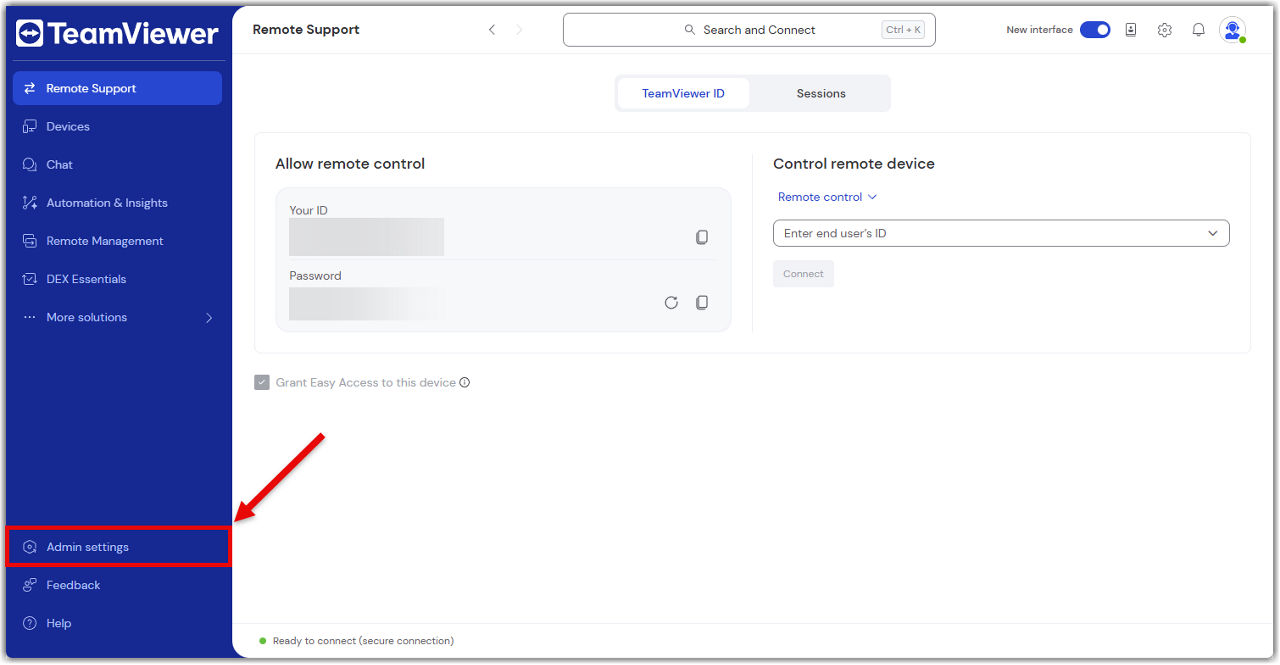
What you can do in the admin settings
The Admin settings give you everything you need to manage your TeamViewer environment, just like you did in the Management Console.
Here’s what you can do:
Create and apply policies
Set up security and access policies, then apply them to devices or groups.
Learn more here.
Manage devices
View all your company devices, assign them to users, and apply policies.
Learn more here.
Manage users
Add or remove users, assign roles, and organize them into groups.
Learn more here.
View connection reports
Track who connected to what, when, and for how long.
Learn more here.
Create custom modules
Build QuickSupport or Host modules with your branding and settings.
Learn more here.
Set up rollout configurations
Automate deployment with pre-configured settings for large-scale rollouts.
Learn more here.
Control company settings
Manage licenses, security settings, and integrations.
Learn more here.
Everything is in one place—no switching tabs, no extra logins.