Knowledge Base
Install the Embedded agent on a device
Last Modified: Jun 30, 2026
The TeamViewer Embedded Agent is needed to enable remote access to devices via internet. Installing it is a prerequisite to all remote access and monitoring processes.
In the Remote interface
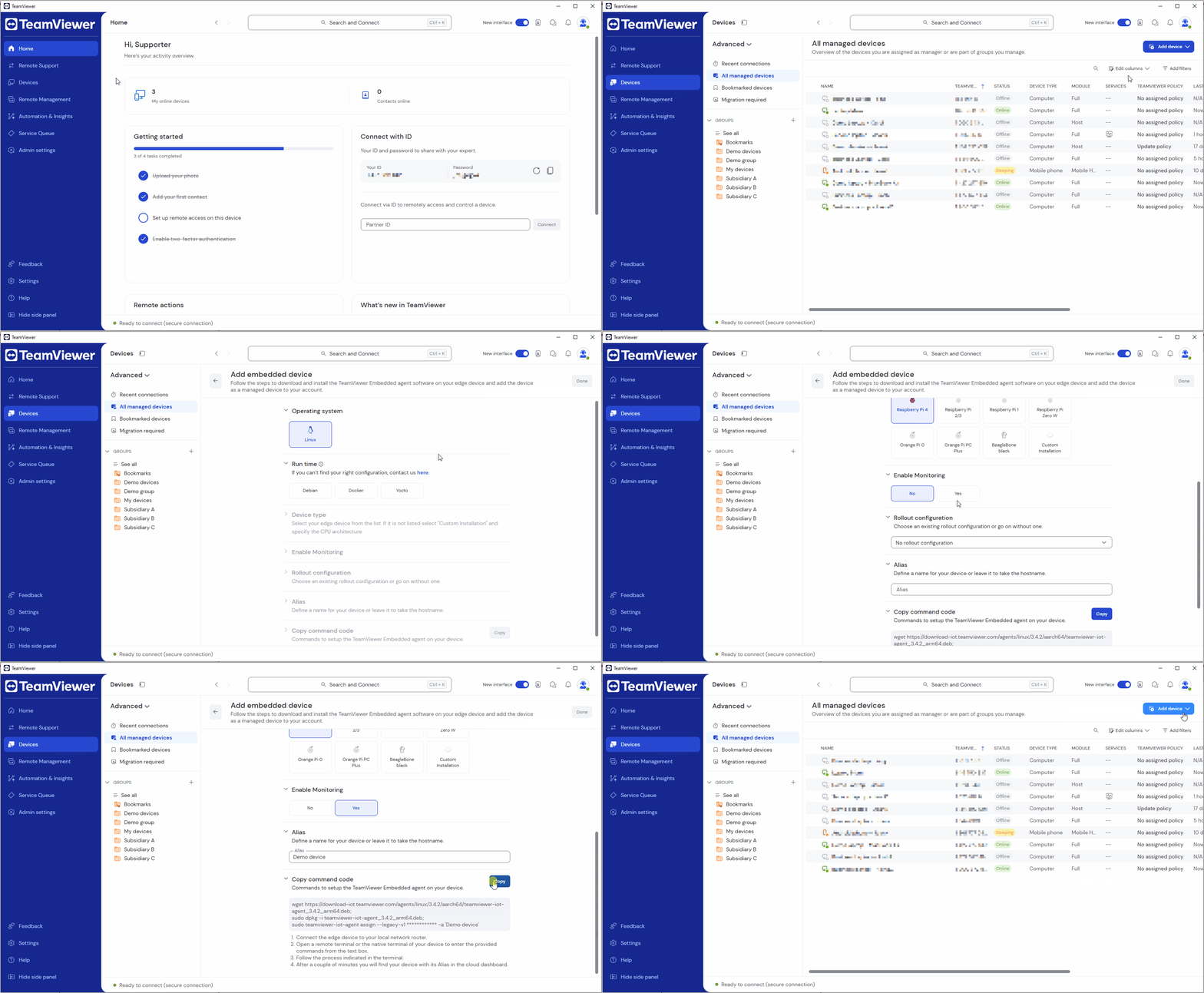
- Sign in to your TeamViewer account within the TeamViewer client or via https://web.teamviewer.com/.
- Go to Devices.
- Go to All managed devices.
- Click Add device.
- Click Embedded device.
- Select the relevant device information, such as the operating system, the run time, the device type if you want to enable Monitoring, the rollout configuration, and the device name.
- Copy the command code by clicking Copy.
- Click Done.
| Operating Systems | Steps |
|---|---|
GNU/Linux and Others | Connect to the device and execute the displayed code. Follow the instructions while installing. |
The device is automatically added to the Inventory and can be identified by its hostname. It is placed in the selected Group.