We recommend following the steps listed below to deploy the TeamViewer MSI file with Device Group Assignment via Microsoft Endpoint Manager (Intune) using the Win32 app method. For the line-of-business app method, please check the steps here.
The expected behavior of the deployment using the Win32 app method is to install the TeamViewer full client and the TeamViewer Host MSI application silently, with customization, device group assignment, and a TeamViewer Options File (optional).
This series of articles applies to Corporate and Tensor license holders using TeamViewer 15 or newer who want to deploy the TeamViewer solution within Microsoft Endpoint Manager.
Note: This guide is for Windows devices (e.g., Desktop PCs or Laptops).
Required Files
For the deployment configuration via Win32 App, you will need:
-
Up-to-date TeamViewer MSI file
-
BAT or PS1 file with Install Instructions
-
BAT or PS1 file with Uninstall Instructions
-
TVOPT file (optional)
-
Content-prep-tool from Microsoft (link included)
Recommended scripts for Command
The installation script below is recommended for the deployment configuration via Win32 App:
start /wait MSIEXEC.EXE /i "~dp0\TeamViewer_Host.msi" /qn CUSTOMCONFIGID=YOUR_CUSTOM_CONFIG_ID
ping -n 31 127.0.0.1>nul
"C:\Program Files\TeamViewer\TeamViewer.exe" assignment --id YOUR_ASSIGNMENT_ID
Content Prep-Tool Instructions
1. Create a local folder containing the install script, uninstall script (optional), MSI file, and TVOPT file(optional).
2. Download the content-prep tool and run the IntuneWinAppUtil.exe.
- Microsoft article: Prepare a Win32 App to Be Uploaded to Microsoft Intune - Microsoft Intune | Microsoft Learn
- GitHub to download the content-prep tool: GitHub - microsoft/Microsoft-Win32-Content-Prep-Tool: A tool to wrap Win32 App and then it can be uploaded to Intune
Source Folder: Folder containing your scripts, TVOPT, and MSI file.
Setup File: Your install script.
Output Folder: Where the “.intunewin” file will be created.
Specify Catalog: No

Intune Win32 App Deployment Instructions
Follow the instructions below to properly create and set up a new Win32 app.
-
Navigate to Windows Apps and select Windows as the platform.
-
Click Create.
-
Select Windows app (Win32).

4. Upload the .intunewin, and define the:
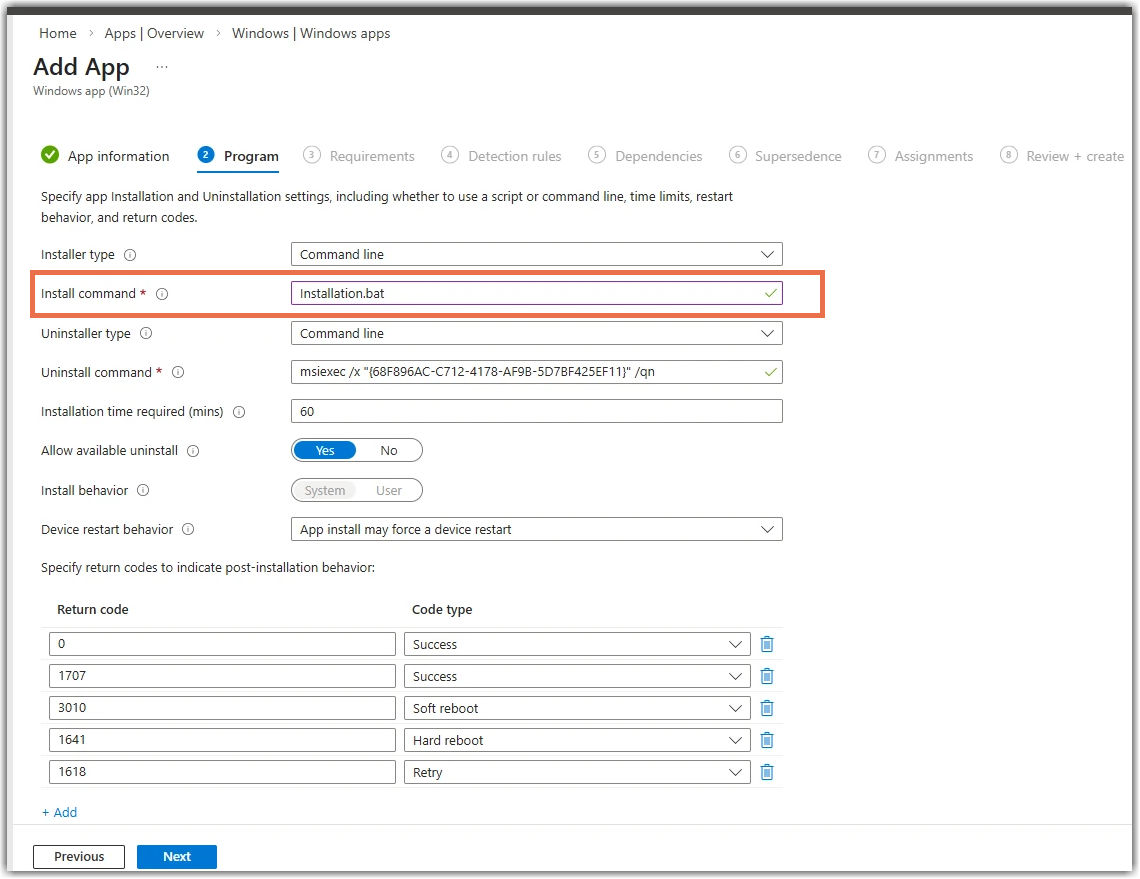
- Install script as the install file
- and the Uninstall script as the Uninstall file
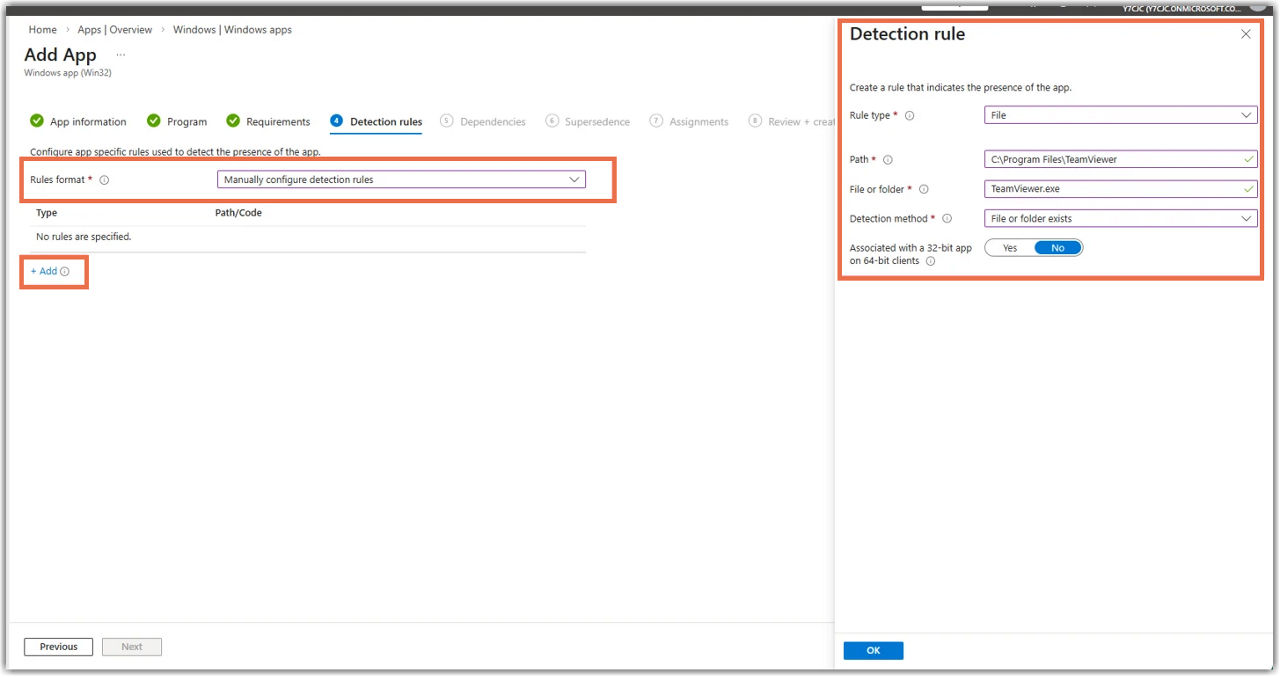
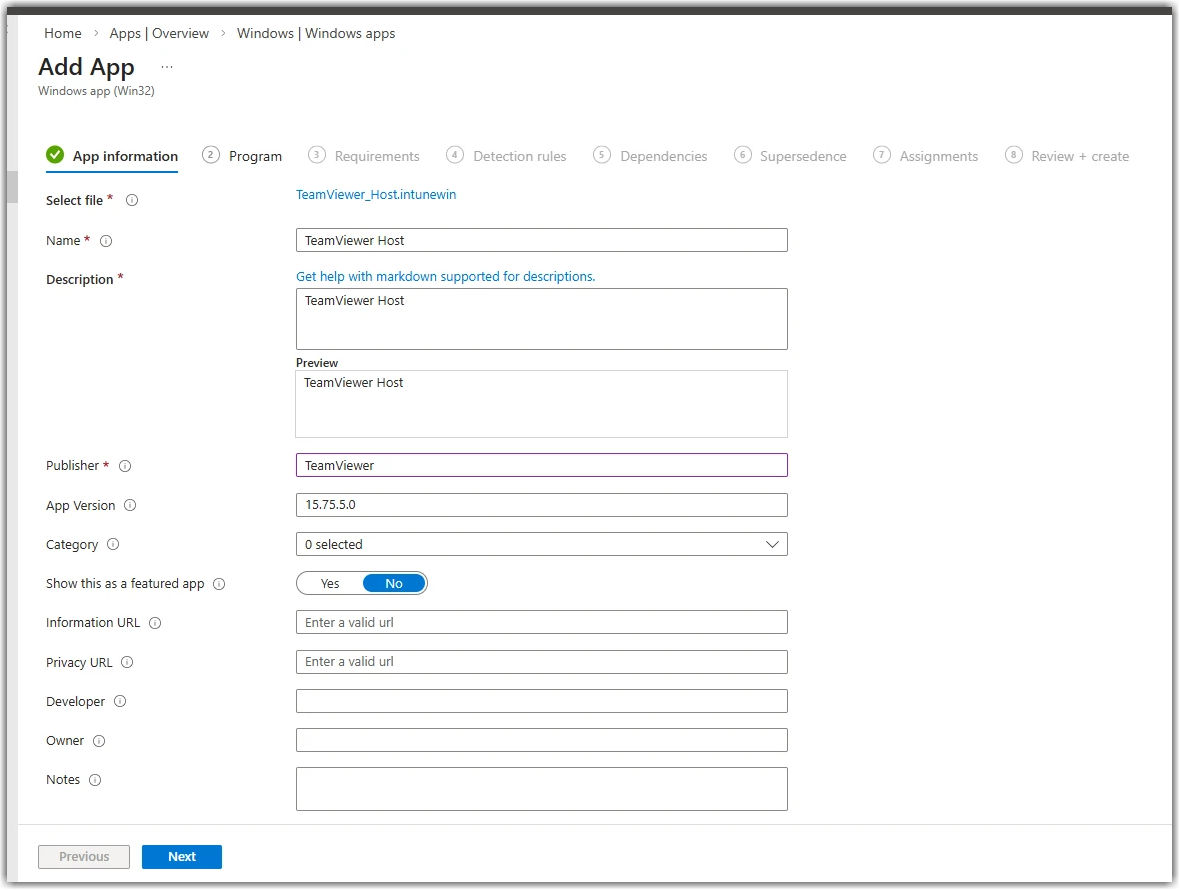
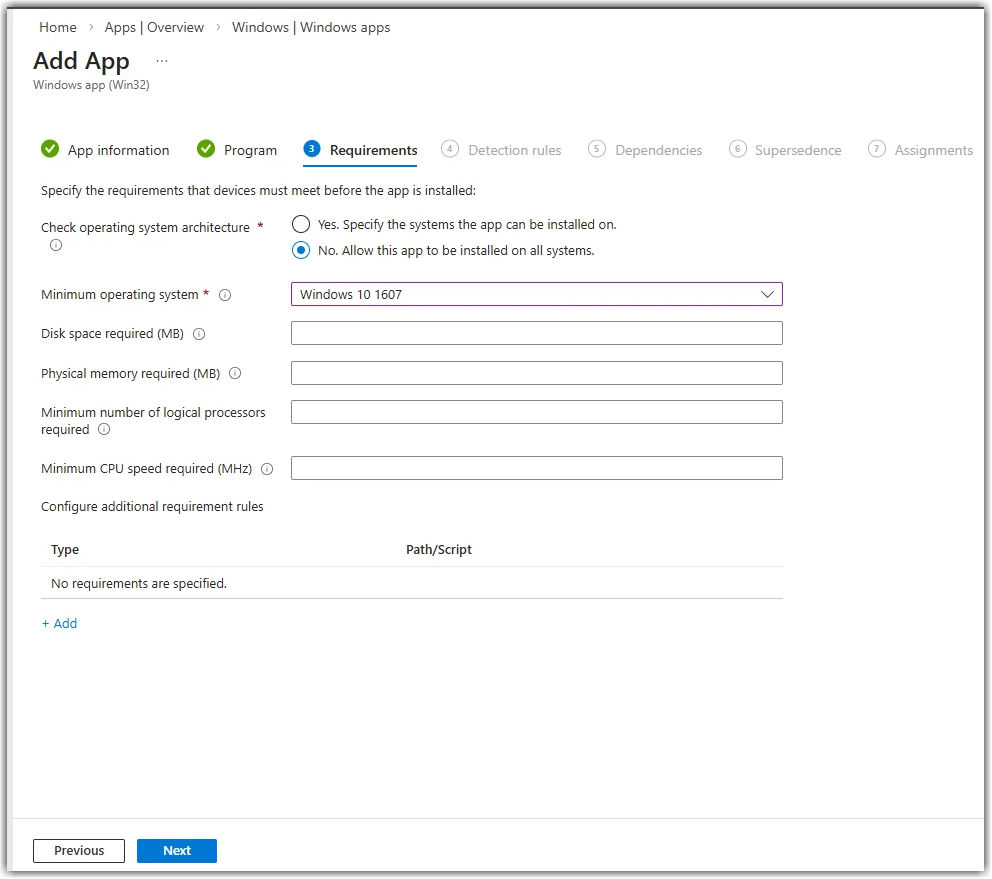
The screenshots below will highlight the configuration steps you must make:
App information
Program
Requirements
Detection rules