Summary
Purpose
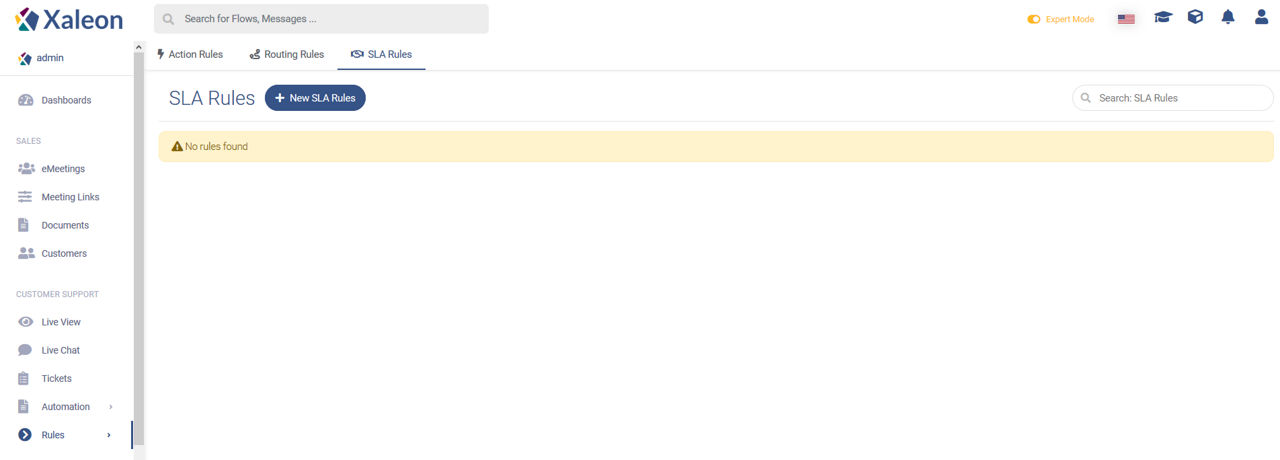
SLA Rules allow you to set goals of urgency for replying to messages within Live Chat. It helps you to ensure that specific customers or customers of higher importance get the support or treatment they expect.
Feature descriptions
Your first SLA Rule
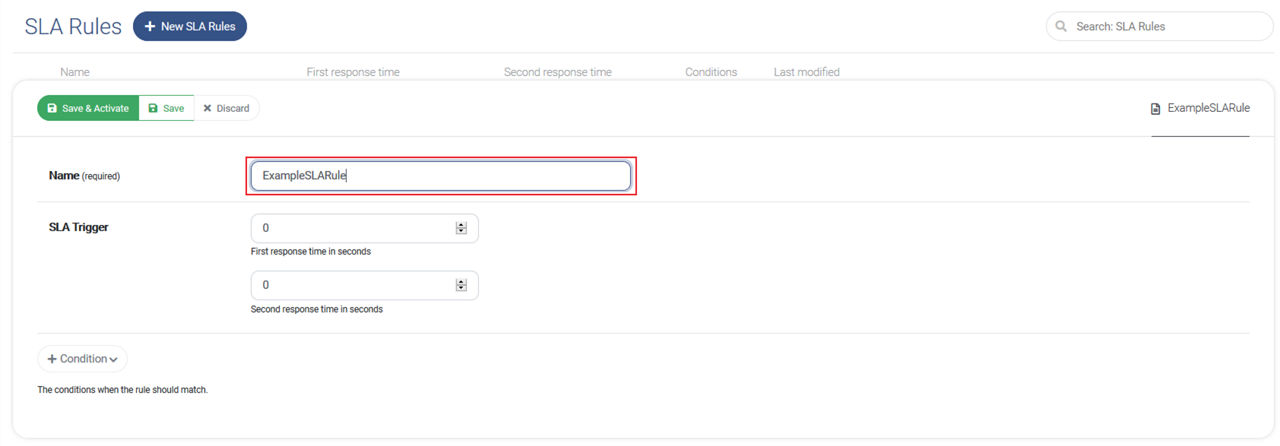
To create your first SLA Rule click + New SLA Rules. As a first step, make sure you give your rule a descriptive name.
SLA Trigger
First Response Time. This is the time it should take a teammate to reply to the first initial message of a conversation that matches your rule.
Second Response Time. This is the time it should take a teammate to reply to subsequent messages from the same customer.
Conditions
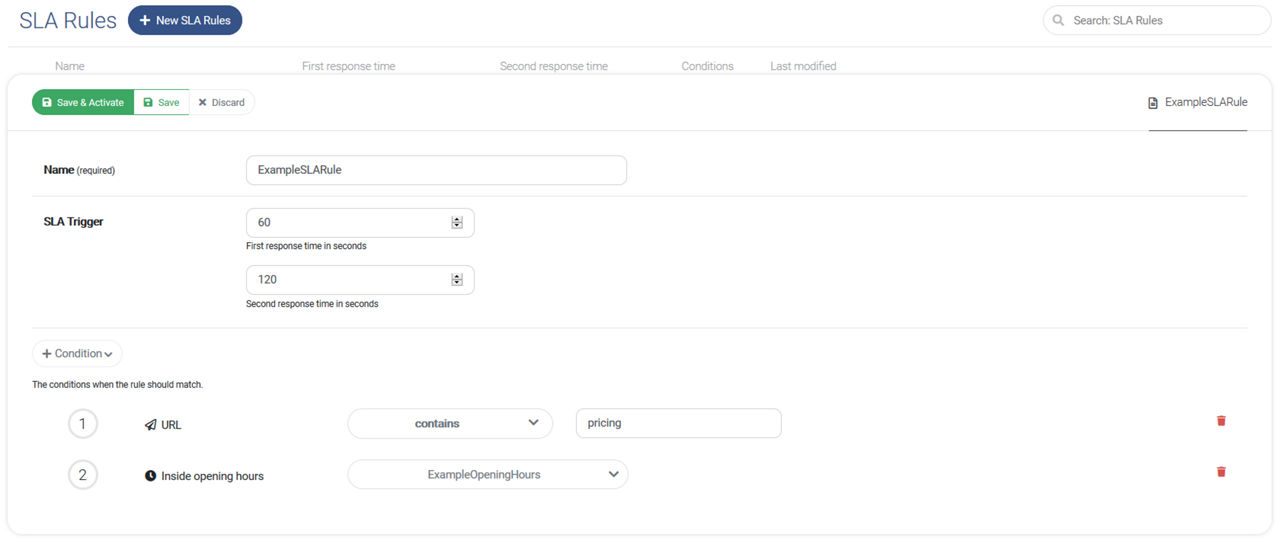
By clicking the Condition element, the conditions configuration opens. There you find the following condition types:
To complete your first SLA Rule click Save & Activate.
Overview
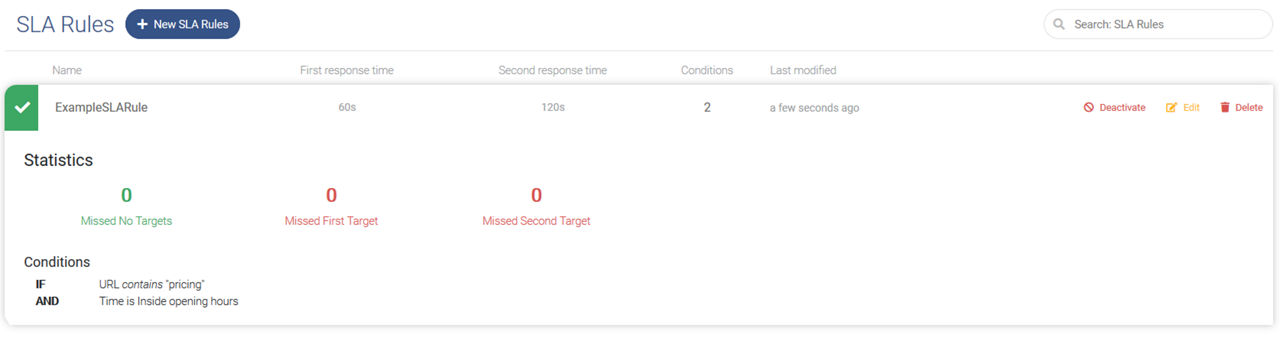
In the SLA Rule menu, you will find a list of created rules. Here you can create, search for, update and de/activate them.
Additionally, you will see stats about how often each rule matched, and how often you missed your SLA target.