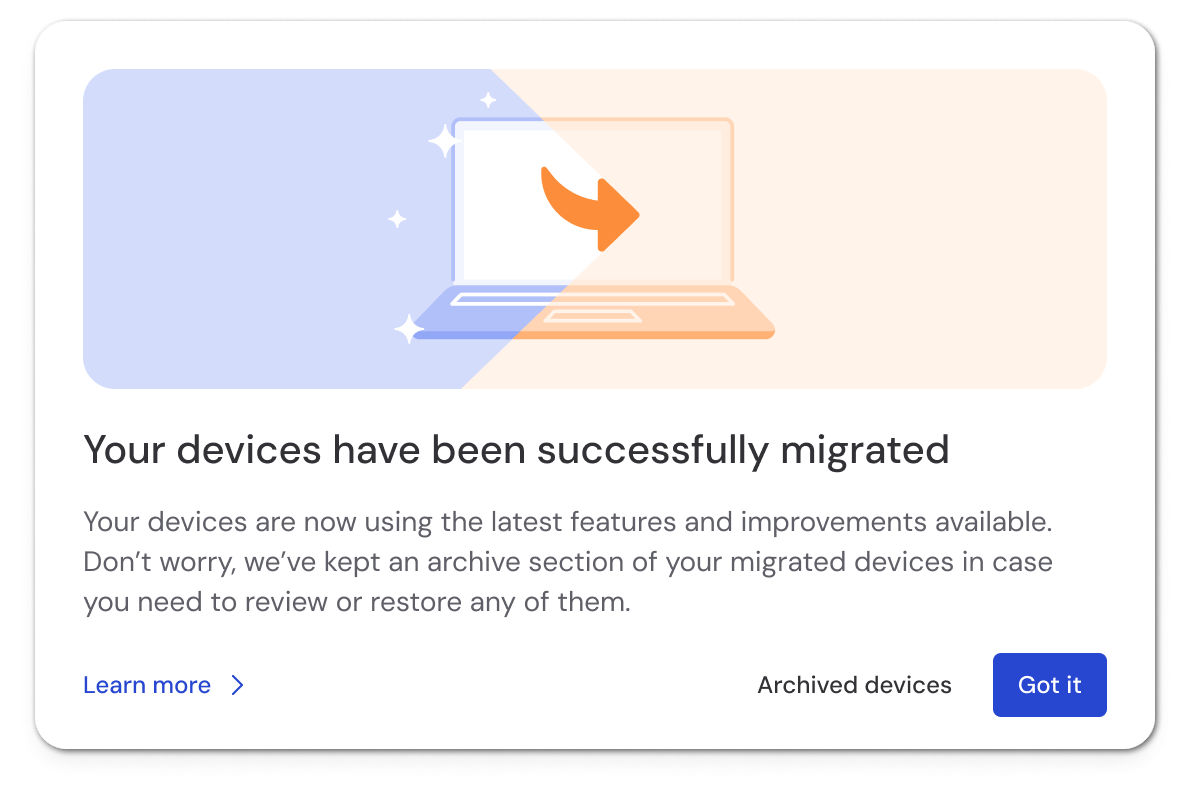
Automatic device migration simplifies the transition from legacy device groups to the new device management system in TeamViewer. This process runs in the background and ensures a seamless user experience with minimal manual intervention.
This article applies to all TeamViewer free version users and Remote Access license holders.
How automatic device migration works
Automatic migration will ensure your TeamViewer devices support the latest functionality with no interruption to your daily work.
Migration conditions
-
Migration begins automatically in the background.
-
If a legacy device is online, it is immediately ready to use in the new device system.
-
If a legacy device is offline, it will still appear in your device group and be marked as pending migration. Once it comes online, it will be automatically migrated.
Group visibility
You’ll know a group has been migrated when it shows up as a new device group. This will be the case when all devices in the legacy group are either:
-
Migrated
-
Pending migration
Note: Devices marked as pending migration must come online to complete the migration process.
If a device remains offline and is no longer needed, we recommend deleting it.
This ensures no duplicate group entries during the transition.
Restoring devices
If needed, migrated devices and groups can be restored.
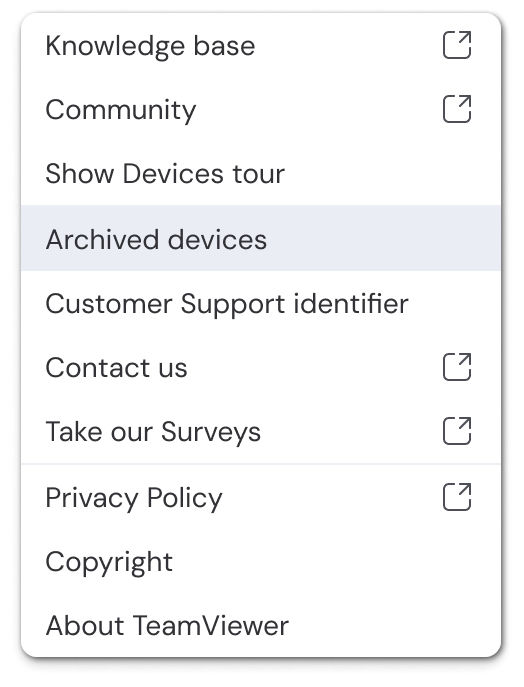
You can access archived legacy groups via Help ➜ Archived devices. If you’re satisfied that everything is working fine, you can also remove the archived devices.
Notifications
Once all legacy groups have been processed, you’ll receive a notification confirming the migration.