
Knowledge Base
Advanced Device Grouping
Last Modified 2026. 5. 6.
Advanced Device Grouping is based on Custom Device Information. Therefore - to use Advanced Device Grouping, the parallel usage of Custom Device Information is required.
Advanced Device Grouping is available for Mac and Windows in the TeamViewer full version. It is currently not available in the Management Console.
This article applies to TeamViewer (Classic) customers with a Premium, Corporate or Enterprise/Tensor subscription plan using Custom Device Information.
How to group devices by Custom Device Information
When using the TeamViewer full version, you can select an attribute you defined for the Custom Device Information:
- All devices will be grouped by the values of that attribute within the existing groups
- All devices without a value will be added to a group [No value set]
- Signing out of your TeamViewer account resets the default view.
Note: Contacts and session codes will not be added to a group.
Hint: Grouping will adjust on the fly when Custom Device Information is changed.
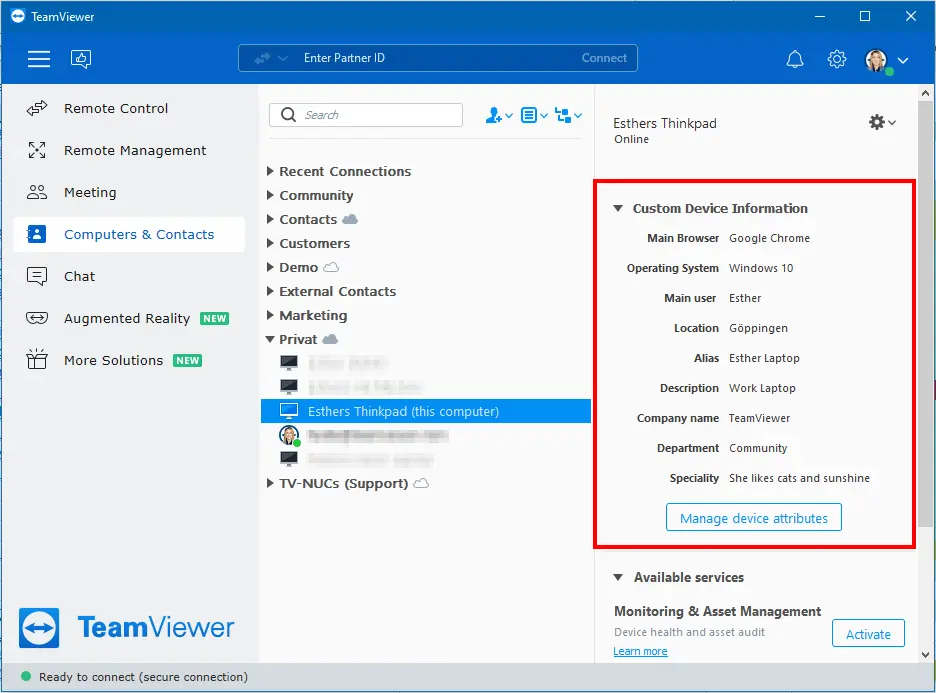
The Custom Device Information is visible when highlighting a device saved in the Computers & Contacts list:
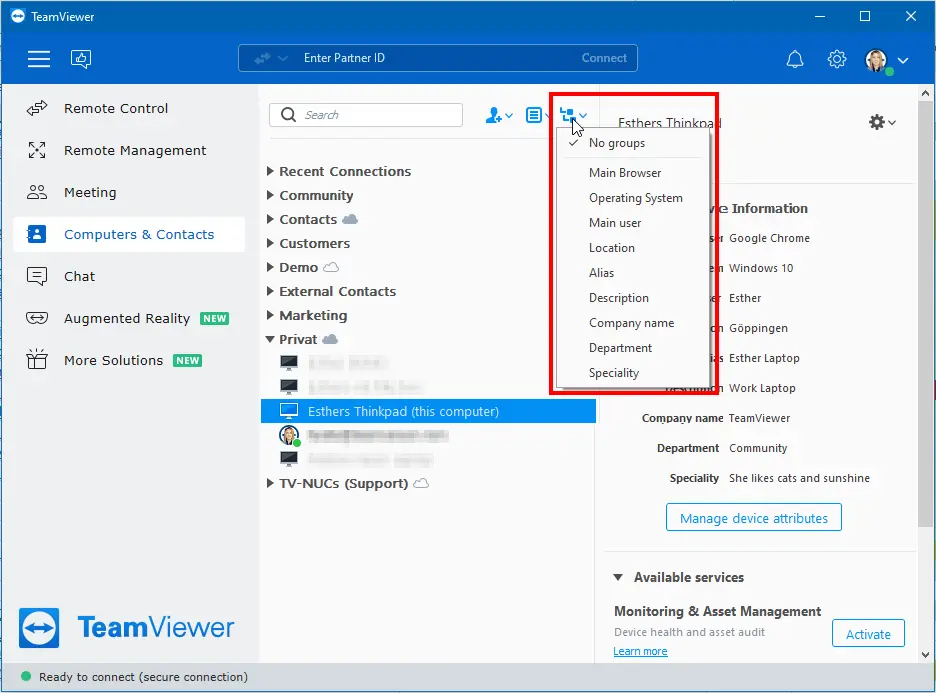
You can also group by the attributes easily via the grouping menu. When selecting a specific attribute, all devices that have the same value set will appear in a sub-group:
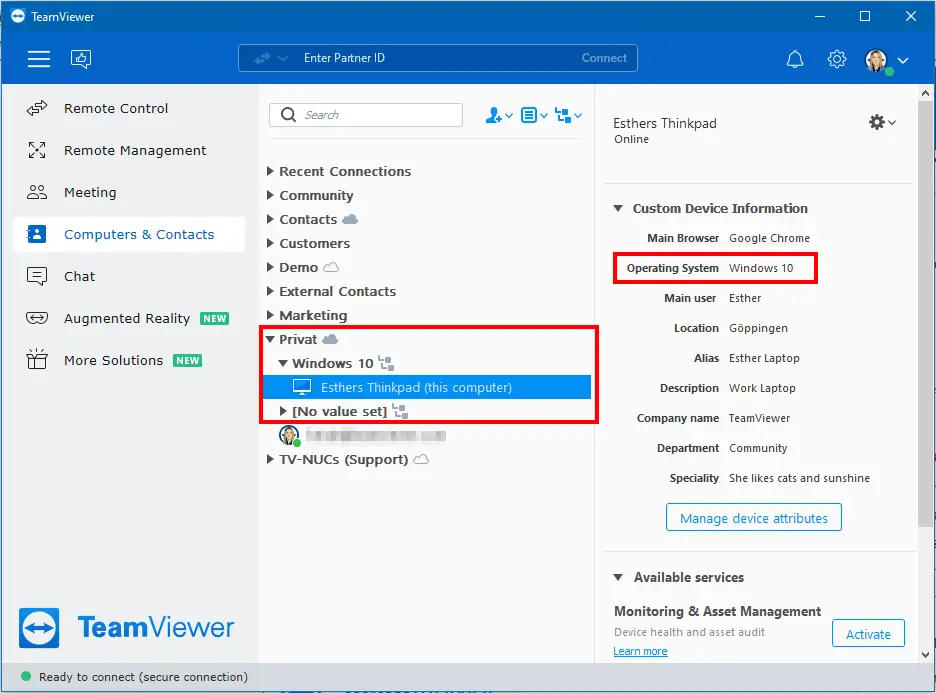
Once you choose a specific attribute, the subgroups are created automatically:
Un-group devices
Devices can be un-grouped by selecting No groups in the dropdown.