Knowledge Base
Full version
Last Modified 2024. 3. 4.
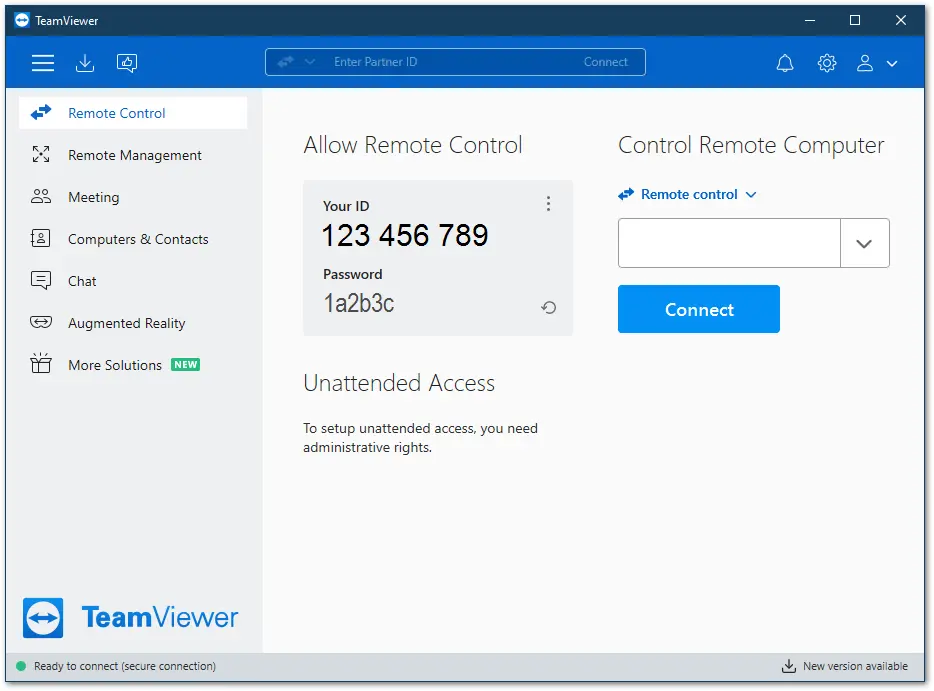
The TeamViewer full version allows users to work most efficiently with TeamViewer.
With the full version, you can:
- Start remote control sessions by connecting to remote devices
- Receive help by lettings others connect to you
- join online meetings
- Chat with other TeamViewer users
- Start connections using Assist AR
This article applies to all TeamViewer users.
Resize TeamViewer
You can re-size the TeamViewer window into the size which is the most comfortable for you. Do you like it smaller or larger? Just choose your own best fit.
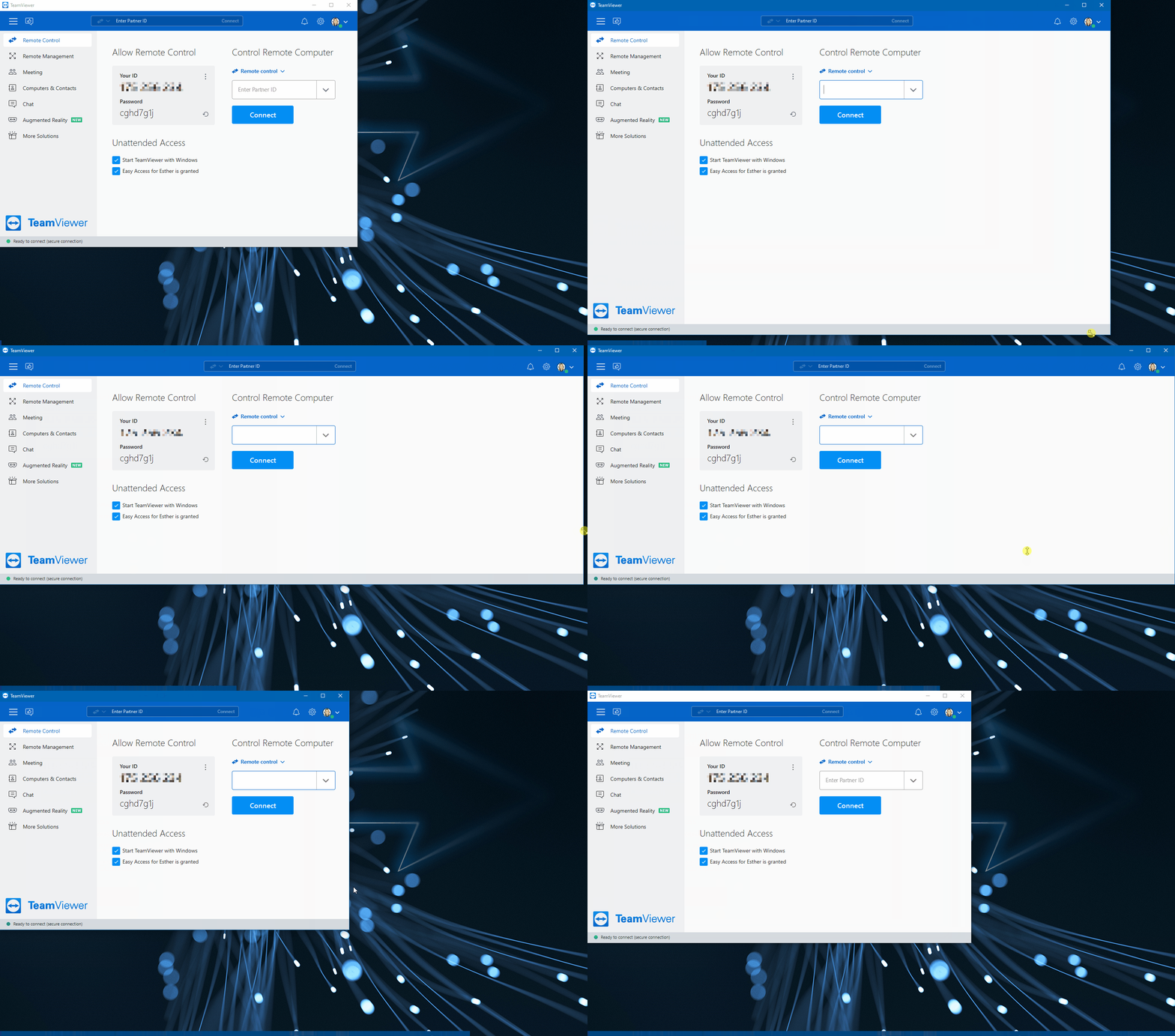
📌Note: TeamViewer will always restart in the size you defined before closing the software.
Dark Mode
TeamViewer offers a Dark Mode for your TeamViewer application.
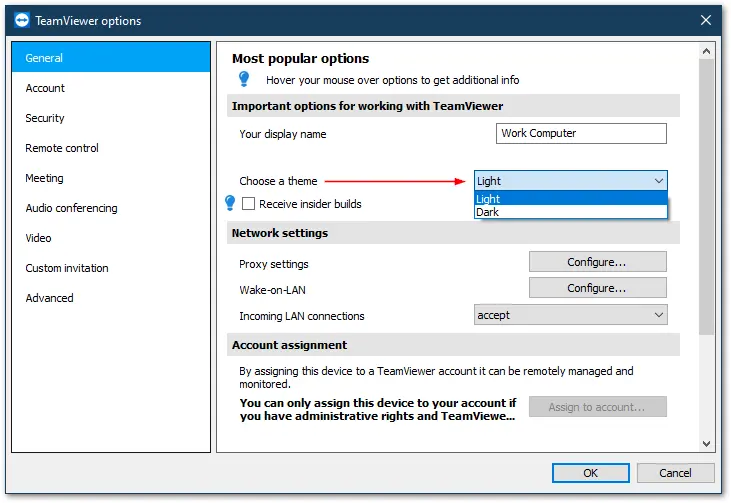
To activate Dark Mode for your TeamViewer, navigate to the TeamViewer settings by clicking on Gear icon (⚙) ➜ General ➜ Choose a theme ➜ Dark
To deactivate Dark Mode again to see your TeamViewer in the regular mode, navigate to the TeamViewer settings by clicking on Gear icon (⚙) ➜ General ➜ Choose a theme ➜ Light
macOS
For macOS, Dark mode is automatically turned on in TeamViewer when it is activated in the System Preferences.
Slim Mode
📌Note: Slim Mode is only possible with TeamViewer version 15.2 and higher
TeamViewer's Slim Mode allows you to resize your Computers & Contacts tab so that the TeamViewer application takes up less screen space on your device. To activate, resize the TeamViewer window when you are on the Computers & Contacts tab to best fit your use case: