
Knowledge Base
Share device groups and devices with user groups
Last Modified 23 ก.พ. 2026
When managing a large number of devices, assigning individual users as managers can quickly become inefficient, especially when employees leave the company or change roles. By assigning user groups as device group managers instead, you only need to manage access at the user group level.
This simplifies administration: just add or remove users from user groups, and they will automatically gain or lose access to the respective device groups.
This article applies to all Premium, Corporate, and Tensor license holders.
Prerequisites
- You must be an administrator with the view permission of User group management.
- User groups must already exist in your company profile. If not, create them in User groups via User management.
Share devices or device groups with user groups
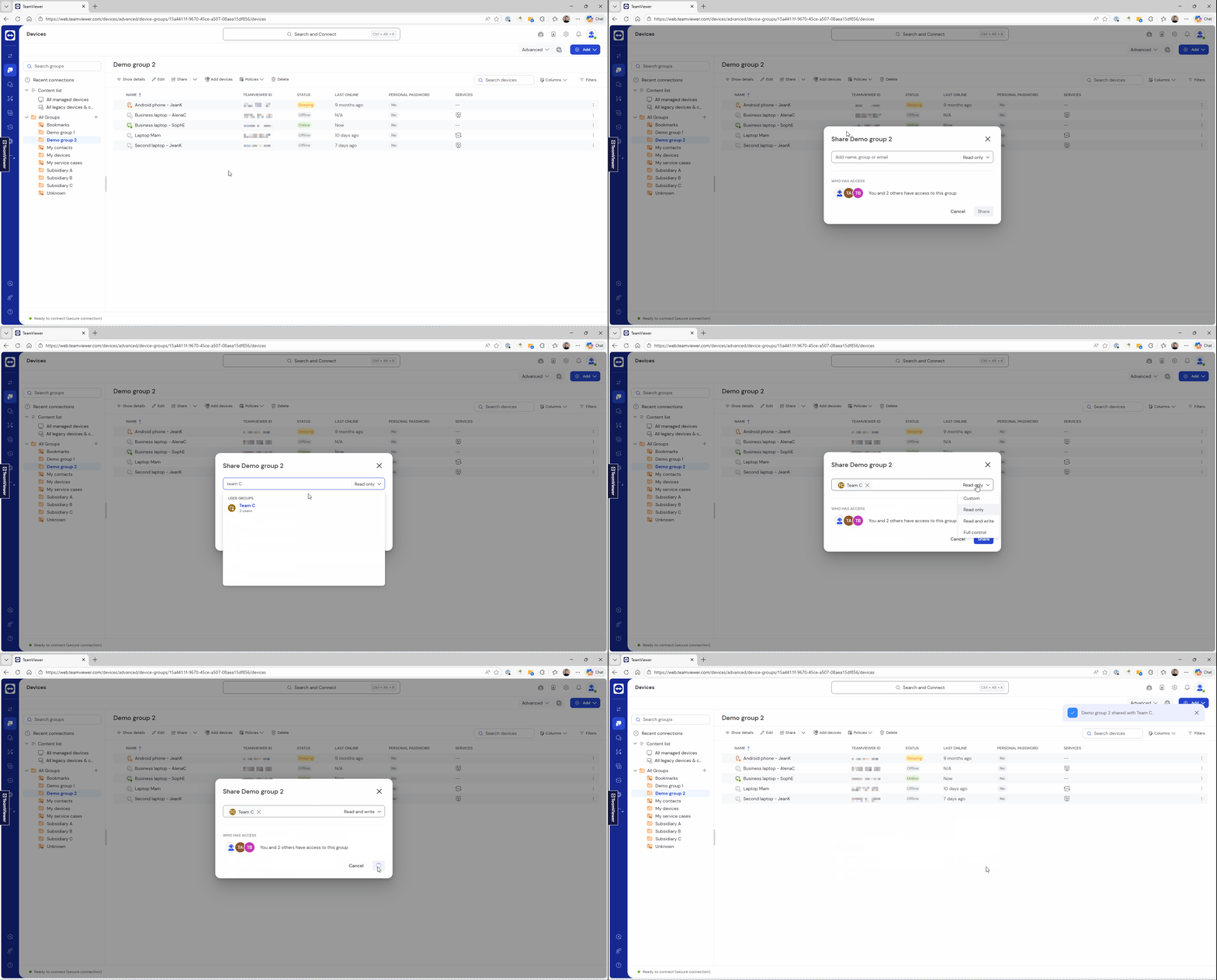
To share device groups with user groups:
- Go to Devices.
- Select the desired device or device group.
- Click Share.
- In the Search bar, type and click the user groups you want to assign.
- Use the drop‑down menu to choose the appropriate permissions.
- Click Share.
Add or remove users in user groups
If an employee joins or leaves your company, you can manage device access by simply editing the user group.
To add or remove users from a user group:
- Go to Admin settings.
- Go to User management and click User groups.
- Select the desired user group and click Edit.
- Open the Users tab.
- Add or remove the desired user(s).
- Click Save.
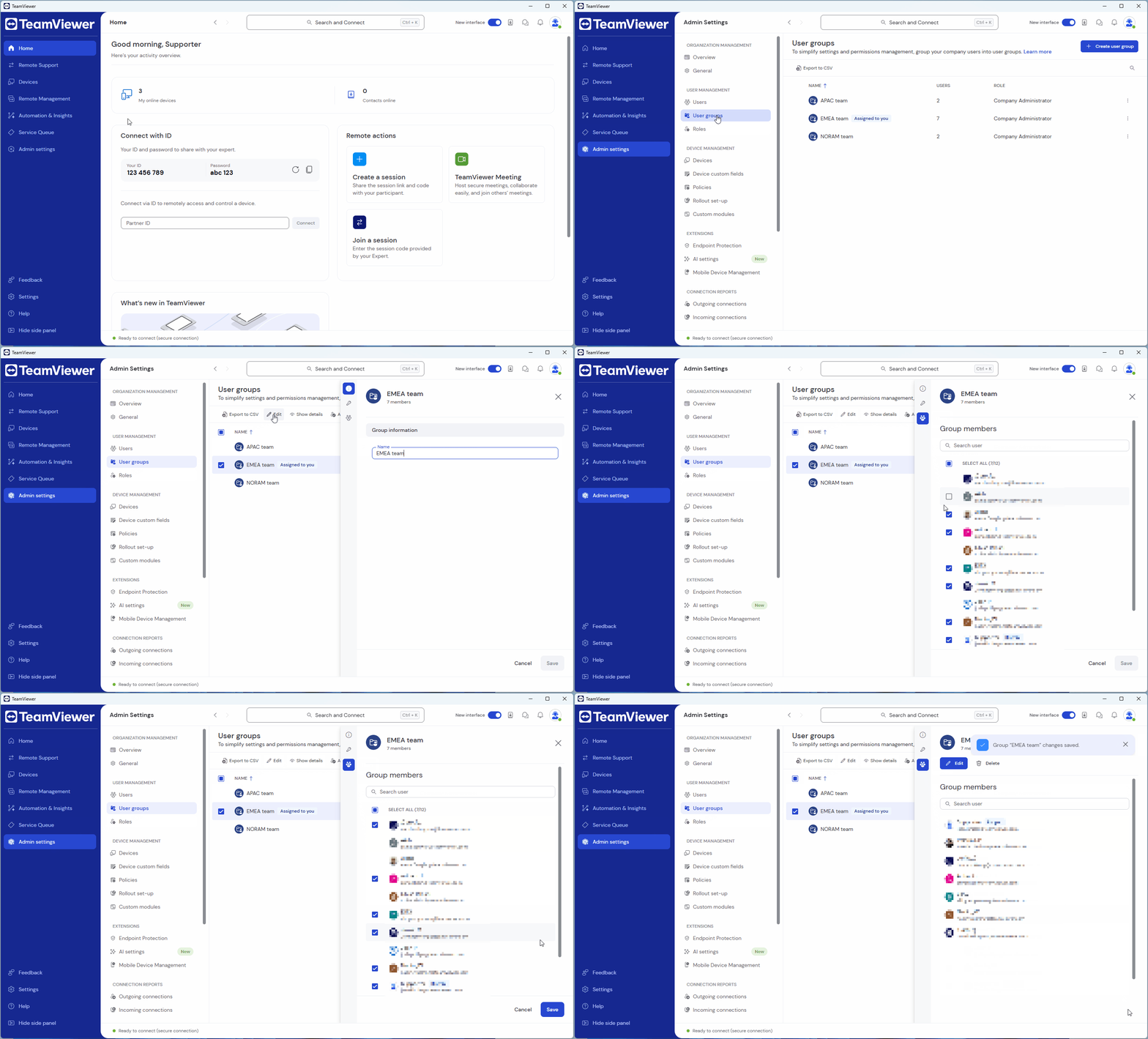
The selected user will now have access to (or be removed from) all device groups managed by the user group, with the exact permissions you defined. There is no need to manually adjust each device group.