Knowledge Base

Generate session summaries with Session Insights

Last Modified 2. 7. 2026

How to setup Session Insights

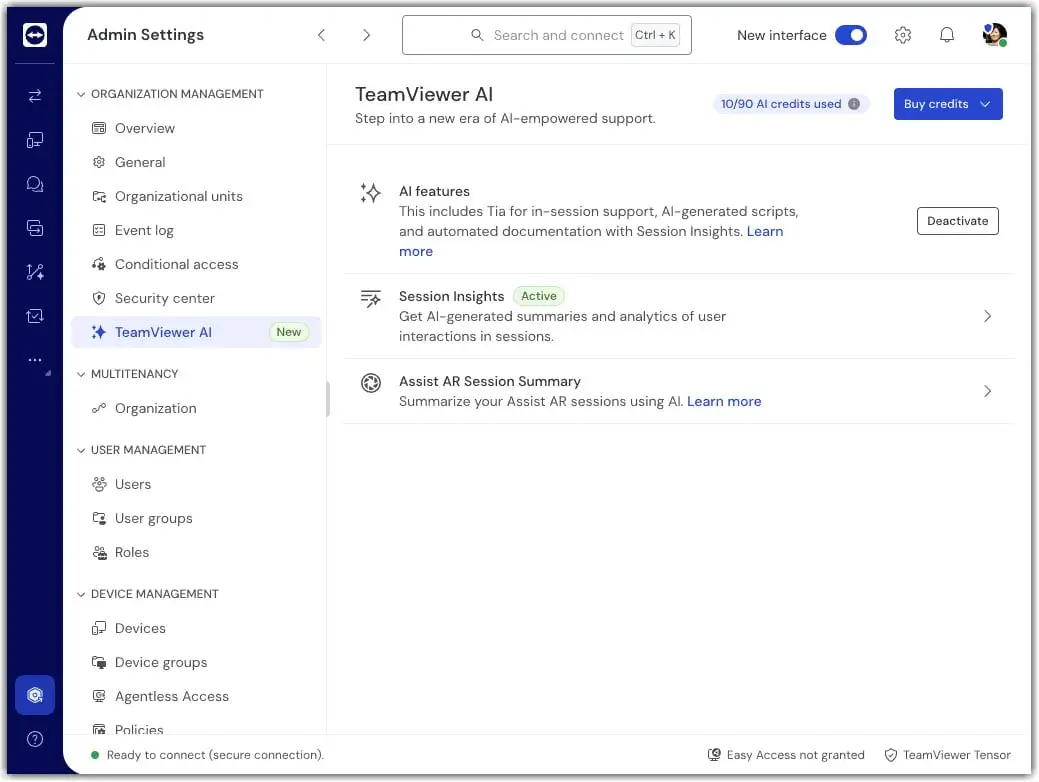
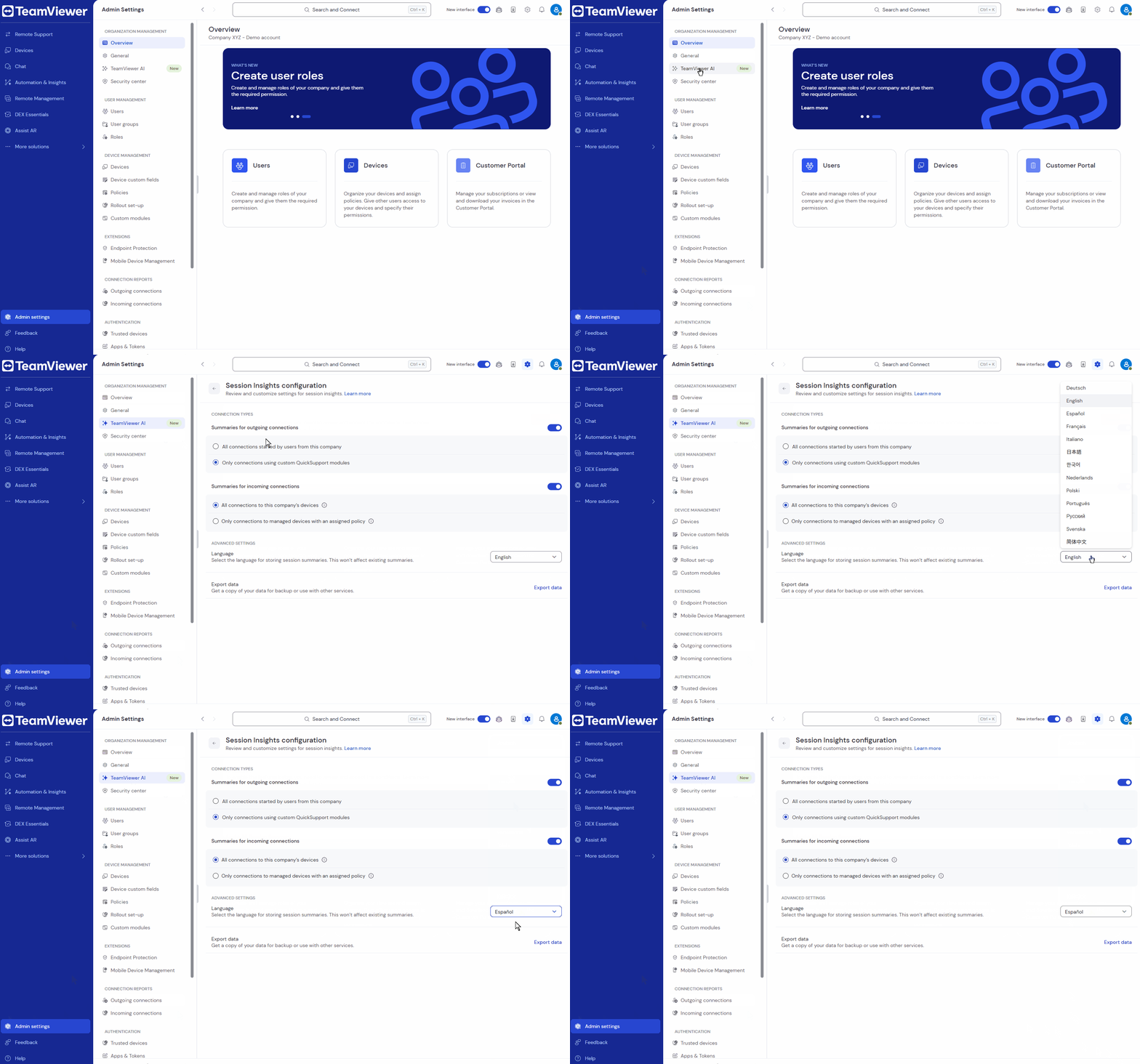
Ai Settings Deactivate
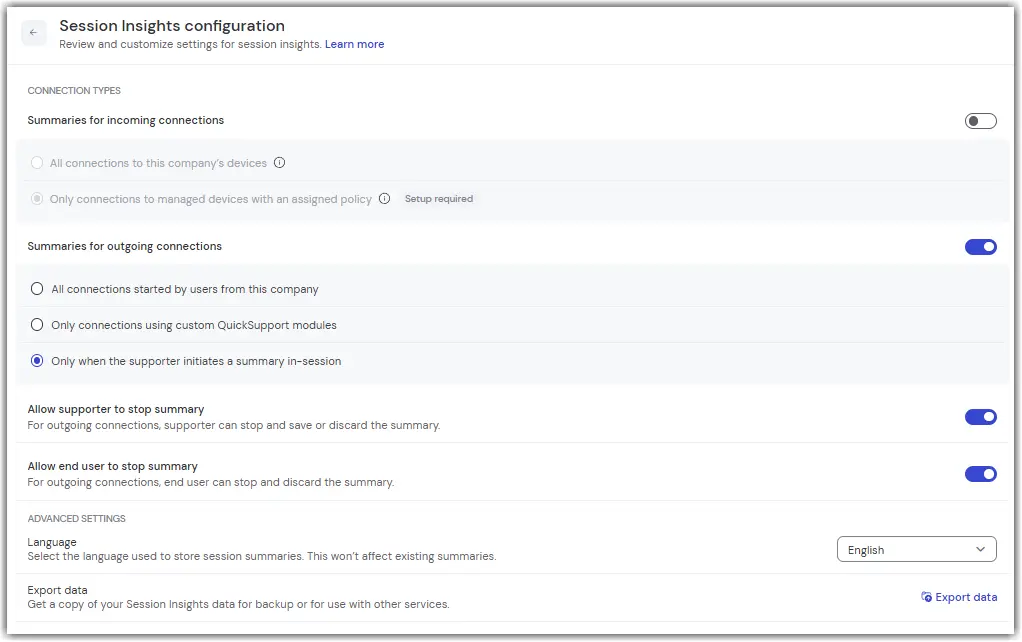
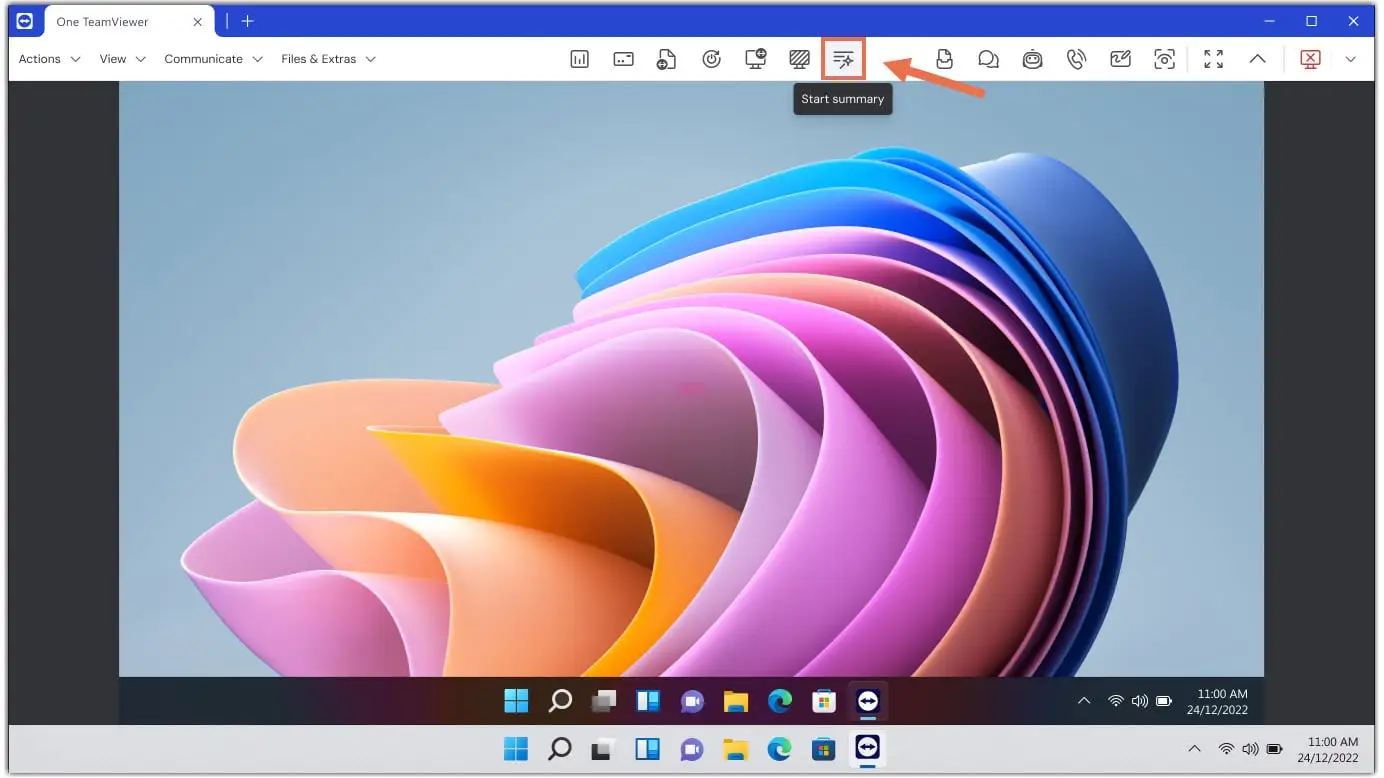
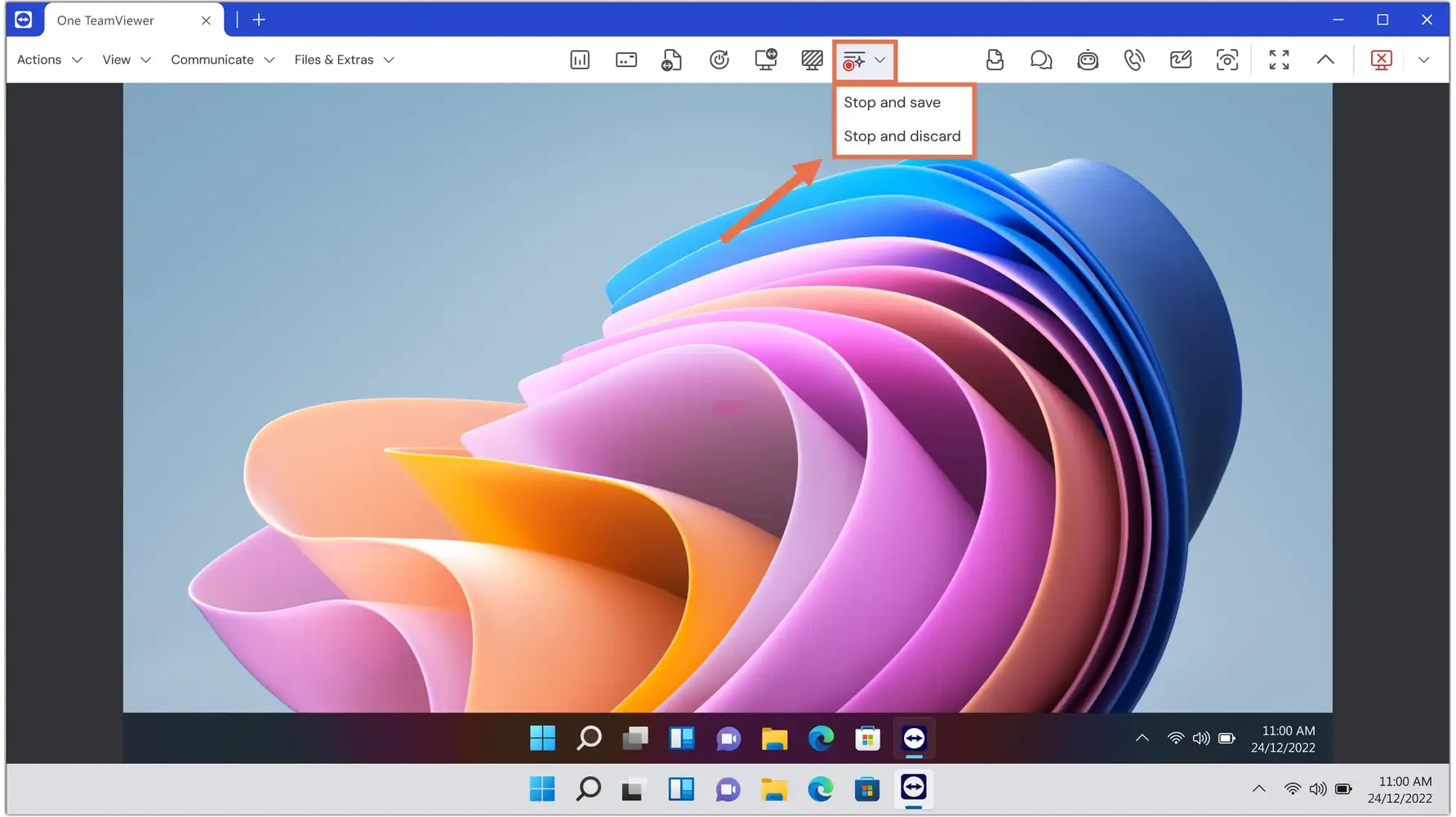
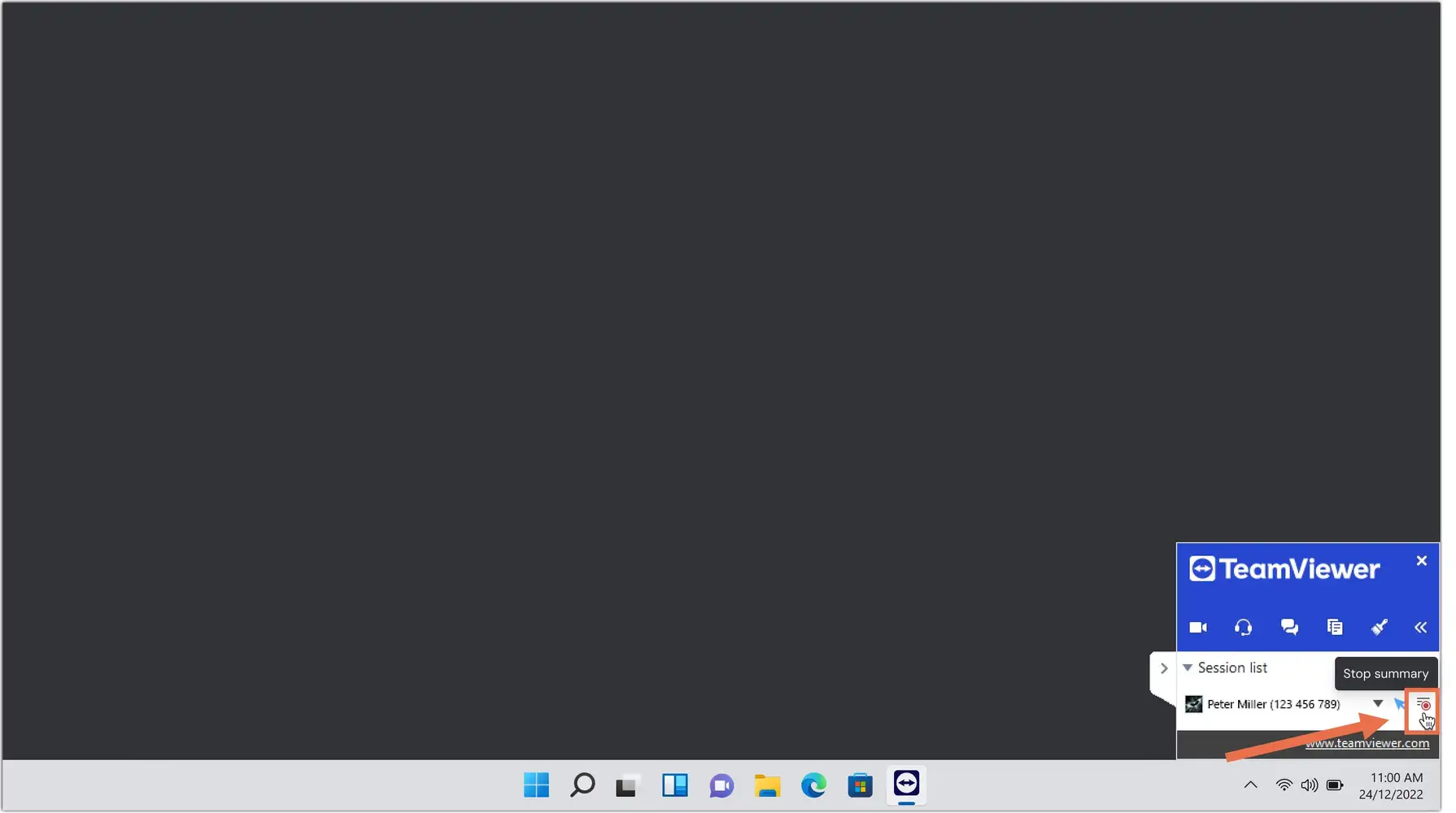
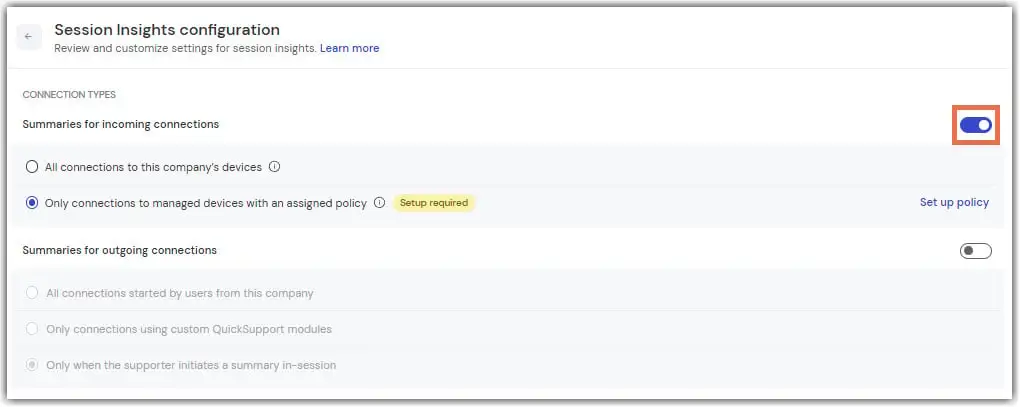
Session Insights Options Startstop

Two separate sections further down cover details on the set-up process for each option. Before, you may need advice on which choice is right for your company. The table below compares options 1 and 2 along selected decision criteria.

Option 1: Summaries for outgoing connectionsOption 2: Summaries for incoming connections

Your TeamViewer use case

You provide support and connect to any remote devices

You or third-party supporters connect to your company’s managed devices 

Remote side experience

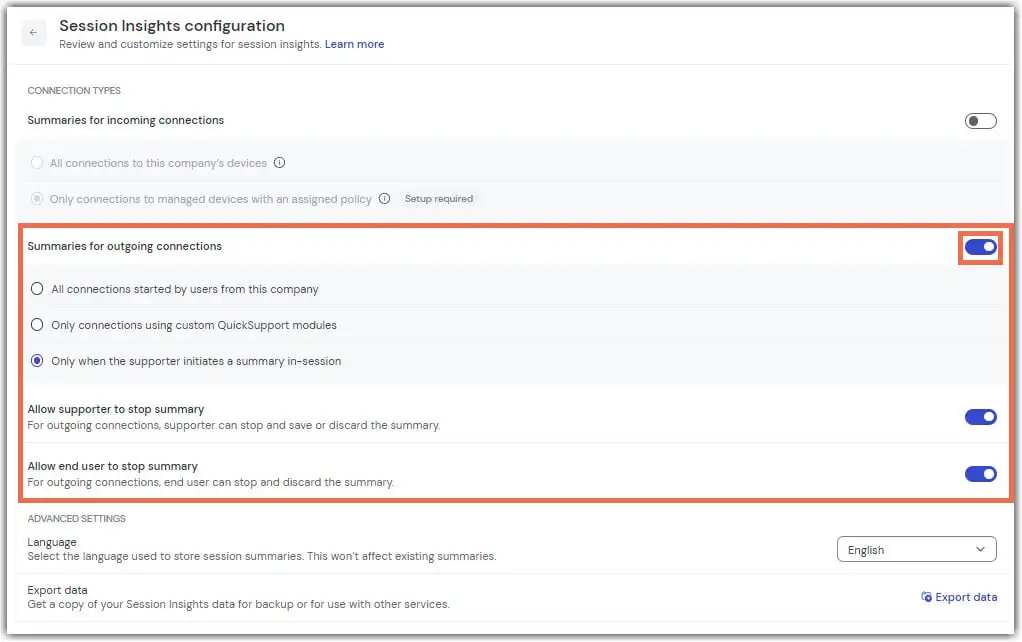
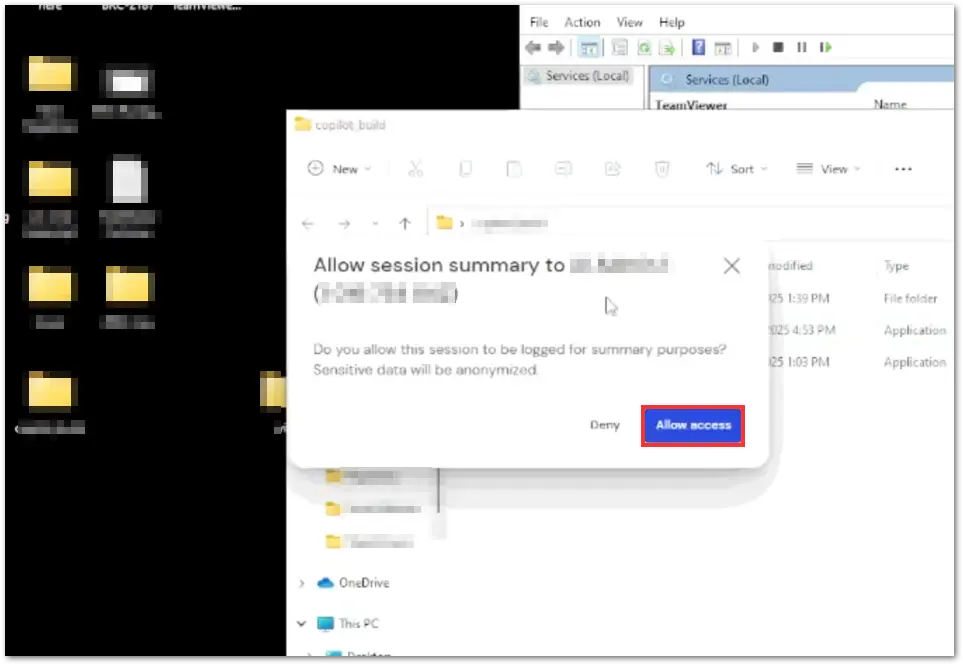
  • By default, users on the remote side need to actively opt in for session insights logging at the beginning of every session
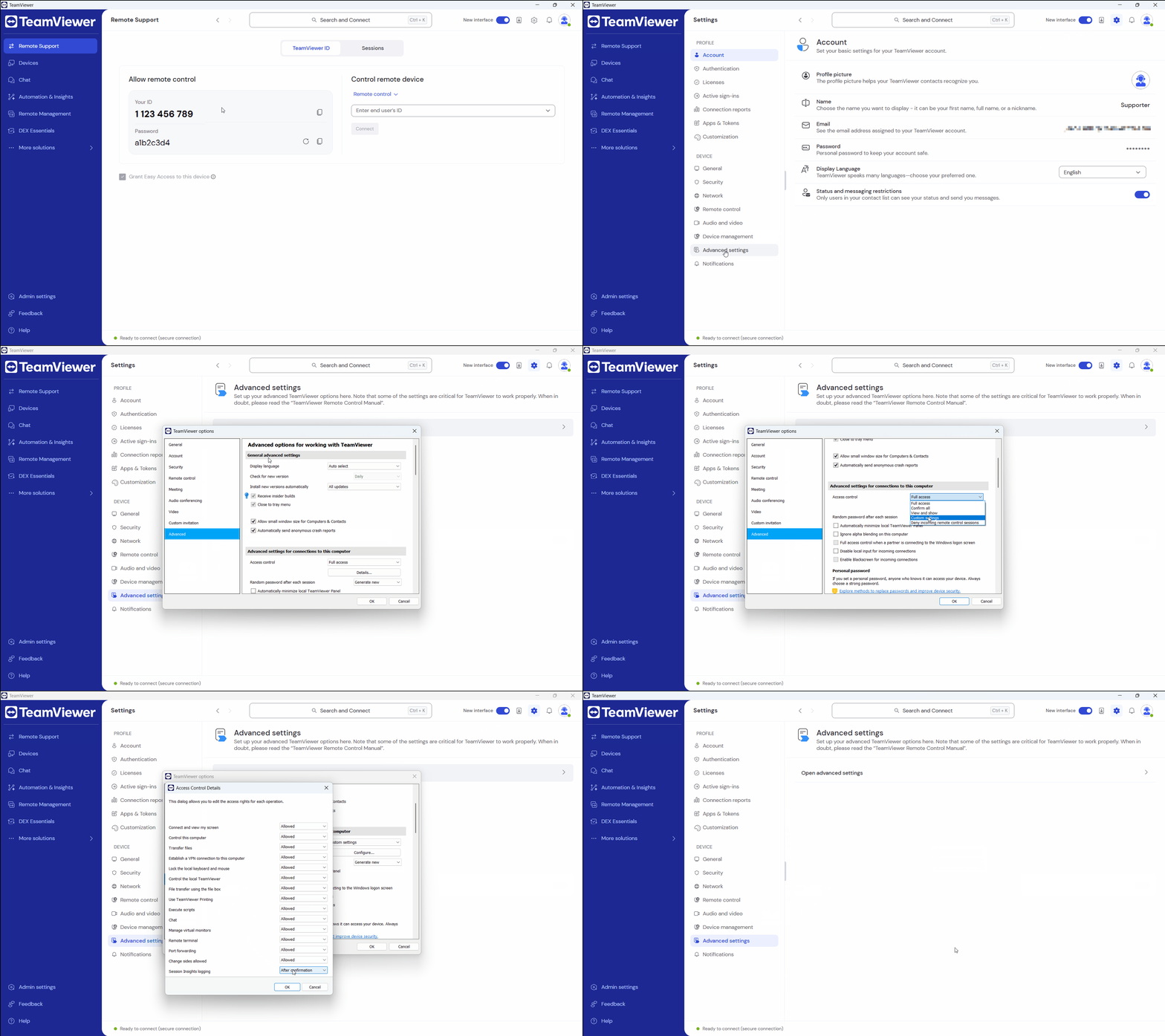
  • Users on the remote side can change this default setting using access controls
  • More details on the remote side user experience can be found in a separate paragraph further below (“Remote side user experience”)

No option for remote side to refuse session insights generation (since all devices with session insights logging are managed by your company)

Calibration of Session Insights setup across users and devices

Make use of user settings to adjust for which of your company’s users Session Insights are generated (details in the paragraph on summaries for outgoing connections below)

Make use of TeamViewer policies to adjust the set of devices for which to generate session insights (details in the paragraph on summaries for incoming connections below)

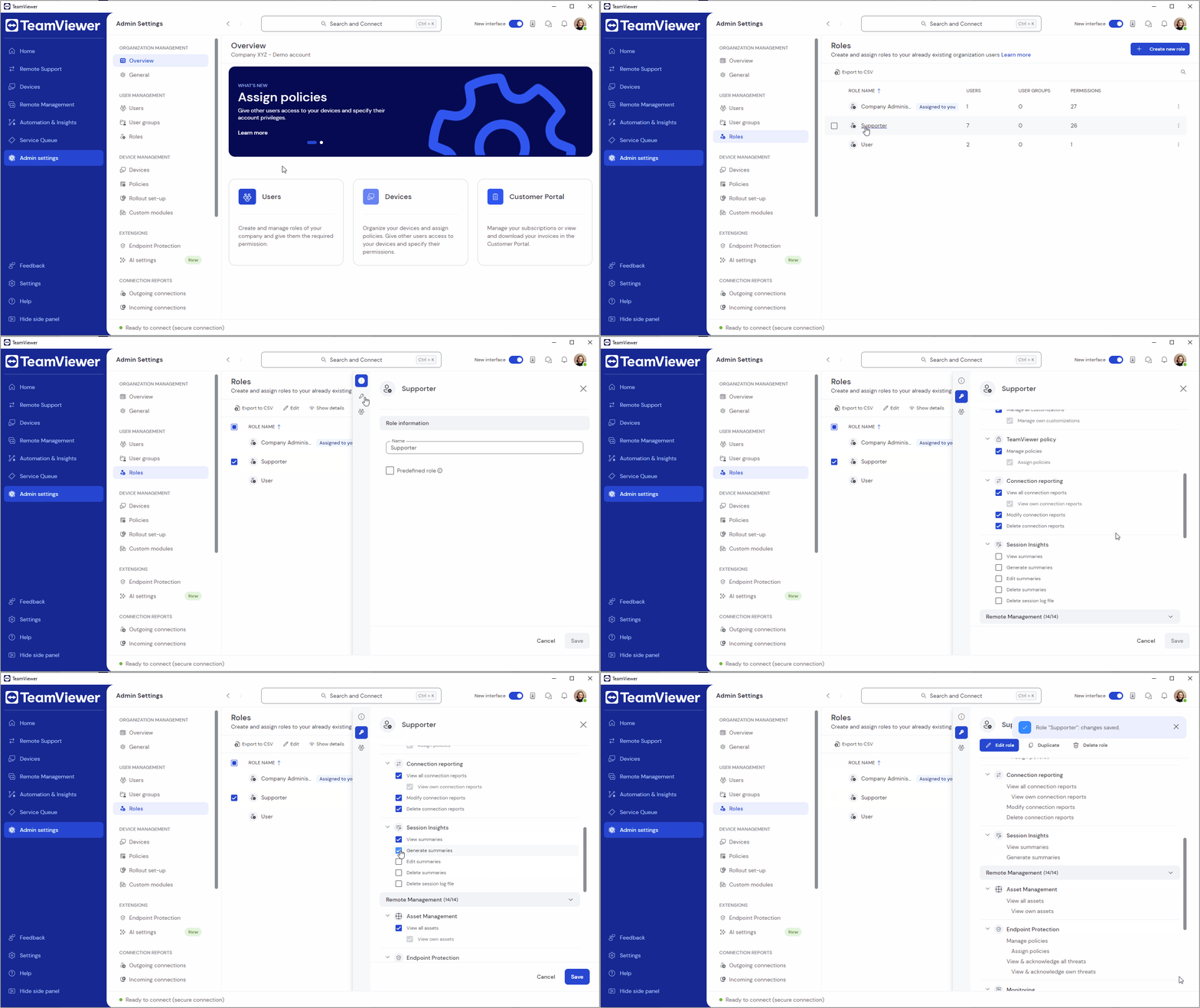
Define Permissions Session Insights
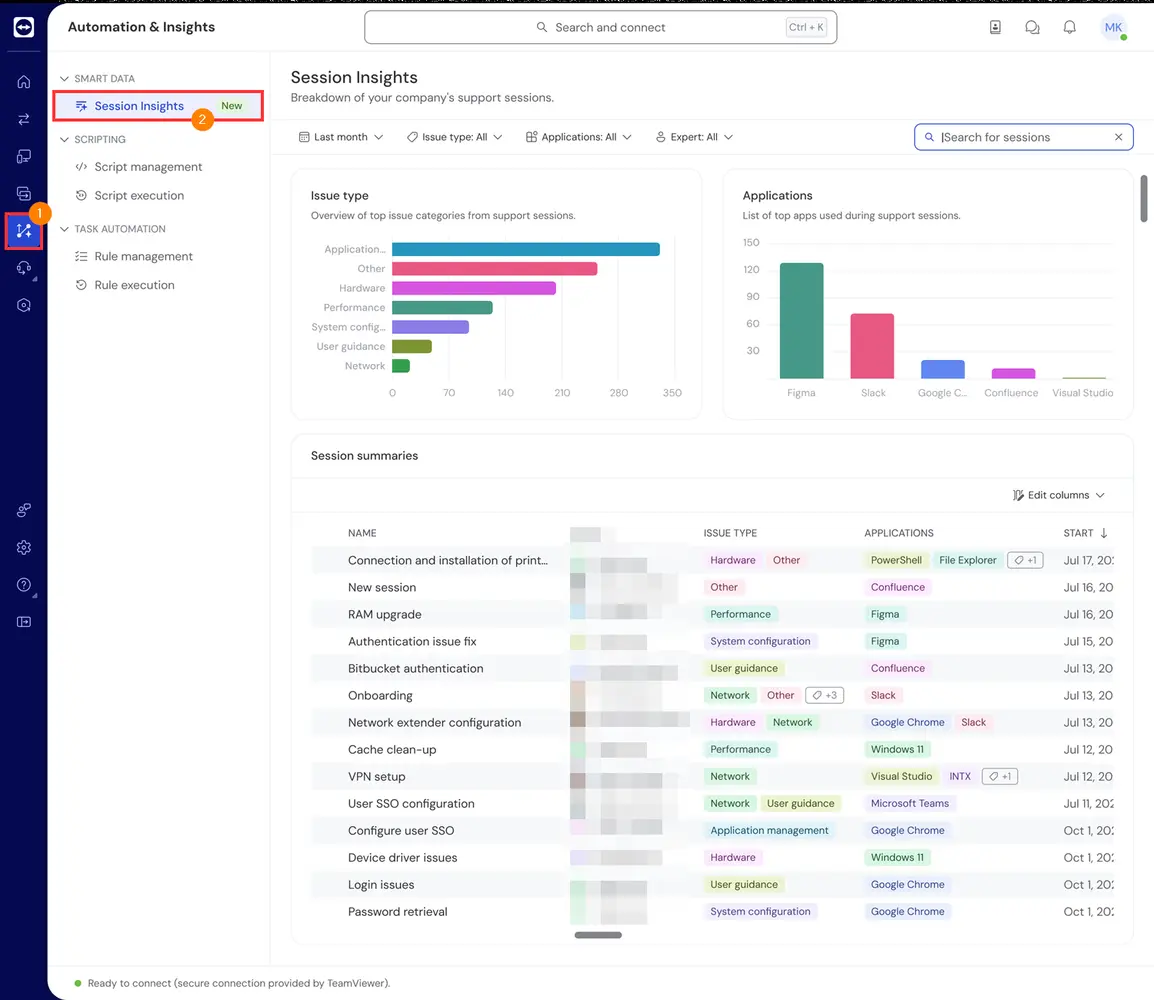
Access Summaries

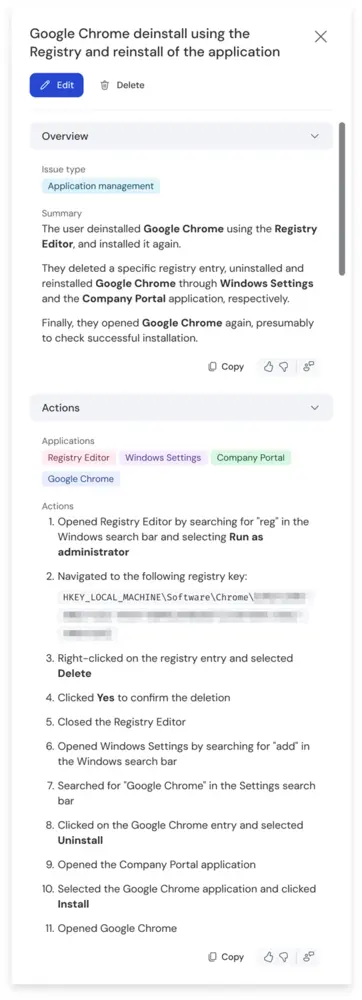
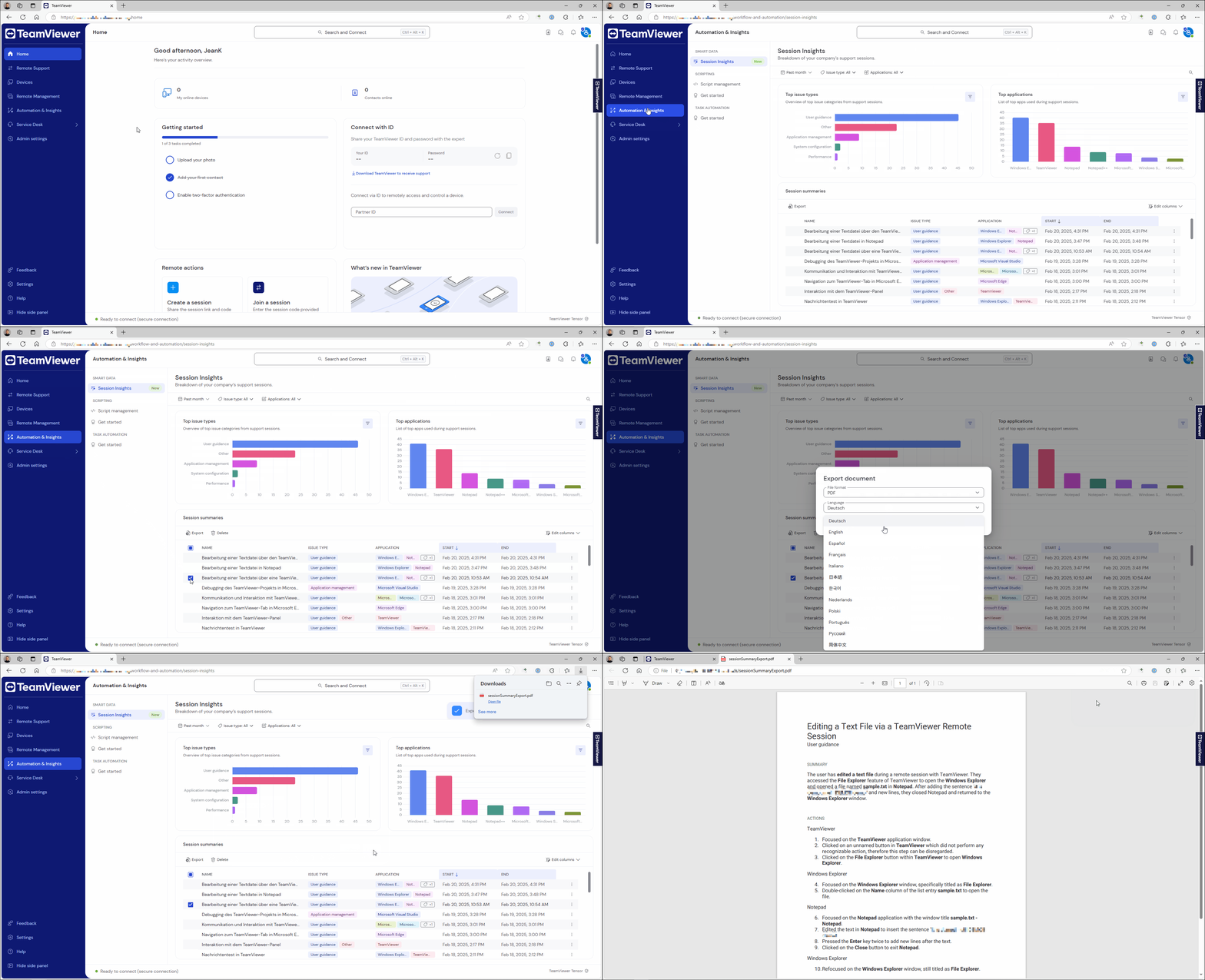
You can click on a session summary, and its content will be displayed on the right side of your screen.

Opening a summary will provide you the ability to:

  • Edit the summary
  • Delete the summary
Edit A Summary
Export A Session Summary
Sessionsumarieslanguage

Note: Service cases that belong to legacy device groups are also visible in the Device list. From there, you can view and manage these service cases in the same way as in the Service Queue.

Exposing Session Insights to standard integrations or via TeamViewer API

Session Insights can be integrated into third-party applications such as ITSM platforms or CRM systems. We offer off-the-shelf integrations of Session Insights into major platforms, including ServiceNow or Salesforce.

Alternatively, you can integrate Session Insights into your own system using TeamViewer API.

Customers using TeamViewer integrations and API must review the user settings of users whose outgoing connections should be logged with session insights:

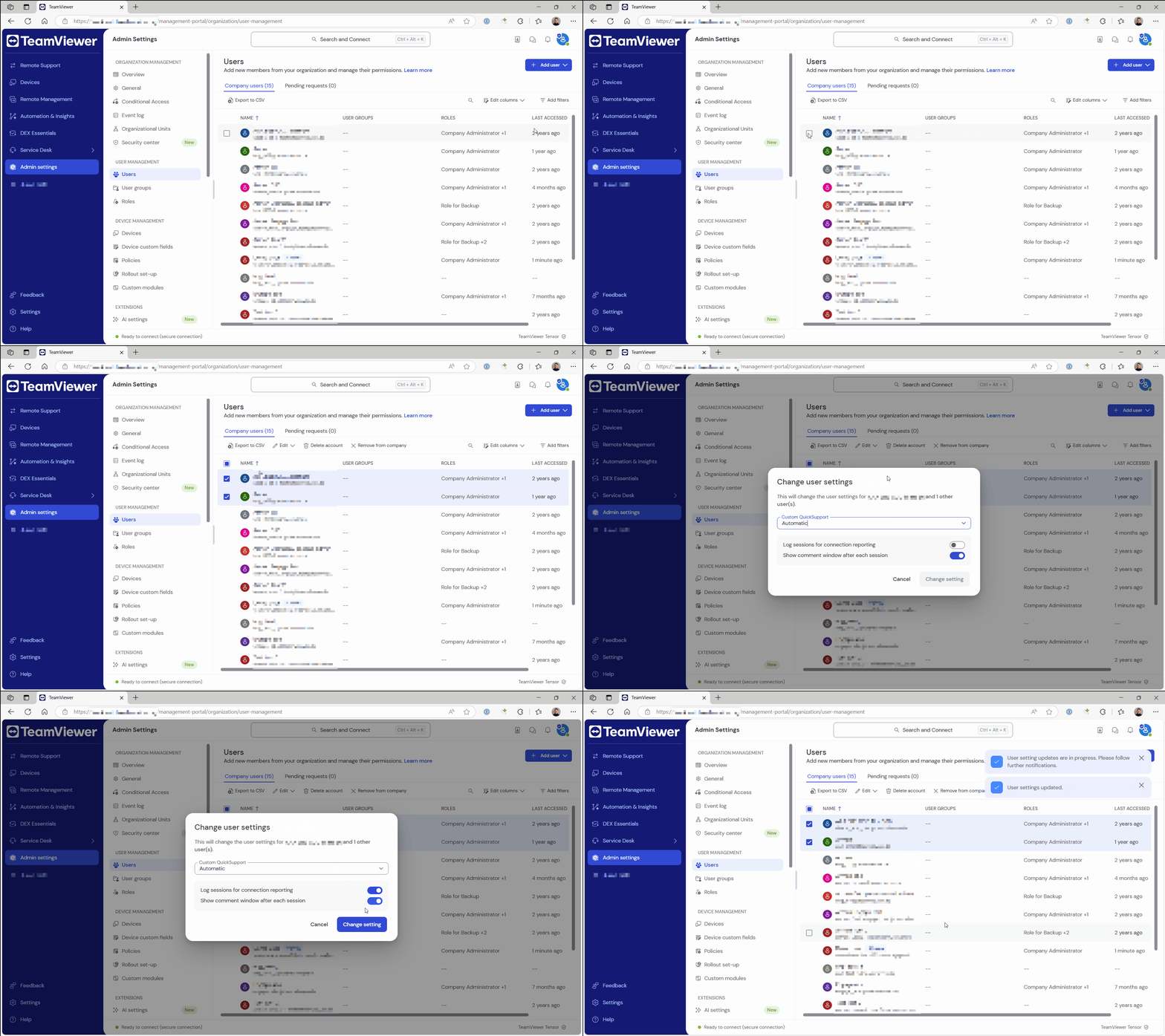
  1. Select all users whose outgoing connections should be logged using session insights, except for your own user.
  2. Click Edit and click User settings.
  3. Ensure the toggle Log sessions for connection reporting is switched on.
  4. Click Change setting.
Edit User Settings Log Connection Reporting

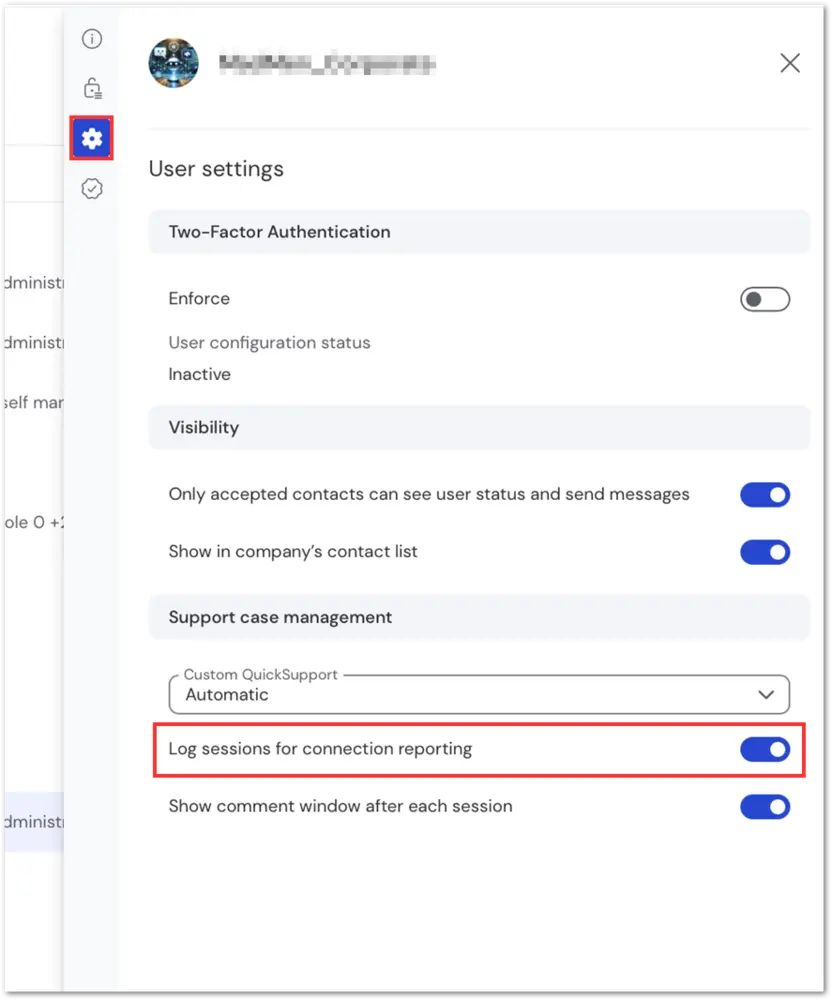
If you want your own user’s connections logged as well, deselect all users, then select only your user. Again, click on Edit, then click Edit user information.

In the side navigation, click on user settings. At the bottom of the side drawer, you will find the Log sessions for connection reporting setting. Ensure it is switched on.

Activate Own User Outgoing Session Insights