TeamViewer Remote policies allow your company to manage and affect TeamViewer Remote endpoints remotely by enabling and enforcing TeamViewer settings on the device. After assigning the policy to your devices, all the settings you have added to the policy will be applied to your devices.
Note: Options that are not defined in the policy keep the value of the locally defined settings. Some of the policies mentioned on this page may only be available for Windows-based devices.
This article applies to all TeamViewer Remote license holders.
How to enforce policy settings
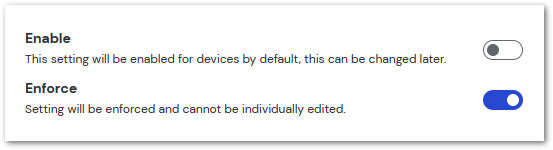
When adding TeamViewer Remote settings to a policy, you must first enable or disable the setting. This affects the setting by default, but the local user can change the setting at a later time. Enforcing a policy setting prevents a user on the endpoint from altering the specific setting. When enforced, the setting will be visible in the local TeamViewer Remote options but will be greyed out and inaccessible.
To enforce a policy setting, simply slide the switch for enforcement to the right for the desired setting.
Policy rules
When activated, only accounts you have connected with or that are in your contacts list are allowed.
Controls the level of access a supporter has when connected to the specific remote device. Access control (incoming connections) not only refers to the ability to control or simply view the device when connected, but also the ability to use TeamViewer Remote features such as File Transfer, VPN, or Remote Printing.
- Full access: Connecting supporter has full capabilities in TeamViewer Remote when connecting to the device.
- Confirm all: Connecting supporter has full capabilities in TeamViewer Remote when connecting to the device, but the remote computer's user must confirm access before the feature can be used.
- View and show: Connecting supporter can view the remote device, but cannot affect the device or use any TeamViewer Remote features.
Note: If a supporter is connected to a device with View-only access, a large blue cursor will appear on the screen when they click an area. This cursor is visible to the user in front of the machine and can be used to direct them to a desired location.
- Custom Settings: Customization of allowing or denying access to each feature.
Hint: If you wish to disable access to specific features only, use a Custom Setting.
- Deny incoming remote control sessions: No incoming connections are allowed at all.
Note: When set to deny all incoming connections, no prompt for a connection is shown on the remote machine. Connections are automatically declined.
Controls the level of access when attending or hosting a meeting. It allows users to host or join meetings and access features such as Controlling remote machines, recording meetings, and file sharing.
- Full access: The user can host and join meetings and utilize all TeamViewer Meeting features.
- View and show: The user can host and join meetings, but cannot use any TeamViewer Meeting features.
- Custom Settings: Separately, customize the abilities to access TeamViewer meeting features and host or join meetings.
- Denying meetings: User cannot use TeamViewer Meeting at all.
Similar to access control (incoming connections), the main difference is that this affects connections made from the specific device instead of to it. Access control (outgoing connections) not only refers to the ability to control or simply view a remote device in a connection, but also the ability to use TeamViewer Remote features such as File Transfer, VPN, or Remote Printing.
- Full access: The supporter can use all TeamViewer Remote features when making connections from the device.
- Confirm all: The supporter can use all TeamViewer Remote features when making connections from the device, but the remote computer's user must confirm access before the feature can be used.
- View and show: The supporter can only view a remote computer when making connections from the device.
- Custom Settings: Customization of allowing or denying access to each feature for outgoing connections.
- Deny outgoing remote control sessions: No outgoing connections are allowed at all.
Enabling and assigning this setting installs the 1E client. It combines TeamViewer’s expertise with the advanced real-time detection and resolution capabilities provided by 1E.
Automatically records every incoming remote-control session on the device.
If Enable confirmation by supporter is activated:
-
The supporter must approve the recording before the session starts.
-
If the supporter denies the confirmation, the session is terminated.
By default, recordings are saved to the user's Downloads folder. Administrators can define a custom storage location if required.
Availability: Windows and macOS
All meetings hosted on the device are automatically recorded.
Screen sharing of the Host's device begins automatically when the first participant joins the meeting.
When a connection is made to the device, the local TeamViewer Panel will minimize after 10 seconds.
Hint: The user on the remote machine can bring up the local TeamViewer panel by clicking the tab on the side of their screen.
When a supporter connects to the remote device, a TeamViewer security image will appear locally, indicating that a remote session is in progress. This prevents local users from seeing the screen.
Note: Activating the black screen automatically disables local controls on the device. However, users can regain control in emergencies by pressing Ctrl-Alt-Del on the local device.
Sets up access for which TeamViewer accounts/IDs can connect to the device.
Note: This feature is available only for Windows OS users
When activated, any change to the TeamViewer Remote settings requires Admin-level privileges on the local device.
Sets how often the device will automatically check for an available update to TeamViewer Remote. The following intervals are available:
- Daily
- Monthly
- Weekly
- Never
Synchronizes the clipboards of the two devices in the connection, making any text copied on one machine available to the other.
Note: This feature is available only for Windows OS users
When the red X is clicked to close the app, TeamViewer Remote will only minimize to the system tray and remain open. TeamViewer Remote can be shut down by right-clicking the icon in the system tray and selecting Exit TeamViewer.
Define conference call data for connections and meetings. The following options are available:
- No conference data for audio: Use local microphone and speakers to communicate
- Use TeamViewer conference data for audio: Use the conference call data provided by TeamViewer
- Use custom conference data for audio: Input your own third-party conference call phone numbers
Enables the Connection reporting and Session Insights (AI) for remote sessions. This feature is only available for Windows and macOS users.
Note: This feature is available only for Windows OS users
Disables the ability to drag & drop files between devices in a connection. Other file transfer methods must be used.
Prevents the supporter from stopping or pausing an active recording during a session.
This ensures that every remote-control session is captured in full for compliance and audit purposes.
Note: This feature is available only for Windows OS devices.
Prevents closing TeamViewer Remote from the app interface or from the system tray. Useful to minimize unintentional closing of TeamViewer in cases where the continuous availability of the device is required.
The TeamViewer service can still be closed via the Task Manager and the Editor. Automatic and remote updates will also temporarily close and restart TeamViewer services.
Automatically enables the TeamViewer security screen when input on the device is disabled during a connection.
Enables the integrated health checks. These checks allow administrators to proactively monitor device health, identify potential issues, and manage systems remotely, all from within the TeamViewer interface.
Enables logging for the remote device, ensuring TeamViewer Remote writes all events and errors to the log files.
Defines how the end user can interact during a remote session.
- Full interaction – All functions are available.
- Minimal interaction – Presentation mode with limited interaction.
- Custom settings – Specific interaction types can be allowed or restricted. For each of the below options, permissions can be set to allow immediately or allow manually by the host:
- Audio
- Video
- Chat
- File transfer
- Pointing and drawing
- See other end users
Automatically records all outgoing remote-control sessions initiated from the device. The recordings can't be paused or stopped once started automatically.
Key details:
-
Recordings are saved locally.
-
This policy applies only to outgoing connections.
-
It does not apply to Host module installations.
-
At the end of the session, users are prompted to select a save location unless a session recording directory has been configured. Recordings can also be discarded if a session recording directory hasn't been configured.
We recommend setting a designated session recording directory to avoid these prompts.
The Enforce TLS 1.3 policy rule ensures that all TeamViewer connections use the latest and most secure Transport Layer Security protocol.
When this rule is applied to a device, it will only accept incoming and outgoing connections that run over TLS 1.3.
Devices using TeamViewer version 15.75 or newer already use TLS 1.3 by default.
Older TeamViewer versions or outdated browsers that do not support TLS 1.3 will be blocked from connecting.
Note: This feature is available only for Windows OS users
Provides Full Access to connecting supporters when connecting to a device currently on the Windows login screen.
Hides the Augmented Reality feature from the client.
Hides the chat feature in the client.
Hides the menu option to check for new versions.
Hides the menu option to extend or upgrade the license.
Hides the Feedback menu option.
Hides the Getting Started section in the client.
Hides the How it works menu item.
Hides the Invite Partner dialog.
Hides the Meeting feature in the client.
Hides the online status for the selected TeamViewer ID.
Hides the Open Design & Deploy menu option.
Hides the Open Log Files menu option.
Hides the Open Service Queue menu option.
Hides the Open User Management menu option.
Hides the Play or Convert Recorded Session menu option.
Hides the Remote Management feature in the client.
Hides the Setup Unattended Access option in the tray menu.
Hides the Show TeamViewer option in the tray menu.
Hides the Take Our Survey menu option.
Hides the TeamViewer Website menu item.
Hides the Tell-A-Friend sharing menu option.
Note: This feature is available only for Windows OS users
Defines whether connections from the local network (LAN) are permitted. The following options are available:
-
Deactivated: Incoming LAN connections are not allowed.
-
Accepted: All incoming LAN connections are allowed.
-
Accepted exclusively: Only LAN connections are allowed.
Determines if new versions will be installed automatically. The following options are available:
- All updates (includes new major versions): All updates will be installed.
- Updates within this major version: Only updates within the current version of TeamViewer (i.e., version 15) will be installed.
Note: This setting only affects TeamViewer (Classic) devices. TeamViewer Remote is always on the latest major version.
- Security updates within this major version: Only security updates will be installed. Standard updates are skipped
- No automatic updates: Updates will never be installed automatically.
Enables TeamViewer Remote to collect and log data about all incoming connections to a log file (Connections_incoming.txt).
Enables TeamViewer Remote to collect and log data about all outgoing connections to a log file.
Note: This option must be activated whenever you are using the TeamViewer Manager.
Designates the default custom meeting invitation. The following parameters are available:
- Meeting Invitation: Title/Subject of the meeting invite.
- Message placeholder: drop-down menu provides placeholder options that auto-fill data in the invitation based on the meeting
Note: Clicking a placeholder from the drop-down adds the information to the Invitation when it sends. In the setup, however, you will only see the placeholder itself (i.e., @@URLMID@@)
- Invitation message: Add any relevant information to the invitation, including the placeholders from above
Note: This creates a default invitation message; we recommend using only placeholders for specific meeting info and adding general information for all meetings in this default invitation.
Gives the administrators the ability to define which interface is used on managed devices.
When a connection is made to a new device while still connected to the first, the second connection opens in the same window but on a different tab. To have each session appear in a separate window, disable this option.
Excludes devices from usage data collection.
Note: In complying with the GDPR standards, TeamViewer does not collect any user-identifiable or private data for our analytics.
Designates a default password for all Instant (non-scheduled) meetings.
Note: Scheduled meetings allow for a password for each individually scheduled meeting. This only affects impromptu meetings started manually.
Determine how strong (complex) the random password for spontaneous access should be.
The following levels are possible:
- Secure (6 characters): The password consists of 6 alphanumeric characters (no special characters).
- Secure (8 characters): The password consists of 8 alphanumeric characters (no special characters).
- Very secure (10 characters): The password consists of 10 alphanumeric characters (including special characters).
- Disabled (no random password): No random password is generated.
Allows audio from the target device to be transmitted to the local device within the connection.
Prevents the local user from removing the Account Assignment in TeamViewer Remote. As many TeamViewer Remote services are linked to a TeamViewer account, this can prevent accidental removal of features like Remote Management.
Prevents users from connecting to their remote devices via personal passwords (password defined within the remote device's settings or within the device list).
Learn more here.
Prevents users on the machine from enabling TFA for Connections in TeamViewer Remote.
Allows you to define the quality settings of meetings.
Allows you to define the quality settings during remote sessions.
Note: This feature is only available for versions 13.1 and lower.
A QuickConnect button appears on all apps on the device, allowing for instant sharing of the app's current state via a TeamViewer connection.
Select how TeamViewer Remote generates a new temporary password for incoming sessions from the dropdown list. The following options are available:
- Generate new: TeamViewer Remote generates a new password after each completed session.
- Keep current: A new password is generated only when TeamViewer restarts.
- Deactivate: A password is generated only once. After the session, the random password is disabled.
- Show confirmation: TeamViewer Remote prompts after each session if a new password should be generated.
When enabled, devices automatically receive insider builds, allowing them to test new features before they are released publicly.
This policy is currently only available for Windows and macOS operating systems.
Enables the ability to include the end user’s audio and video in TeamViewer Meeting recordings. End users can decide whether they would like their webcam video and VoIP to be included in the recording.
Note: If deactivated, only the screen and webcam video/VoIP of the meeting host will be recorded.
Enables the ability to include participants' audio and video in TeamViewer Remote session recording. Partners must decide whether they would like their webcam video and VoIP to be included in the recording.
Note: If deactivated, only the screen and webcam video/VoIP of the supporter will be recorded.
Designates the default custom Remote control session invitation. The following parameters are available:
- Remote Control Invitation: Title/Subject of the Remote control invite.
- Message placeholder: drop-down menu provides placeholder options that auto-fill data in the invitation based on the requested session
Note: Clicking a placeholder from the drop-down adds the information to the Invitation when it sends. In the setup, however, you will only see the placeholder itself (i.e., @@URL:QS@@)
- Invitation message: Add any relevant information to the invitation, including the placeholders from above
Note: This creates a default invitation message; we recommend using placeholders only for specific Session information and adding general information for all meetings in this default invitation.
Removes wallpaper from the meeting host's desktop during meetings. This can help improve meeting quality on lower connections, as it optimizes the connection speed since less data must be transmitted..
Removes wallpaper on the desktop of the remote device during TeamViewer Remote connections. It can help improve quality on lower connections, as this optimizes the connection speed since less data must be transmitted.
Shows an orange frame around the screen during attended remote sessions, letting users know when their screen is being viewed.
Key combinations on the local device are sent via TeamViewer Remote to the remote device; they do not affect the local device.
Defines a fixed directory for saving all outgoing TeamViewer Meeting and remote-control session recordings.
Separate directory paths can be configured for Windows and macOS.
This policy ensures:
-
Centralized storage
-
Consistent file management
-
Alignment with retention and compliance requirements
Transmit computer sounds and audio from the presenter to all participants in TeamViewer meetings.
Two cursors appear during a remote connection, showing the local user as well as the connected supporter's actions.
Automatically starts recording all outgoing remote-control sessions initiated from the device.
Key details:
-
Recordings are saved locally.
-
This policy does not apply to Host module installations.
-
At the end of the session, users are prompted to select a save location unless a session recording directory has been configured. Recordings can also be discarded if a session recording directory hasn't been configured.
We recommend setting a designated session recording directory to avoid these prompts.
Note: This feature is available only for Windows OS users
Instructs TeamViewer to open with the operating system. Allows access to the device before a user is logged in locally.
Synchronize the names of managed devices in TeamViewer with their physical device names.
Passwords used to connect are stored per the default settings to allow immediate reconnection. After the shutdown of TeamViewer Remote, the passwords are no longer saved.
Select a period after which an outgoing remote control session is automatically terminated if there is no interaction in the defined period. Can be set in hour increments from off to 8 hours of inactivity.
Define which TeamViewer version your clients should be running.
TeamViewer Remote will attempt to set up a fast UDP connection by default.
Hint: We recommend only disabling this feature if your connection is interrupted regularly.
Configure the settings for TeamViewer Wake-on-LAN, allowing users to connect to the computer even if it is switched off.
Note: This feature is available only for Windows OS users
Provides additional connection options in TeamViewer Remote, allowing connections to be made by inputting the local Windows credentials instead of the random password displayed. The following levels are provided:
- Not allowed: Default setting. Authentication may only take place using a random password or Easy Access.
- Allowed for administrators only: Windows administrators' credentials can be used to connect, but standard users must still use a random password or Easy Access.
- Allowed for all users: All users' credentials can be used to connect.
Note: Ensure all Windows logins are secured using strong passwords.