Company administrators have the ability to create accounts for both new and existing users within the company.
Note: When you add an existing user to your company, the devices assigned to them will not be automatically assigned to the company. To assign a device to your company, please follow these instructions.
This article applies to company administrators.
How to add new users
To add new users to your company, please follow the instructions below:

- Click the Company button on the left-hand side of TeamViewer Remote's interface.
- Click on Users.
- Click on Add user.
- Enter
- a user name
- an e-mail address,
- a password (and confirm by typing it again in the field right below)
- Select the role you want to assign to the user.
- Click Save.

- Sign in with your admin account to web.teamviewer.com or within the client.
- Click on the company's settings and on Users.
- Click on Add a new user and select Add existing account.
- The company link will appear. Please copy the link and send it to the existing users you want to add to your company.
Step 2: Request to join your company
- As a user, open the link the admin has shared with you in a browser.
- Sign in with your user credentials.
- Next, confirm that the prefilled admin email address is correct, tick the box I allow to transfer my account, and click on Join company.
- A message will confirm that your request has been successfully sent to the admin.
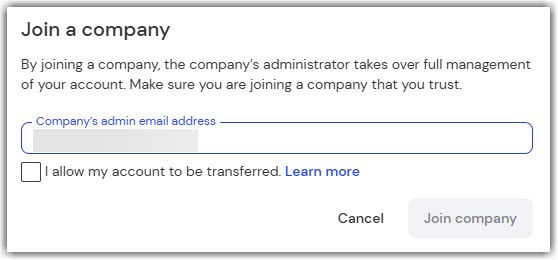
Step 3: Accept the user's request
- Sign in with your admin account to web.teamviewer.com or within the client.
- Click Admin settings and within the User management section, click Users.
- Go to the Pending requests tab. You'll see the user request in the list. Click Accept and confirm by clicking Accept again.
The user has been successfully added to your user list.
Note: Accepting user requests is only possible with TeamViewer 15.55 or via the web app.