
Knowledge Base
Company settings
Last Modified: Jul 3, 2025
Company settings encompass a range of configurations that company administrators can modify. These settings define communication features, monitoring options, device management behavior, and interface customization. By configuring company settings, administrators ensure consistent security, transparency, and user experience across all users and devices.
Access the company settings
To access the company settings, please follow the instructions below:
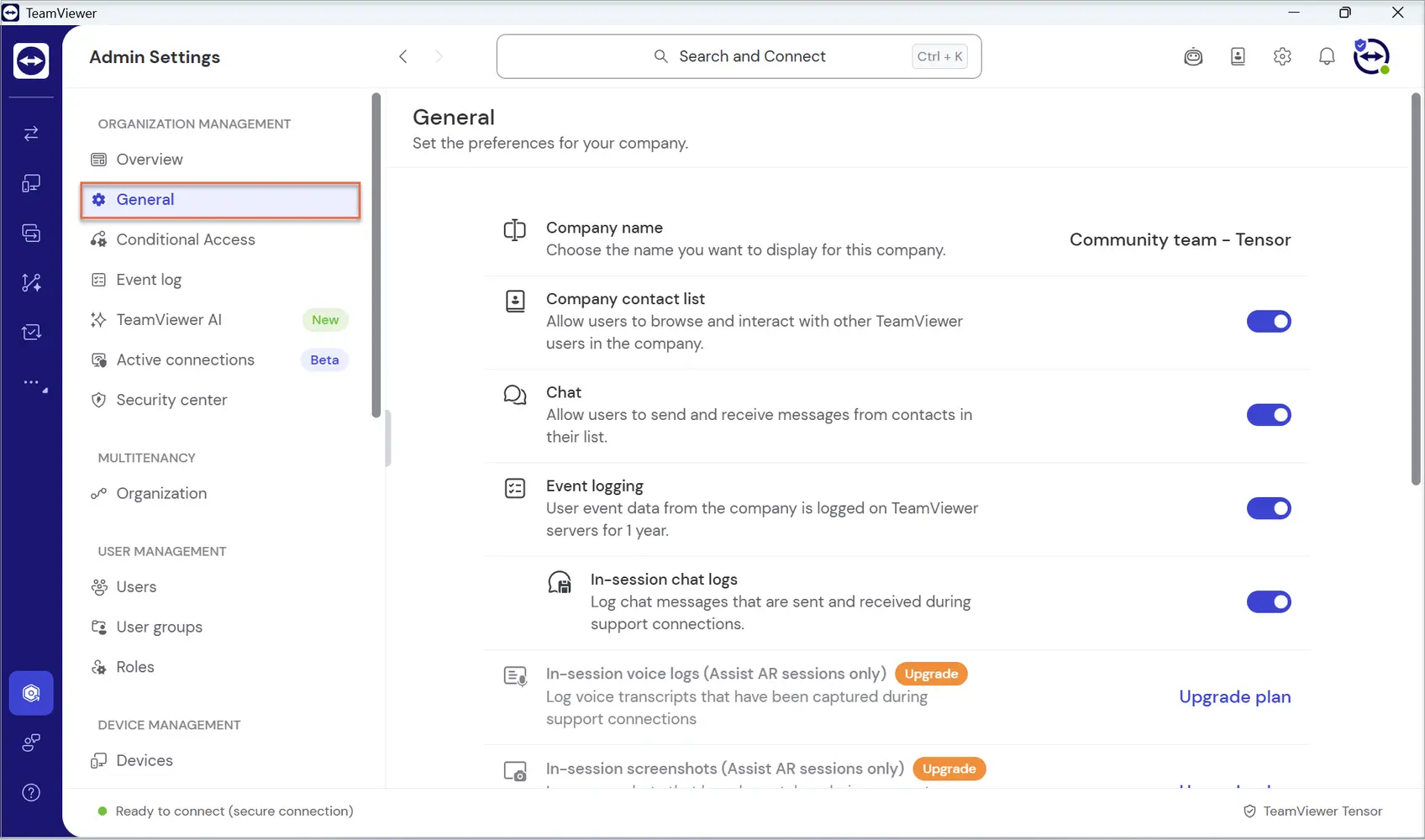
- Sign in to TeamViewer Client or go to web client.
- Go to Admin settings.
Under Organization management, go to General.
Change company name
To change the company name, access the company settings as described above, click on your company name, enter the new company name, and click Save.
Enable/disable the company contact list
To enable or disable the company contact list, access the company settings as described above and click the respective toggle to enable or disable the feature. Users within your company won't be able to see company contacts within their contacts section.
To learn more about the company contact list, please read this article: Company Address Book
Enable/disable event logging
To enable or disable event logging, access the company settings as described above and click the respective toggle to enable or disable the feature. If the toggle is disabled, no event will be logged within your company.
To learn more about event logging, please read this article: Auditability / Event Log
This feature is available for TeamViewer ONE Standard & Advanced Customers.
Chat
The Chat setting controls whether users can send and receive chat messages.
- Chat messages can be sent to personal and company contacts and devices that are part of the company, even if a user is not currently logged in to such a device.
- Chat is available outside active remote sessions.
- Disabling chat prevents message exchange but does not affect remote connections.
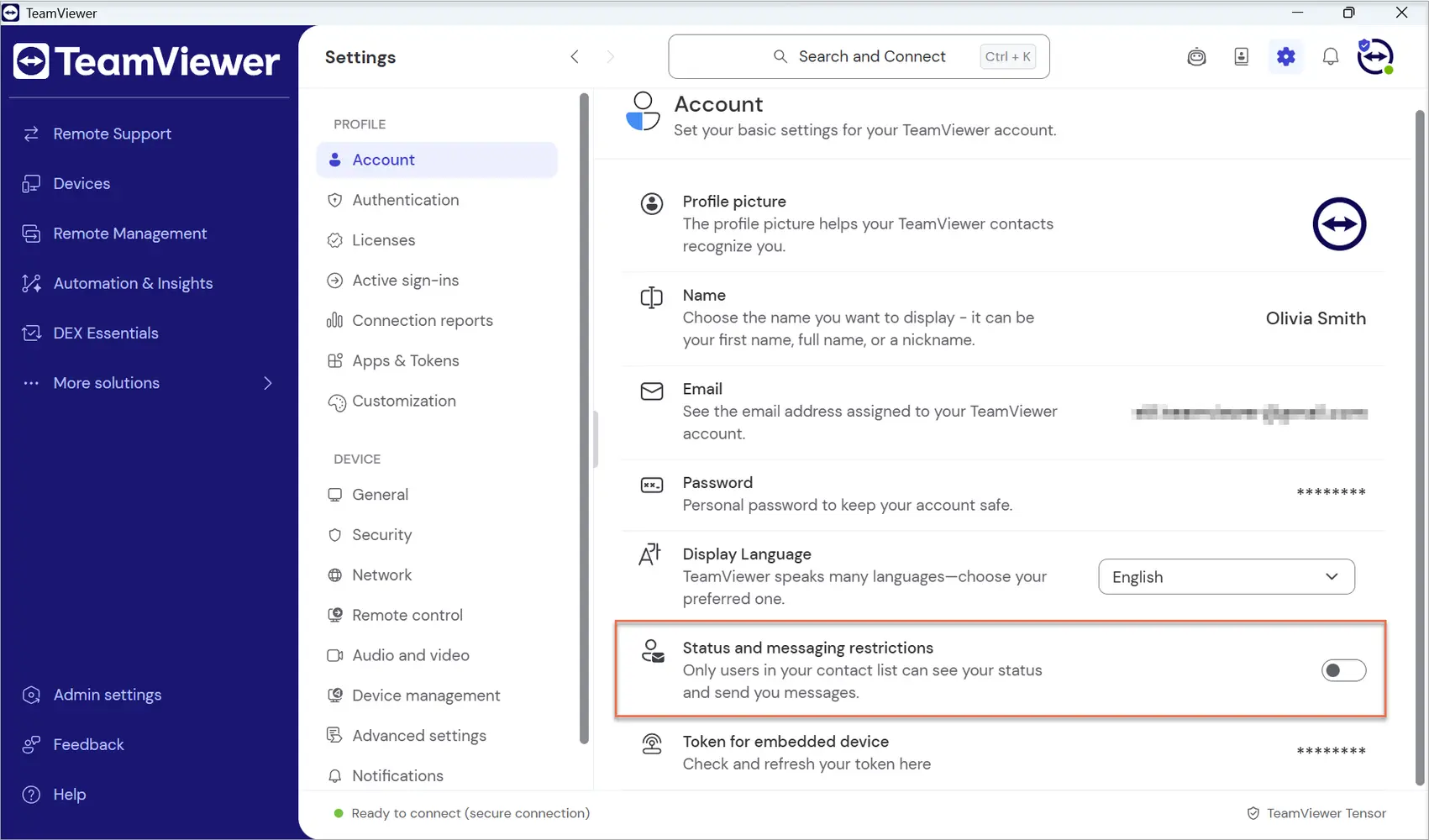
- Disabling the chat also restricts company users’ personal setting (at the company level, the actual setting is not changed, just restricted) regarding receiving messages from other sources (company, personal contacts and devices).
- Disabling chat also removes all access point to chat feature ( device, contact → Send message, not searchable as a feature via Global Search, hidden and not configurable from the custom navigation sidebar). Chat routes, new message notifications and pop-ups are also disabled.
This setting helps organizations control internal communication and reduce misuse.
Active Connections
Session monitoring enables real‑time visibility and logging of support activity across the company.
In‑session chat logs
When In‑session chat logs are enabled, TeamViewer logs chat messages exchanged during remote support sessions.
- Chat logs are stored with session data
- Logs support auditing, compliance, and internal reviews
- Applies only to chats that occur during a support session
This feature is available for all Tensor customers.
In‑session voice logs (Assist AR sessions only)
This setting enables logging of voice transcripts captured during Assist AR support sessions. More information on this can be found here.
- Available only for Assist AR Pro license holders
- Voice conversations are transcribed automatically
- Transcripts support training, audits, and documentation
In‑session screenshots (Assist AR sessions only)
When enabled, screenshots taken during Assist AR sessions are logged and stored.
- Screenshots capture key moments during support sessions
- Stored screenshots can be reviewed or downloaded later
- Supports compliance and internal knowledge sharing
Company device groups
The Company device groups setting enables device groups that are owned and managed at the company level. More information can be found here.
- Device groups remain available even if individual user accounts are removed
- Company administrators can manage group membership and policies
- Improves long‑term device visibility and control
This feature is available for Tensor customers.
Inherit device group permissions to devices
This setting allows permissions defined at the device group level to apply automatically to all devices in the group.
- Ensures consistent permissions across devices
- Reduces manual configuration on individual devices
- Permissions update automatically when group settings change
Customization
The Customization setting allows administrators to tailor the TeamViewer interface and navigation for company users.
- Customize branding and visual elements
- Control navigation and available features
- Ensure a consistent company experience across users
- Control In‑product marketing messages for company users
- When turned off, marketing messages are no longer shown to logged‑in company users or on company devices
- Users can't change this in their profile settings; the setting is shown as read‑only and labeled Company managed
- When turned on again, each user's own setting applies again
This feature is available for Tensor customers.