
Knowledge Base
Active connections
Last Modified: Sep 9, 2026
The Active connections feature gives administrators and authorized users real-time visibility into remote connections across their organization. This helps teams monitor ongoing remote activity, respond faster to potential security concerns, and improve auditing capabilities. When enabled, users with the required permissions can view all active connections involving company members. An audit log event is also created whenever a company administrator enables or disables the feature.
This article applies to all TeamViewer Tensor and TeamViewer ONE (Standard, Advanced, or Enterprise) license holders.
Requirements
To use Active connections:
- Your company must have the Active connections feature enabled by a company administrator
The user must have the View active connections permission assigned
Note: Currently, the scope only includes device-to-device connections initiated by a logged-in user.
Key benefits
- Real-time visibility into active connections involving company members
- Faster identification and response to potential security concerns
- Enhanced auditing and support capabilities
- Improved oversight of ongoing remote activity across the company
- Immediate termination of unwanted or unauthorized connections to reduce potential security and operational risks
How to enable Active connections
Step 1: Assign the View active connections permission
- Sign in to TeamViewer.
- Go to Admin Settings > Roles.
- Open the role you want to edit.
- Under Permissions (General), enable View active connections.
- Save your changes.
- Assign this role to the user who you want to be able to view Active connections.
Step 2: Enable Active connections for the company
- Go to Admin settings.
- Under Organization management, select General.
- Locate the Active connections setting.
- Enable the feature for your company.
Note: An audit log event is generated whenever a company administrator enables or disables the feature.
How to view active connections
Once the feature is enabled and the required permission has been assigned:
- Sign in to TeamViewer.
- Open the Active connections tab.
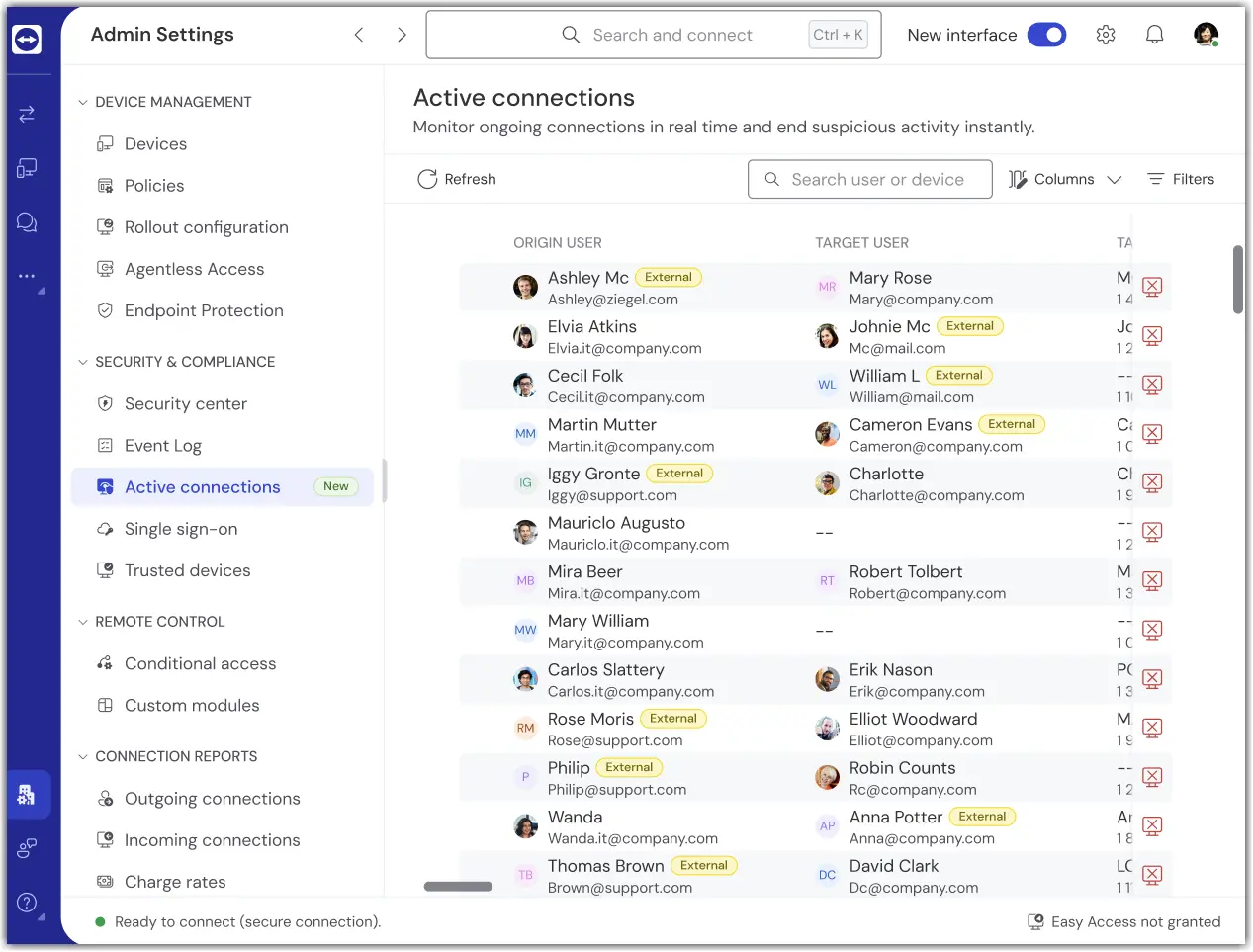
- Review the list of ongoing remote connections involving company members.
- Select a connection to view its available details.
Users with the required permissions can monitor all ongoing connections where the remote device’s connecting user is a member of the company.
How to end Active connections
Administrators and users with the Active connections permission can terminate connections directly from the Active connections page. This helps organizations quickly stop suspicious, unauthorized, or unwanted remote connections and maintain control over ongoing remote activity.
Sign in to TeamViewer.
- Navigate to Organization management > Active connections.
- Select one or more active connections using the checkbox next to each connection.
- Click End connection.
Alternatively, terminate a single connection by clicking the End connection button in the corresponding connection row.