
Knowledge Base
Use Tia to troubleshoot IT issues
Last Modified: Sep 2, 2026
Tia (TeamViewer Intelligent Agent) helps you diagnose and resolve technical issues during remote support sessions. You can describe problems in natural language, ask follow-up questions, and receive troubleshooting guidance based on device information and available knowledge sources. Depending on the Tia mode assigned by your administrator, Tia can also perform diagnostics and assist with issue resolution. Tia is available directly within TeamViewer remote sessions.
This article applies to Remote, Premium, Corporate, Tensor, TeamViewer ONE (Standard, Advanced, Enterprise)
Prerequisites
Before using Tia, ensure the following:
- Tia is enabled by your administrator
- An active TeamViewer remote session is running
Available Tia modes
Tia provides different troubleshooting capabilities depending on the mode assigned to your account.
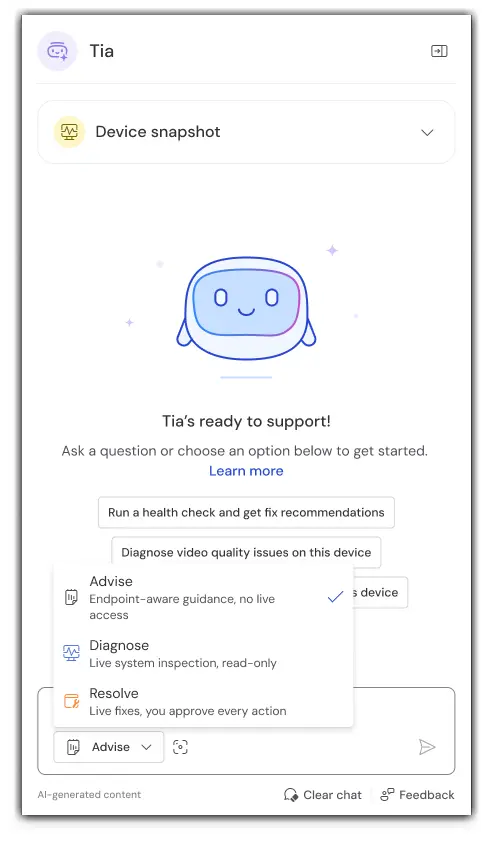
Advise mode
Advise mode provides troubleshooting guidance based on available information, including device context, screenshots, and past Session Insights. It never runs tools or changes the device.
Diagnose mode
Diagnose mode includes the capabilities of Advise mode and can gather additional information from the remote device via read-only scripts to support troubleshooting.
Resolve mode
Resolve mode includes the capabilities of Advise and Diagnose modes and can help resolve issues. Actions that may change the device require approval before execution.
Note: The modes available to you depend on the permissions assigned by your administrator. If a required mode is unavailable, contact your administrator. For information on enabling and managing Tia, see Enable Tia troubleshooting.
How to troubleshoot issues with Tia
- Open the Tia panel during an active session.
- Describe the issue in natural language.
- Review the troubleshooting guidance provided by Tia.
- Follow the recommended actions.
- Ask follow-up questions if additional assistance is required.
Example:
The device is running slowly.
How to switch Tia modes
- Open the Tia panel.
- Select the mode that best matches your troubleshooting task.
- Continue the troubleshooting workflow.
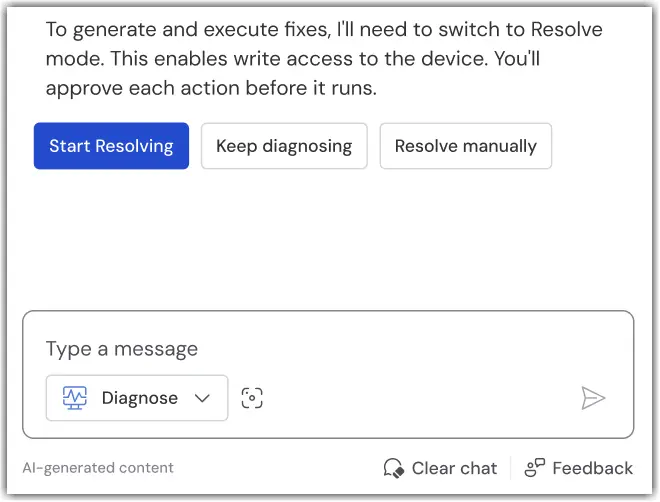
If a different mode is required, Tia may recommend switching modes during the conversation.
Tia AI traces and Session Insights
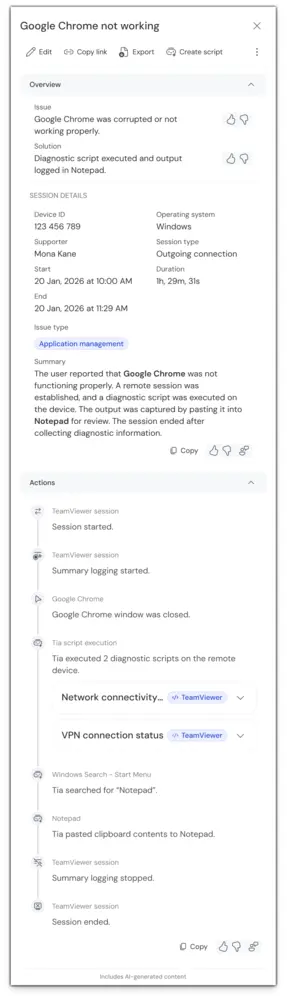
As you work with Tia during a remote session, TeamViewer records troubleshooting activities for later review. Depending on the level of detail you need, this information is available through Session Insights and Tia AI Traces.
Session Insights
Session Insights provide a high-level summary of a support session. They help you quickly understand:
- The problem that was investigated
- The key troubleshooting steps that were taken
- How the issue was resolved
Session Insights are useful for documentation and handovers between support teams.
For more information, see Generate session summaries.
Tia AI Traces
Tia AI Traces provide a detailed record of troubleshooting activities performed during a session. Tia traces include:
- Actions performed
- Results returned by Tia
- Approvals provided during troubleshooting
Tia traces help organizations review troubleshooting activity and maintain transparency throughout the support process.
Note: Tia AI Traces currently require Session Insights to be enabled
Why can't I access all Tia capabilities?
The Tia experience depends on the permissions assigned to your account and the device you are connected to. If a mode or capability is unavailable, one of the following conditions may apply:
- Your administrator has not assigned the required Tia mode
- The connected device is not a managed device
- The capability requires a higher Tia mode
- Diagnose and Resolve modes are unavailable for the connected platform
- Your license does not include the required capability
If you need additional Tia capabilities, contact your administrator.
Note: Tia troubleshooting is currently available in English. Additional languages will be supported in a future release, allowing users to interact with Tia troubleshooting and receive responses in their preferred language.