
Knowledge Base
Grant Easy access to your devices and device groups
Last Modified: Oct 2, 2026
After successfully deploying TeamViewer on your devices, you can define user access for unattended connections through groups or device permissions.
This article applies to Corporate, Tensor and TeamViewer ONE Standard & Advanced license holders who want to deploy TeamViewer (version 15 or newer) on their Windows devices.
How to grant Easy Access via device groups
To grant Easy Access via a device group, please follow the instructions below:
- Go to Admin settings.
- Continue with Devices.
Choose the device you wish to edit.
- Click on the Dropdown icon next to the Share button.
Choose Manage access.
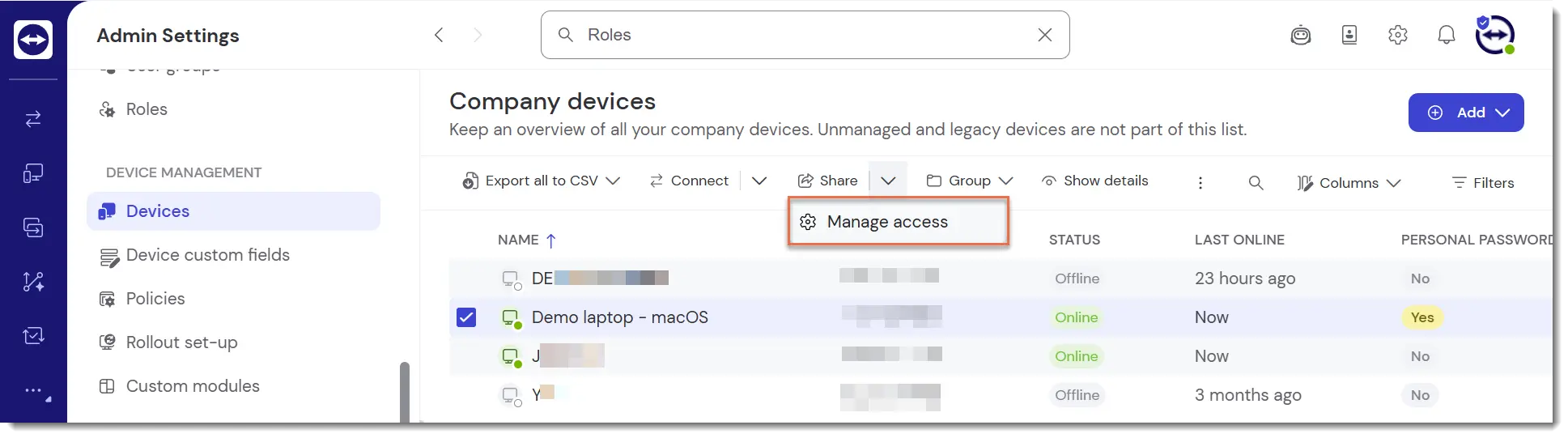
You can then view the permissions for each user:
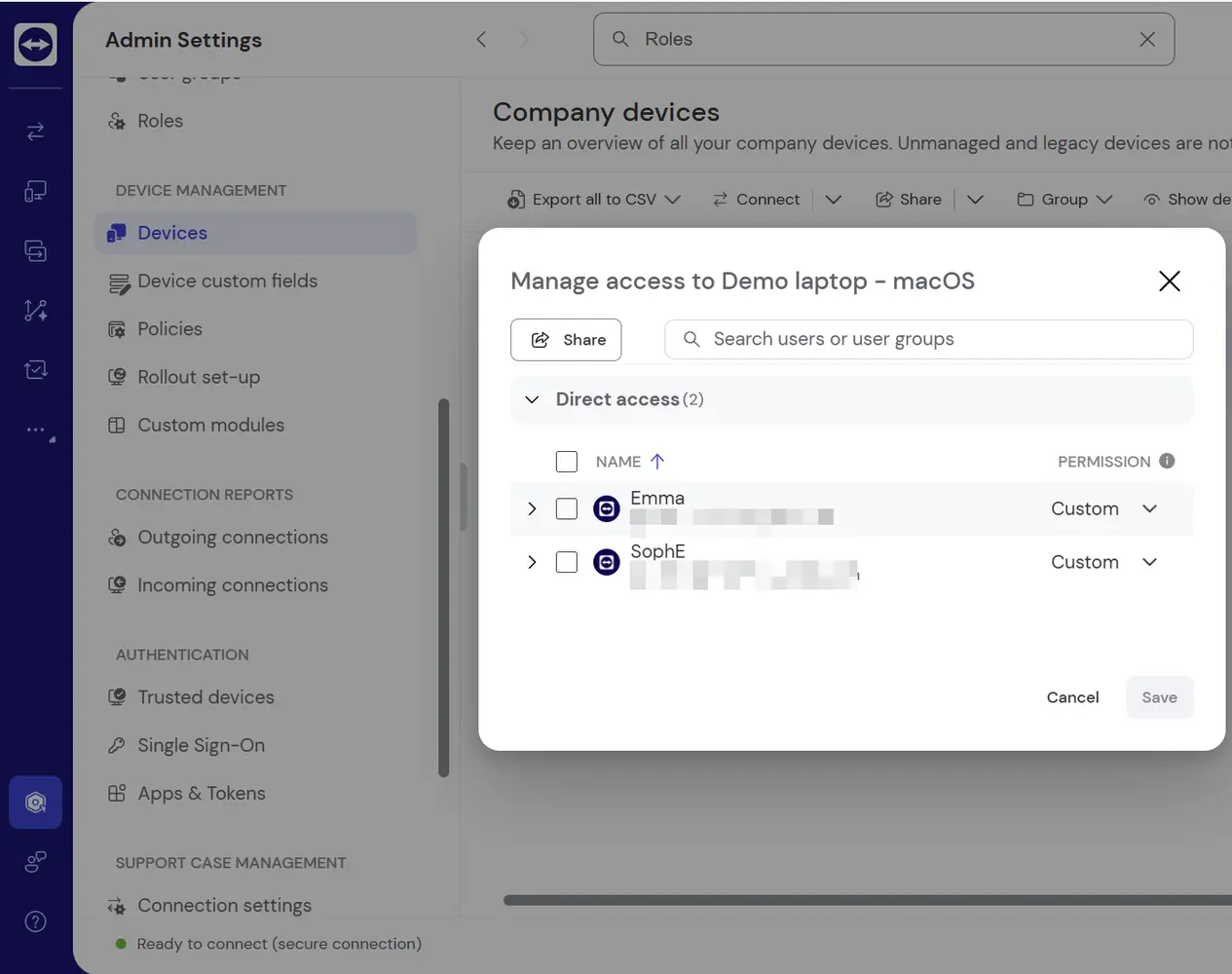
6. Click on the user’s permissions.
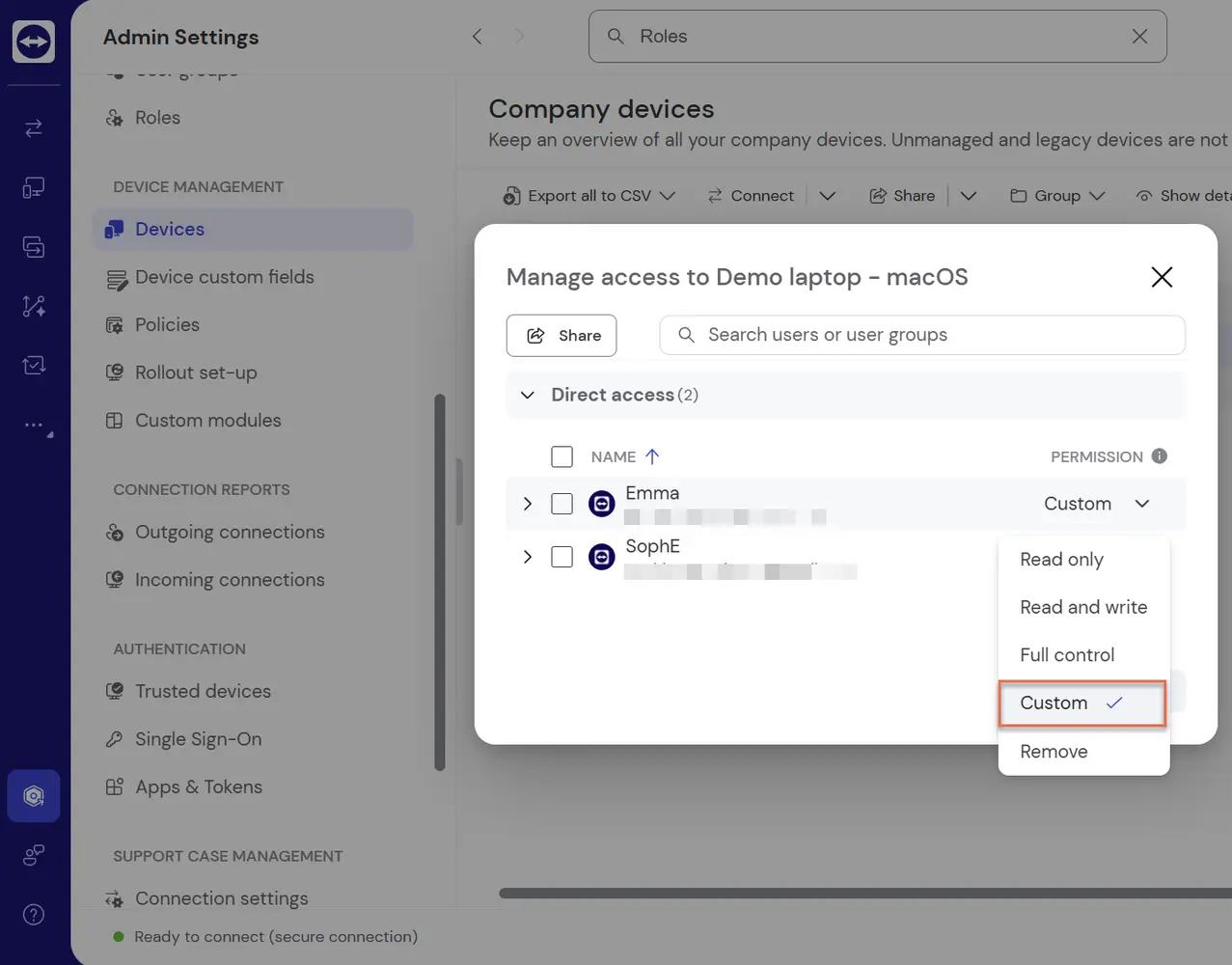
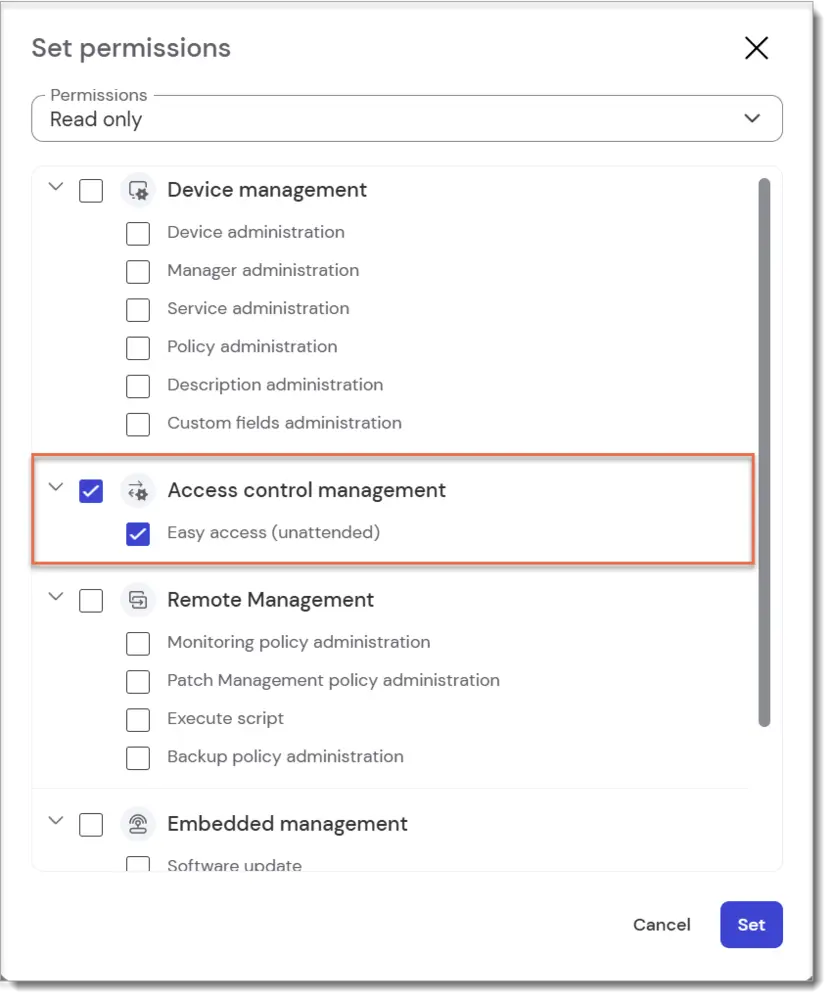
7. From the Permissions list, scroll down to Access control management.
8. Tick the Easy access (unattended) box.
8. Click on Set.
9. Click on Save.
You will be notified in the top-right corner:
How to grant Easy Access to a single device
To grant Easy access to a single device, please follow the instructions below:
- Go to Admin settings.
- Continue with Devices.
- Choose the device you wish to edit.
- Click on the Dropdown icon next to the Share button.
- Choose Manage access.
You can view the permissions for each user.
9. Click on Set.
10. Click on Save.
You will be notified in the top-right corner:

How to grant Easy Access to a single device
To grant Easy access to a single device, please follow the instructions below:
- Go to Admin settings.
- Continue with Devices.
- Choose the device you wish to edit.
- Click on the Dropdown icon next to the Share button.
- Choose Manage access.
You can view the permissions for each user.
6. Click on the user’s permissions:
7. From the Permissions list, scroll down to Access control management.
8. Tick the Easy access (unattended) box:
9. Click on Set.
10. Click on Save.
You will be notified in the top-right corner:

Inherit device group permissions to devices
If you manage a large number of devices within groups, we recommend enabling the Inherit device group permissions to devices setting. This ensures that all devices within a group automatically adopt the group-level manager permissions, including Easy Access, making permission management more efficient and consistent.
Learn how to enable this setting in our article: Apply manager permissions at group level
Tensor tip: Centralize group management
For Tensor customers, we recommend enabling the Company device groups setting. This allows administrators to centrally manage all device groups created in the company, streamlining device management and permissions control across your entire company.
Learn how to enable this setting in our article: Manage device groups on company level