
Knowledge Base
Troubleshoot IT Issues with Tia (TeamViewer Intelligent Agent)
Last Modified 2026. 6. 29.
Tia (TeamViewer Intelligent Agent) allows you to enhance your remote support sessions by diagnosing and resolving issues more efficiently. It provides real-time guidance to troubleshoot technical problems on the remote device, making support faster and more accurate. One major advantage is that it can analyze the remote device’s performance and system data, offering tailored suggestions to solve the issue.
This article applies to Business, Premium, Corporate, Tensor, and TeamViewer ONE customers running Windows on their devices.
Benefits
Tia provides fast, AI-powered analysis of system information collected from the remote device, enabling efficient troubleshooting without needing deep technical expertise.
Key advantages
- Rapid diagnosis of common issues like software crashes, slow performance, connectivity problems, and hardware malfunctions.
- Simplified analysis of complex system data through an accessible AI interface.
- Access to verified solutions from Session Insights: Tia analyzes permitted session summaries from validated past support sessions and uses them to suggest proven and context‑relevant troubleshooting steps.
- Improved IT helpdesk KPIs, including reduced time-to-resolution, higher first-contact resolution rates, and lower support costs.
Prerequisites
Before using Tia, ensure the following:
- Both the supporter’s and the end user’s devices are running TeamViewer version 15.77 or newer.
- The new TeamViewer user interface is activated on the supporter's device.
Note: Tia is currently available when connecting to Windows or macOS devices.
How to set up Tia
To set up Tia, please follow the instructions below:
- Sign in to your TeamViewer account within the TeamViewer client.
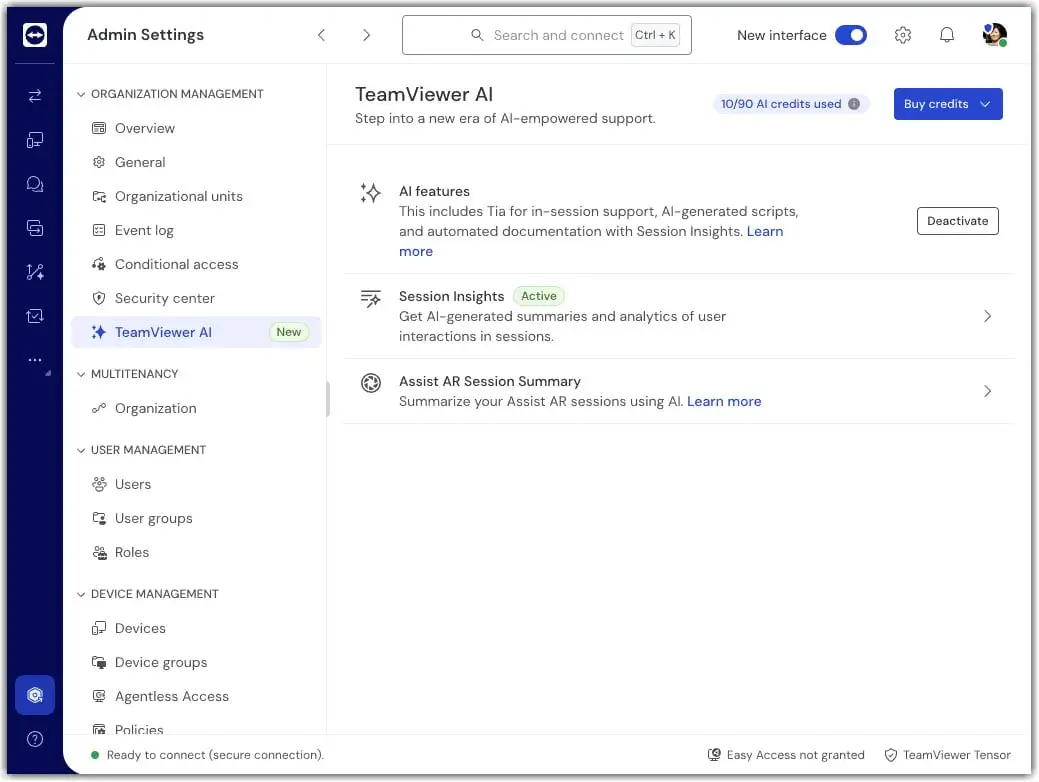
- Go to the Admin settings.
- Within the Organization Management section, click TeamViewer AI.
- AI features are enabled by default. To turn them off, click Deactivate.
Tia is available whenever AI features are enabled; no additional Tia activation is required.
How to use Tia
To use Tia, please follow the instructions below:
- Start a remote session with the device you want to support.
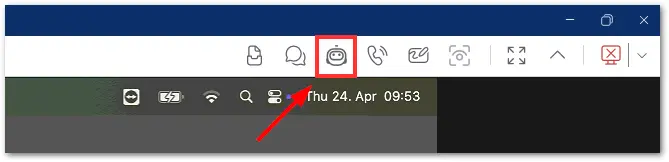
- On the supporter’s in-session toolbar, click the Tia button.
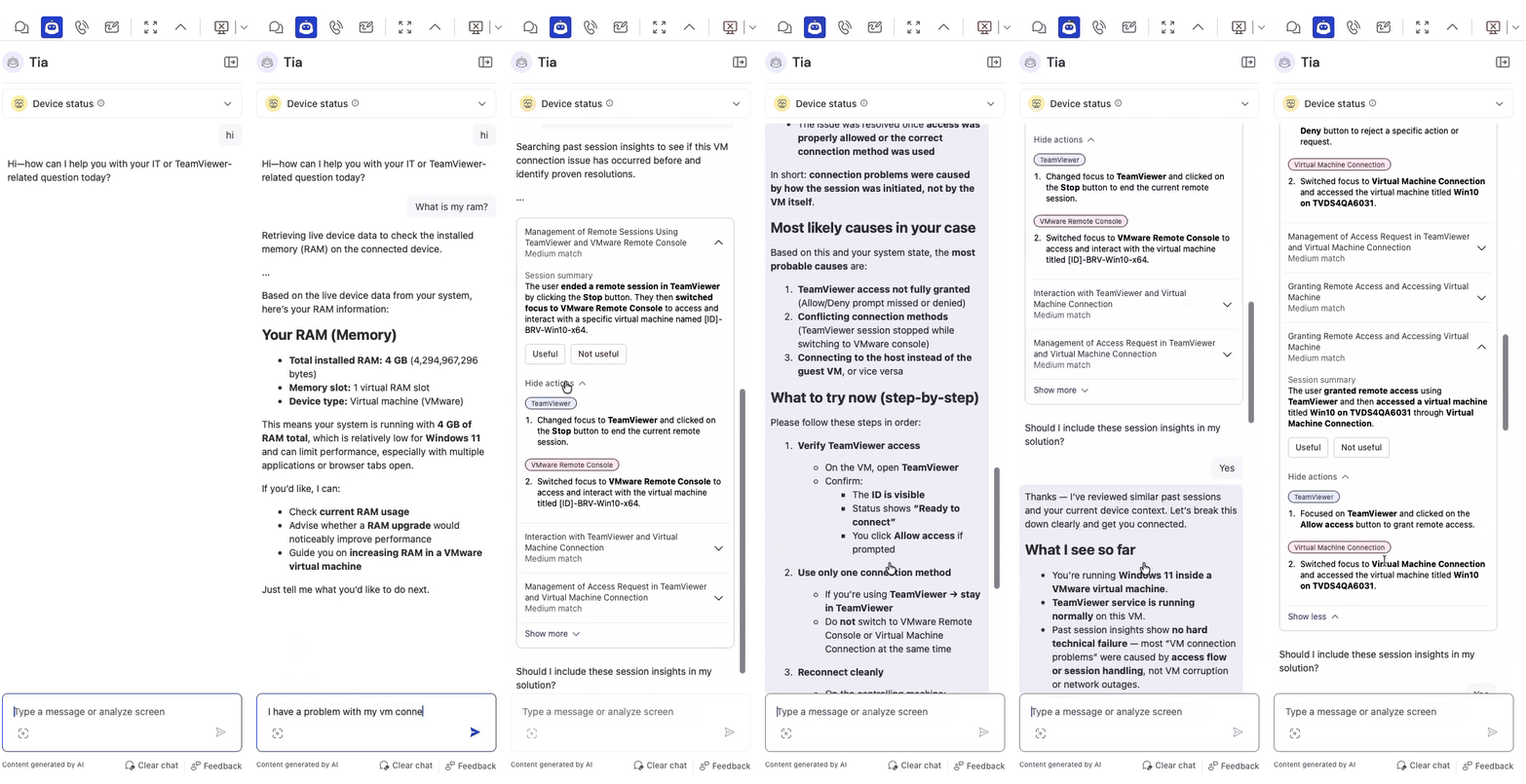
- Describe the issue you face on the remote device in natural language (e.g., “The device is running slow”) and hit Enter.
Hint: You can request insights about the actual device and receive troubleshooting suggestions based on its real-time system data, but you can also ask any IT-related questions. - Wait for Tia to analyze the problem and suggest solutions or troubleshooting steps.
- Follow the suggested steps to resolve the issue.
- If needed, ask follow-up questions for clarification or additional support from Tia.
Hint: You can take a screenshot and include it in your conversation by clicking the screenshot icon, just under the text field.
Get verified solutions from Session Insights with Tia
If the user has permission to view Session Insights, Tia can use validated session summaries from past support sessions to provide trusted troubleshooting guidance during an active remote session. This helps surface proven solutions that are grounded in real support cases, not generic recommendations. The insights are applied in the context of the current device and issue to keep suggestions accurate and relevant.
How to get insights from Session Insights using Tia
- Start a remote session with the device you want to support.
- Open Tia from the in‑session toolbar.
- Ask a question related to the issue you are troubleshooting, such as recurring errors or previously resolved problems.
- If you have Session Insights permissions, Tia analyzes past session summaries and suggests verified solutions based on past sessions.
- Review the recommended steps and apply them to resolve the issue.
AI credit-based payment model
Tia is part of the AI‑powered TeamViewer Intelligence services and uses an AI credit‑based payment model.
For details about the AI credit‑based payment model, see here