• 영업팀에 문의하기
    • 웹 앱 열기
    • 관리 콘솔
    • 티켓
    • 고객 포털
TeamViewer
  • 개인 및 중소기업 TeamViewer Remote

    빠르고 안전한 원격 액세스 및 IT 지원.

    더 알아보기

    • 원격 지원 즉각적이고 안전한 지원 제공
    • 원격 관리 장치 모니터링 및 관리
    플랜 및 가격 보기

    대기업 TeamViewer Tensor

    안전한 운영을 위해 구축된 원격 연결.

    더 알아보기

    • 원격 IT 지원 안전성, 유연성, 통합성
    • 운영 기술 작업 현장 원격 액세스

    실시간 문제 해결 TeamViewer DEX

    사용자에게 영향을 미치기 전에 문제를 해결합니다.

    더 알아보기

    • 엔드포인트 문제 해결 문제 식별 및 해결
    • 엔드포인트 자동화 일상적인 IT 작업 자동화

    연결된 작업자 TeamViewer Frontline

    산업용 증강현실로 효율성을 증대합니다.

    더 알아보기

    • 물류 및 창고 핸즈프리 자재 취급처리
    • 교육 및 온보딩 빠른 온보딩 및 업스킬링
    TeamViewer 클라이언트에 표시된 AI 기능

    TeamViewer ONE

    하나의 플랫폼에 통합된 TeamViewer의 모든 기능을 활용해 보세요.

    • 더 알아보기

    주요 통합

    • Microsoft Intune

    • ServiceNow

    • Freshworks

    • Jira

    • Salesforce

    • Slack

    • Microsoft Teams

    모든 통합 보기
  • TeamViewer ONE 플랫폼

    하나의 플랫폼에 통합된 디지털 업무 공간을 선제적으로 관리하고 최적화하세요.

    • 소규모 IT 팀용 사전 예방적 장치 관리
    • 마찰 없는 경험 원활하고 중단 없는 디지털 경험
    • 원활한 IT 운영 사전 예방적 수정 및 탁월한 서비스
    • 담당 팀에 문의 바뀔 준비가 되셨나요?
    플랫폼 살펴보기

    핵심 기능

    • TeamViewer AI
    • 디지털 직원 경험
    • 원격 지원 및 제어
    • 자산 및 패치 관리
    모든 기능 보기

    2026년 Gartner 보고서

    TeamViewer, DEX 부문 리더로 선정

    TeamViewer가 2026 Gartner® Magic Quadrant™ DEX 도구 부문에서 리더로 선정되었습니다.

    주요 통합

    • Microsoft Intune

    • ServiceNow

    • Freshworks

    • Jira

    • Salesforce

    • Zendesk

    • Slack

    • Microsoft Teams

    모든 통합 보기
  • 인기 있는 사용 사례

    • 원격 액세스 및 지원 어디서나 사람, 장치, 애플리케이션을 관리.
    • 디지털 직원 경험(DEX) 생산성에 영향을 미치기 전에 IT 문제를 선제적으로 해결하세요.

    기타 사용 사례

    • 원격 액세스 보안 연결로 액세스 개선
    • 원격 제어 플랫폼에 관계 없이 장치 제어
    • 원격 데스크톱 어디서나 생산성 향상
    • Wake-on-LAN 원격 장치 활성화 켜기
    • 화면 공유 실시간 비주얼 커뮤니케이션
    • Smart Service A/S 운영 간소화

    요구사항 별 다양한 팀을 위한 인기 솔루션

    • 개인용 어디서나 장치에 액세스
    • 중소기업 원격 액세스 및 지원 단순화
    • 대기업용 기업 IT 확장 및 보안
    • 관리형 서비스 제공자 클라이언트 IT 관리 및 유지보수
    • OEM 지원 및 운영 간소화
    • 비영리 단체 및 교육기관 TeamViewer 기술 30% 할인

    산업별 산업별로 분류된 인기 솔루션

    • 자동차
    • 농업
    • 물류
    • 제조
    • 리테일
    • 헬스케어
    • 은행 및 금융

    영업팀에 문의

    올바른 솔루션을 선택하고, 주문을 넣고, 라이선스를 업그레이드하는 데 도움이 필요하신가요?

    • 문의하기
  • 대기업용
  • TeamViewer에 대해 더 알아보기

    • TeamViewer 소개 사람, 장소, 사물을 안전하게 연결합니다.
    • 지원팀에 문의 관련 문서를 찾아보거나 지원팀에 문의하세요.
    • 파트너 되기 글로벌 파트너 프로그램인 TeamUP에 참여하세요.
    • 고객 성공 사례 TeamViewer 고객이 달성한 성과를 살펴보세요.
    뉴스

    TeamViewer는 AI 제품을 도입하는 고객이 빠르게 늘고 있다고 밝혔습니다.

    리소스

    • 블로그
    • 고객 성공 사례
    • 이벤트 및 웨비나
    • 트러스트 센터

    파트너

    • 파트너 되기
    • 파트너 찾기
    • 통합 파트너

    지원

    • 지원팀에 문의
    • 가이드 및 매뉴얼
    • 기술 문서 데이터베이스
    • 시스템 상태
    • 사용자 지정 모듈
    • 개발자용
    • 커뮤니티

    회사

    • TeamViewer 소개
    • 채용
    • 투자자
    • 뉴스룸
    • 리더십
    • 스포츠 파트너십
    • 지속 가능성 및 CSR
    • 기업 지배 구조
  • 가격
  • 무료 다운로드

Knowledge Base

  • TeamViewer ONE
  • TeamViewer Remote
  • TeamViewer (Classic)
  • TeamViewer Tensor
  • TeamViewer Tensor (Classic)
  • TeamViewer Frontline
  • Other products
Back to support overview
  • Get started
    • Get started with TeamViewer Remote
    • TeamViewer Remote FAQ
    • Management Console integrated into TeamViewer's admin settings
    • Switch to the new interface
    • Customize your navigation in TeamViewer
    • Use TeamViewer Remote's latest version
    • Enhanced accessibility during TeamViewer remote sessions on Windows
    • The TeamViewer deployment and configuration guide
  • Account
    • Create your account
    • Sign in with your account
    • Two-factor authentication for your account
    • Change your account information
    • Reset your account password
    • Delete your account
    • Account verification requirement
  • Download and Installation
    • Download and install TeamViewer
    • Uninstall TeamViewer
    • Supported operating systems for TeamViewer
    • Download older TeamViewer versions
    • TeamViewer insider builds
    • Use TeamViewer on Windows servers
    • Use TeamViewer on cloned systems
    • Linux
      • Install TeamViewer (Classic) on Linux
      • Install TeamViewer (Classic) on Linux without graphical user interface
      • Install TeamViewer (Classic) on Red Hat and CentOS
      • Install TeamViewer (Classic) on SUSE Enterprise 15 SP2
      • Install TeamViewer (Classic) on Ubuntu
      • Install TeamViewer (Classic) on other Linux distributions
      • Install older TeamViewer (Classic) versions on Linux
      • Solve incoming connection problems on Fedora 29 and newer
      • System Tray, StatusNotifier and TeamViewer (Classic) for Linux
      • Use the TAR package for Linux
  • Update
    • Update TeamViewer
    • Update TeamViewer via policy
  • Modules
    • Full client and custom full client
    • QuickSupport and custom QuickSupport
    • Host and custom Host
  • Remote control
    • Troubleshoot IT Issues with Tia (TeamViewer Intelligent Agent)
    • Connect via device dock
    • Connect via ID and password
    • Provide attended remote support
    • Provide unattended remote support
    • Remote control a Mac
    • Start a screen sharing session
    • Troubleshoot IT Issues with Tia (TeamViewer Intelligent Agent)
    • Use TeamViewer Remote in LAN
    • Use TeamViewer Remote on Windows servers
    • Connect to a contact
    • Connect via Windows Authentication to control UAC during a TeamViewer session
    • Access the command prompt via Remote terminal connection
    • TeamViewer VPN
    • Where to find my ID and password?
    • Open a file transfer session
    • Share files with the file box
    • Remote session toolbar
    • Use Teamviewer Printing
    • Paste the clipboard as keystrokes during a remote session
    • Wake up a device remotely
    • Add a virtual monitor to your remote device
    • Generate session summaries with Session Insights
    • Save the chat history of a TeamViewer session
    • Forward local key input with the direct keyboard mode
    • Control clipboard sync during remote support sessions
  • TeamViewer AI
    • Integrate TeamViewer with AI systems using MCP
  • Company and users
    • Create a company
    • Automated company creation for commercial licenses
    • Add users to your company
    • Manage your users
    • Export your users
    • User roles
    • User role permissions - Overview
    • Company settings
    • Create user groups
  • Devices
    • The new device management system explained
    • Automatic device migration explained
    • Add a new device to your account and your company
    • Add a device via link
    • Add a device via a remote session
    • Add a device via rollout configuration
    • Create, edit and delete a device group
    • Share and manage access to devices in TeamViewer
    • Assign user groups to device groups and devices
    • Edit manager permissions on devices
    • Apply manager permissions at group level
    • Move devices to a group and apply a policy
    • Delete a device
    • Bookmarked vs. managed devices
    • Device groups explained
    • Add and remove existing devices from groups
    • Understanding how manager permissions work
    • Find the best view to display your devices and device groups
    • Expand device overview and filter devices
    • Navigate and connect using Global Search
    • Use device custom fields
    • Policies
    • Policy rules
    • Session recording policies
  • Deployment
    • Deploy TeamViewer on device groups via Microsoft Intune
    • TeamViewer deployment - User guide
      • Create your company (with a primary account)
      • Add your users to your company
      • Create your module
      • Create your policy
      • Create a device group
      • Create a rollout configuration
      • Download the .msi installer
      • Deploy TeamViewer (Host or full client)
      • Create a package in Microsoft Endpoint Manager via Intune (Win32 app)
      • Assign existing TeamViewer installations via command line
      • Grant Easy access to your devices and device groups
  • Mobile
    • Provide attended remote support for mobile
    • Enhance iOS remote support with Visual Guidance
    • Set up remote control for Samsung Knox devices via your MDM
    • Remotely control a Sony Bravia TV
  • Security
    • Increase your security posture with the Security Center
    • Expert Identity
    • Security Statement - How secure is TeamViewer?
    • Trust devices via push notification
    • Block and allowlist
    • Connection reports
    • TeamViewer and scamming
    • Enforce two-factor authentication for your company members
    • Enable the screen sharing indicator for your remote sessions
    • TeamViewer Black Screen
  • Licenses
    • Activate and set up your Remote Access license
    • Get started with your TeamViewer Business license
    • Get started with your TeamViewer Premium or Corporate license
    • Activate your Tensor license
    • Licenses and Features
      • All TeamViewer licenses - Feature overview
      • Free license - Feature overview
      • Remote Access license - Feature overview
      • Business license - Feature overview
      • Premium license - Feature overview
      • Corporate license - Feature overview
      • Tensor license - Feature overview
      • FAQ on Remote Access license
      • AI credit‑based payment model, AI credits, and AI credits add‑on
    • TeamViewer Customer Portal
  • Service management
    • Service Desk
    • Manage service cases with Service Queue
    • Service Portals
  • Remote Management
    • Get started with TeamViewer Remote Management
    • Supported operating systems for Remote Management
    • Activate your Remote Management License
    • Remote Management Policies
    • Uninstall Remote Management services
    • TeamViewer Monitoring
      • Get started with TeamViewer Monitoring
      • Rule-based task automation
      • Event log check
      • Add and create scripts
      • Execute scripts remotely
      • Advanced Monitoring using 1E technology
    • TeamViewer Asset Management
      • Get started with TeamViewer Asset Management
      • Deploying missing patches and new software
      • Asset Management reporting
      • Troubleshooting Asset Management installations
    • TeamViewer Endpoint Protection
      • Get started with TeamViewer Endpoint Protection
      • Get started with TeamViewer Endpoint Detection and Response
      • Endpoint Protection settings
      • Managed Detection and Response
      • Managed Threat Hunting
      • Network access and firewall settings for Endpoint Protection
    • TeamViewer Backup
      • Get started with TeamViewer Backup
    • TeamViewer Mobile Device Management
      • Mobile Device Management - Overview
      • Set up the MDM environment
      • Mobile Apps Catalog
      • Mobile Device Management configurations
      • Mobile Device Management policies
      • Mobile Device Management users
      • Mobile Device Management User groups
      • Mobile Device Management devices
      • Mobile Device Management Device groups
      • Connect to a device via TeamViewer MDM
      • Connect to a device via TeamViewer MDM - QuickStart Guide
      • Mobile Device Management - Android Bulk Enrollment
    • TeamViewer Monitoring & Asset Management (Classic)
      • TeamViewer Monitoring & Asset Management (Classic) - Overview
      • Get started with TeamViewer Monitoring (Classic)
      • Event Log Check
      • Add & create scripts
      • Execute scripts remotely
      • Get started with Asset Management (Classic)
  • TeamViewer DEX Essentials
    • Get started with TeamViewer DEX Essentials
  • Meeting
    • Create and join a meeting
  • For developers
    • Use the TeamViewer API
    • Build a TeamViewer integration
    • Command line parameters
  • Troubleshooting
    • Ports and URLs used by TeamViewer
    • Black screen after starting a connection
    • Company logo not displayed within QuickSupport
    • Error message: Reason Unknown
    • Fix connectivity issues - Partner did not connect to router
    • Log file reading - Incoming connection
    • Not ready. Please check your connection
    • Resolve High CPU usage
    • Solve an aborted file transfer
    • TeamViewer Status - Is TeamViewer Down?
    • Time limitation on licensed connections
    • Troubleshoot after a Backup or OS update on MAC
    • Troubleshoot connection issues using killernetworking driver
    • Troubleshoot remote printing
    • Use TeamViewer (Classic) on headless systems
  • Contact Support
    • Submit a ticket
    • Collect log files with the TeamViewer Support Collector
    • Find your log files
    • Join our User Focus Program
    • Password for TeamViewer server
  • TeamViewer EULA and DPA
  • Integrate TeamViewer with AI systems using MCP

    Last Modified: 2026. 8. 6.

Model Context Protocol (MCP) enables AI systems to connect to TeamViewer ONE and interact with your IT environment. It provides a standardized way to access data, trigger actions, and automate workflows using natural language. This allows you to reduce manual steps and work more efficiently across systems.

MCP acts as a shared interface between AI tools and enterprise platforms. Instead of creating multiple integrations, it provides a single, consistent connection layer.

This article applies to all TeamViewer paid license holders with access to TeamViewer WebAPI.

Prerequisites

  • Access to an AI system (E.g., Claude or Copilot)
  • Access to a TeamViewer account

Available resources

  • Self-hosted version: GitHub repository

Note: For additional details, see the ReadMe section in the GitHub repository.

  • Hosted version (link to live): https://tvone-mcp.azurewebsites.net

    • Available MCP Tools for the hosted version: 

Download

Model Context Protocol overview

Model Context Protocol (MCP) is an open standard that connects AI models with enterprise tools and APIs.

It enables:

  • Access to real-time data

  • Execution of actions across systems

  • Reusable workflows using structured prompts

MCP provides a consistent interface that allows AI systems to interact with tools without requiring individual integrations.

What the connector can do

After connecting your TeamViewer account, AI systems can help with:

  • Devices: View, add, edit, or remove managed devices and device groups

  • Remote sessions: Start and manage remote control sessions

  • Users and access: View and manage users, roles, and permissions in your TeamViewer company

  • Contacts: View, add, edit, or remove contacts

  • Policies: View and manage TeamViewer, monitoring, and patch management policies

  • Monitoring: View monitoring information for devices

  • Reports and logs: Access connection reports, device reports, and event logs

  • Account and company information: View and update account and company details

  • API tokens: Manage TeamViewer API tokens

The AI systems only perform these actions when you request them. Connecting the app does not allow them to act independently.

How your data is protected

TeamViewer uses OAuth authentication to protect your account information.

  • Your TeamViewer password is never shared with or stored by any of the AI systems

  • You always sign in directly through TeamViewer

  • Claude does not receive your TeamViewer credentials

  • Claude uses a separate authorization token with limited permissions

  • Access tokens are stored securely and only used to complete requested actions

  1. Use TeamViewer with Claude via MCP
  2. Use TeamViewer with Copilot via MCP

You can connect your TeamViewer account to Claude using the TeamViewer connector. Once connected, Claude can access TeamViewer information and perform actions on your behalf based on the permissions you grant.

The connection uses TeamViewer authentication, and you can review or revoke access at any time. Claude only performs actions when you explicitly ask it to.

How to connect TeamViewer with Claude

  1. Go to Claude and open a new chat.

  2. Click Customize.

  3. Click Connect your apps.

4. Open Connectors and select Add custom connector.

5. Enter the connector details:

  • Connector name
  • MCP server URL
https://tvone-mcp.azurewebsites.net/mcp

6. Save the connector.

7. The TeamViewer tools are now available under the custom connector. Select Always allow to enable access to the tools.

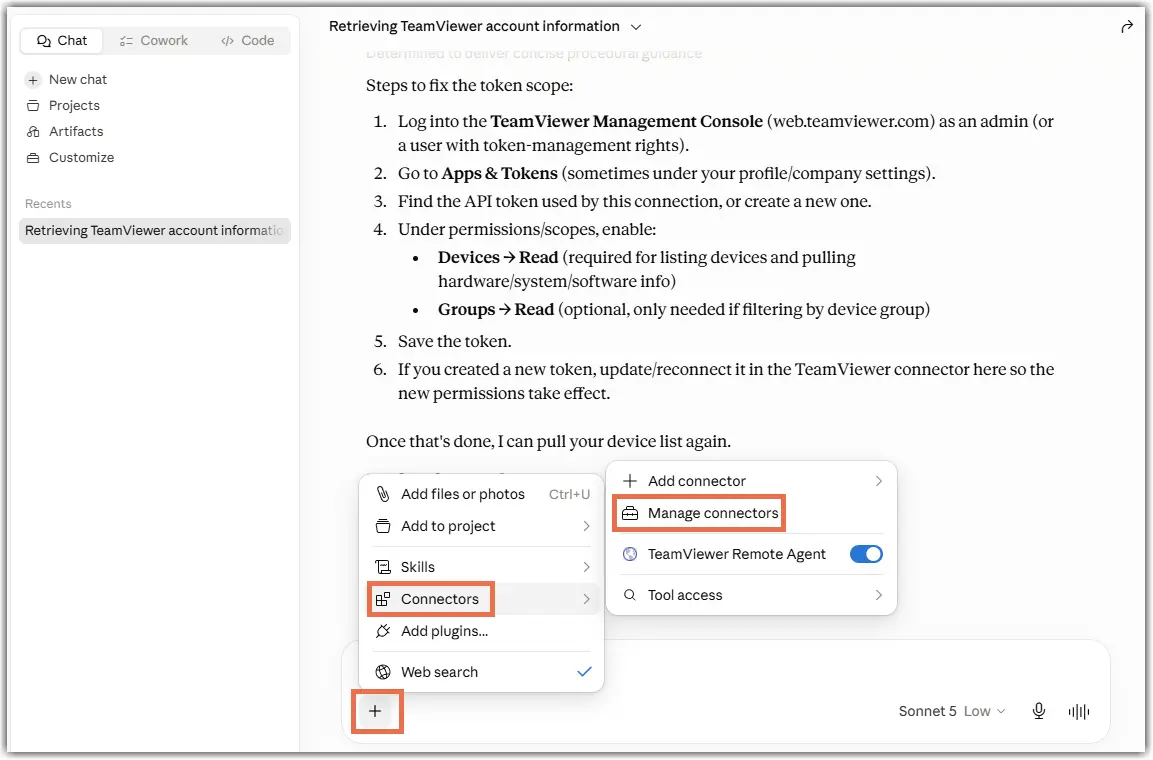
8. Return to the chat window. Click +, then open Connectors. Here you would find the TeamViewer Remote Agent custom connector. You can enable or disable the agent here. 

9. In the chat, enter: 

Help me get the TeamViewer account info

The request is processed. When prompted, click Connect and authenticate in the new window.

10. Allow the required permissions.

11.  The connection is established, and Claude can answer your queries now. 

In Claude

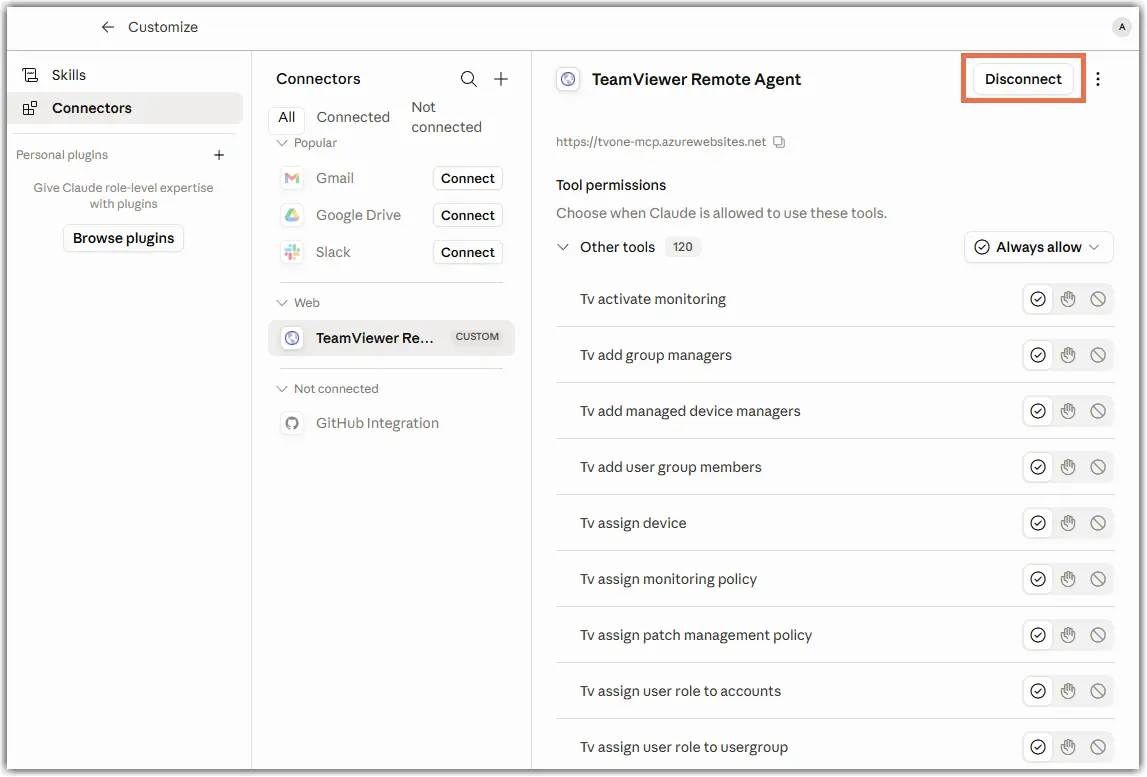
  1. Open Connectors.

  2. Select Manage connectors.

3. Choose the TeamViewer connector and click Disconnect.

4. Confirm the disconnection in the pop-up window.

In TeamViewer

  1. Sign in to TeamViewer Management Console.

  2. Go to Account settings.

  3. Select Apps.

  4. Revoke access for the TeamViewer connector.

  1. Go to Customize > Connectors.

  2. Under Not connected, select TeamViewer Remote Agent.

  3. Click Connect.

4. Log in with your TeamViewer account.

You can connect your TeamViewer account to Microsoft Copilot Studio and allow agents to access TeamViewer data and perform actions on your behalf, based on the permissions you grant.

Copilot Studio performs actions only when triggered by an agent or workflow you configure.

How to connect TeamViewer with Copilot

  1. Open Microsoft Copilot Studio and click Tools in the left navigation.

2. Click New tool and select Model Context Protocol.

3. Enter a name in Server name, add a description in Server description, paste your MCP server URL into Server URL, and select OAuth 2.0 under Authentication. 

  • MCP server URL:
https://tvone-mcp.azurewebsites.net/mcp

4. Provide Client ID, Client Secret, Authorization URL, Token URL Template, and Refresh URL in the popped-up window. Then click Create.

AuthorizationURL: https://tvone-mcp-nodcr.azurewebsites.net/authorize
Token URL: https://tvone-mcp-nodcr.azurewebsites.net/token
Refresh URL: https://tvone-mcp-nodcr.azurewebsites.net/token
Scope:UserInfo.View Computers.View Computers.Edit Computers.DeleteGroups.View Groups.Create Groups.Edit Groups.DeleteContacts.View Contacts.Create Contacts.Edit Contacts.DeletePartners.View Sessions.ManualCreation

5. Find the newly created tool in the Tools list, click the three-dot menu next to the tool, and select Add to agent.

6. Select the agent you want to use and confirm the selection.

7. In the tool selection window, choose your custom connector and click Connect.

8. Click Create new connection, confirm the connection, and then click Add to attach the tool to your agent.

9. Enter your TeamViewer credentials and allow the required permissions. 

10. Open your agent, navigate to the Tools section, and confirm that the MCP tool is listed and enabled.

In Copilot

  1. Open Copilot.

  2. Go to Connections.

  3. Locate the TeamViewer connection.

  4. Select the connection and remove it.

In TeamViewer

  1. Sign in to TeamViewer Management Console.

  2. Go to Account settings.

  3. Select Apps.

  4. Revoke access for the TeamViewer connector.

Additional information for prompts

After connecting TeamViewer to an AI system through MCP, you can interact with your TeamViewer environment using natural language. The AI systems can help you retrieve information, manage users, update devices, review sessions, and perform administrative tasks.

The following example prompts show some of the actions available through the integration.

Account management

  • Show me the details of my current TeamViewer account

  • Update my TeamViewer account name to "[New Name]" and email to "[[email protected]]"

Company information

  • Show me the details of my TeamViewer company

  • What licenses does our company currently have?

Users

  • Create a new user named "[Jane Doe]" with email "[[email protected]]"

  • Show me the details for user "[user_name]"

  • Update user "[user_name]" and change their name to "[New Name]"

  • Delete the user with ID "[user_id]"

  • List all users in our company

Roles and permissions

  • List all user roles in our company

  • Create a new role called "[Support Agent]" with permissions to view sessions and manage devices

  • Assign the role "[role_id]" to user "[user_id]"

  • Remove the role "[role_id]" from user "[user_id]"

  • What permissions does user "[user_id]" have?

Devices

  • Show me the details for device "[device_id]"

  • Delete device "[device_id]"

  • List all devices I directly manage

  • Update managed device "[device_id]" and rename it to "[New Name]" and assign policy "[policy_id]"

  • Which managed groups does device "[device_id]" belong to?

Sessions

  • Show me the details of session "[session_id]"

  • List all sessions from the last 7 days

  • List the connection reports for the last 5 connections

  • Get session insights for connections with microphone issues

  • Show me the last connection made to device ID "[device_id]"

Connection reports

  • List connection reports for device "[device_id]"

  • Give me the AI-generated summary of connection "[connection_id]"

  • Get the chat transcript for connection "[connection_id]"

  • List all screenshots available for connection "[connection_id]"

Device groups

  • Create a new device group called "[Sales Devices]"

  • List all device groups

  • Share device group "[group_id]" with user "[user_id]"

  • Delete device group "[group_id]"

지역을 선택하세요

지역을 선택하면 teamviewer.com 의 언어 및/또는 콘텐츠가 변경됩니다


제안된 지역

  • Americas

    • Americas - English
    • América Latina - Español
    • Brasil - Português
    • Canada - English
    • Canada - Français
    • United States - English
  • Asia Pacific

    • Asia Pacific - English
    • Australia - English
    • 中国 - 中⽂(简体)
    • 香港 - 繁體中文
    • India - English
    • 日本 - ⽇本語
    • New Zealand - English
    • 대한민국 - 한국어
    • 台灣-繁體中文
    • ประเทศไทย - ภาษาไทย
  • Commonwealth of Independent States

    • CIS - English
    • СНГ - Русский
  • Europe

    • Europe - English
    • Belgique - Français
    • België - Nederlands
    • Bulgaria - English
    • Croatia - English
    • Cyprus - English
    • Czechia - Čeština
    • Denmark - English
    • Deutschland - Deutsch
    • España - Español
    • Estonia - English
    • Finland - English
    • France - Français
    • Greece - English
    • Ireland - English
    • Italia - Italiano
    • Latvia - English
    • Liechtenstein - Deutsch
    • Liechtenstein - Français
    • Liechtenstein - Italiano
    • Lithuania - English
    • Luxembourg - Français
    • Magyarország - Magyar
    • Malta - English
    • Nederland - Nederlands
    • Norway - English
    • Österreich - Deutsch
    • Polska - Polski
    • Portugal - Português
    • Romania - English
    • Schweiz - Deutsch
    • Suisse - Français
    • Svizzera - Italiano
    • Slovakia - English
    • Slovenia - English
    • Sweden - English
    • Türkiye - Türkçe
    • United Kingdom - English
  • Middle East Africa

    • Middle East Africa - English
    • Middle East Africa - Français
  • 제품
    • TeamViewer Remote
    • TeamViewer Tensor
    • TeamViewer DEX
    • TeamViewer Frontline
    • 가격
  • ONE 플랫폼
    • TeamViewer ONE
    • 기능
    • 담당 팀에 문의
  • 솔루션
    • 산업별
    • 사용 사례별
    • 역할별
    • 대기업용
  • 파트너
    • 파트너 되기
    • 파트너 찾기
    • 통합 파트너
  • 리소스
    • 블로그
    • 고객 성공 사례
    • 트러스트 센터
  • 지원
    • 지원팀에 문의
    • 가이드 및 매뉴얼
    • 기술 문서 데이터베이스
    • 시스템 상태
    • 사용자 지정 모듈
    • 개발자용
    • 커뮤니티
  • 회사소개
    • TeamViewer 소개
    • 채용
    • 투자자
    • 뉴스룸
    • 리더십
    • 스포츠 파트너십
    • 지속 가능성 및 CSR
    • 기업 지배 구조
  • 추가 링크
    • 영업팀에 문의하기
    • TeamViewer User Focus Program
    • Find Your Better
    • 뉴스레터
  • EULA / DPA (EN)
  • Product Descriptions
  • 기재사항
  • 개인정보 보호정책 (EN)
  • 문의
쿠키 설정

팀뷰어싱가포르 피티이엘티디 한국지점 대표이사: 올리버스타일, 이소정사업자등록번호: 602-84-01595사업장주소: 서울특별시 강남구 영동대로 517, 30층 (삼성동, 아셈타워)문의: [email protected]

www.teamviewer.com 웹사이트는 TeamViewer Germany GmbH (Bahnhofsplatz 2, 73033 Göppingen, Germany)에서 운영합니다.
대표자: Oliver Steil, Michael Wilkens, Mei Dent, Mark Banfield.
TeamViewer Germany GmbH는 독일 울름 지방 법원 에 No. HRB 534075로 등록되어 있습니다.