Knowledge Base
Full client and custom full client
Last Modified 5 мар. 2026 г.
The TeamViewer Remote full client allows you to manage and control all TeamViewer features and functionalities in one single place.
This article applies to all TeamViewer users.
Main interface
Please find below the full client's main interface:
Home
On the Home screen, you'll find the client's onboarding and interface overview.
Remote Support
Allows you to provide attended and unattended remote support. More information here:
- Provide attended remote support
- Provide unattended remote support
- Provide remote support with Assist AR
- Start an Assist AR session during a remote session
Devices
Allows you to manage company and personal devices. More information here.
Remote Management
Allows you to use and manage all Remote Management services. More information here.
Workflow & Automation
Allows you to manage and execute scripts remotely. More information here.
Service Desk
Allows you to use the Service Desk service. More information here.
Admin settings
The central place allows administrators to manage their TeamViewer license.
Custom full client
Licensed customers can create a customized version of the TeamViewer Remote full client to better support internal compliance, branding, and device management workflows.
You can create a custom full client from both the web client and the desktop client.
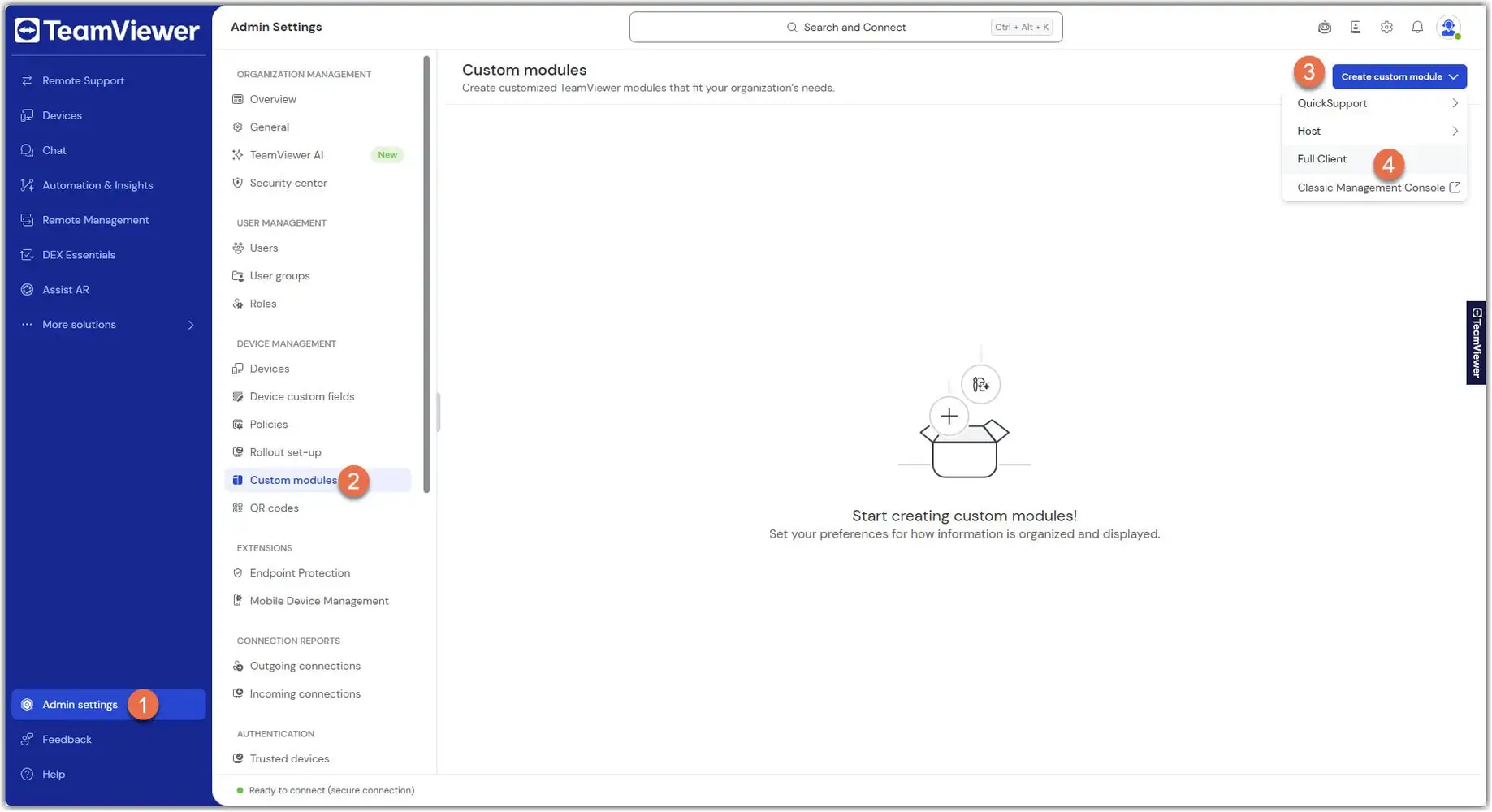
How to create a custom full client
- Go to Admin settings.
- Within the Device Management section, go to Custom modules.
- Click Create custom module.
- Select Full client.
- Adjust the settings as needed (e.g., branding, disclaimers, device group assignment).
- Save your module. Your custom full client is now ready for deployment.
Dark Mode
TeamViewer provides a Dark Mode option for its complete client interface.
To activate the Dark Mode:
- Click Settings.
- Within the Profile section, go to Customization.
- Go to Dark mode and click the toggle to activate the dark mode.
You can switch back to the light mode by clicking the toggle again.