
Knowledge Base
Download and install TeamViewer
Last Modified 18 нояб. 2024 г.
Learn how to download and install TeamViewer on your devices.
Hint: TeamViewer is also available on the web. You can access TeamViewer's full web experience via https://web.teamviewer.com/.
How to download TeamViewer
- Go to https://www.teamviewer.com/download
- Click the download button located to the right of TeamViewer Full Client. The download of TeamViewer Remote will start.
- Once the download is finished, access your Download folder and double-click on the downloaded file.
How to install TeamViewer
Available clients
TeamViewer provides the following clients:
How to switch TeamViewer from 32-bit to 64-bit on Windows
To switch from the 32-bit to the 64-bit version of the Full client, please follow these steps:
- Uninstall the 32-bit version - do not check the box for Remove settings
- Download the 64-bit version from the TeamViewer website.
- Install the 64-bit version by following the instructions on the screen.
- Please do not forget to sign in again with your account if you have used one before!
Note: There is no automatic update from the 32-bit to the 64-bit version. You can decide on your own whether you want to switch to the 64-bit version as long as you have a 64-bit edition of Windows.
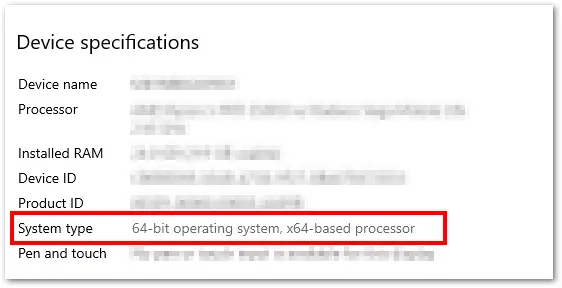
How to check if Windows is 32-bit or 64-bit
To check if Windows is 32-bit or 64-bit, please follow the instructions below:
Registry paths
The 32-bit and 64-bit versions of TeamViewer use different registry paths. When switching from 32-bit to 64-bit, all existing registry settings are copied to the new path.
Important: If you are using scripts to provide specific settings for new installations, you should carefully adapt your scripts to the correct registry path: