Knowledge Base
Get started with TeamViewer Asset Management
Last Modified 2 июл. 2025 г.
The new TeamViewer Asset Management solution provides detailed overviews of the entire IT infrastructure in one dashboard.
This article applies to all TeamViewer Asset Management customers
Note: This article pertains to the standalone TeamViewer Asset Management service. For articles on TeamViewer's Monitoring & Asset Management (Classic) service, please see here.
What is TeamViewer Asset Management?
TeamViewer Asset Management provides the ability to discover and manage all hardware and software assets on your network. Not only will it locate the computers or mobile devices on the network, but can also categorize any IT or IoT device. This allows the management of software updates and patch deployments from anywhere in the world.
TeamViewer Asset Management interactive demo
To get a feel for the Asset Management services, we have created the following demo that walks through the main components:
How to access TeamViewer Asset Management
TeamViewer's new Asset Management service can be accessed in TeamViewer Remote or via the web app on the Remote Management tab.
How to export asset lists
TeamViewer Asset Management allows for the exporting of all asset lists via Comma Separated Value (CSV) reports. CSV reports can be opened in Excel and many other spreadsheet software applications.
By default, all devices, groups, and hardware are visible in the reports. By utilizing the filter option in the upper right corner of the window, you can reduce the contents of the report to the specific information required.
Current filter options for hardware and software lists include the ability to filter:
- by device
- by group
- by asset
Software also includes the ability to filter:
- Software installed between dates
- Software modified between dates
Once a filter is set, click Apply in the bottom right corner of the window to confirm the changes.
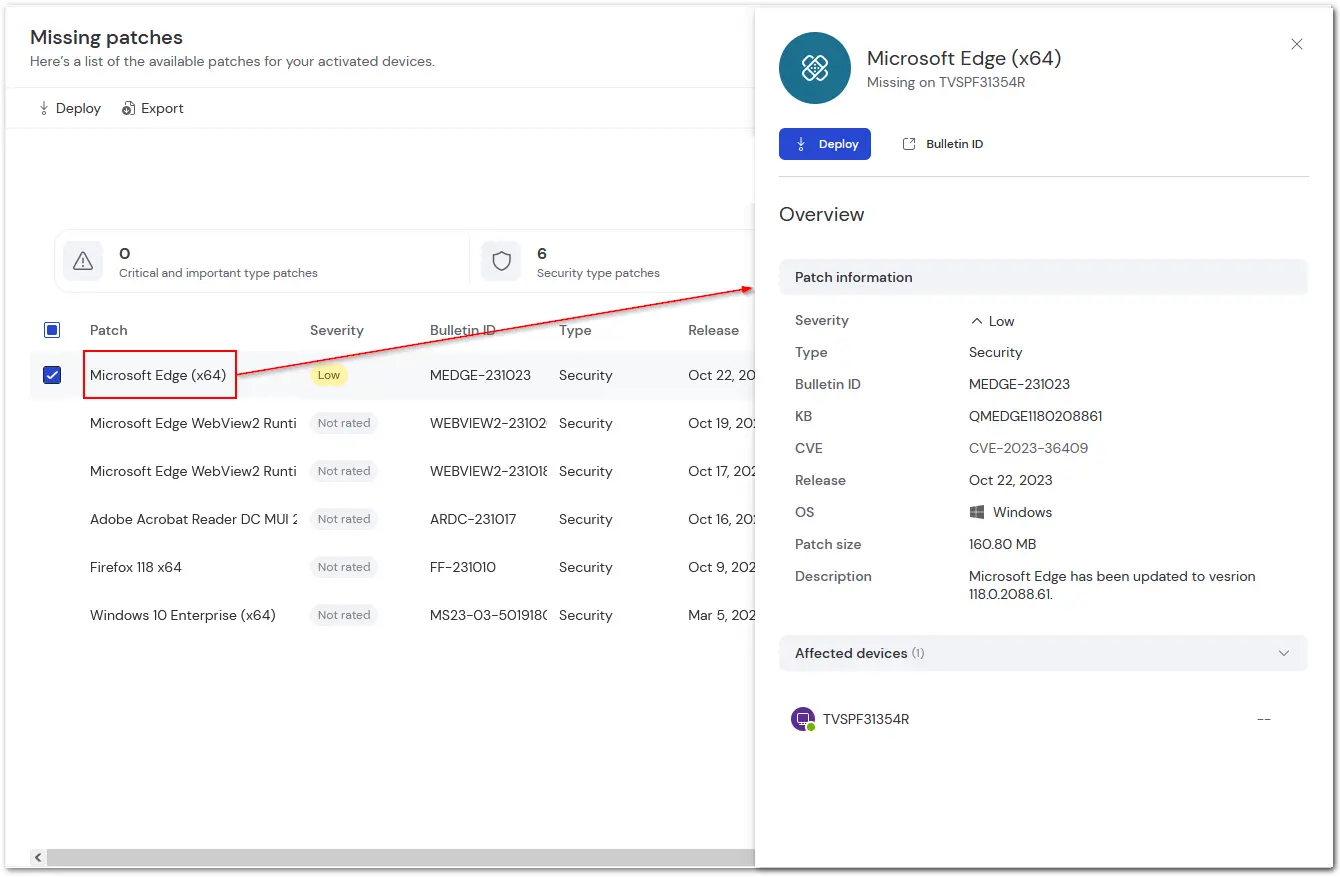
Along with device and group filtration, Patch Management filter options for Missing patches also include the ability to filter:
- by severity
- by operating system
- by type
- by release date
- by end date
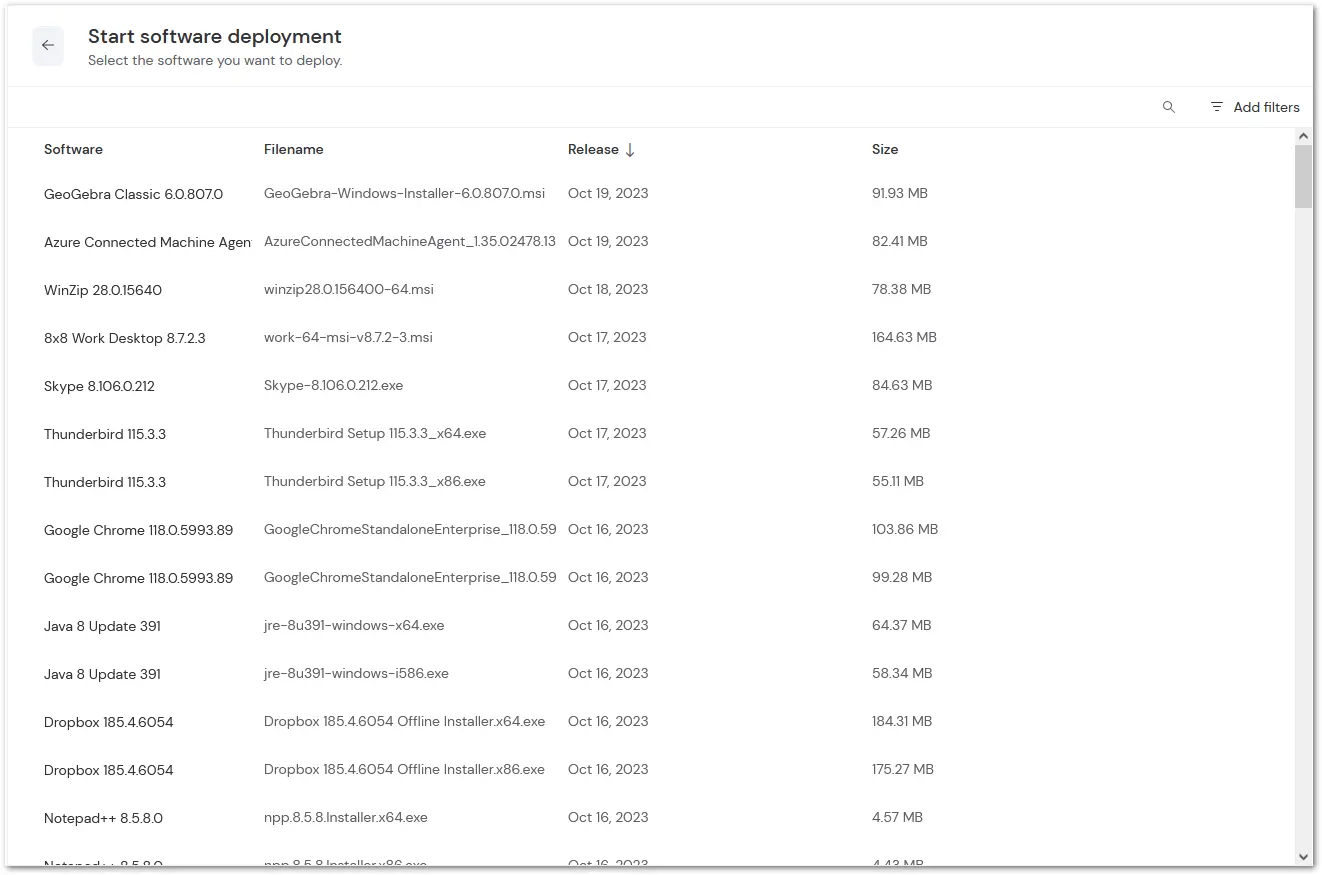
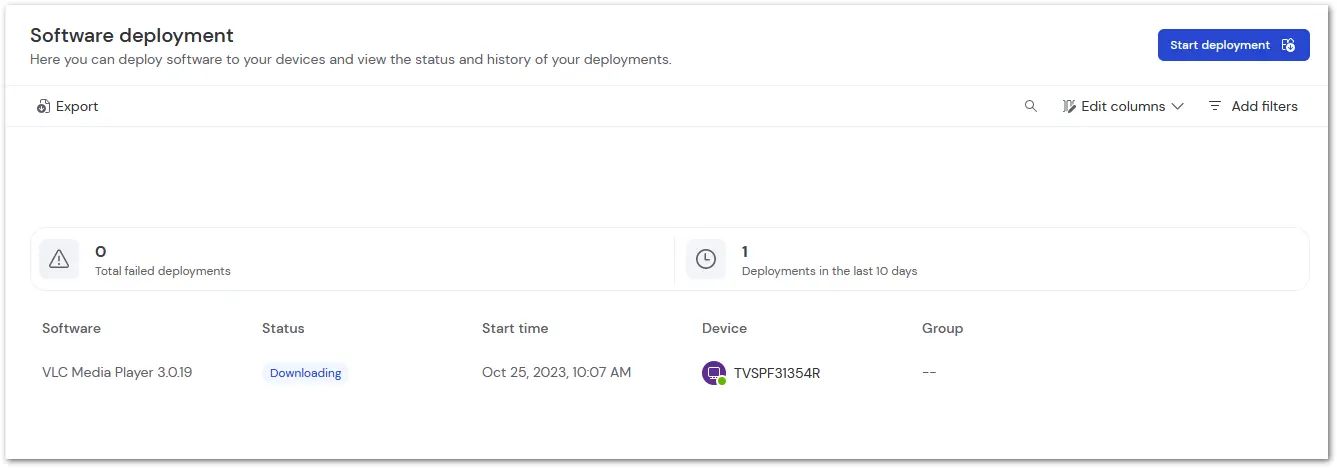
Along with device and group filtration, Patch Management filter options for Software deployment also include the ability to filter:
- by software
- by status
- by start date
- by end date
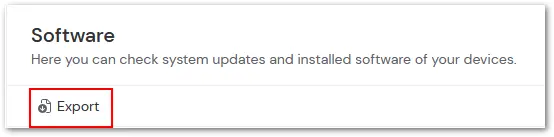
To export an assets list, utilize the filter options to exclude any unnecessary information. Once the desired information is reported, simply click Export in the upper left corner to export the CSV report.
Note: If the report appears jumbled or difficult to read, you may need to add semicolons to your list of delimiters. Please refer to your spreadsheet software for specific instructions on locating this option.
TeamViewer Asset Management is divided into three sections: Network Discovery, Assets, and Patch Management/Software deployment. Please select the corresponding section for more information.
Asset Management Services
TeamViewer Asset Management is broken into the following sections:
- Network Discovery
- Assets
- Vulnerabilities
- Missing patches
- Software deployment