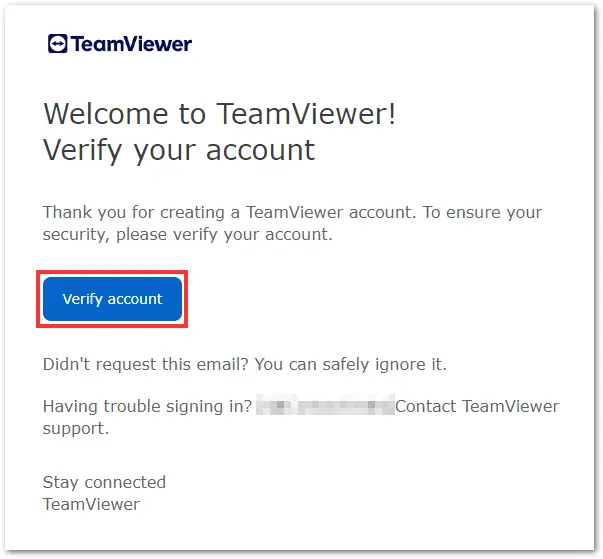
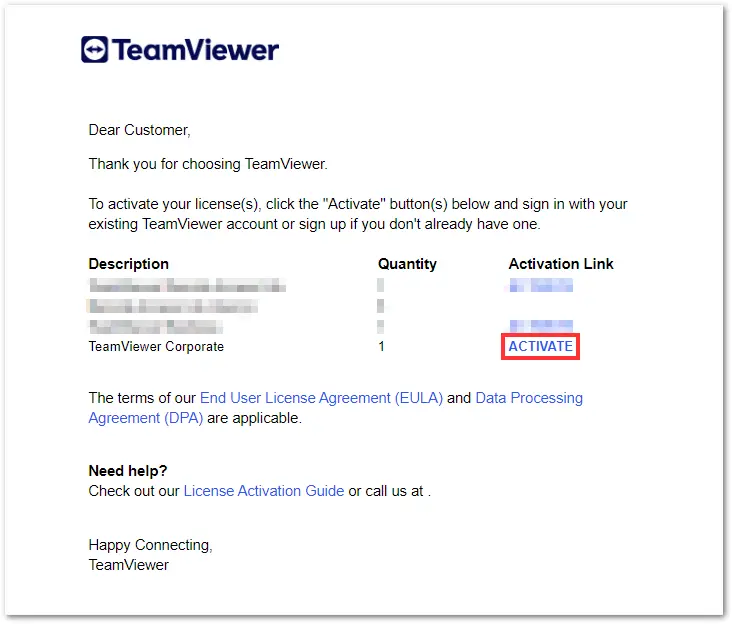
Open the license activation email that was sent to the email account used to purchase the license. Click Activate.
Note: If you have purchased more than one product, each license must be individually activated.
Last Modified 4 дек. 2025 г.
The Premium and Corporate licenses are ideal for teams providing remote access and support on a larger scale. In this article, we explain how to activate the Premium or Corporate license.
This article applies to all TeamViewer Remote customers who purchased a Premium or a Corporate license.
Important note for customers who purchased after the 25th of November 2024: If you are a new customer and don't have a TeamViewer account, you will only have to set up a password after clicking the Confirm account button in the order confirmation e-mail. This will automatically create your TeamViewer account and activate the license. Once this step is done, you can immediately start using your Premium or Corporate license by signing in with your TeamViewer account via the TeamViewer full client or via https://web.teamviewer.com/.
To activate your Premium or Corporate license, please follow the instructions in the video below:
Alternatively, you can also follow our step-by-step guide here:
Open the license activation email that was sent to the email account used to purchase the license. Click Activate.
Note: If you have purchased more than one product, each license must be individually activated.
An activation page will appear requesting you to confirm the activation on the account displayed. Click Activate.
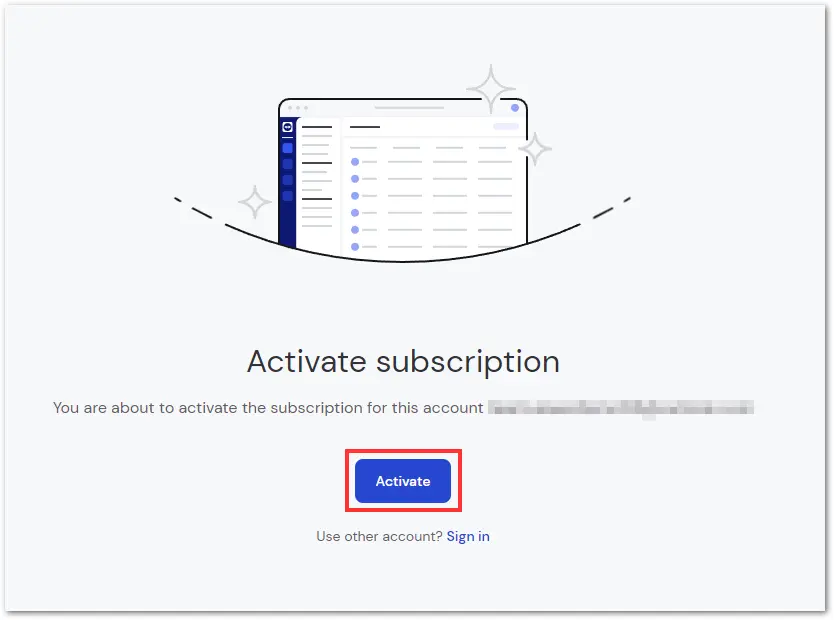
Note: If you wish to activate the license on a different account, click Sign in at the bottom of the page.
An onboarding pop-up will appear. Click Continue.
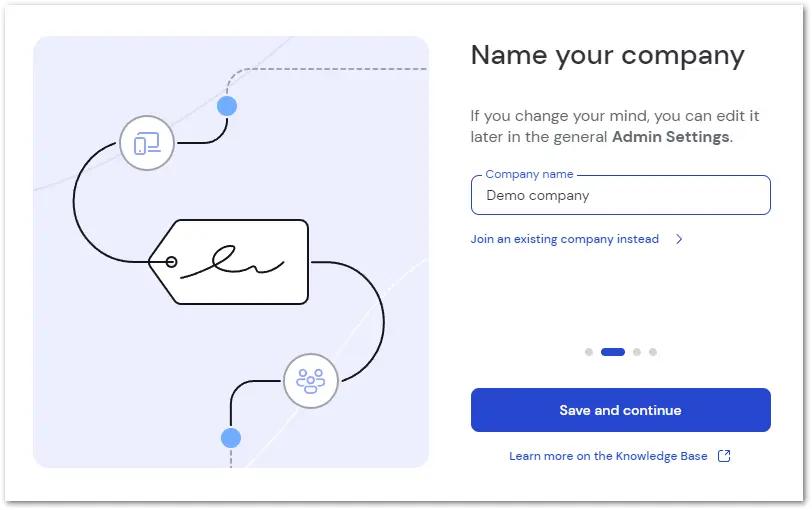
Now, enter a company name, and click Save and continue.
Now, download and install TeamViewer on your device.
Please refer to the article below for detailed steps:
If you want to deploy TeamViewer into your IT infrastructure, please find our deployment guides below:
The best way to connect to a remote device depends on your setup and use case. TeamViewer offers flexible options to suit different scenarios: