
Knowledge Base
Update TeamViewer
Last Modified 21 мая 2026 г.
It is crucial to keep TeamViewer updated to guarantee secure and efficient remote access to your computer. Updating to the latest version of TeamViewer will enable you to take advantage of new features and enhancements that can significantly improve your remote access experience. In this article, we'll show you how to update TeamViewer using the auto-update or manually.
This article applies to all TeamViewer users.
How to update TeamViewer (auto-update)
TeamViewer's auto-update is set by default to check for updates weekly. You can configure the auto-update via Settings ➜ Go to this device's settings ➜ Advanced settings ➜ Open advanced settings.
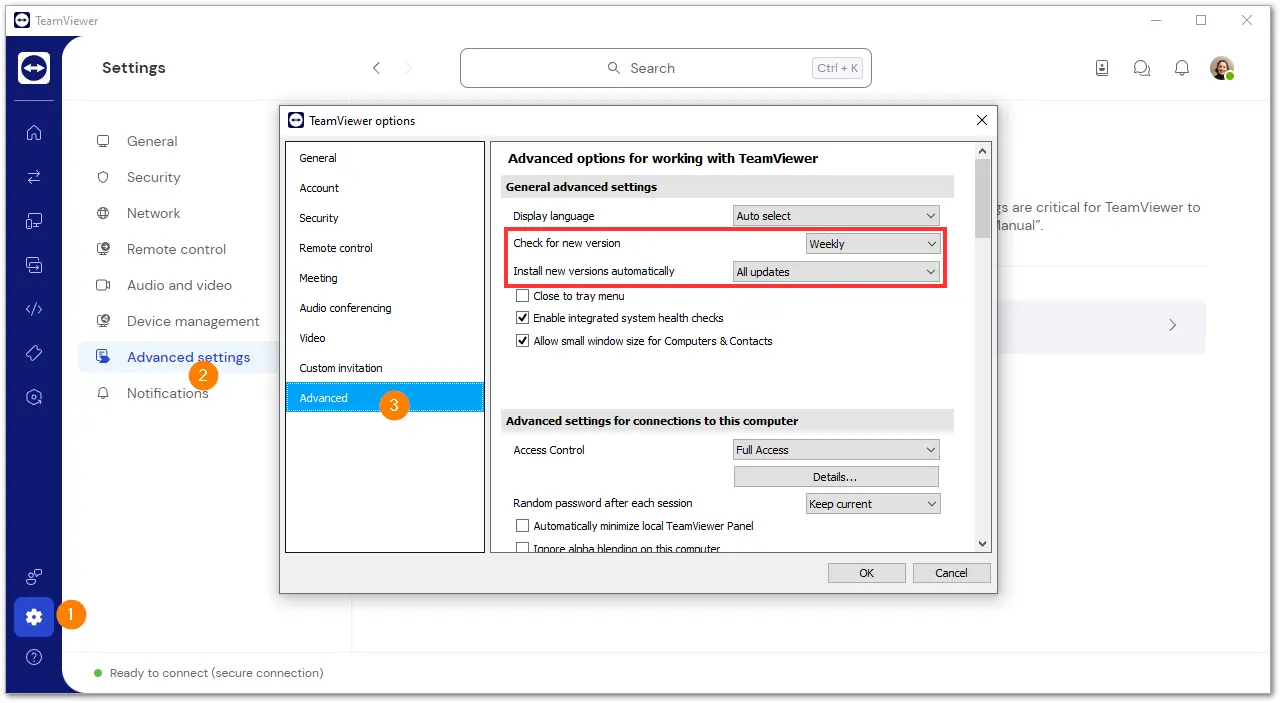
We recommend keeping TeamViewer up-to-date through auto-update.
Note: You can deploy and control the auto-update setting via TeamViewer policies. Learn more here.
How to update TeamViewer manually
To update TeamViewer manually, please follow the instructions below:
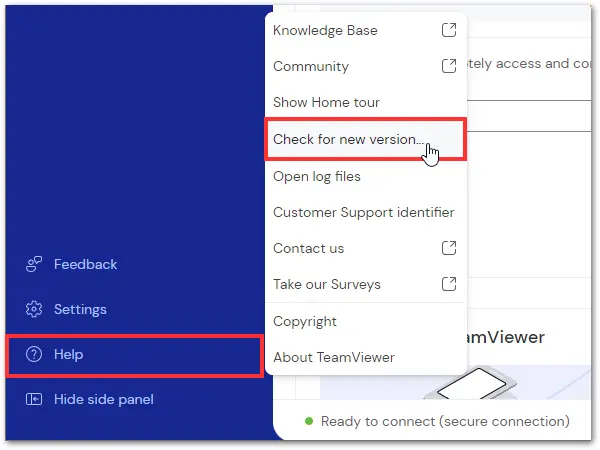
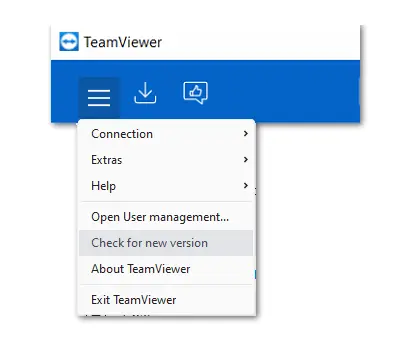
How to update TeamViewer remotely
To update TeamViewer remotely, please follow these steps:
- Connect to your remote device.
- In the remote control toolbar, click the Remote update button.
A prompt will appear, informing of the current and updated versions. To confirm, click Update. TeamViewer will close on the remote computer and install the new version.
After the update, you will be reconnected to the remote computer automatically.

Note: Updating multiple clients on Windows PCs can be best achieved using our MSI package, available with our Corporate and Tensor license.