Knowledge Base
Resolve High CPU usage
Last Modified 8 мар. 2024 г.
High CPU usage can usually be attributed to hardware acceleration on systems with weaker graphics processors. The easiest way to resolve this is by disabling the hardware acceleration option of the graphics processor on the remote computer.
This article applies to all Windows users using Windows 8 or older.
📌Note: These instructions only apply to Windows 8.x and older. Windows 10 does not provide the ability to disable hardware acceleration this way.
Disable hardware acceleration
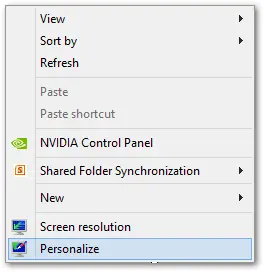
1. Right-click on the Desktop. Select Personalize from the drop-down menu
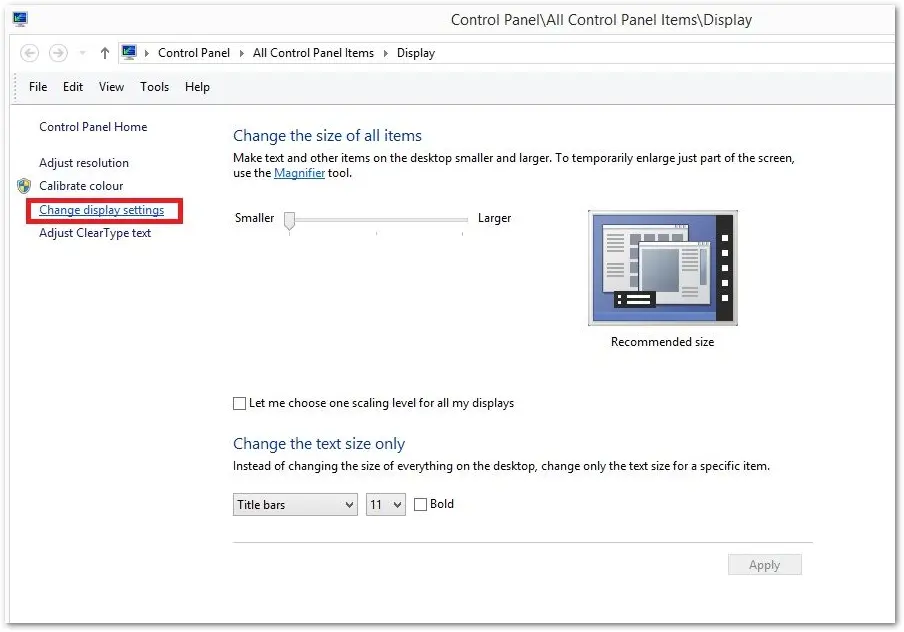
2. Go to the Display settings and select Change display settings
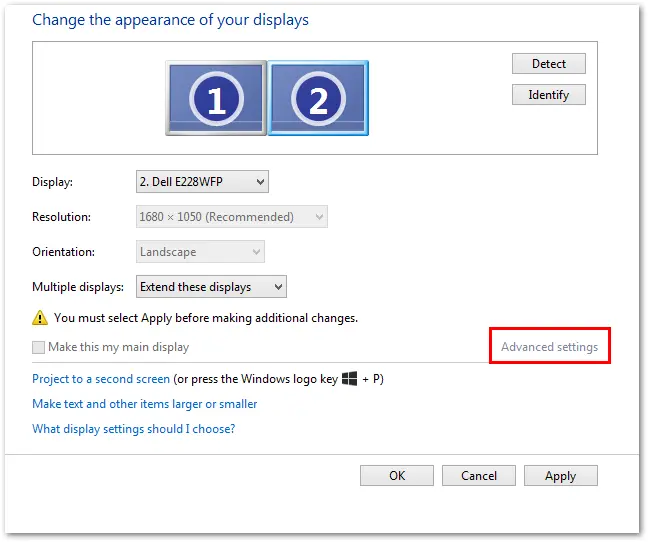
3. Click on Advanced settings on the right side of the new window
4. This will generate a pop-up window with multiple tabs. Select the Troubleshoot tab, and then the Change settings button
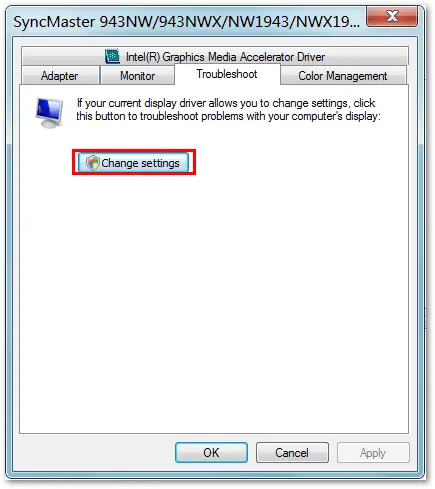
📌Note: If the change settings button is greyed out, this means the current display driver does not support such changes. In this case, the option to disable hardware acceleration is not possible.

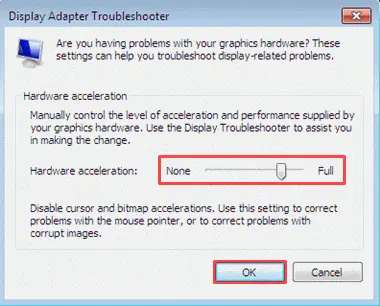
5. Move the slider for Hardware acceleration to None and click OK