TeamViewer DEX (Digital Employee Experience) Essentials is the streamlined, easy-to-deploy digital workplace platform explicitly built for modern businesses. It helps IT teams proactively resolve issues before interrupting work, enhancing efficiency, strengthening employee productivity, and keeping IT in control.
By reducing repetitive tasks, preventing downtime, and delivering actionable insights for compliance, TeamViewer DEX Essentials empowers IT teams to make smarter decisions faster. The result? A streamlined, future-ready platform that ensures employees stay productive, connected, and supported—wherever they work, on whatever device.
This article applies to all TeamViewer DEX Essentials customers.
Prerequisites
To utilize TeamViewer DEX Essentials, the following prerequisites must be met.
- A TeamViewer Business, Premium, Corporate, Tensor license, TeamViewer One Standard or TeamViewer One Advanced must be activated for the account/Company Profile.
- Windows 10 (x64) (22H2) or later is installed.
- TeamViewer Host or Full Version 64-bit (x64) version 15.72.3 or later must be installed.
- The TeamViewer account must have a Company set up, and the Devices must be managed by the Company.
- The new UI must be used.
TeamViewer DEX Essentials interactive demo
To get a feel for the services, we have created the following demo that walks through the main components:
TeamViewer DEX Essentials interactive demo
How to activate TeamViewer DEX Essentials
Once the license is activated for the account and Company Profile, the region for tenant provisioning (and, therefore, data storage) must be selected. Currently, the EU, UK, Canada, or the US (East or West) can be chosen.
Tenant provisioning begins after activation, working in the background, and takes about 5 minutes. Customers will be notified upon completion, both in-product and via email, as soon as the device is ready for usage. Once completed, device setup can begin.
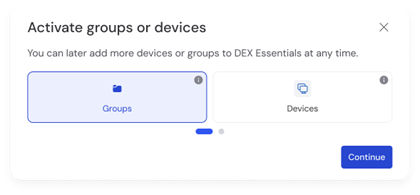
TeamViewer DEX Essentials can be activated via device groups or by selecting individual devices.
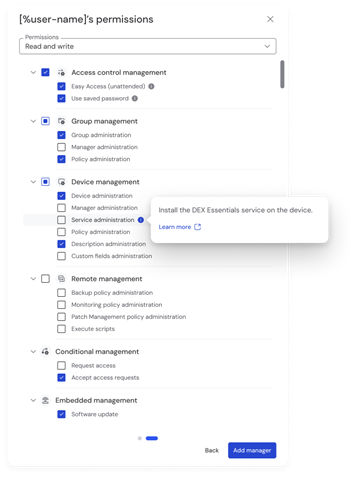
Service Administration Permission
To activate TeamViewer DEX Essentials on a group or device, the user must be a group or device manager and require the Service administration permission. If the manager of the device is a company admin or has Manage administration permission on the device or group level, then the Service administration permission is added automatically during the DEX Essentials activation process, no need for extra steps.
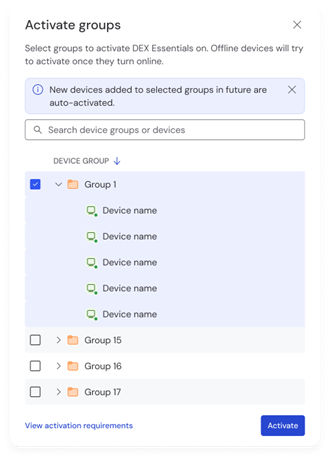
Activate via device groups
Group activation is recommended for automated and large-scale activation. Offline devices will be pending activation and will try to activate once they turn online. When using group activation, new devices added to selected groups will be activated automatically. You can only select a maximum of 100 groups at a time for activation.
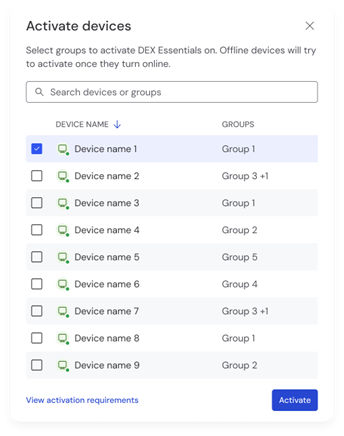
Activate via devices
Individual device activation is recommended for selective activation, allowing you to activate specific devices without affecting the rest of the group. Offline devices will be pending activation and will try to activate once they turn online. You can only select a maximum of 100 devices at a time for activation.
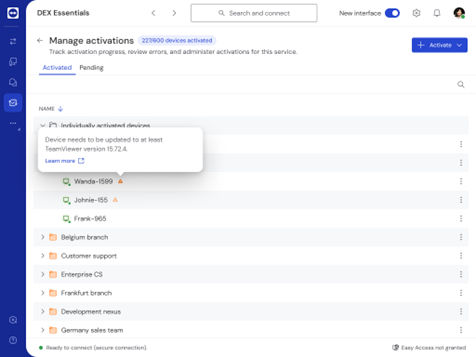
Manage activations
To access and manage your activations, click the Manage Activations button located in the top right corner of the DEX Essentials page header.

The Manage activations page has 2 tabs: Activated and Pending.
Activated: Shows all devices and groups you manage that are currently activated with DEX Essentials.
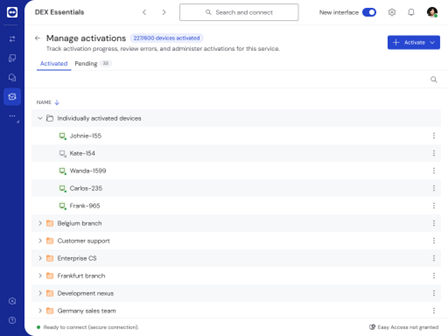
Actions:
- Deactivate DEX Essentials on an individually-activated device.
- Deactivate DEX Essentials on a group.
Note: Devices activated on the group level cannot be individually edited.
Pending: Shows all devices in pending states or for which (de)installation has failed.
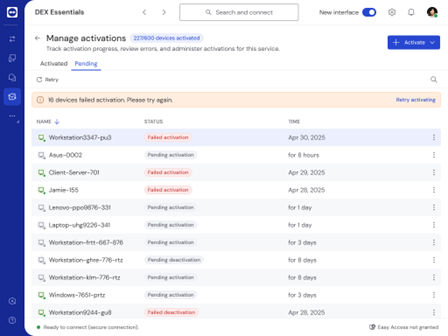
Status:
- Pending activation/deactivation – Offline devices pending (de)activation will attempt to (de)activate once they come online.
- Failed activation/deactivation – devices where there was an error in the (de)activation.
Actions:
- Retry for failed activation/deactivation
- Cancel activation for pending activation/deactivation
Note: Pending activations/deactivations for devices activated on the group level cannot be canceled.
Deprecation of activation via TeamViewer policy
TeamViewer Host or Full Version 64-bit (x64) version 15.71 or earlier uses a different activation process, where TeamViewer DEX Essentials is activated for the devices via a TeamViewer policy by adding the Advanced Monitoring (using 1E technology) policy rule. An existing TeamViewer policy can be used (updated with an additional setting), activating TeamViewer DEX Essentials for all online devices currently assigned to the policy.
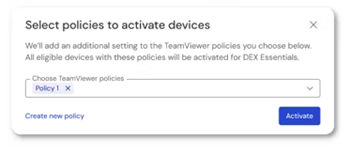
Activation via policy is being deprecated and replaced with activation via devices/groups.
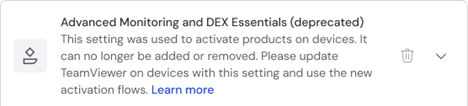
Please update TeamViewer Host or Full version on devices using this setting. Devices must be updated to at least TeamViewer version 15.72.4 or later to manage activation via devices/groups. For devices with DEX Essentials currently activated via policy, once TeamViewer is updated on the device, the device will automatically migrate to the new way of managing activations and remain activated with DEX Essentials.
Functionality
- Insights
- Remediation
- Automation
- Validation
Insights
Upon product activation, the 1E offline agent is deployed to each device. This begins the delivery of instruction packages that scan for common IT health issues. TeamViewer DEX Essentials presents actionable insights across all monitored devices, and users can drill down to specific topics by clicking on device icons.
If a compliance check fails, the device is displayed as Impacted and, therefore, non-compliant.
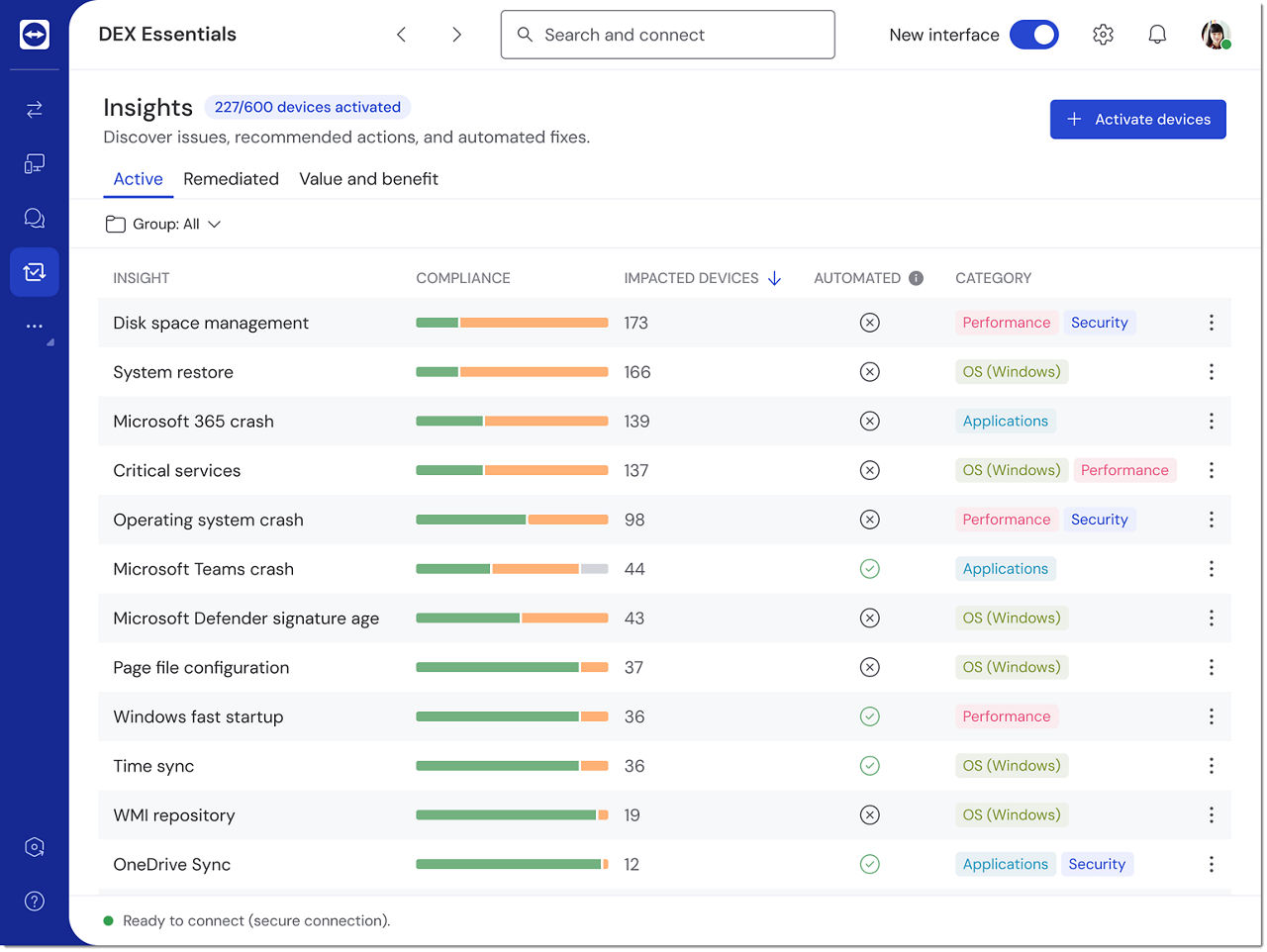
One feature of TeamViewer DEX Essentials is the generation of Insights. This is done via prebuilt policies applied to devices under management, via the installation of the 1E agent. The following insight categories are provided:
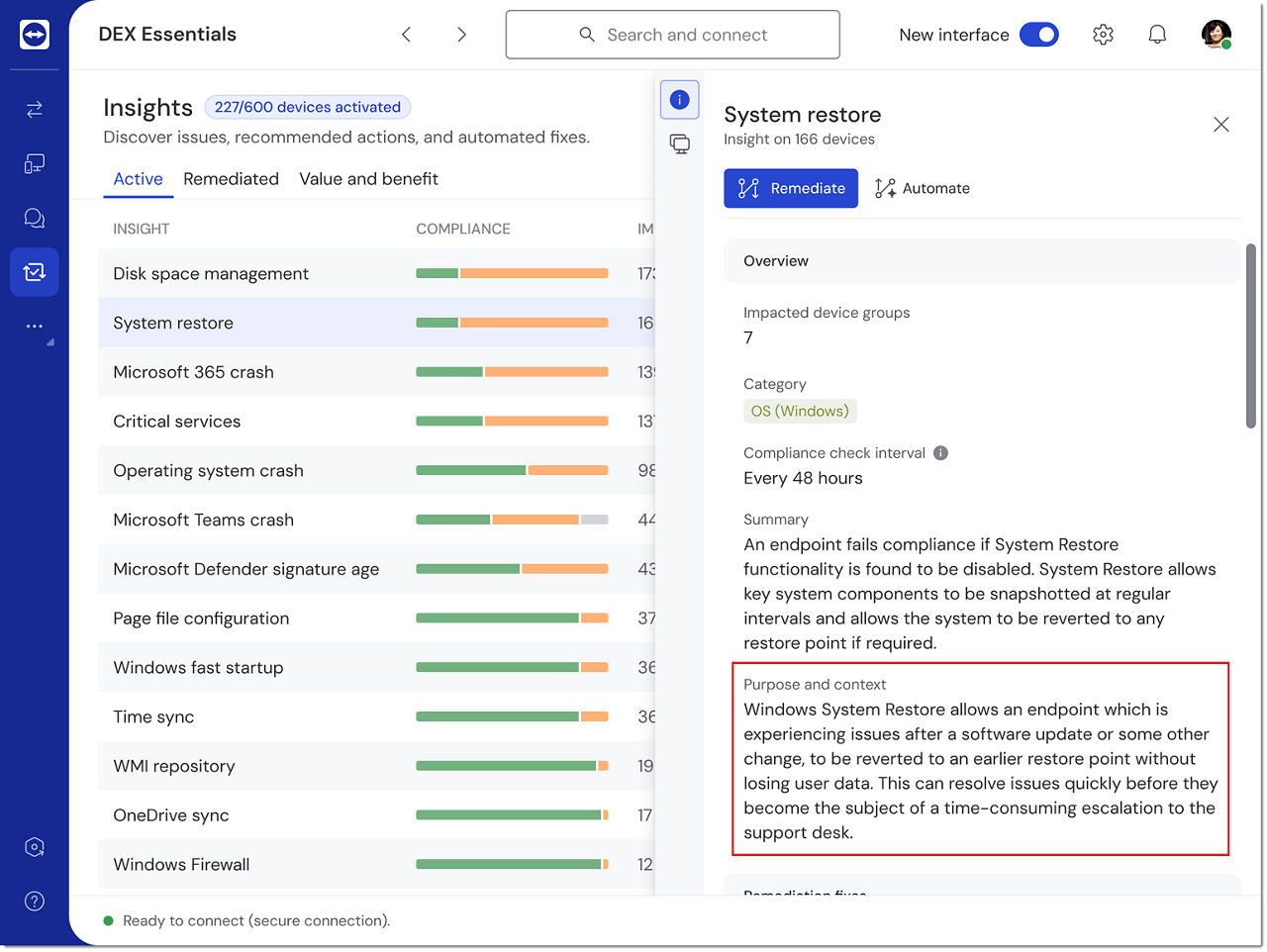
Another Insights feature is the Purpose and context section, which is found in the device drawer. This section provides a description of the Insight itself, explaining its function and how it can help.
The following breakdown explains the insights provided by TeamViewer DEX Essentials.
Remediation
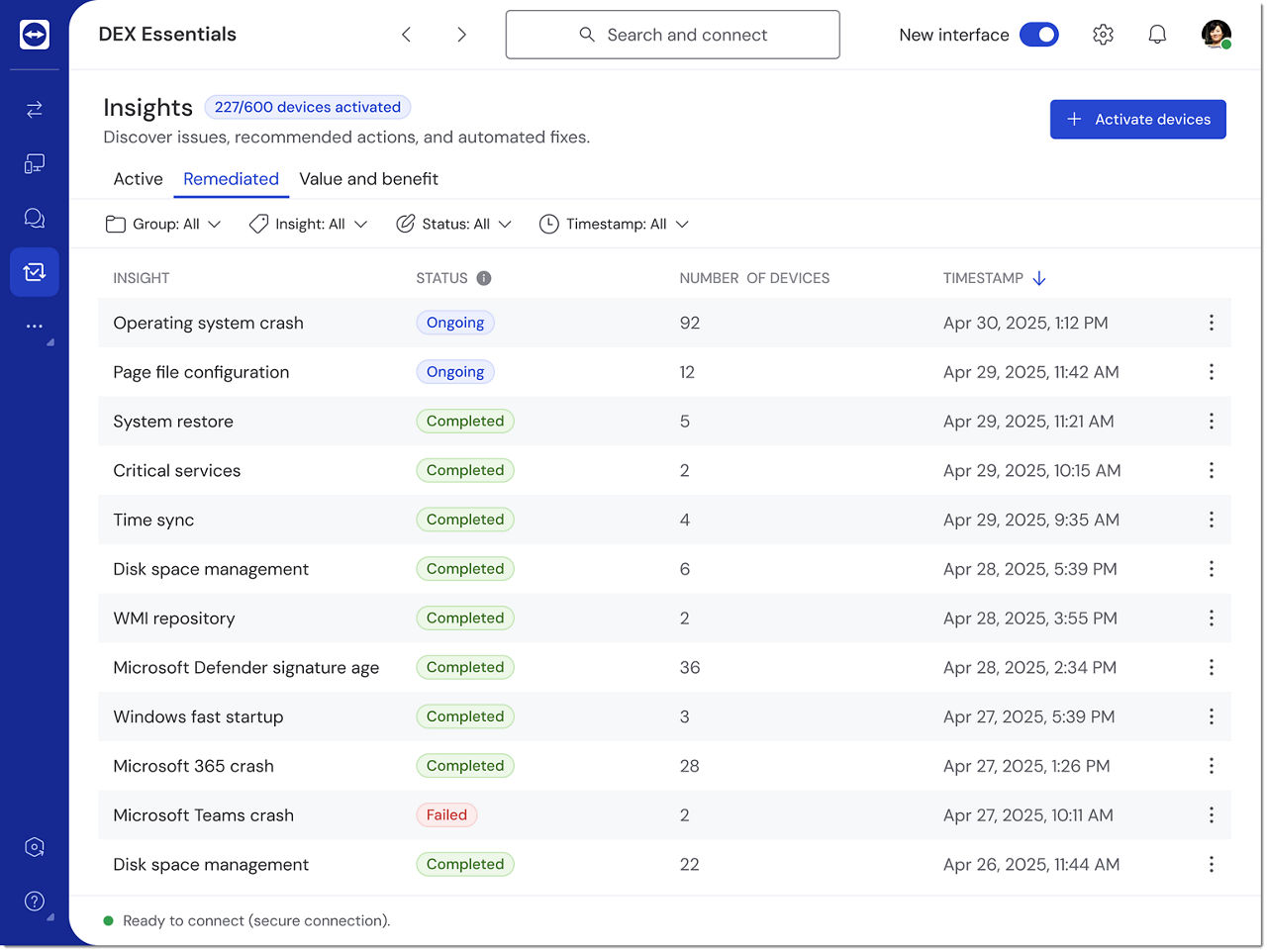
TeamViewer DEX Essentials not only reports issues but also provides remediation opportunities. The remediation dashboard provides feedback on what actions were performed and whether further attention is needed.
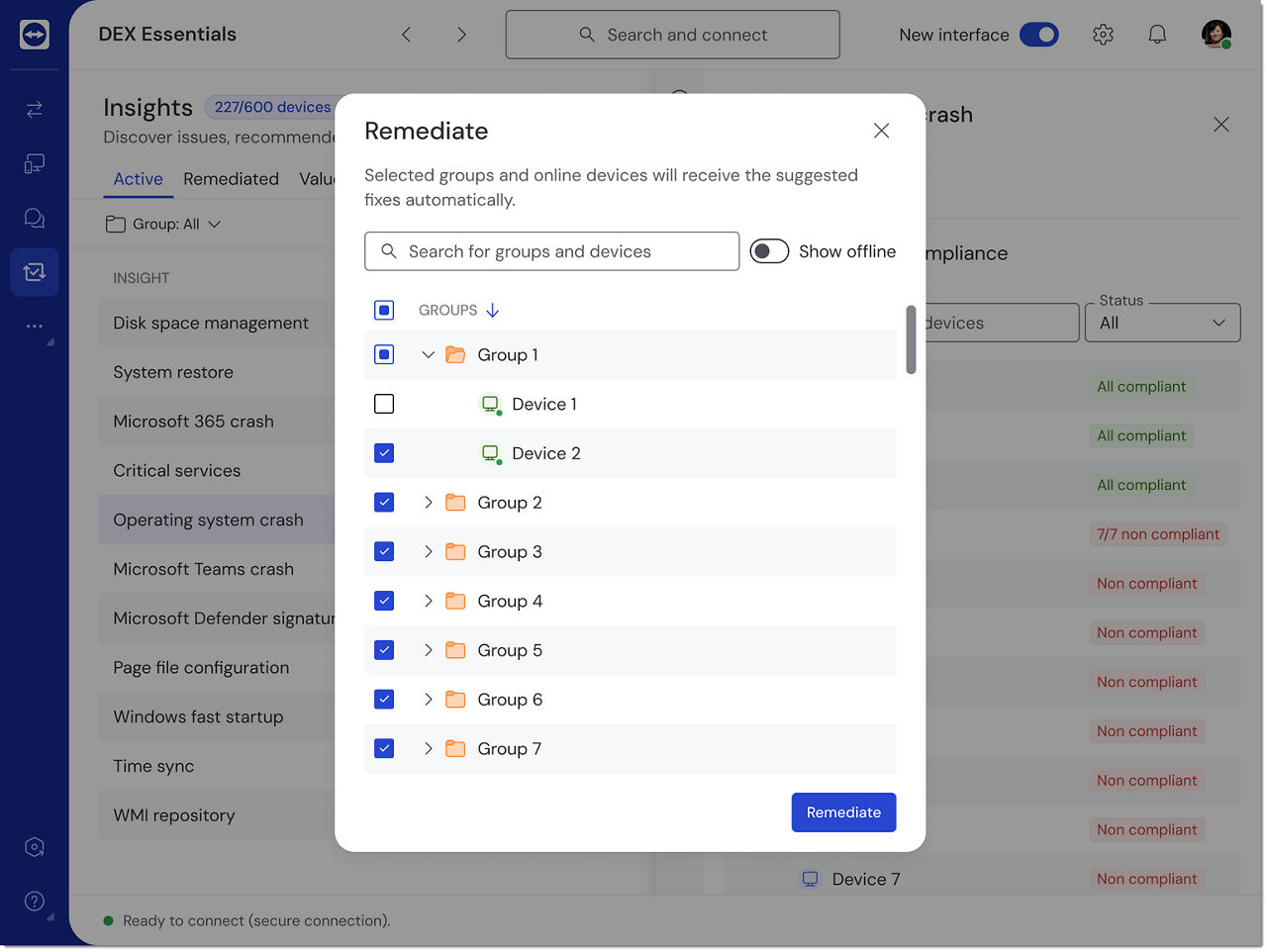
Users can select individual online non-compliant devices to remediate or select device groups to include all devices within the group. The remediation runs across selected devices, and progress can be monitored via the View Remediation interface.
The potential statuses of remediation are Ongoing, Completed, and Failed. The steps taken during remediation are displayed in the device drawer.
Automation
TeamViewer DEX Essentials also allows you to automate remediation techniques, which means you only have to perform the remediation manually once. Automating recurring or high-volume remediations helps reduce manual effort and response time.
Users can automate a given issue by selecting Automate from the insights panel. Once confirmed, remediation will automatically execute whenever the same issue is detected in the future.
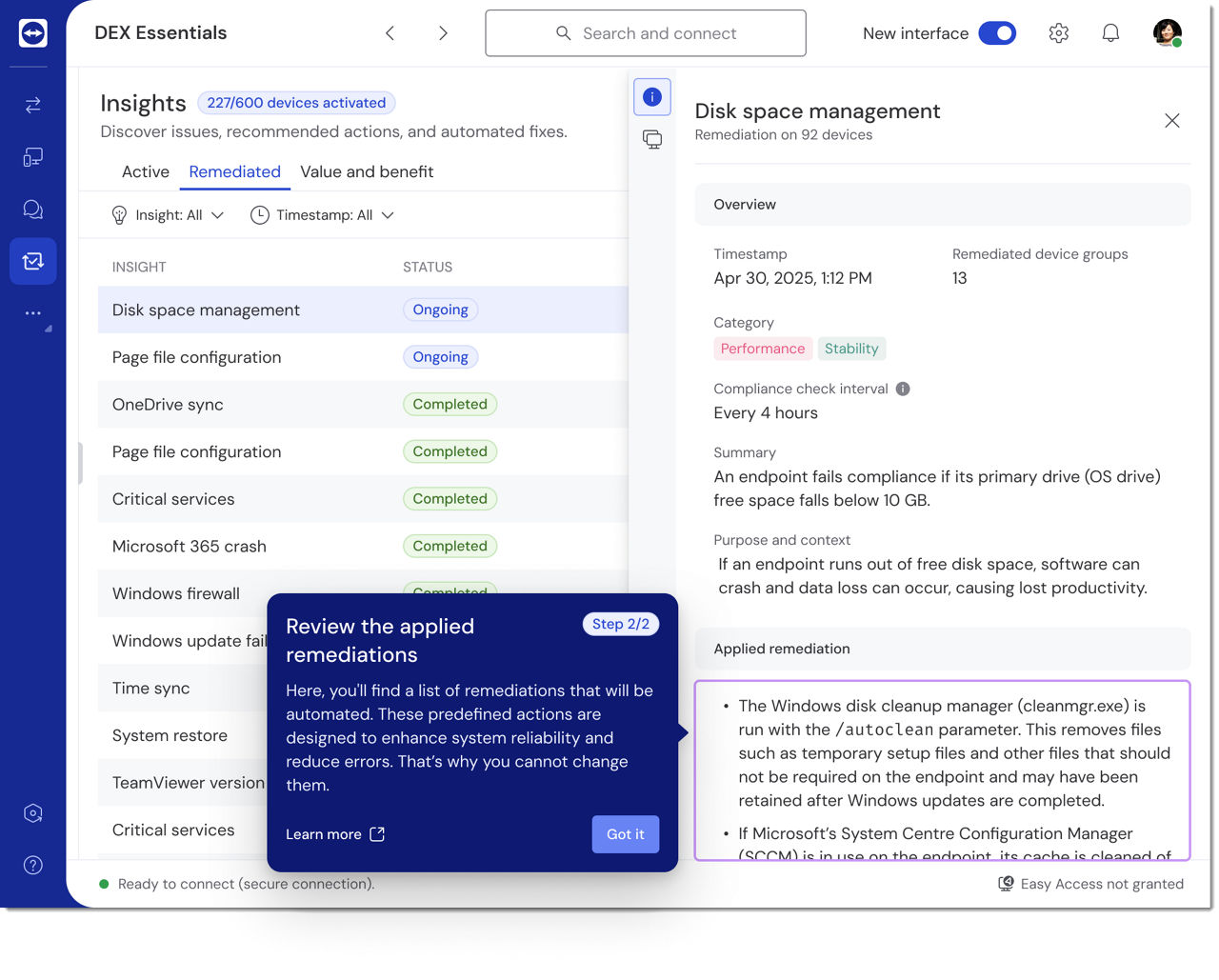
Automation can also be stopped and resumed at any time. All automated remediations are marked with a green checkmark, which provides an instant view into what is being handled automatically.
Validation
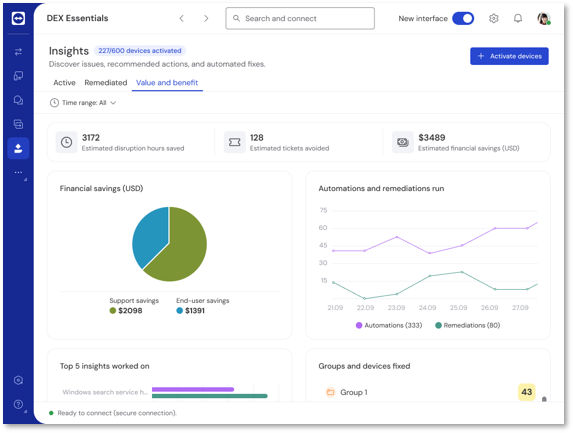
TeamViewer DEX Essentials provides the Value and benefit dashboard for validation purposes. This provides insight into:
- The number of remediations and automations over time.
- The number of remediations and automations per insight.
- The number of tickets avoided.
- Time saved by IT teams.
- Estimated cost savings through automation and early issue detection.
Note: the parameters attached to costs related to the financial impact calculations are currently pre-set based on global market assumptions.
Parameterization
Users can also personalize key metrics to better reflect their organization’s needs:
-
Set custom values for average hourly costs and disruption times for both end users and support teams.
-
Calculate the percentage of tickets saved through DEX remediations & automations.
-
Choose a preferred currency for all cost-related conversions.