Trustpilot logo
118,115 reviews
G2 logo
3,649 reviews
TrustRadius logo
2,714 reviews
Capterra logo
11,513 reviews

TeamViewer Remote

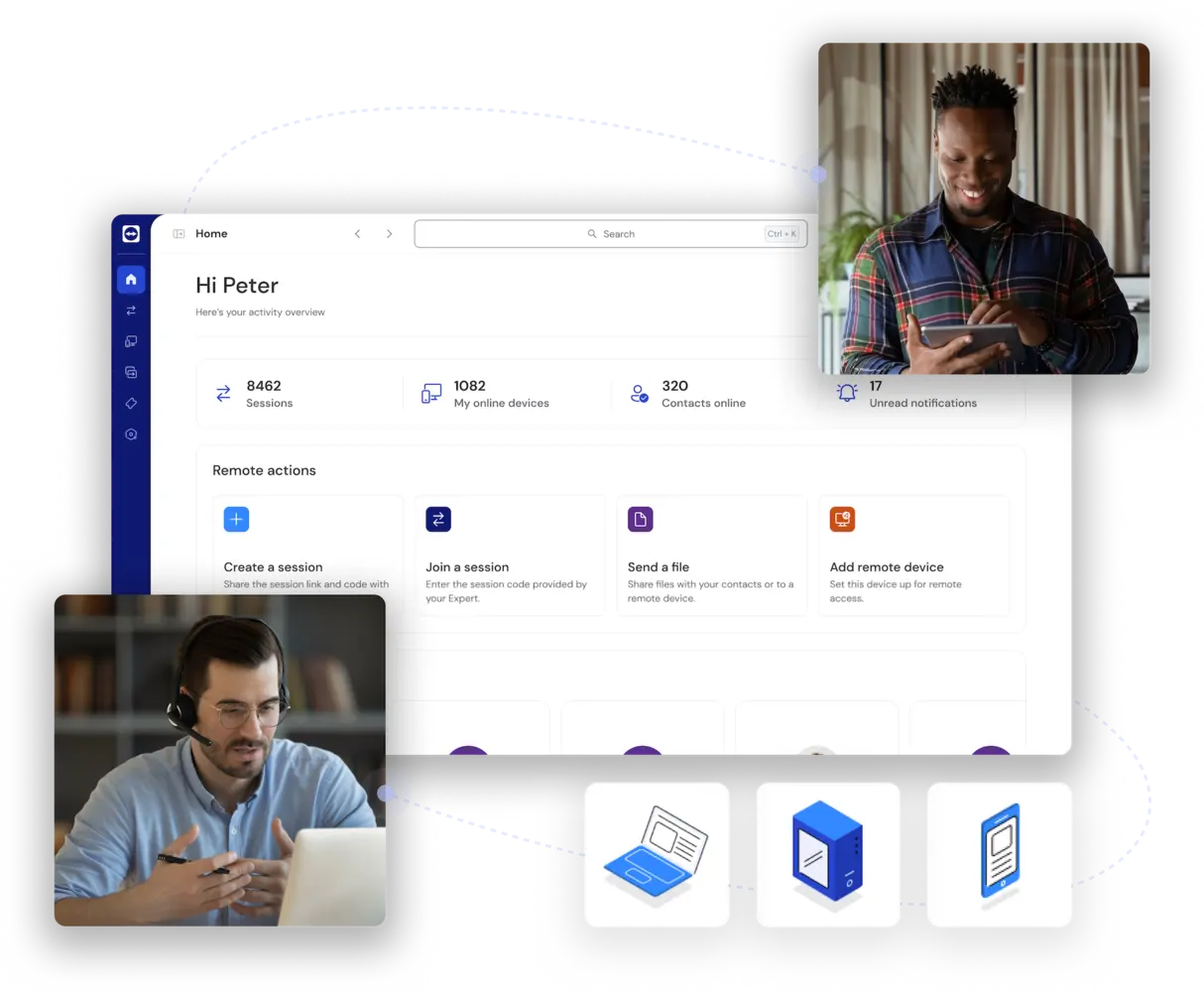
Easy connection with TeamViewer remote desktop

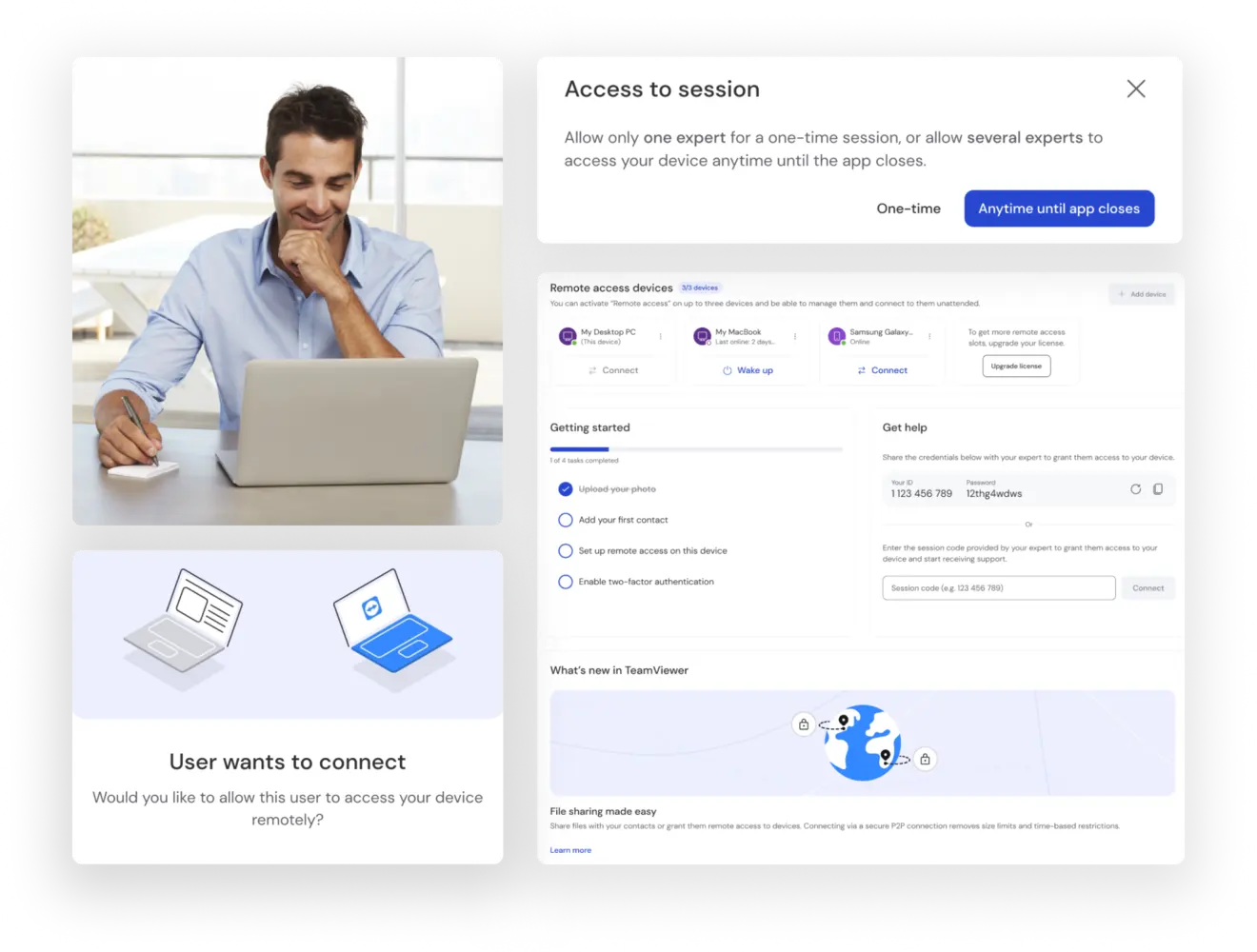
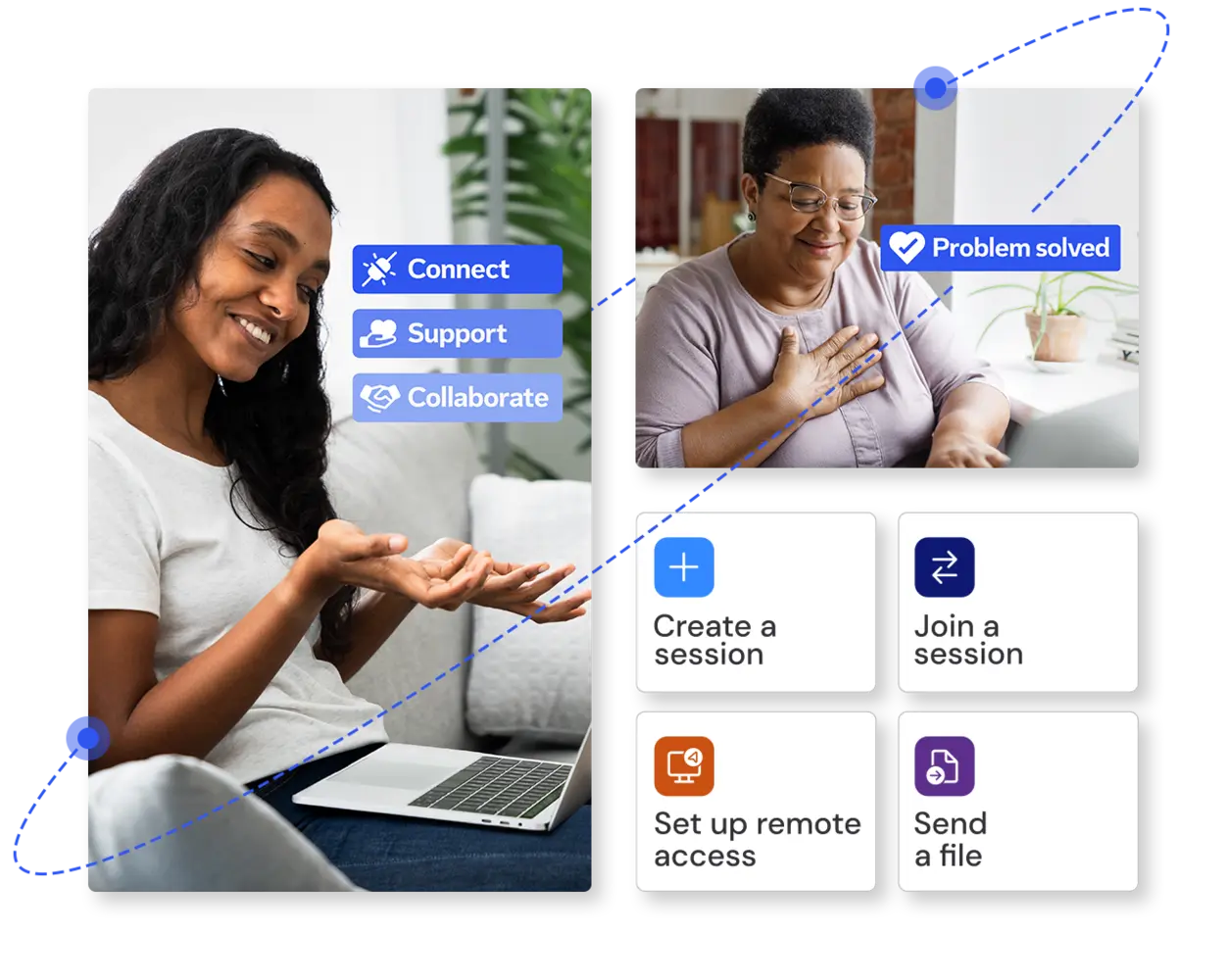
Whether it's providing remote connections, solving tech issues, or accessing customers' mobile screens—TeamViewer offers all this and more.

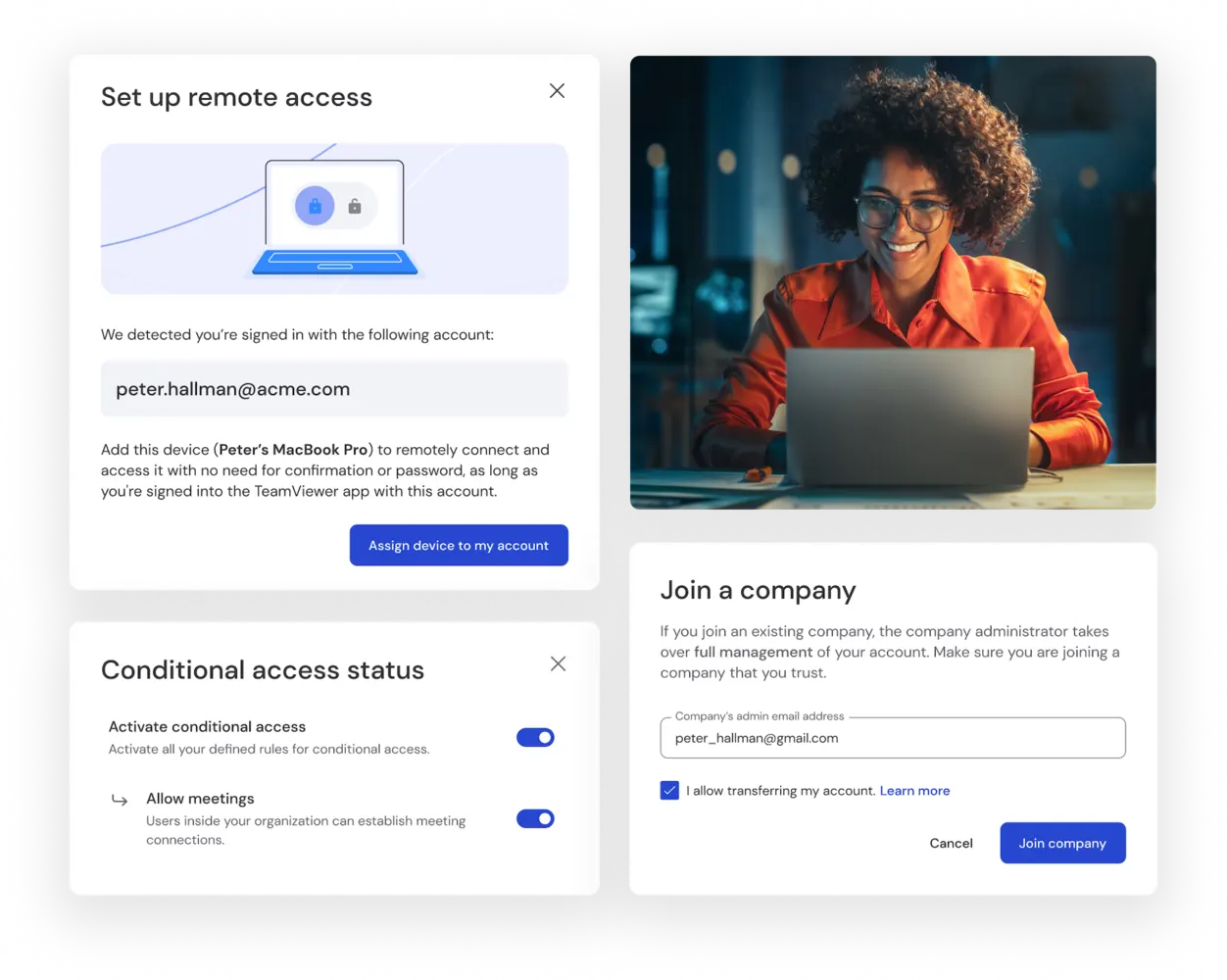
Secure remote desktop connection

TeamViewer protects your remote connections with enterprise-grade encryption standards, ensuring your data remains completely private and secure.

Every session is safeguarded with AES-256 bit encryption and TLS 1.2 protocols, providing the highest level of security.
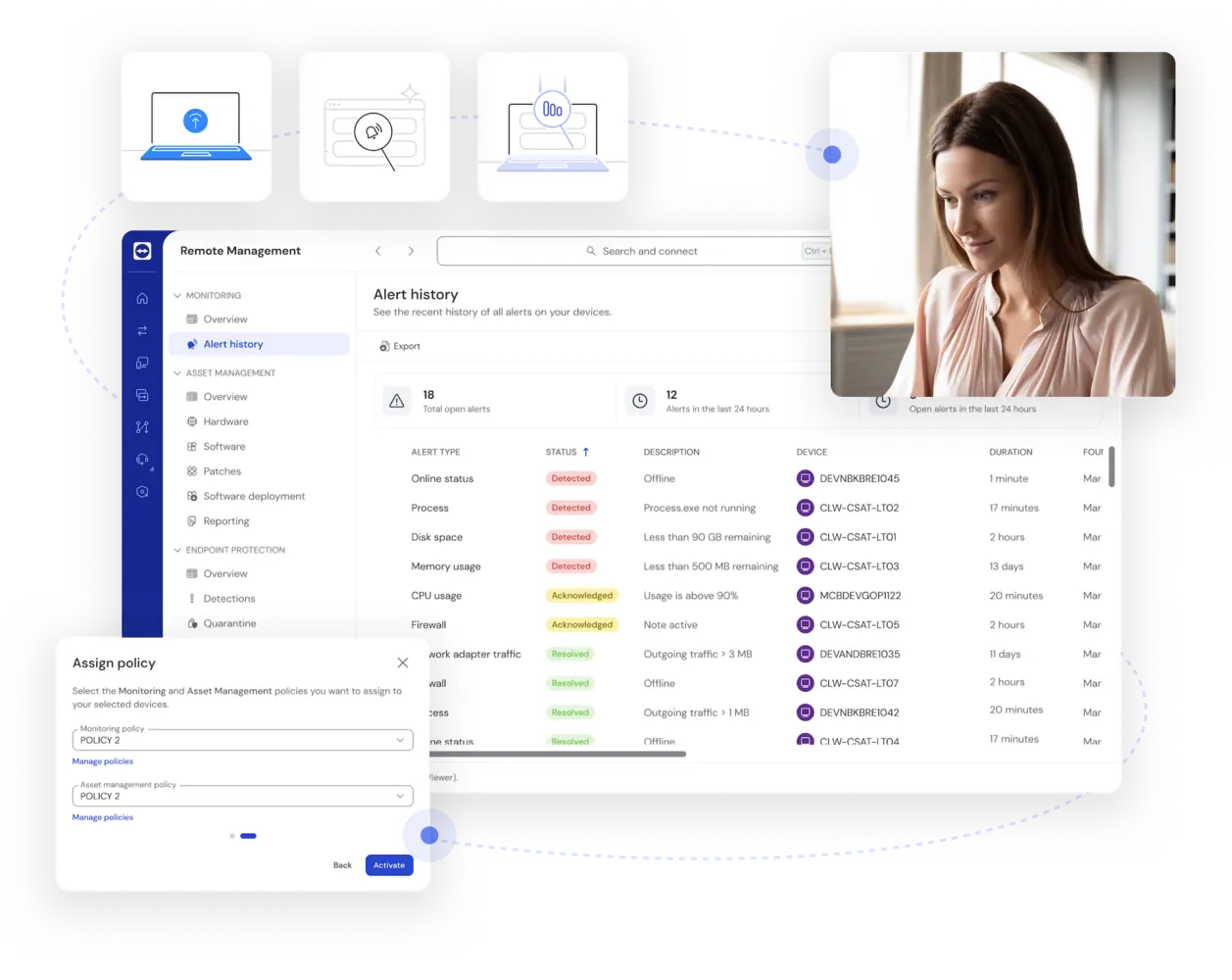
Setting up Device Monitoring with TeamViewer

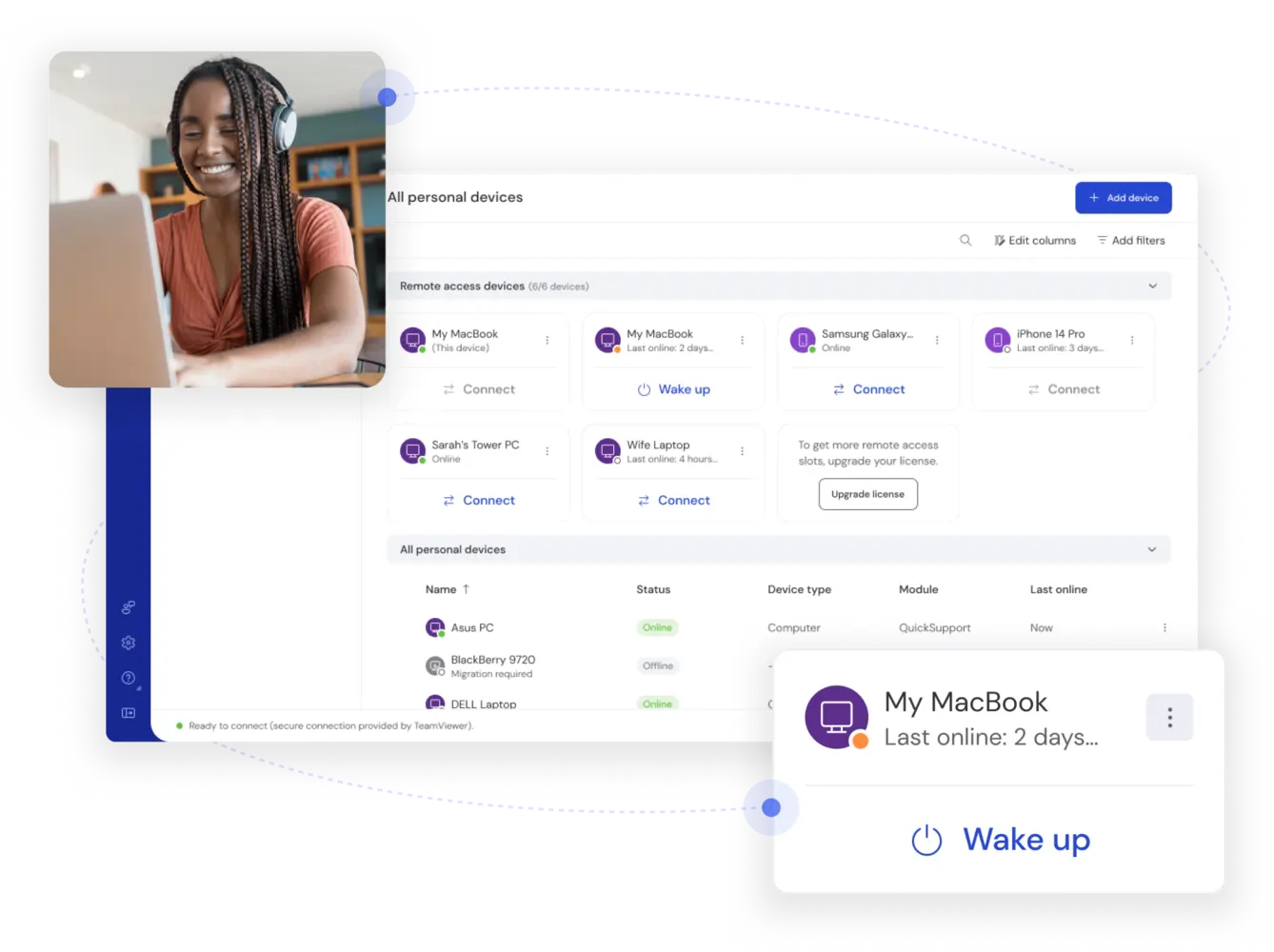
Cross-platform compatibility

Access and control any device regardless of operating system with TeamViewer's universal remote desktop connection.

Connect seamlessly between Windows, use the remote desktop connection for macOS systems, iOS, or connect to Linux, Android, Raspberry Pi, and other platforms and manage your digital ecosystem from anywhere.

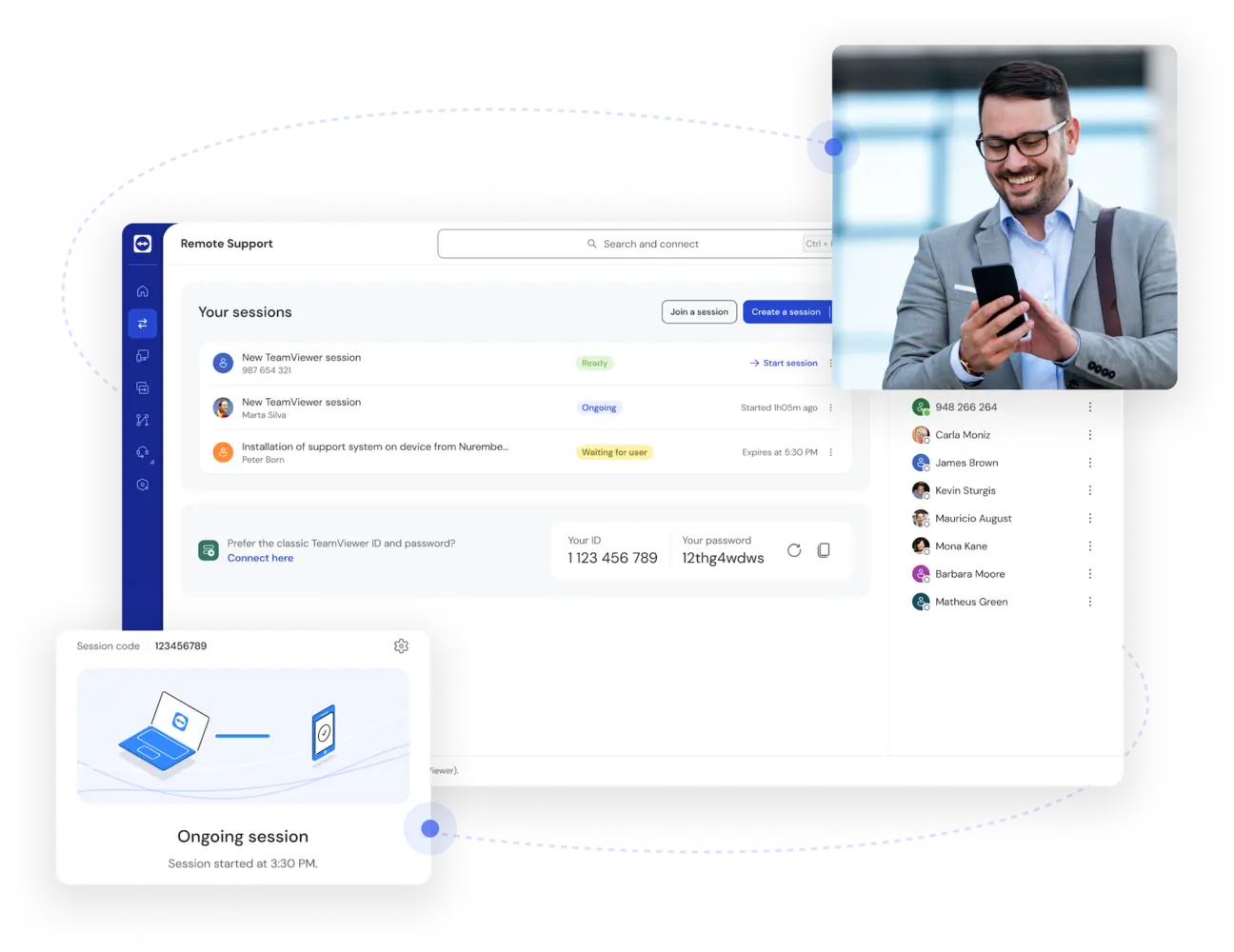
Active connection between computer and mobile device as seen in the TeamViewer client

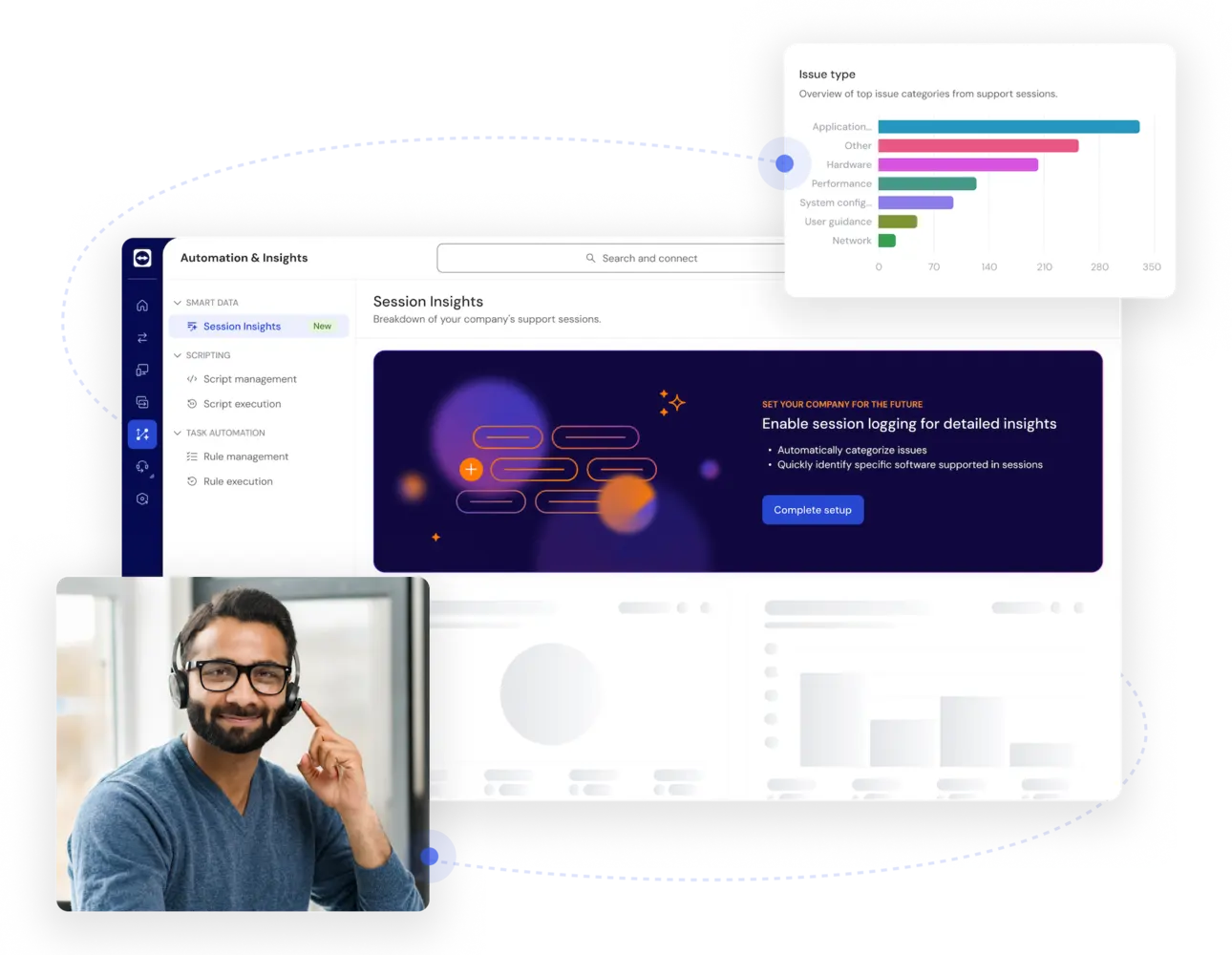
AI-powered support and automation

Boost productivity with AI-powered insights and automation, from real-time session summaries to in-session troubleshooting with Tia.

Discover how TeamViewer AI helps your support team resolve issues faster and work more efficiently.

Setup of Automation and Insights as seen in the TeamViewer client

Find the license that’s right for you

Choose if you need TeamViewer for yourself or your team.

What sets TeamViewer’s remote desktop software apart?

Video security icon
Security

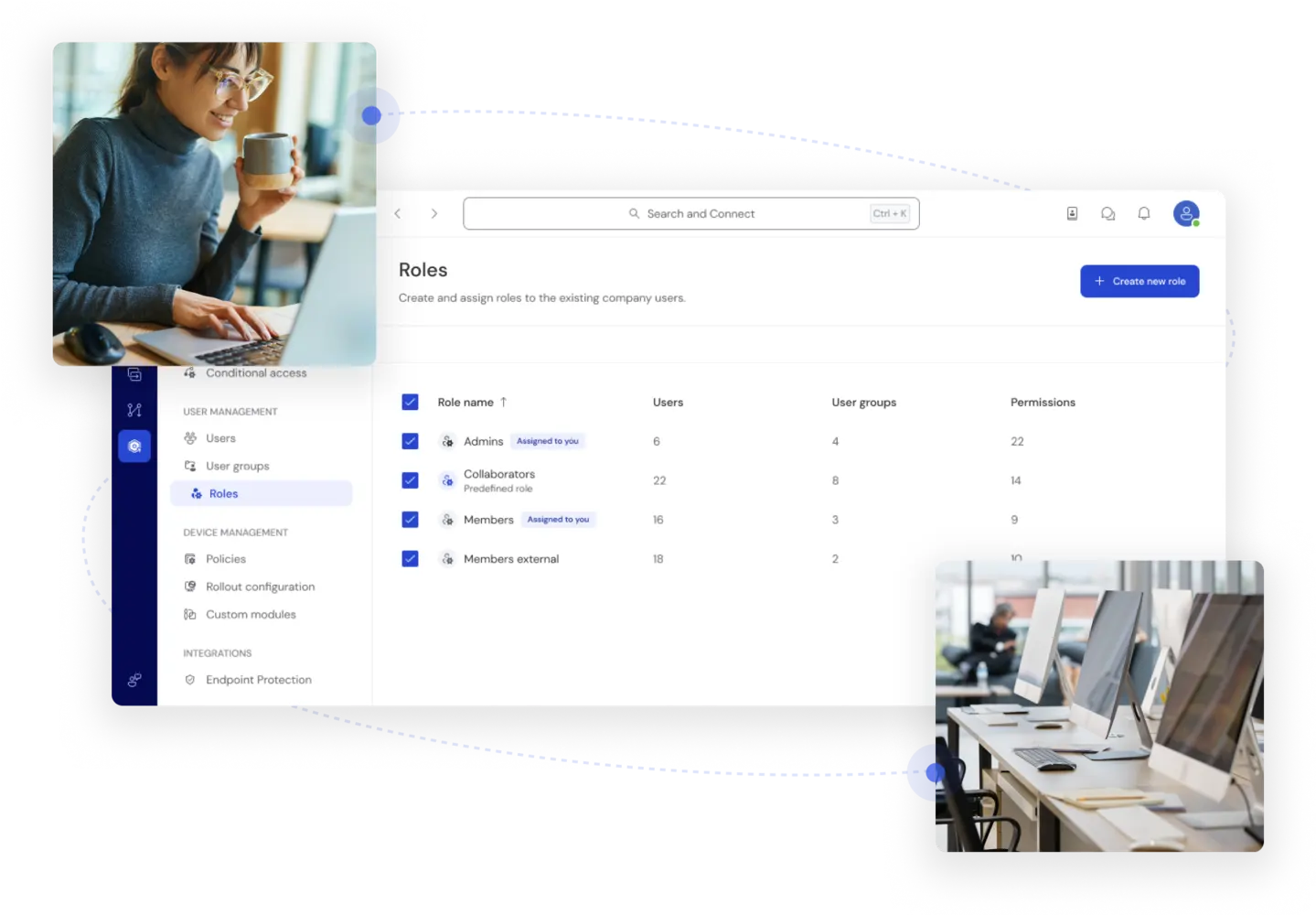
Enterprise-grade protection with end-to-end encryption keeps your data and connections secure. Single sign-on and custom access controls ensure robust security at every level.

Diversity icon
Compatibility

Universal access across all major platforms and devices—including Windows, Mac, Linux, iOS, and Android—delivers industry-leading compatibility.

Puzzle piece icon
Scalability

From individuals to enterprises, TeamViewer scales effortlessly with your needs, supporting teams of any size with flexible deployment options.

Wand icon
Simplicity

A user-friendly interface eliminates complexity, allowing anyone to set up and use TeamViewer without technical expertise.

Standard integrations icon
Integrations

TeamViewer's remote desktop client seamlessly works with your existing tools, including Microsoft, Salesforce, ServiceNow, and more.

Award-winning software for both individuals and companies

G2 Award: Leader
G2 Award: Momentum Leader
G2 Award: Fastest Implementation, Mid-Market (MDM, SAP Store)
G2 Award: Best Meets Requirements, Enterprise (SAP Store)
G2 Award: Top 50 IT Infrastructure Products
G2 Award: Users Love Us

How to set up a remote desktop

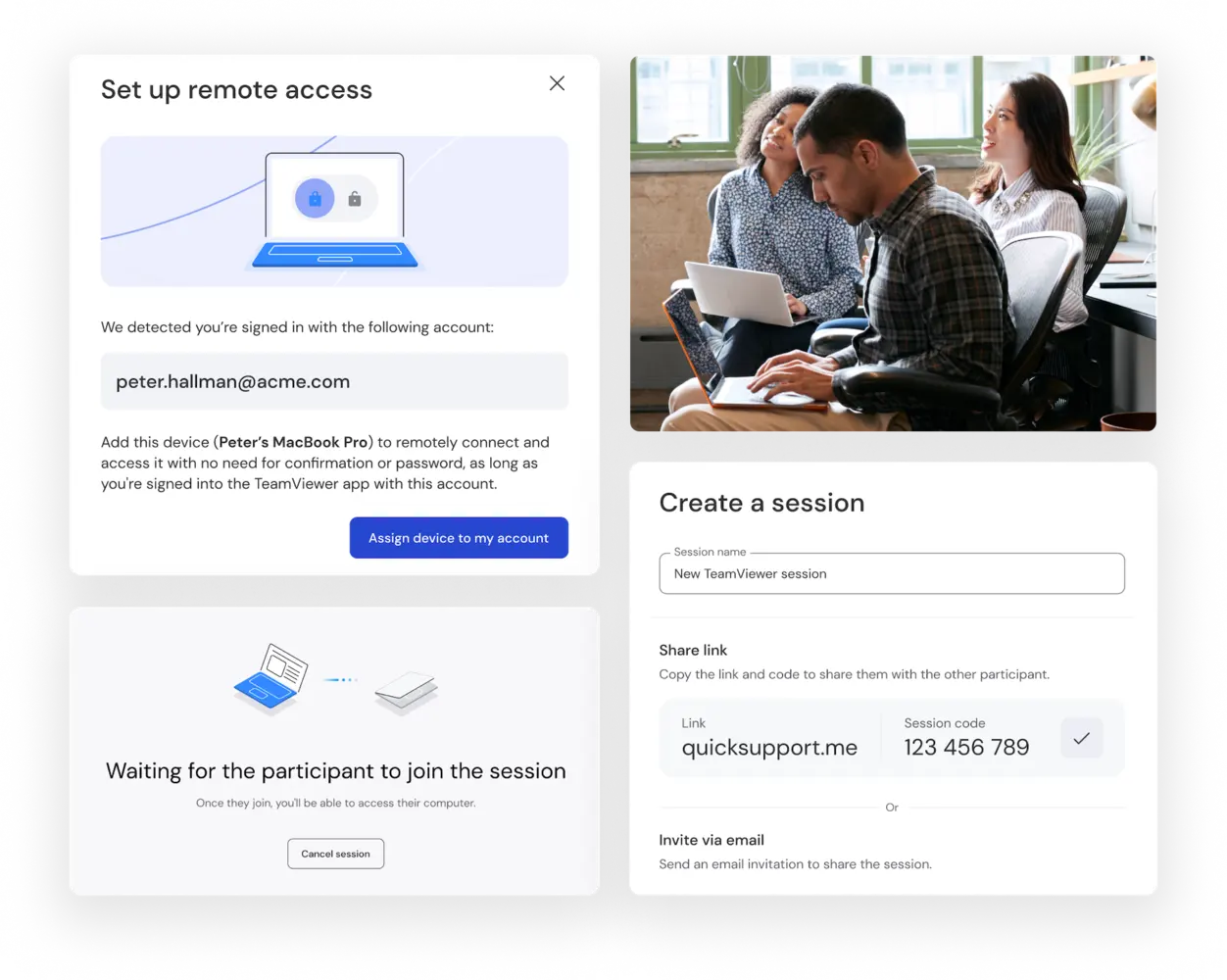
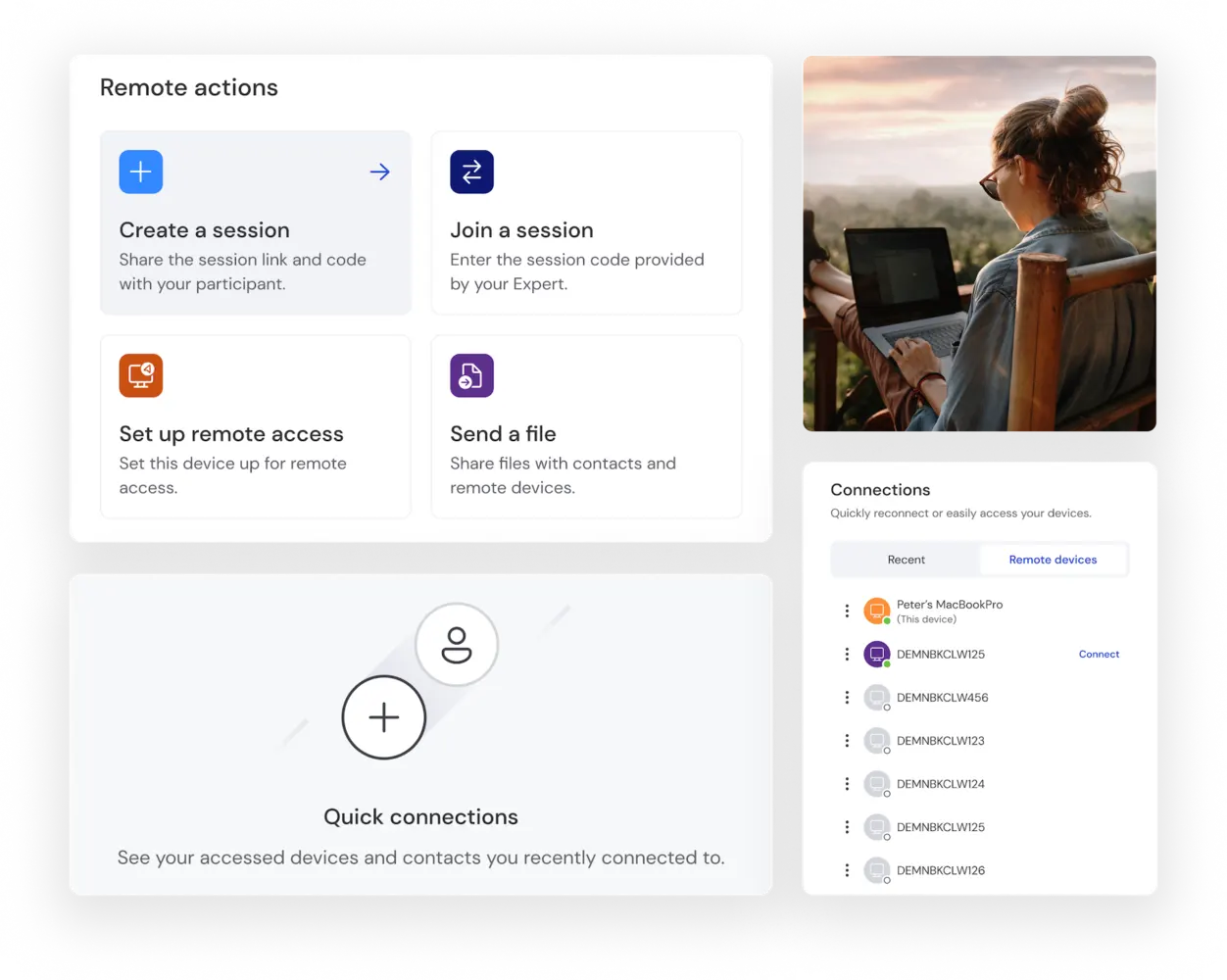
TeamViewer offers multiple ways to establish secure remote connections across all devices.

Providing remote support

To support another device remotely:

  1. Use our web app at web.teamviewer.com or download the TeamViewer application

  2. Sign in to your TeamViewer account

  3. Connect using either an invitation link or partner ID

The web app and desktop application both offer the same connection options for supporters, regardless of license type.

Receiving remote support

To receive support on your device:

  1. Download the appropriate TeamViewer application:
    • TeamViewer full client for Windows PC, iMac or MacBook, or Linux
    • TeamViewer QuickSupport for temporary access on all platforms
    • TeamViewer Host for permanent unattended access
  2. Share your unique ID with your supporter
  3. Accept the incoming connection

Note: You must have a TeamViewer application installed to receive support.

Mobile devices

For Android and iOS:

  1. Download TeamViewer QuickSupport, Host, or Remote Control from Google Play or App Store

  2. Use these apps to either receive support or control other devices

  3. Share your ID when receiving support or connect to other devices using their ID

Our cross-platform remote access software compatibility ensures you're securely connected, regardless of which devices you use.

See what our customers have to say

Remote desktop software for every user

TeamViewer meets a wide range of remote support needs for users across all industries and organizational sizes.

Ready to experience TeamViewer’s powerful remote desktop connection?


Spotlight

See what our customers have to say

Frequently asked questions (FAQ)

Remote desktop technology allows you to access and control a computer from a different location, viewing its screen and interacting with it as if you were sitting in front of it. The remote computer transmits visual information over a network, while keyboard and mouse inputs from the local device are sent back in real time.

This enables users to run applications, access files, and manage systems remotely with a seamless experience. Common use cases include remote work, IT support, accessing office or home computers while away, and maintaining systems across multiple locations.

With TeamViewer, simply install the application on both devices, start the program, and enter the ID and password of the remote device you want to connect to.

TeamViewer offers both a free remote PC tool for personal use and professional plans for businesses with additional features and security.

What constitutes the best remote desktop software depends on your specific needs, devices, and use case. Popular options include Chrome Remote Desktop, Microsoft Remote Desktop, and TeamViewer, each offering remote access and control capabilities.

TeamViewer stands out for its broad cross-platform support, unattended access features, and advanced security controls, making it a versatile choice for individuals, IT teams, and businesses managing remote devices.

Yes, remote desktop software can be safe when it uses strong encryption and secure authentication methods to protect connections and data. Features such as multi-factor authentication, device approval, and access controls help prevent unauthorized access.

Users should choose a trusted solution, keep software up to date, and verify that security features are enabled before connecting remotely.

With TeamViewer, establish a connection by entering the partner ID of the remote device, or connect through your saved contacts after setting up your account.

Remote desktop refers specifically to accessing and controlling a remote computer, allowing you to view its screen and interact with it as if you were sitting in front of it.

Remote access is a broader term that includes remote desktop connections as well as access to servers, mobile devices, networks, and unattended endpoints. In other words, remote desktop is one type of remote access, while remote access covers a wider range of devices and use cases.