
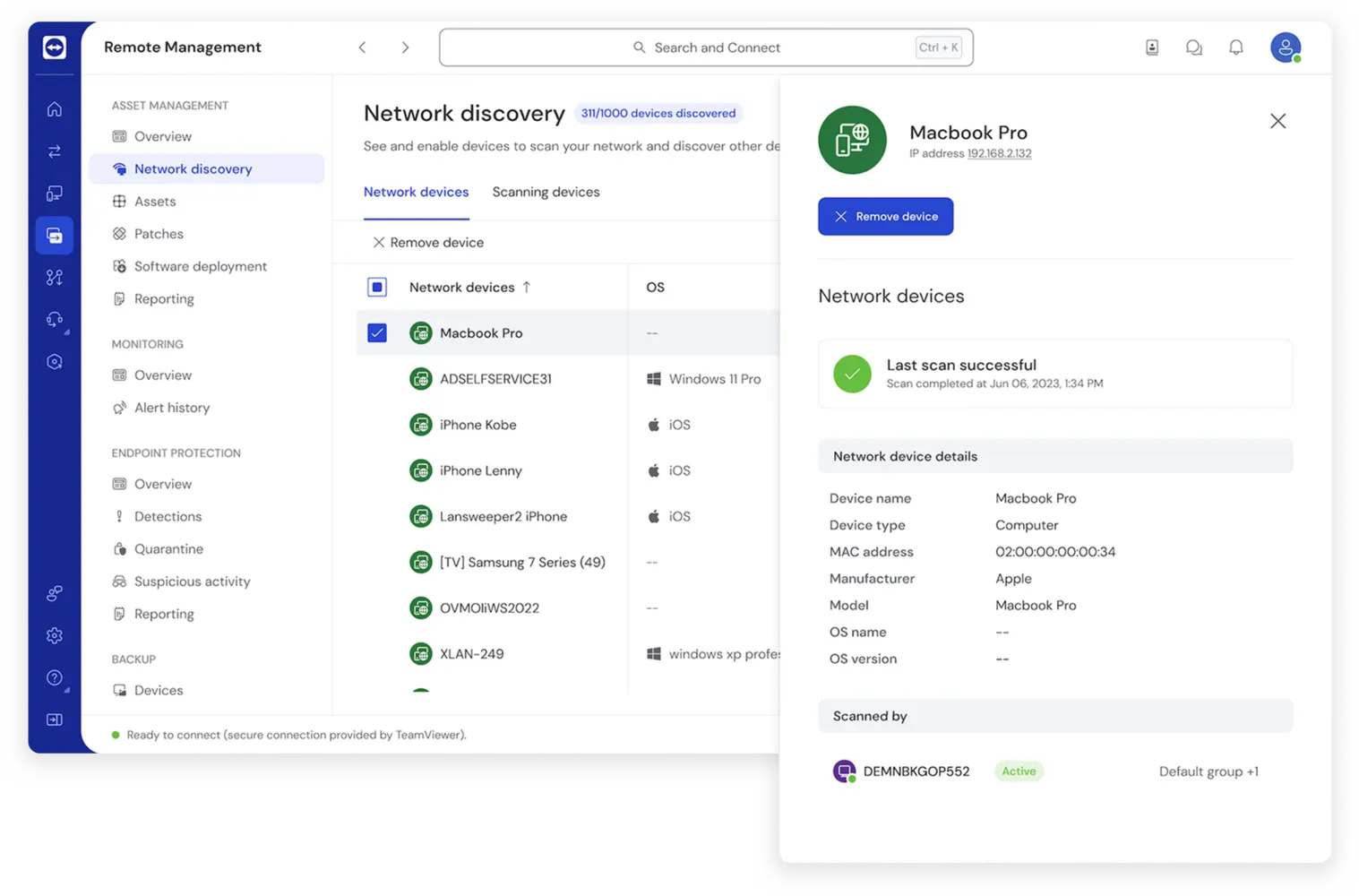
TeamViewer supports the highest combined total of 127 manufacturers among remote control software providers, so IT administrators and MSPs get cross-platform compatibility instead of compatibility headaches. Connect across PCs, mobile devices, servers, embedded systems, and IoT devices with the same login and the same remote control protocol.
What makes TeamViewer one of the best remote control software solutions?
TeamViewer combines cross-platform remote control, unattended access, and AI-powered automation in a single platform, so IT teams and MSPs can support any device, anywhere.
Get started in minutes. Install TeamViewer, launch the app, and connect using a partner ID and password. That's it. You control the remote device just like you're sitting in front of it, with no complex configuration needed. The remote PC control software works just as well for smartphones, printers, and other connected hardware.
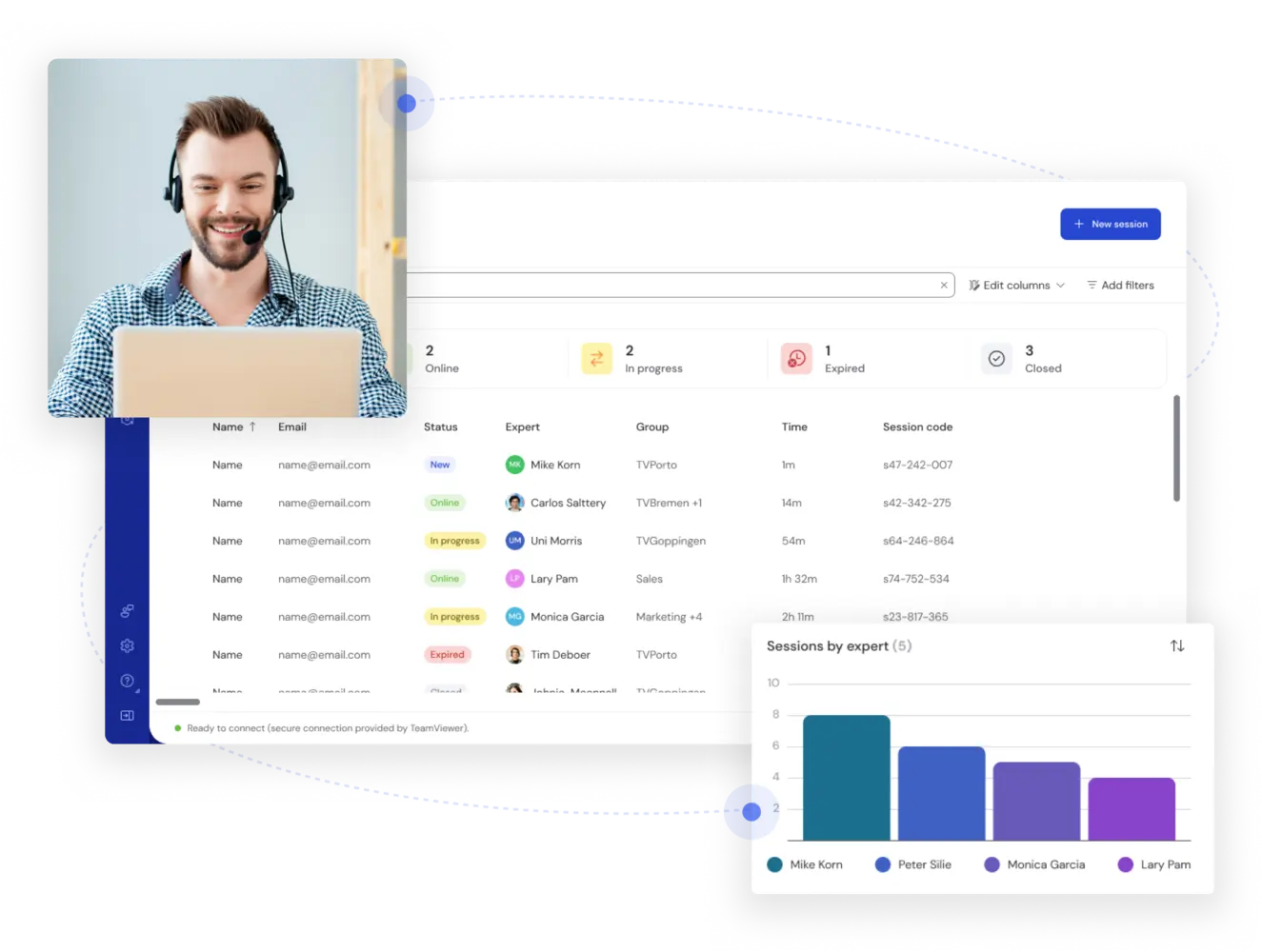
Unattended remote access gives IT admins and MSPs secure, always-on connections to servers, point-of-sale units, and industrial monitors, even across multi-client environments with hundreds of endpoints. That means your team can fix glitches, reconfigure settings, upload data, and roll out changes without anyone on-site, which is exactly what remote administration at scale requires.
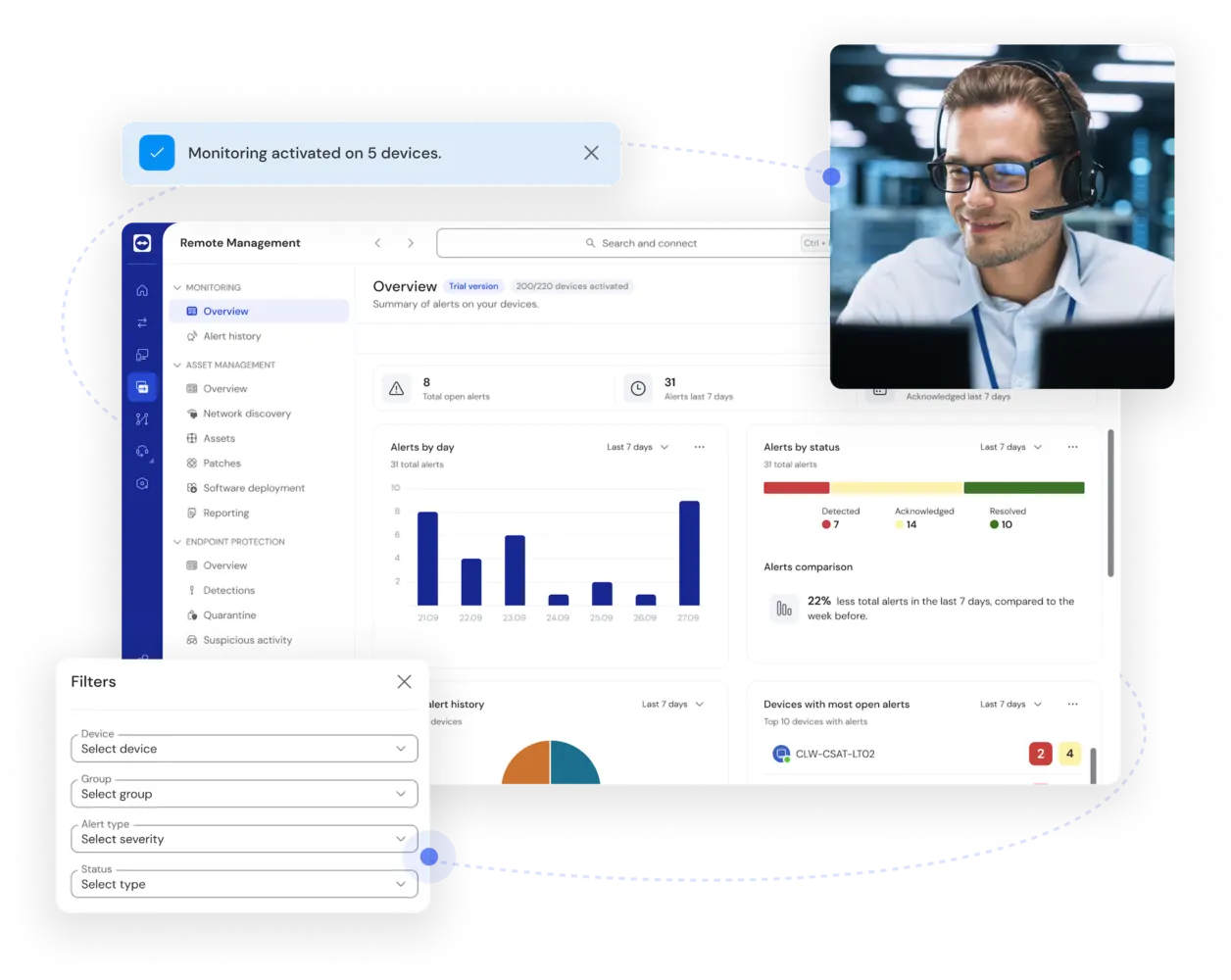
TeamViewer AI adds a layer of support to your sessions: suggesting fixes based on real device data and turning each ticket into a documented, audit-ready record on its own. That means faster resolutions, less time spent writing up what happened, and more hours back for the work that actually needs a human.

The remote control protocol
A remote control protocol establishes a session between two devices, authenticates both sides, and streams screen and input data with minimal latency.
TeamViewer secures this exchange with RSA public and private key exchange and 256-bit AES encryption, the same standard used in online banking.

Attended vs. unattended access
Attended access requires approval before a connection starts, making it ideal for ad hoc IT support. Unattended access remains available without approval, keeping servers, kiosks, and other devices accessible around the clock.
TeamViewer supports both from the same platform, allowing IT teams and MSPs to switch between connection types without changing tools.

Authentication and device control
Every TeamViewer session is authenticated before device control begins. IT teams and MSPs can enable two-factor authentication (2FA), restrict access with trusted device allowlists, and apply single sign-on (SSO) for centralized identity management. Granular permissions then determine exactly what users can see and do, from full device control to view-only access.


Key features of TeamViewer's remote control software
Built-in Wake-on-LAN functionality helps IT teams save energy while staying in control of unattended devices.
endpoint management. This gives IT administrators and MSPs secure, cross-platform remote device control across a full IT infrastructure, whether that's a tablet in someone's hand or an unattended industrial IoT system with no one nearby.
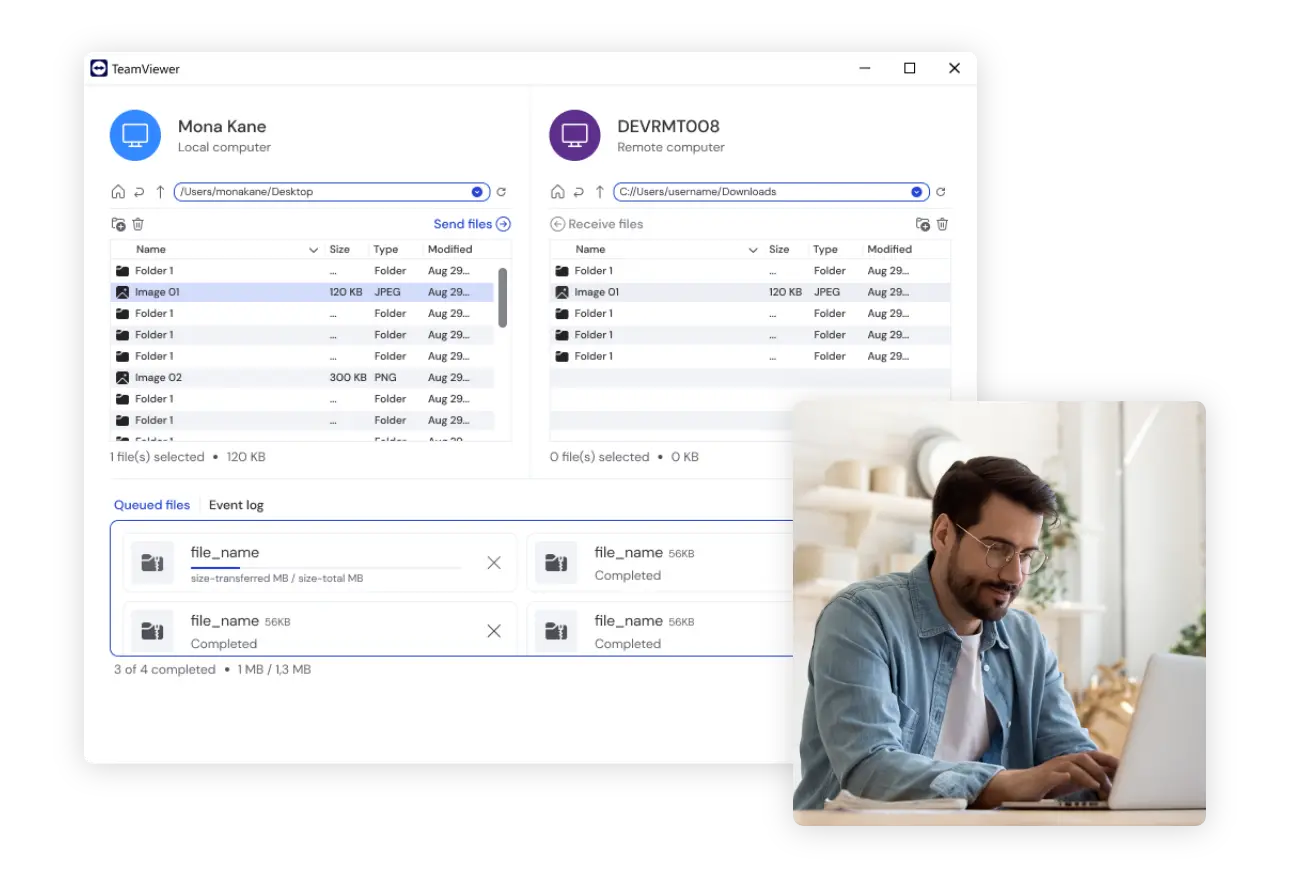
remote printing, or reach critical hardware features on the go. TeamViewer detects connected peripherals automatically, so your team can keep working even without their primary device on hand.
Tia, an intelligent agent that recommends fixes based on verified session history and live device data, and Session Insights, which turns each session into an audit-ready summary. With TeamViewer ONE, resolved incidents can also be turned into reusable scripts, so a fix your team builds once can be deployed again across other devices or groups.
Remote control software for all devices
100% device-agnostic, supporting all operating systems. And with the full-featured TeamViewer Remote web client, you can access all your devices from any browser.


Windows, Mac, and Chrome
Need to access a document on your work computer? With TeamViewer Remote, you can easily control any remote device—Windows, Mac, or Chrome.
To use TeamViewer Remote, simply connect to the remote desktop software through your browser by using the web client.
- Next, sign into your TeamViewer account and create a remote session link.
- Share this session link with your recipient. The link will take them directly to the QuickSupport app. If the recipient doesn't have the QuickSupport app, it will be automatically installed.
- Begin the session on your recipient's device to connect and remotely control the incoming device.
Android, iOS, and Linux
Want to control your iOS or Android device remotely from your other devices? Setting up TeamViewer Remote is easy. Start remote access for your iPhone, iPad, Android phone, or tablet (any manufacturer) by opening the web client or downloading the app for your device from the TeamViewer website.
Linux computers
- Access TeamViewer through the web client.
Or click on the TeamViewer for Linux icon on the TeamViewer download page. - Select the download option most appropriate for your version of Linux. If in doubt, select the 64-bit DEB package.
Follow the installation and options on our Linux remote desktop session information page.
Other systems
For more specific use cases, explore our guides on how to connect to Raspberry Pi and remote control of IoT devices like heating systems.
How TeamViewer compares to other remote control software
Most remote control tools handle the basics: connect to a device, control it, transfer a file. Fewer combine enterprise-grade governance, AI built into the session itself, and broad device coverage in the same platform, and that combination is where TeamViewer's remote control software pulls ahead.
| TeamViewer | Other remote control tools | |||
|---|---|---|---|---|
| Governance & security |  | Enterprise-grade security and governance built to scale, from baseline encryption and 2FA up to advanced access controls as an organization grows |  | Basic security only, often with encryption and access controls as the ceiling rather than the starting point |
| Session auditability | | Full auditability across attended and unattended sessions, useful for compliance and training | | Limited to basic connection logs |
| AI support | | Available as the TeamViewer AI add-on, built natively into the remote control session | | Bolted on through a third-party integration, or not available at all |
| Device coverage | | 127 manufacturers, including IoT and industrial (OT) systems | | Standard desktop and mobile OS support |
| Integrations | | 25+ integrations, including Salesforce, SAP, and Microsoft Intune | | A handful of PSA or ITSM connectors |

118,115 reviews

3,649 reviews

2,714 reviews

11,513 reviews
See what our customers have to say
How IT teams and MSPs get real results with TeamViewer
Frequently asked questions (FAQ)

Ready to take control of every device on your network?
Whether you're an IT manager standardizing support across your organization or an MSP managing dozens of client environments, TeamViewer's remote control software gives you the reach, security, and AI-powered speed to do it from anywhere.


