
Knowledge Base
Connection reports
Ultima modifica: 31 mar 2026
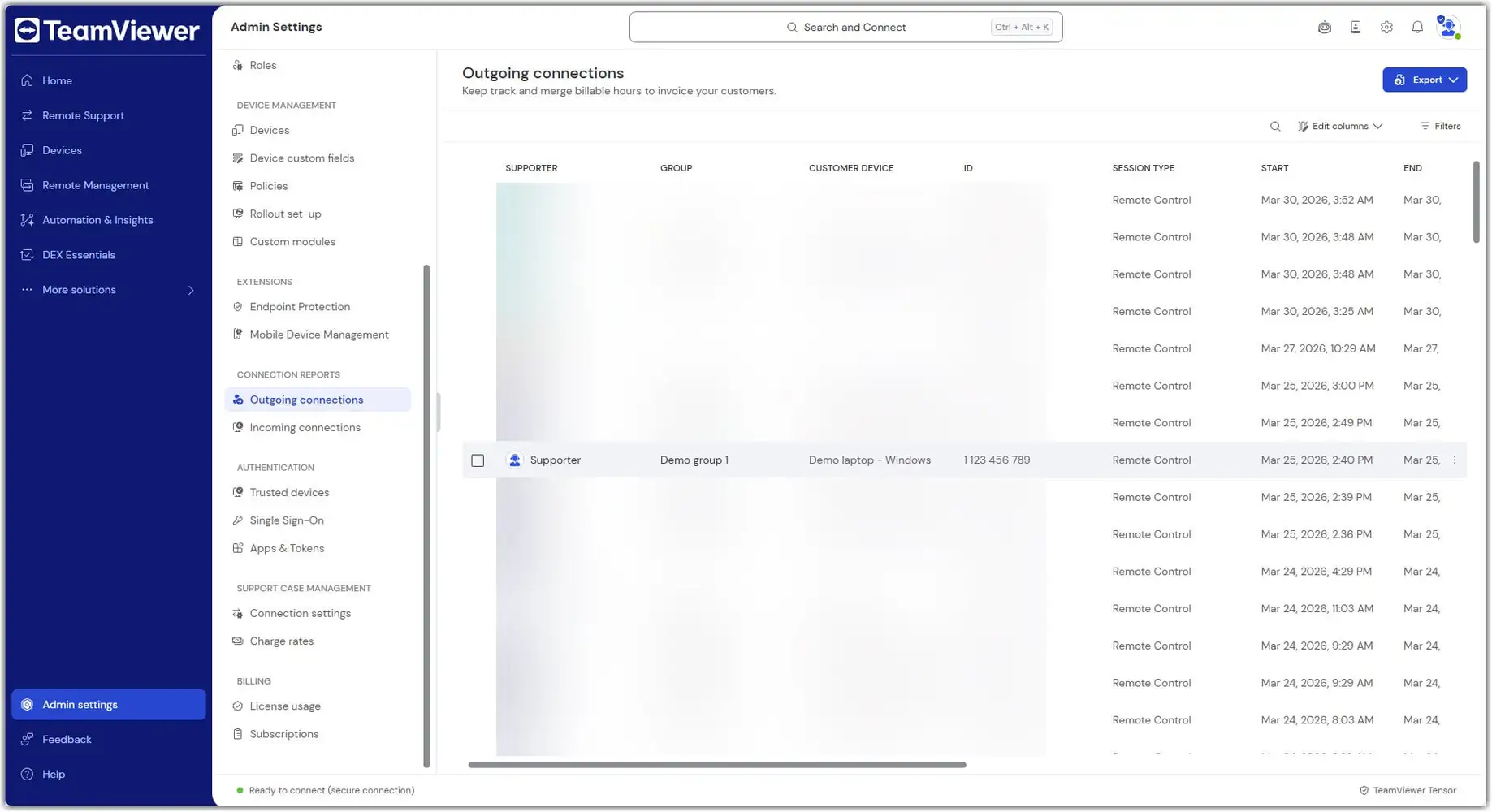
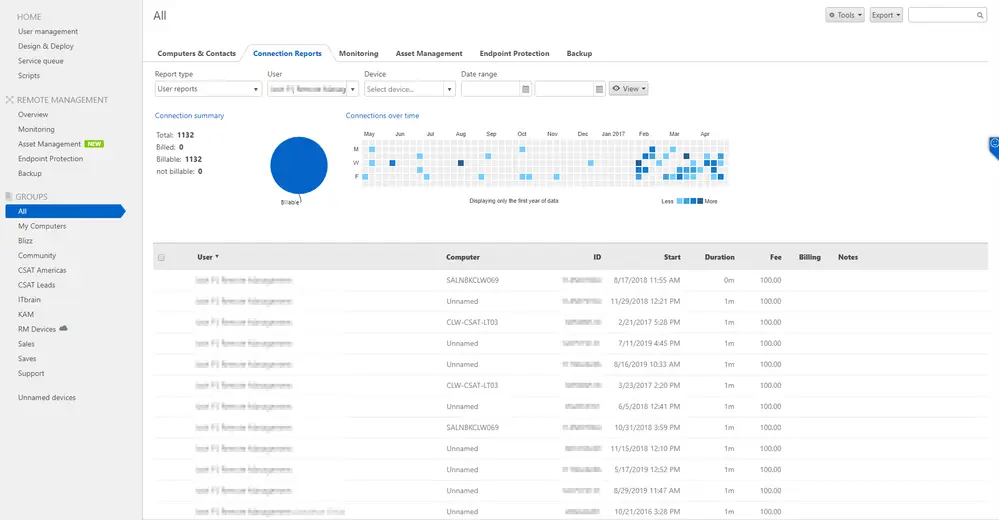
With TeamViewer, incoming and outgoing connections from users within your company and to your managed devices can be logged in the TeamViewer Admin settings or via the Management Console.
This article applies to users with Premium, Corporate, or Tensor licenses.
Accessing connection reports
To access connection reports, follow these steps:
Outgoing connections
Outgoing connections are logged for users only if this function is enabled in the TeamViewer account of the user (enabled by default) and if they are logged into their TeamViewer account when establishing a connection.
In Remote, outgoing connections are reported for ID, password, and session code connections.
Filters can be used in both reporting functions to change the search parameter by expert, group, customer device, session type, billing, or date range, depending on the license.
Incoming connections
Incoming connections are logged for devices, but the devices would need to be assigned to the administrator account of your company profile, and the policy report connections to this device would need to be applied to all devices for which connection reports are needed.
Set up reports for incoming connections
The reports for incoming connections or device reports are part of the TeamViewer setting policies. If you add this setting to a policy, every device assigned to this policy will be affected by this change. The policies are managed in the TeamViewer Remote Admin settings.
Set up a settings policy for device reports
Note: Device access reporting is only available with a TeamViewer Corporate or Tensor license plan. Please check the full comparison of the different TeamViewer plans on our website to see which features are available for your plan.
Caution: When updating a policy applied to a device group with the report connections to this device setting, it is necessary to ensure the policy is also applied to each device within the group. To do so, select each device, select Edit from the header bar options, select Edit policies, and then, under the option ‘Inherit policy from group’, select the updated policy containing the Report Connections to this Device setting.
This enables an Administrator to have a detailed report of who connects to devices assigned to their account once the connection has ended.
Depending on the license, filters can be used in both reporting functions to change the search parameter by User, Origin ID, Target device, group, or Date range.
In addition, the reports can be printed directly from the Admin settings or exported to a CSV file for use with different reporting applications.
Note: The connection time shown in the exports is in Coordinated Universal Time (UTC).