Insights

How to update your browser: A quick and easy guide

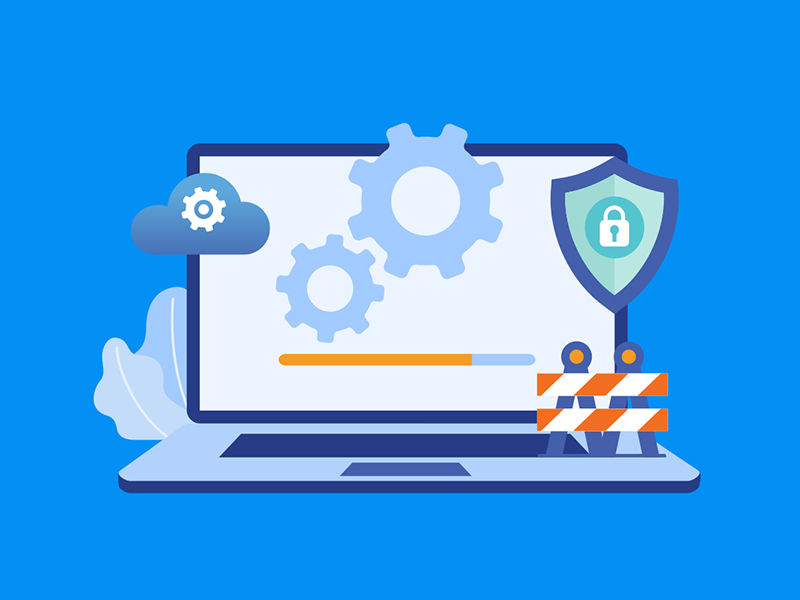
Every unpatched browser is an open door for cyber threats, performance degradation, and compatibility failures. This guide provides the essential knowledge IT professionals need to manage and execute browser updates efficiently, securing the digital perimeter.

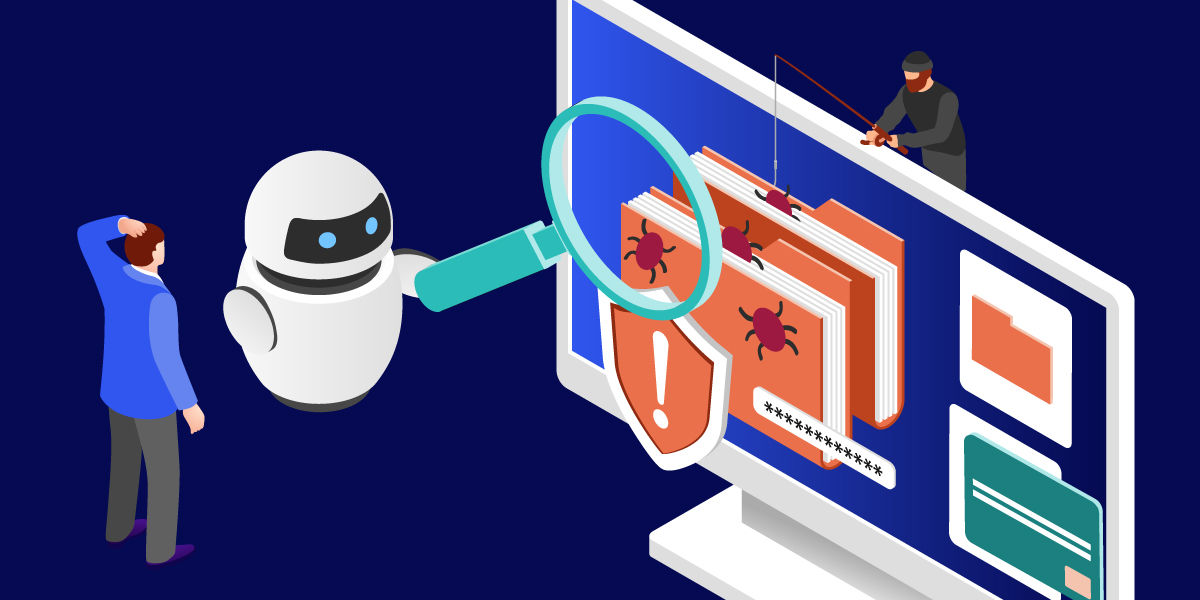
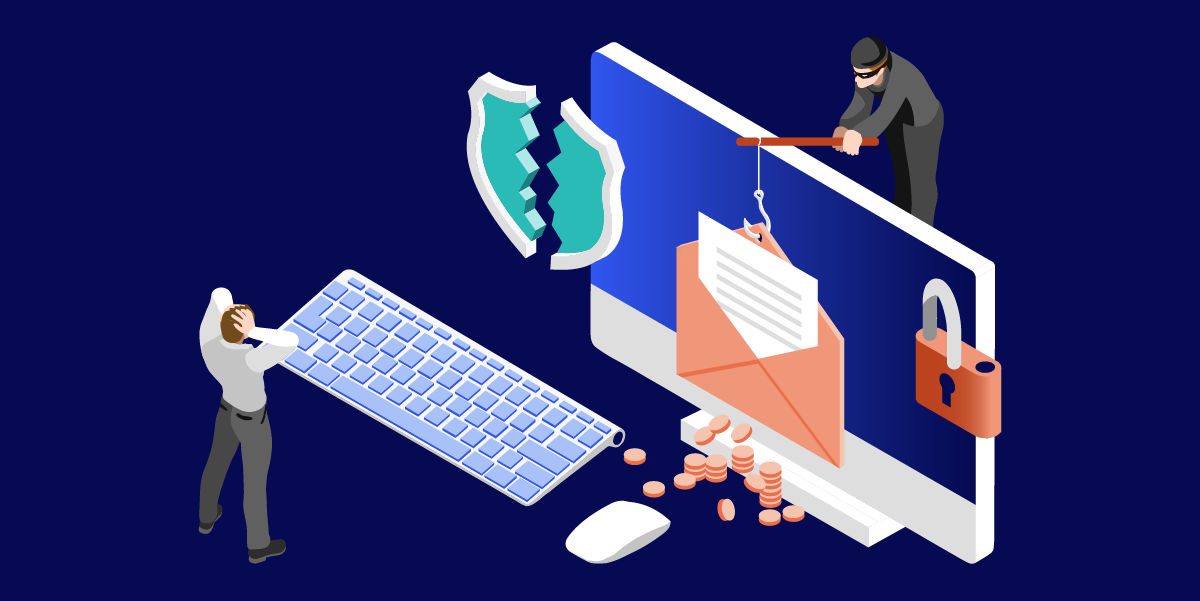
For any enterprise, the web browser is the primary gateway to the internet and cloud-based applications. However, this constant connectivity also makes the browser a prime target for malicious actors seeking to exploit software vulnerabilities. A single outdated browser on a company device can compromise an entire network.

Therefore, implementing a robust browser update policy is a core component of modern cybersecurity and IT management. The process ensures every device is protected with the latest security patches.

This guide will focus primarily on Google Chrome, the dominant browser in the corporate world, detailing how to update it across various platforms and manage the process at scale.

In this article

  • Why keeping your browser updated is non-negotiable
  • Step-by-step: How to update your browser (Google Chrome focus)
  • Managing browser updates across an enterprise
  • Common questions and troubleshooting browser updates
  • A proactive approach to browser security

Why keeping your browser updated is non-negotiable

An unmanaged browser environment is a significant liability. Regularly updating your organization's browsers is a foundational security measure that protects against a wide array of threats and ensures operational continuity. Failing to do so introduces unnecessary risks that can have far-reaching consequences.

Strengthen security through regular updates

The most critical reason to update is enhanced security. Browser developers constantly release security updates to patch vulnerabilities discovered in their software. Cybercriminals actively scan for devices running older browser versions, using automated tools to exploit these known weaknesses and launch attacks like malware injection, phishing, and data theft.

Improve performance and stability

Performance and stability are also key factors. Each new browser version includes optimizations that make it faster and more efficient. A google chrome latest version will render web pages more quickly, handle complex web applications with less strain on system resources, and crash less often, directly impacting employee productivity.

Maintain compatibility with modern web standards

Finally, updates ensure compatibility with modern web standards. As web technologies evolve, websites and applications are built to work with the latest browser capabilities. An outdated browser might fail to render content correctly, or worse, be unable to access critical business applications, leading to workflow disruptions and support tickets.

Step-by-step: How to update your browser (Google Chrome focus)

While Google Chrome is designed to update automatically, manual checks are crucial in a corporate environment to ensure compliance and immediate patching. The process is straightforward but varies slightly depending on the device and operating system.

Knowing how to initiate a Chrome update download manually is a vital skill for any IT professional. This ensures that a pending update is applied immediately rather than waiting for the browser's automatic cycle, which can sometimes be delayed.

It's also important to verify the current version number to confirm that an update was successful. This simple check provides certainty that your device is running the intended, secure version of the browser.

Below are the specific steps for the most common platforms used in business environments. Following this guidance will help you secure every computer and mobile device in your network.

How to update your browser on Chrome (Desktop: Windows & Mac)

For Windows 10, Windows 11, and macOS devices, the process is nearly identical.

  1. Open Google Chrome on your computer.
  2. In the top-right corner, click the three vertical dots (More menu).
  3. If an update is pending, the icon will be colored: green for 2 days, orange for 4 days, and red for 7 days.
  4. Navigate to Help > About Google Chrome.
  5. Chrome will automatically check for and download any available update. You might need to click Relaunch to apply the update and finish the process.

How to update your browser on Android

Mobile device security is just as important as desktop security. Here’s how to update Google Chrome on Android.

  1. Open the Google Play Store app on your device.
  2. Tap your profile icon at the top right.
  3. Tap Manage apps & device.
  4. Under "Updates available," find Chrome. If it's on the list, tap the Update button next to it. If you don't see it, your browser is already up to date.

How to update your browser on Chromebook

Chromebooks are managed differently, as the browser is integrated into the operating system (ChromeOS). Updates normally happen automatically.

  1. To check for a system update, click the time in the bottom-right corner.
  2. Click the Settings gear icon.
  3. In the left menu, select About ChromeOS.
  4. Click Check for updates. If an update is found, your Chromebook will download it. You will need to restart the device to apply it.

Managing browser updates across an enterprise

Ensuring a single browser is updated is simple. Ensuring thousands of browsers across a distributed workforce are consistently updated presents a significant logistical challenge. IT teams must manage different operating systems, device types, and user behaviors.

Implement a centralized browser management strategy

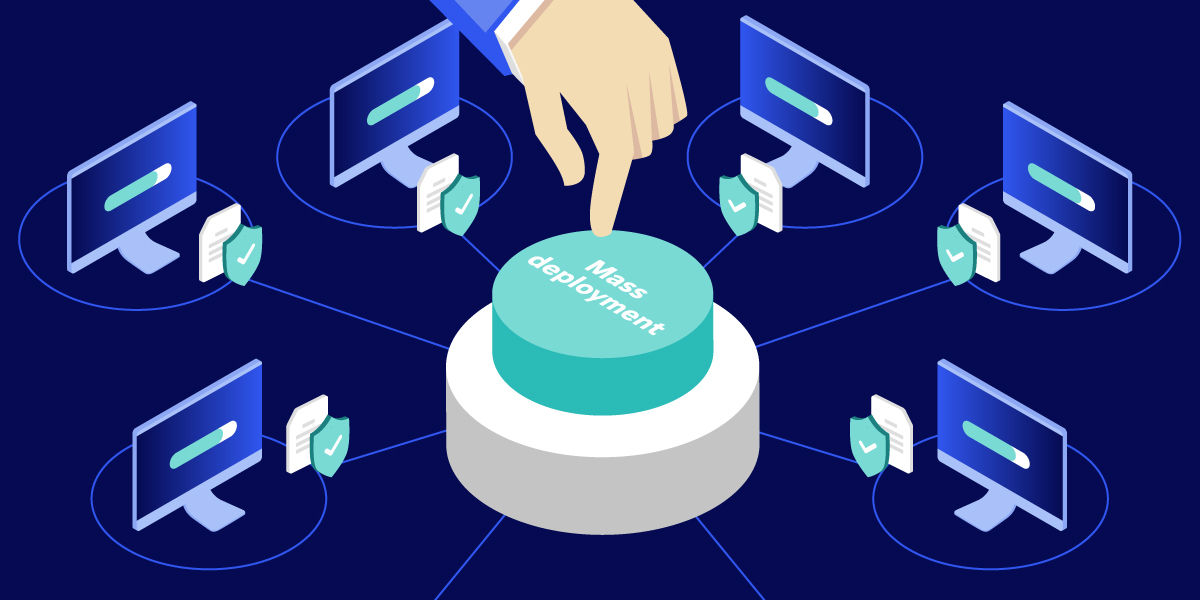
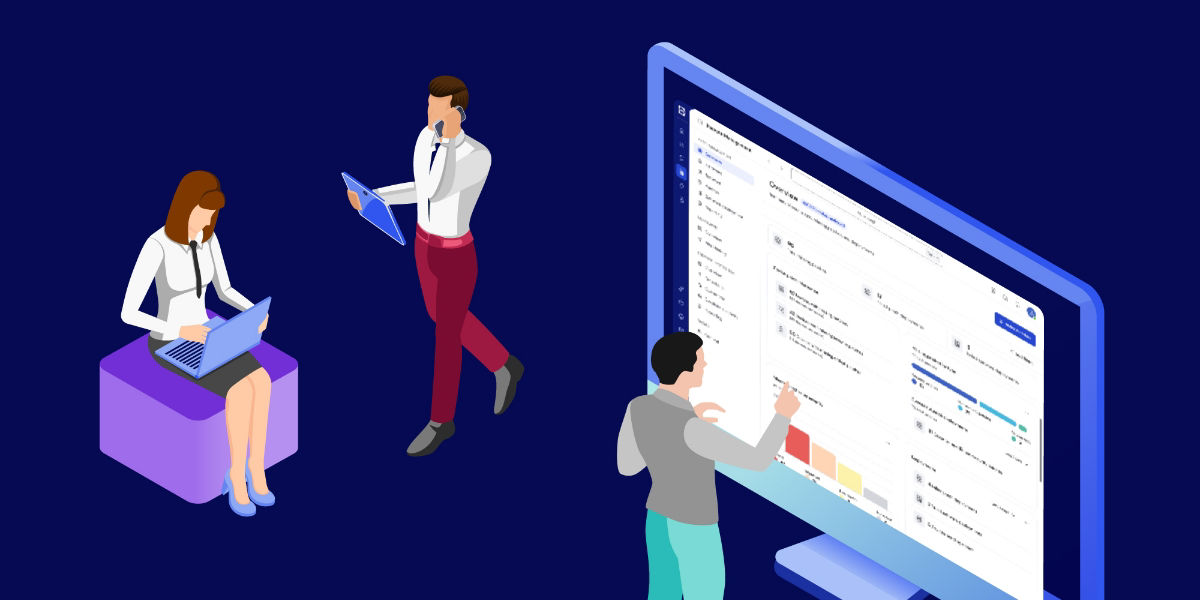
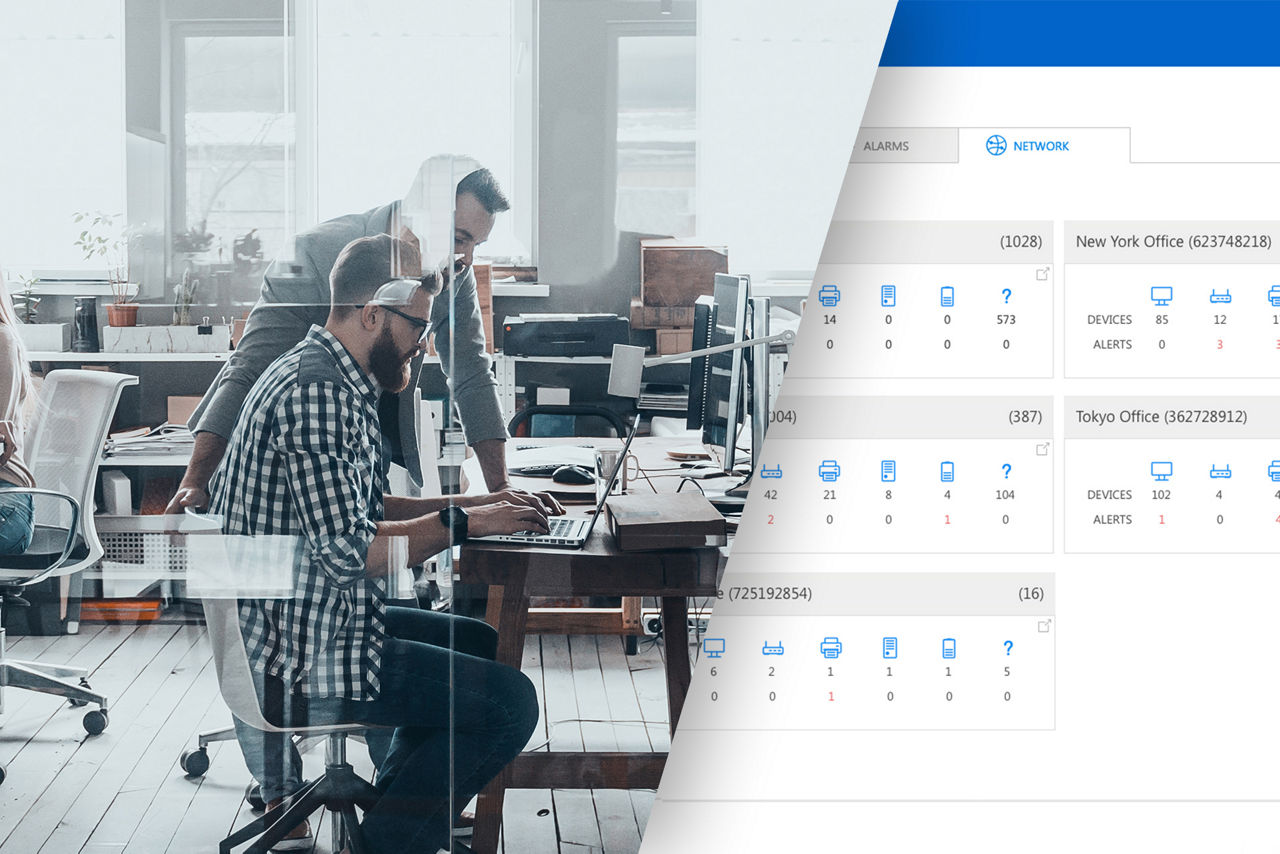
A centralized management strategy is essential. Tools like Google Workspace's Admin console allow administrators to manage Chrome browser settings and updates for their organization. This includes setting policies to enforce automatic updates, controlling which extensions can be installed, and monitoring the browser version across all managed devices.

Enable secure remote support for browser management

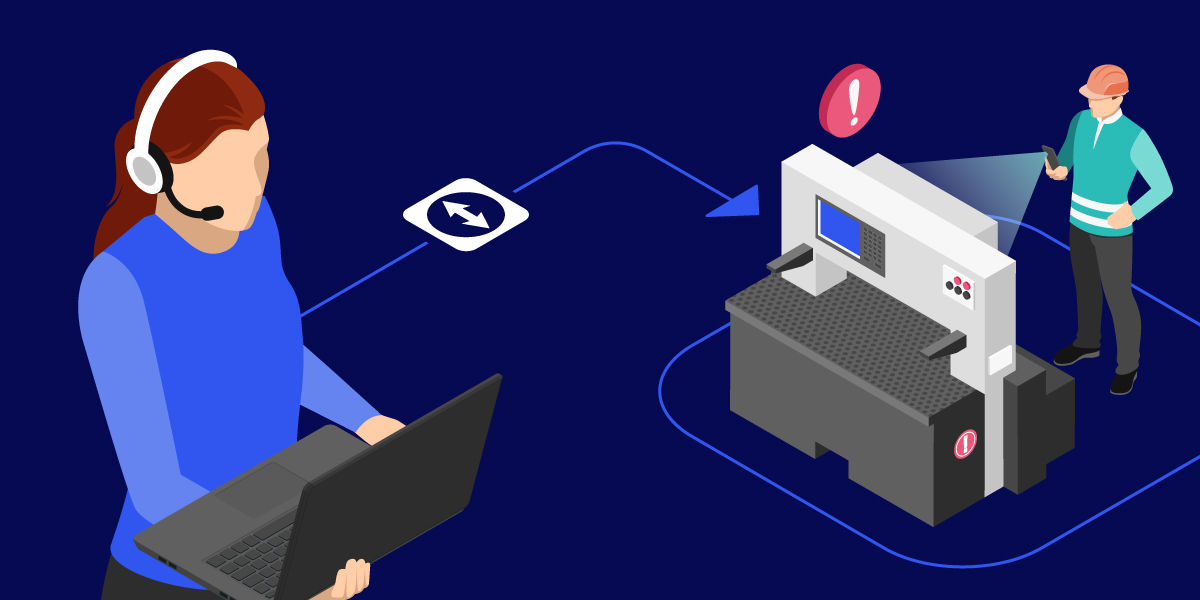
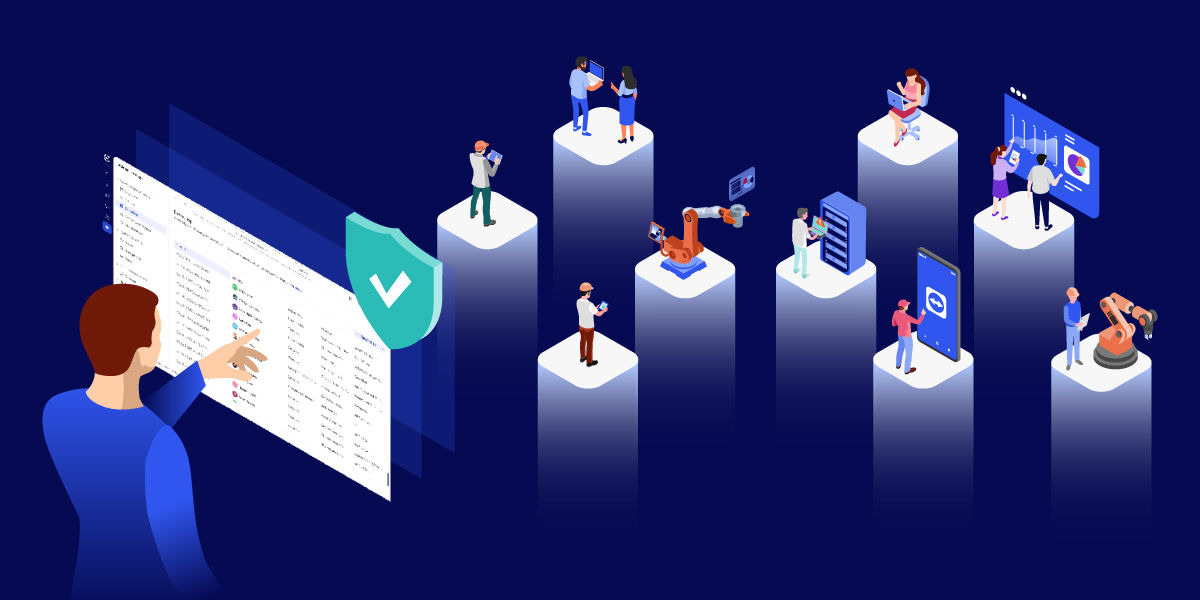
For remote IT support, maintaining security on every device is paramount. This is where seamless remote access and control become critical. A secure, up-to-date browser is the first line of defense, but when issues arise, IT professionals need the ability to connect to a device securely and resolve problems without delay. By providing a secure connection to any device, TeamViewer empowers IT teams to manage software, troubleshoot issues, and ensure that security protocols, like mandatory browser updates, are correctly implemented, no matter where the employee is located.

Furthermore, managing updates on remote machines can introduce unique problems. IT staff often face challenges when a Google update download fails on a remote computer or when a user cannot apply a patch. Addressing these issues updating remote software requires a robust toolset and a clear understanding of potential failure points, from network restrictions to insufficient user permissions.
Common questions and troubleshooting browser updates

Even with automated systems, update processes can sometimes fail. IT professionals should be prepared to address common issues to minimize disruption and keep the organization protected.

Fixing pending browser updates

One frequent problem is a pending update that won't apply. This can happen if the browser has been open for an extended period. The simplest solution is to completely close and reopen the browser or restart the computer. This action often allows the update to finalize.

Understanding “managed by your organization” messages

Another issue is when the browser reports it's "managed by your organization." In this case, individual users cannot manually update the browser. The update is controlled by company policy and pushed out by the IT department. If you believe a security update is needed, you should contact your IT support team.

Handling browser interface changes after updates

Sometimes, users might notice that the browser looks different after an update. This is normal, as updates often include user interface changes alongside security and performance improvements. Communicating these changes to employees can help reduce confusion and unnecessary support tickets.


A proactive approach to browser security

Maintaining an updated browser is not a one-time task but an ongoing process. It's a fundamental aspect of digital hygiene that protects sensitive corporate data, ensures employee productivity, and maintains the integrity of your IT infrastructure.

The core message is simple: treat your web browser as a critical piece of enterprise software. Just as you would patch your operating systems and servers, your fleet of browsers requires the same level of attention and diligence to remain secure and functional.

By understanding how to update your browser on every device—from a Windows 10 computer to a Chromebook or Android phone—you build a stronger, more resilient security posture. This proactive stance is far more effective than reacting to a security breach after it has already happened.