
Knowledge Base
TeamViewer Remote FAQ
Ultima modifica: 27 feb 2026
You asked, we listened. Your top frequently asked questions about the all-new TeamViewer Remote, answered.
Where are my TeamViewer ID and password?
Your ID and password can now be found on TeamViewer Remote’s main interface.
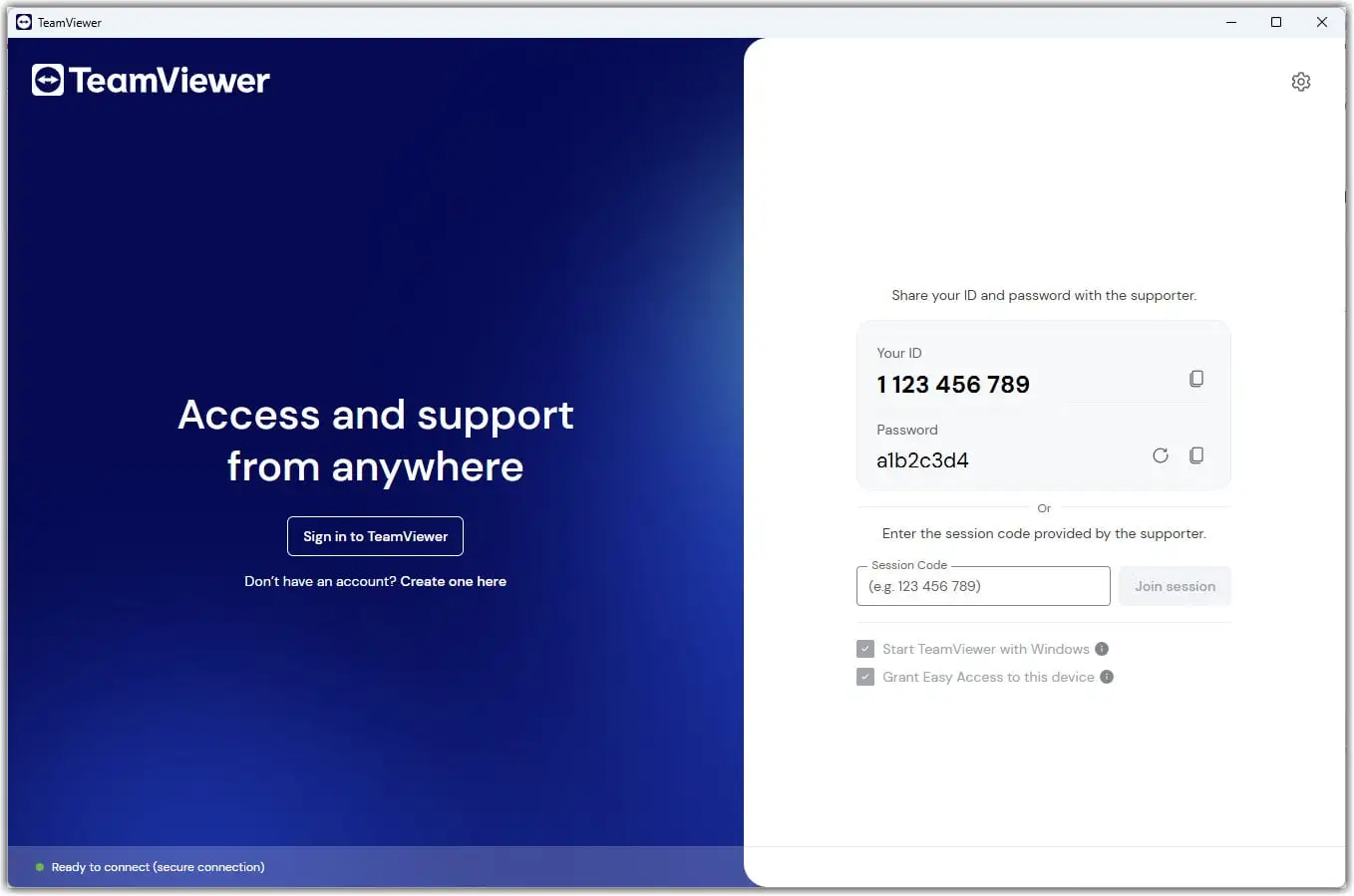
Find out more here: Where to find my ID and password?
How can I set up access without asking an end user to log in?
You can set up unattended access (setting up access to a device when an end-user is not present on the remote side) without asking an end-user to log in by installing TeamViewer Host.
Follow the step-by-step guide on how to install TeamViewer Host and set up unattended access here:
How can I provide remote support to my end-users?
You can provide attended remote support (remote support when an end-user is present on the remote side) to an end-user by creating a session via TeamViewer Remote and sharing the session link with them via chat, WhatsApp, or email.
Find the full guide to creating and joining a session here:
Why should I use session links instead of my TeamViewer ID and password?
Session links provide you with a safer, easier way to connect. Sharing passwords is outdated; it is more secure to directly share a session link via chat, WhatsApp, or email. More info here:
The advantages of session links over ID and password sharing
How can I migrate my devices to the new device management system?
To migrate your devices, please follow the instructions in the video below:
Alternatively, you can also read the complete guide here: Update your devices.
Can I still connect via IP or a device name?
Yes. To connect in LAN mode with TeamViewer, please read this article.