Knowledge Base
TeamViewer insider builds
Last Modified: May 21, 2026
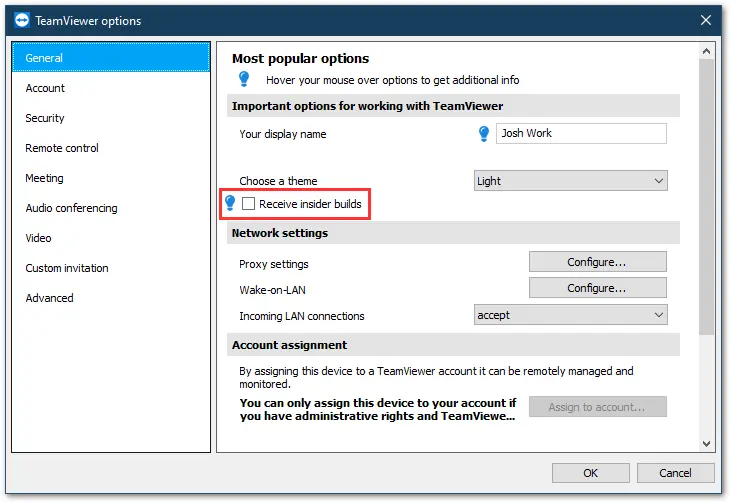
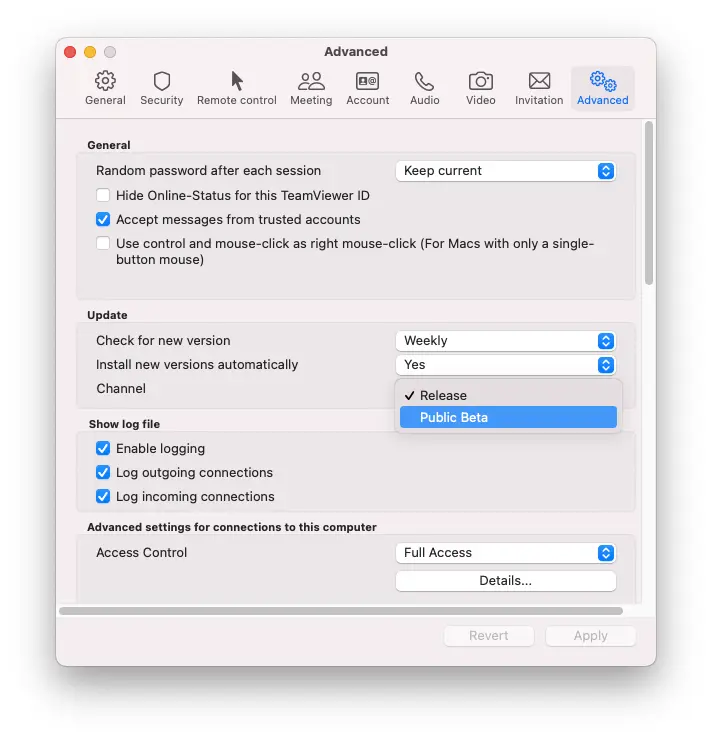
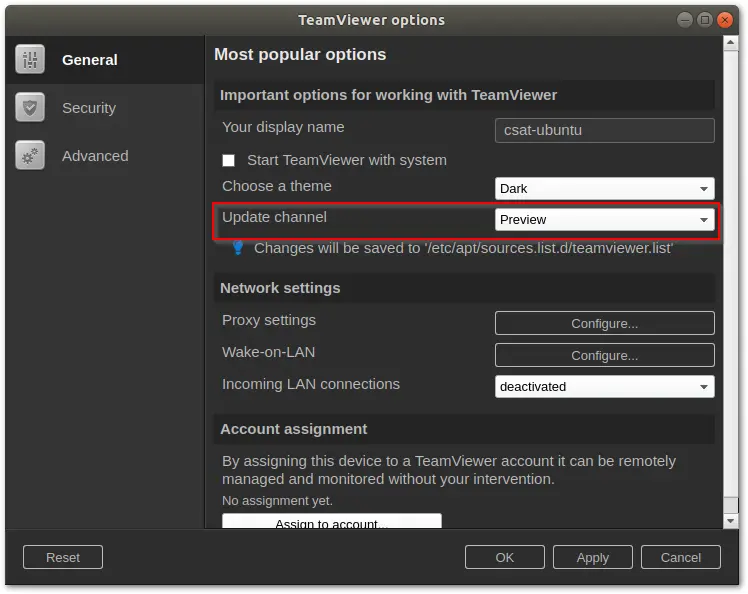
Insider build is the name for our pre-release versions of TeamViewer for Windows. On macOS, the pre-release versions are called Public Beta. On Linux, they are called Preview. The intention is to get early feedback on new features, improvements, and developments before a public release.
Due to this, TeamViewer insider builds may not be fully tested for functionality and may contain bugs, as they are essentially snapshots of the current development state.
It is not recommended to install an insider build in a production environment or to roll it out globally on all devices.
For testing and early access to new features, it is recommended to install the insider build on devices that you can reach directly, so that the device can be reverted in the event of a bug appearing.
Receiving insider builds via Policy Rules
You can also enable receiving insider builds through policy rules. The policy named Receive insider builds, when enabled, ensures that devices automatically receive insider builds. Learn more about Policy Rules.
This article applies to all TeamViewer Remote users.
Install insider builds
TeamViewer contains settings that allow receiving insider builds. The location of the setting differs between operating systems:
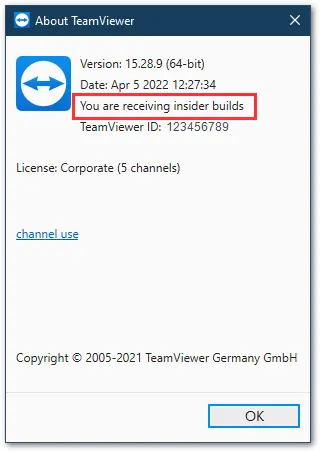
Do I have an insider build?

Providing feedback
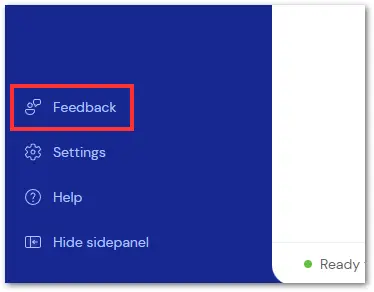
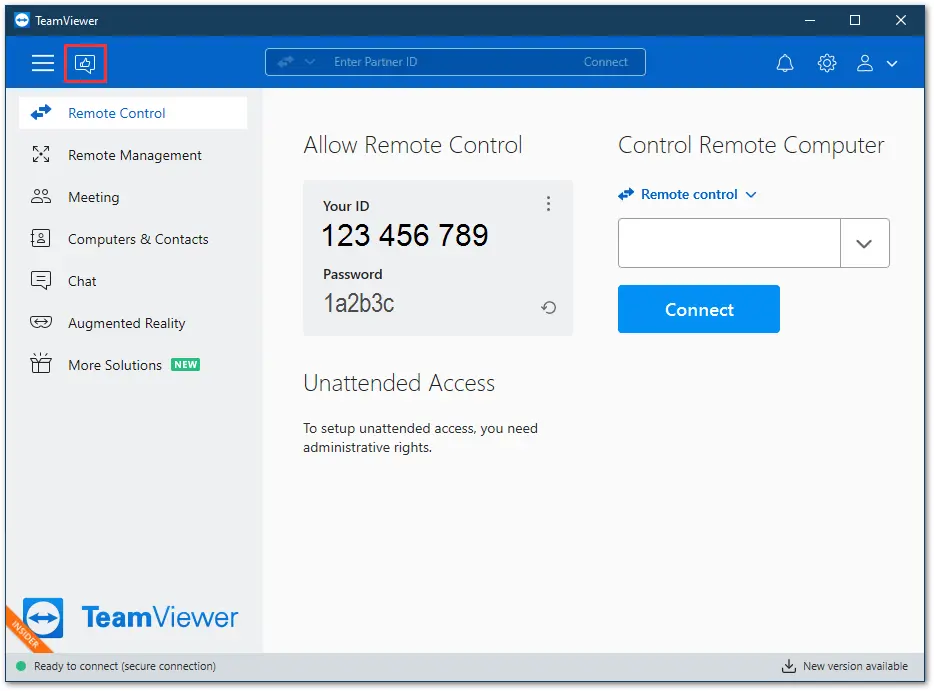
You can provide your feedback about the Insider Build using the Feedback button.
How to uninstall an insider build
To revert to the public version of the TeamViewer software from an insider build, you must first uninstall it completely.
After uninstalling, you can install the latest public TeamViewer version, which is available on our website.
After installation is complete, ensure the setting Receive insider builds in the TeamViewer General options is unchecked to ensure no future Insider Builds are installed.